W3.CSSResponsive Fluid Grid
Responsive Web Design
Responsive web design makes your web page look good on all devices.
Responsive web design uses only HTML and CSS.
Best Experience For All Users
Web pages can be viewed using many different devices: desktops, tablets, and phones.Your web page should look good, and be easy to use, regardless of the device size.
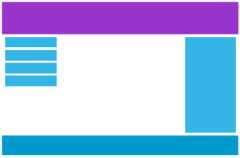
Desktop
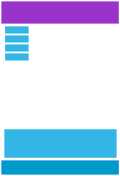
Tablet
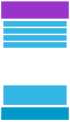
Phone
It is called responsive web design when you use CSS and HTML to resize, hide, shrink, enlarge, or move the content to make it look good on any screen.
W3.CSS Responsive Classes
| Class | Description |
|---|---|
| w3-content | Container for fixed size centered content |
| w3-hide-small | Hides content on small screens (less than 601px) |
| w3-hide-medium | Hides content on medium screens |
| w3-hide-large | Hides content on large screens (larger than 992px) |
| w3-mobile | Adds mobile-first responsiveness to a column. Displays elements as block elements on mobile devices. |
| l1 - l12 | Responsive sizes for large screens |
| m1 - m12 | Responsive sizes for medium screens |
| s1 - s12 | Responsive sizes for small screens |
The w3-content Class
Thew3-content class defines a container for centered content.Use the CSS max-width property to override the default width (980px).
Responsive Show / Hide
Thew3-hide-small,w3-hide-medium, andw3-hide-large classes hide elements on specific screen sizes.
Note: Resize the browser window to understand how it works:
w3-hide-small will be hidden on small screens (phones)
w3-hide-medium will be hidden on medium screens (tablets)
w3-hide-large will be hidden on large screens (laptops/desktop)
Example
<p>w3-hide-small will be hidden on small screens (phones)</p>
</div>
<div class="w3-container w3-hide-medium w3-green">
<p>w3-hide-medium will be hidden on medium screens (tablets)</p>
</div>
<div class="w3-container w3-hide-large w3-blue">
<p>w3-hide-large will be hidden on large screens (laptops/desktop)</p>
</div>
The w3-mobile Class
Thew3-mobile class adds mobile-first responsiveness to any element.
It adds display:block and width:100% to an element on screens that are less than 600px wide.
Responsive Grid
W3.CSS supports a 12 column responsive fluid grid.
Resize the page to see the effect!
This part will occupy 12 columns on a small screen,4 on a medium screen, and 3 on a large screen.
This part will occupy 12 columns on a small screen,8 on a medium screen, and 9 on a large screen.
Example
<div>
<p>12 columns on a small screen, 4 on a medium screen, and 3 on a large screen.</p>
</div>
<div>
<p>12 columns on a small screen, 8 on a medium screen, and 9 on a large screen.</p>
</div>
</div>
Responsive Rows
W3.CSS's grid system is responsive. The columns will re-arrange automatically depending on the screen size: On a big screen it might look better with the content organized in three columns, but on a small screen it might be better if the content were stacked on top of each other.
| Class | Description |
|---|---|
| w3-row | Container for responsive classes, with no padding |
| w3-row-padding | Container for responsive classes, with 8px left and right padding |
| w3-col | Defines one column in a 12-column responsive grid |
w3-col has the following sub classes:
Columns for small screens (typical smart phones):
| Class | Description |
|---|---|
| s1 | Defines 1 of 12 columns (width:08.33%) for small screens |
| s2 | Defines 2 of 12 columns (width:16.66%) for small screens |
| s3 | Defines 3 of 12 columns (width:25.00%) for small screens |
| s4 | Defines 4 of 12 columns (width:33.33%) for small screens |
| s5 - s11 | |
| s12 | Defines 12 of 12 columns (width:100%). Default for small screens |
Columns for medium screens (typical tablets):
| Class | Description |
|---|---|
| m1 | Defines 1 of 12 columns (width:08.33%) for medium screens |
| m2 | Defines 2 of 12 columns (width:16.66%) for medium screens |
| m3 | Defines 3 of 12 columns (width:25.00%) for medium screens |
| m4 | Defines 4 of 12 columns (width:33.33%) for medium screens |
| m5 - m11 | |
| m12 | Defines 12 of 12 columns (width:100%). Default for medium screens |
Columns for large screens (typical laptops and desktops):
| Class | Description |
|---|---|
| l1 | Defines 1 of 12 columns (width:08.33%) for large screens |
| l2 | Defines 2 of 12 columns (width:16.66%) for large screens |
| l3 | Defines 3 of 12 columns (width:25.00%) for large screens |
| l4 | Defines 4 of 12 columns (width:33.33%) for large screens |
| l5 - l11 | |
| l12 | Defines 12 of 12 columns (width:100%). Default for large screens) |
The classes above can be combined to create more dynamic and flexible layouts.
Each class scales up, so if you wish to set the same width for small, medium and large screens, you only need to specify thesmall class. And if you want the same width on medium and large screens, you only need to specify the medium class.
However, if you only use medium and/or large classes, the width will always transform to 100% on small screens.
Note: The number of columns should always add up to 12 for each row (6+6, 3+3+6, 9+3, etc)!
Two Equal Columns
Two equal-width columns (50%/50%) on all screen sizes:
s6
s6
Example
<div class="w3-col s6 w3-green w3-center"><p>s6</p></div>
<div><p>s6</p></div>
</div>
Two Unequal Columns
Two columns of unequal width (25%/75%) on all screen sizes:
s3
s9
Example
<div class="w3-col s3 w3-green w3-center"><p>s3</p></div>
<div><p>s9</p></div>
</div>
Three Equal Columns
Three equal-width columns (33.3%/33.3%/33.3%) on all screen sizes:
s4
s4
s4
Three Unequal Columns
Three various-width columns (25%/50%/25%) on tablets, laptops and desktops. On mobile phones, the columns will automatically stack (100% width):
m3
m6
m3
Example
<div class="w3-col m3 w3-green w3-center"><p>m3</p></div>
<div><p>m6</p></div>
<div><p>m3</p></div>
</div>
Note: This example is the same as using w3-quarter (m3), w3-half (m6), w3-quarter (m3), which you learned in theW3.CSS Responsive chapter.
Six Columns
Six equal-width columns (16% each) on tablets, laptops and desktops. On mobile phones, the columns will automatically stack (100% width):
m2
m2
m2
m2
m2
m2
Example
<div><p>m2</p></div>
<div><p>m2</p></div>
<div><p>m2</p></div>
<div><p>m2</p></div>
<div><p>m2</p></div>
<div><p>m2</p></div>
</div>
Mixed: Mobile and Laptops
You can combine classes to create a dynamic and flexible layout. This example will produce a two column layout with a 83.34%/16.66% (l10, l2) split on large screens and a 50%/50% (s6, s6) split on small screens:
l10 s6
l2 s6
Example
<div class="w3-col l10 s6 w3-pink w3-center"><p>l10 s6</p></div>
<div class="w3-col l2 s6 w3-dark-grey w3-center"><p>l2 s6</p></div>
</div>
Mixed: Mobile, Tablets and Laptops
This example will produce a three column layout with a 25%/58.34%/16.66% (l3, l7, l2) split on large screens, 50%/25%/25% (m6, m3, m3) split on medium screens and a 33.3%/33.3%/33.3% (s4, s4, s4)split on small screens:
l3 m6 s4
l7 m3 s4
l2 m3 s4
Example
<div class="w3-col l3 m6 s4 w3-green w3-center"><p>l3 m6 s4</p></div>
<div class="w3-col l7 m3 s4 w3-dark-grey w3-center"><p>l7 m3 s4</p></div>
<div class="w3-col l2 m3 s4 w3-red w3-center"><p>l2 m3 s4</p></div>
</div>
Difference between w3-row and w3-row-padding
The w3-row class defines a padded-less container, while the w3-row-padding class adds a 8px left and right padding to each column:
w3-row:



w3-row-padding:
Example
<div><img src="img_lights.jpg"></div>
<div><img src="img_nature.jpg"></div>
<div><img src="img_snowtops.jpg"></div>
</div>
<div>
<div><img src="img_lights.jpg"></div>
<div><img src="img_nature.jpg"></div>
<div><img src="img_snowtops.jpg"></div>
</div>
Using w3-rest
Thew3-rest class is a powerful and flexible class that will use what's left of the grid column.
150px
rest
75px
rest
100px
100px
rest
quarter
80px
rest
quarter
quarter
quarter
35%
rest
Example using rest
<div class="w3-col" style="width:150px"><p>150px</p></div>
<div class="w3-rest"><p>rest</p></div>
</div>
The element using must always be the last element in the source code.
Using Percent
Use the CSS width property to determine a specific width of the columns.
20%
60%
20%
45%
55%
15%
35%
10%
30%
10%
Example
<div class="w3-col w3-container w3-green" style="width:20%"><p>20%</p></div>
<div class="w3-col w3-container w3-blue" style="width:60%"><p>60%</p></div>
<div class="w3-col w3-container w3-red" style="width:20%"><p>20%</p></div>
</div>

