Vue Teleport
The Vue<Teleport> tag is used to move content to a different place in the DOM structure.
<Teleport> and The 'to' Attribute
To move some content to somewhere else in the DOM structure we use the Vue<Teleport> tag around the content and the 'to' attribute to define where to move it.
<Teleport to="body"> <p>Hello!</p></Teleport>The 'to' attribute value is given as CSS notation, so if we want to send some content to the body tag like in the code above we simply write<Teleport to="body">.
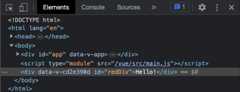
We can see that the content is moved to the body tag by inspecting the page after it has loaded.
Example
CompOne.vue:
<template> <div> <h2>Component</h2> <p>This is the inside of the component.</p> <Teleport to="body"> <div id="redDiv">Hello!</div> </Teleport> </div></template>If we right-click our page and choose 'Inspect', we can see that the red<div> element is moved out of the component and to the end of the<body> tag.
We could also for example have a tag with an id<div id="receivingDiv"> and teleport some content to that<div> by using<Teleport to="#receivingDiv"> around the content we want to teleport/move.
Script and Style of Teleported Elements
Even though some content is moved out of a component with the<Teleport> tag, relevant code inside the component in the<script> and<style> tags still works for the moved content.
Example
Relevant code from the<style> and<script> tags still works for the teleported<div> tag even though it is no longer inside the component after compilation.
CompOne.vue:
<template> <div> <h2>Component</h2> <p>This is the inside of the component.</p> <Teleport to="body"> <div id="redDiv" @click="toggleVal = !toggleVal" :style="{ backgroundColor: bgColor }" > Hello!<br> Click me! </div> </Teleport> </div></template><script>export default { data() { return { toggleVal: true } }, computed: { bgColor() { if (this.toggleVal) { return 'lightpink' } else { return 'lightgreen' } } }}</script><style scoped>#redDiv { margin: 10px; padding: 10px; display: inline-block;}#redDiv:hover { cursor: pointer;}</style>
