Vue Fallthrough Attributes
A component can be called with attributes that are not declared as props, and they will simplyfall through to the root element in the component.
Withfallthrough attributes you get a better overview from the parent where the component is created, and it simplifies our code because we don't need to declare the attribute as a prop.
Typical attributes used to fall through areclass,style andv-on.
Fallthrough Attributes
It can be nice to for example control the component styling from the parent rather than having the styling hidden away inside the component.
Let's create a new example, a basic to-do list in Vue, and see how the style attribute falls through to the components representing things to do.
So, ourApp.vue should contain the list of things to do, and an<input> element and a<button> to add new things to do. Each list item is a<todo-item /> component.
App.vue:
<template> <h3>Todo List</h3> <ul> <todo-item v-for="x in items" :key="x" :item-name="x" /> </ul> <input v-model="newItem"> <button @click="addItem">Add</button></template><script> export default { data() { return { newItem: '', items: ['Buy apples','Make pizza','Mow the lawn'] }; }, methods: { addItem() { this.items.push(this.newItem), this.newItem = ''; } } }</script>AndTodoItem.vue just receives the description of what to do as a prop:
TodoItem.vue:
<template> <li>{{ itemName }}</li></template><script> export default { props: ['itemName'] }</script>To build our application correctly we also need the right setup inmain.js:
main.js:
import { createApp } from 'vue' import App from './App.vue'import TodoItem from './components/TodoItem.vue'const app = createApp(App)app.component('todo-item', TodoItem)app.mount('#app')To see the point of this section, that properties can fall through to the root element inside the<template> of our component, we can give the list items some styling fromApp.vue:
Example
We give styling to the<li> elements inside the component, fromApp.vue:
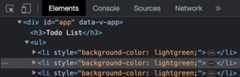
<template> <h3>Todo List</h3> <ul> <todo-item v-for="x in items" :key="x" :item-name="x" style="background-color: lightgreen;" /> </ul> <input v-model="newItem"> <button @click="addItem">Add</button></template>To confirm that the style attribute has actually fallen through we can right click an<li> element in our to-do list in the browser, choose 'Inspect', and we can see the style attribute is now on the<li> element:
Merging 'class' and 'style' Attributes
If 'class' or 'style' attributes are already set, and 'class' or 'style' attributes also comes from the parent as fallthrough attributes, the attributes will be merged.
Example
In addition to the existing styling from the parent, we add a margin to the<li> elements inside theTodoItem.vue component:
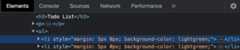
<template> <listyle="margin: 5px 0;">{{ itemName }}</li></template><script> export default { props: ['itemName'] }</script>If we right click an<li> element in the browser we can see that the attributes have been merged. Margin is set directly on the<li> element inside the component, and is merged with the background-color that falls through from the parent:
$attrs
If we have more than one element on the root level of the component, it is no longer clear which element the attributes should fall through to.
To define which root element gets the fallthrough attributes we can mark the element with the built-in$attrs object, like this:
Example
TodoItem.vue:
<template> <div></div> <liv-bind="$attrs">{{ itemName }}</li> <div></div></template>
