Google Sheets AND Function
AND Function
TheAND function is a premade function in Google Sheets, which returnsTRUE orFALSE based on two or moreconditions.
It is typed=AND and takes two or more conditions.
Theconditions are referred to as[logical_expression1],[logical_expression2], and so on.
The conditions can check things like:
- If a number isgreater than another number
> - If a number issmaller than another number
< - If a number or text isequal to something
=
Note: The AND function is often used together with theIF function.
Example AND Function
Check if the Pokemon type is fireand has speedgreater than 70:
The function returns "TRUE" or "FALSE".
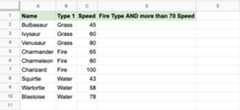
ExampleAND function, step by step:
- Select the cell
D2 - Type
=AND - Click theAND command
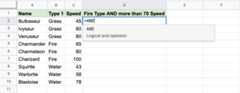
- Specify the first condition
B2="Fire" - Type
, - Specify the second condition
C2>70 - Hit enter
Note: You can add more conditions by repeating steps 5-6 before hitting enter.
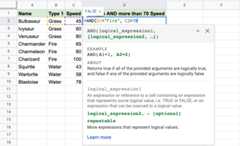
Since the value in cellB2 is not "Fire" the first condition isFALSE.
Since the value in cellC2 is less than 70 the second condition is alsoFALSE.
All conditions need to beTRUE for the AND function to returnTRUE.
Note: Text values needs to be in quotes: " "
The function can be repeated with thefilling function for each row to perform the same check for each Pokemon:
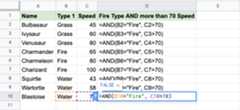
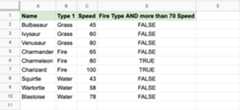
Only Charmeleon and Charizard both have Fire type and speed greater than 70, so the function returns "TRUE".
Example AND Function (with IF)
Combining the AND function with anIF function lets you checkmultiple conditions for the IF function:
Note: The IF function lets you specify the return values.
The IF function is typed=IF and has 3 parts:
The AND function takes the place of thelogical_test condition.
Here, theIF function returns "Yes" or "No".
ExampleAND function as the condition forIF function, step by step:
- Select cell
C2 - Type
=IF - Click theIF command
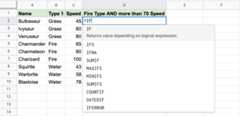
- Type
AND - Click theAND command
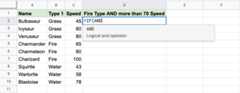
- Specify the first condition
B2="Fire" - Type
, - Specify the second condition
C2>70 - Type
), - Specify the value
"Yes"for when both conditions areTRUE - Type
, - Specify the value
"No"for when either, or both, conditions areFALSE - Type
)and hit enter
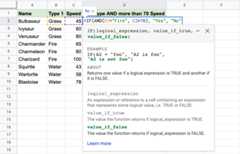
The function can be repeated with thefilling function for each row to perform the same check for each Pokemon:
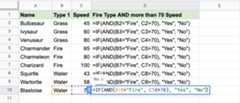
Now each row has a check for both being Fire type and Speed greater than 70:
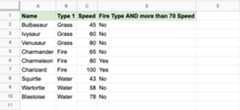
Only Charmeleon and Charizard both have Fire type and speed greater than 70, so the function returns "Yes".

