Movatterモバイル変換


[0]ホーム

URL:


Menu
×
See More 
Sign In
+1 Get Certified Upgrade Teachers Spaces Get Certified Upgrade Teachers Spaces
   ❮   
     ❯   

Excel Tutorial

Excel HOMEExcel IntroductionExcel Get StartedExcel OverviewExcel SyntaxExcel RangesExcel FillExcel Move CellsExcel Add CellsExcel Delete CellsExcel Undo RedoExcel FormulasExcel Relative ReferenceExcel Absolute ReferenceExcel Arithmetic OperatorsExcel ParenthesesExcel Functions

Excel Formatting

Excel FormattingExcel Format PainterExcel Format ColorsExcel Format FontsExcel Format BordersExcel Format NumbersExcel Format GridsExcel Format Settings

Excel Data Analysis

Excel SortExcel FilterExcel TablesExcel Conditional FormatExcel Highlight Cell RulesExcel Top Bottom RulesExcel Data BarsExcel Color ScalesExcel Icon SetsExcel Manage Rules (CF)Excel Charts

Table Pivot

Table Pivot Intro

Excel Case

Case: Poke MartCase: Poke Mart, Styling

Excel Functions

ANDAVERAGEAVERAGEIFAVERAGEIFSCONCATCOUNTCOUNTACOUNTBLANKCOUNTIFCOUNTIFSIFIFSLEFTLOWERMAXMEDIANMINMODENPVORRANDRIGHTSTDEV.PSTDEV.SSUMSUMIFSUMIFSTRIMVLOOKUPXOR

Excel How To

Convert Time to SecondsDifference Between TimesNPV (Net Present Value)Remove Duplicates

Excel Examples

Excel ExercisesExcel SyllabusExcel Study PlanExcel CertificateExcel Training

Excel References

Excel Keyboard Shortcuts


ExcelSyntax


Syntax

A formula in Excel is used to do mathematical calculations. Formulas always start with the equal sign= typed in the cell, followed by your calculation.

Note: You claim the cell by selecting it and typing the equal sign (=)

Creating formulas, step by step

  • Select a cell
  • Type the equal sign (=)
  • Select a cell or type value
  • Enter an arithmetic operator
  • Select another cell or type value
  • Press enter

For example=1+1 is the formula to calculate1+1=2
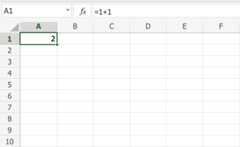
Note: The value of a cell is communicated byreference(value) for exampleA1(2)


Using Formulas with Cells

You can type values to cells and use them in your formulas.

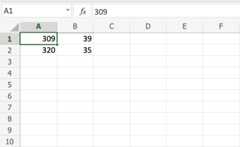
Lets type some dummy values to get started. Double click the cells to type values into them. Go ahead and type:

  • A1(309)
  • A2(320)
  • B1(39)
  • B2(35)

Compare with the picture shown below:
Copy Values

Note: Type values by selecting a cell, claim it by entering the equal sign (=) and then type your value. For example=309.

Well done! You have successfully typed values to cells and now we can use them to create formulas.

Here is how to do it, step by step.

  1. Select the cellC1
  2. Type the equal sign (=)
  3. Left click onA1, the cell that has the(309) value
  4. Type the minus sign (-)
  5. Left click onB2, the cell that has the(35) value
  6. Hit enter

Tip: The formula can be typed directly without clicking the cells. The typed formula would be the same as the value inC1(=A1-B2).
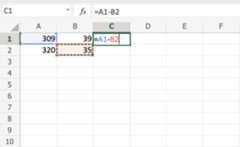
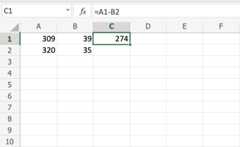
The result after hitting the enter button isC1(274). Did you make it?


Another Example

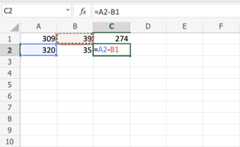
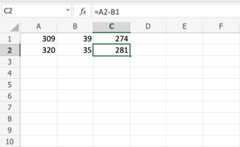
Let's try one more example, this time let's make the formula=A2-B1.

Here is how to do it, step by step.

  1. Select the cellC2
  2. Type the equal sign (=)
  3. Left clickA2, the cell that has the(320) value
  4. Type the minus sign (-)
  5. Left clickB1, the cell that has the(39) value
  6. Hit the enter button

You got the resultC2(281), right?Way to go!

Note: You can make formulas with all four arithmetic operations, such as addition (+), subtraction (-), multiplication (*) and division (/).

Here are some examples:

  • =2+4 gives you 6
  • =4-2 gives you 2
  • =2*4 gives you 8
  • =2/4 gives you 0.5

In the next chapter you will learn aboutRangesand how data can be moved in theSheet.

Test Yourself With Exercises

Excel Exercise:

Complete the Excel formula:

1+1

Start the Exercise


×

Contact Sales

If you want to use W3Schools services as an educational institution, team or enterprise, send us an e-mail:
sales@w3schools.com

Report Error

If you want to report an error, or if you want to make a suggestion, send us an e-mail:
help@w3schools.com

W3Schools is optimized for learning and training. Examples might be simplified to improve reading and learning.
Tutorials, references, and examples are constantly reviewed to avoid errors, but we cannot warrant full correctness
of all content. While using W3Schools, you agree to have read and accepted ourterms of use,cookies andprivacy policy.

Copyright 1999-2025 by Refsnes Data. All Rights Reserved.W3Schools is Powered by W3.CSS.


[8]ページ先頭

©2009-2025 Movatter.jp