ExcelFormat Fonts
Format Fonts
You can format fonts in four different ways: color, font name, size and other characteristics.
Font Color
The default color for fonts is black.
Colors are applied to fonts by using the "Font color" function.
How to apply colors to fonts
- Select cell
- Select font color
- Type text
The font color goes for both numbers and text.
TheFont color command remembers the color used last time.
Note: Custom colors are applied in the same way for both cells and fonts. You can read more about it in theApply colors to cells chapter.
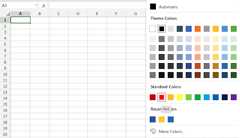
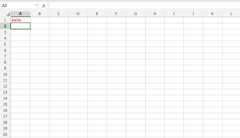
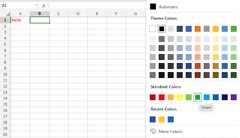
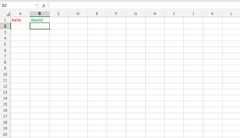
Lets try an example, step by step:
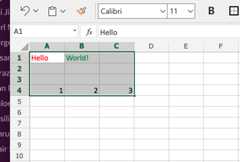
- Select standard font color Red
- Type A1(Hello)
- Hit enter
- Select standard font color Green
- Type B1(World!)
- Hit enter
Font Name
The default font in Excel isCalibri.
The font name can be changed for both numbers and text.
Why change the font name in Excel?
- Make the data easier to read
- Make the presentation more appealing
How to change the font name:
- Select a range
- Click the font name drop down menu
- Select a font
Let's have a look at an example.
- Select
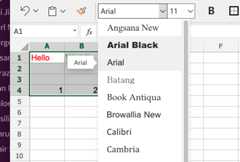
A1:C4 - Click the font name drop down menu
- SelectArial
The example has both text (A1:B1) and numbers (A4:C4)
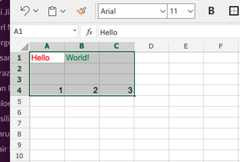
Good job! You have successfully changed the fonts fromCalibritoArialfor the rangeA1:C4.
Font Size
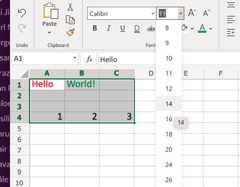
To change thefont size of the font, just click on the font size drop down menu:
Font Characteristics
You can apply different characteristics to fonts such as:
- Bold
- Italic
- Underlined
- Strike though
The commands can be found below the font name drop down menu:
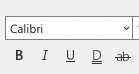
Boldis applied by either clicking the Bold (B) icon in the Ribbon or using the keyboard shortcut CTRL + B or Command + B
Italicis applied by either clicking the Italic (I) icon or using the keyboard shortcut CTRL + I or Command + I
Underline is applied by either clicking the Underline (U) icon or using the keyboard shortcut CTRL + U or Command + U
Strikethrough is applied by either clicking the Strikethrough (ab) icon or using the keyboard shortcut CTRL + 5 or Command + Shift + X
Chapter Summary
Fonts can be changed in four different ways: color, font name, size and other characteristics. The fonts are changed to make the spreadsheet more readable and delicate.

