Excel Stacked Column Charts
Stacked Column Chart
Stacked Column charts are used to highlights thetotal amount of contribution for each category.
This is done by stacking columns on top of each other.
The charts are used when you have more than one data column.
Example
We want to find out thetotal number of generation 1 and 2 Pokemons in each of these type 1 categories: "Grass", "Fire", "Water" and "Bug".
You can copy the values to follow along:
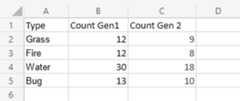
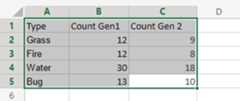
- Select the range
A1:C5
- Click on theinsert menu, then click on the column menu (
 ) and chooseClustered Column (
 ) from the drop-down menu
Note: This menu is accessed byexpanding the ribbon.
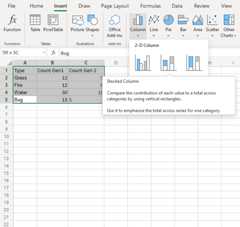
Following the steps above, you will get the following chart:
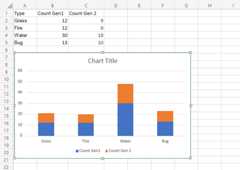
The chart gives a visual overview for thetotal number of "Grass", "Fire", "Water" and "Bug" type Pokemons in both generation 1 and 2.
Generation 1 Pokemons are shown in blue and generation 2 Pokemons are shown in orange.
This chart shows that "Water" type Pokemons are the most common and "Fire" type Pokemons are the least common.
100% Stacked Column Chart
100% Stacked Column is used to highlights theproportion of contribution for each data column in a category.
This is done by scaling thetotal value of each category in a stacked column chart to 100.
The charts are used when you have more than one data column.
Example
We want to find out theproportion of Pokemon types "Grass", "Fire", "Water" and "Bug" in generation 1 and 2.
You can copy the values to follow along:
- Select the range
A1:C5
- Click on theinsert menu, then click on the column menu () and chooseClustered Column (
 ) from the drop-down menu
Note: This menu is accessed byexpanding the ribbon.
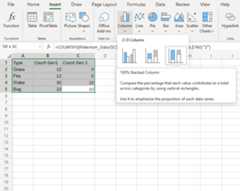
Following the steps above, you will get the following chart:
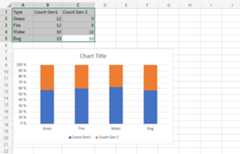
The chart gives a visual overview for theproportion of "Grass", "Fire", "Water" and "Bug" type Pokemons in both generation 1 and 2.
Generation 1 Pokemons are shown in blue and generation 2 Pokemons are shown in orange.
This chart shows that more than half of Pokemons are in generation 1.

