Excel HCR - Duplicate and Unique Values
Highlight Cell Rules - Duplicate and Unique Values
Highlight Cell Rules is a premade type of conditional formatting in Excel used to change the appearance of cells in a range based on your specifiedconditions.
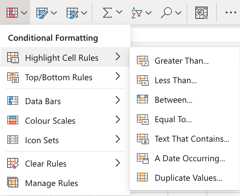
Duplicate Values.. is one of the options for the condition, and can check for bothduplicate andunique values.
Here is the Highlight Cell Rules part of the conditional formatting menu:
Highlight Cell Rule - Duplicate Value Example
The "Duplicate Values..." Highlight Cell Rule will highlight a cell with one of the appearance options based on the cell value being thesame as other cells in the range.
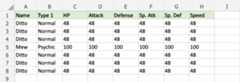
You canchoose any range for where the Highlight Cell Rule should apply. It can be a few cells, a single column, a single row, or a combination of multiple cells, rows and columns.
Let's apply the rule to all of the cell values.
"Duplicate Values..." Highlight Cell Rule, step by step:
- Select the range
A2:H8
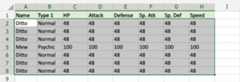
- Click on the Conditional Formatting icon
 in the ribbon, fromHome menu
 - SelectHighlight Cell Rules from the drop-down menu
- SelectDuplicate Values... from the menu
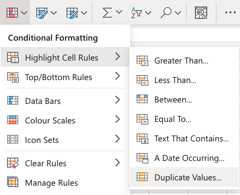
This will open a dialog box where you can specify the value and the appearance option.
- SelectDuplicate
- Select the appearance option "Yellow Fill with Dark Yellow Text" from the dropdown menu
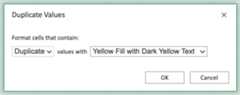
Now, all the cells in the range that have thesame value as another cell are highlighted in yellow:
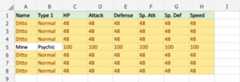
All of Ditto's stat values are 48 and all of Mew's stat values are 100, so they are all highlighted.
All of the Dittos and all of the Normal Type values are also highlighted.
Note: You can remove the Highlight Cell Rules withManage Rules.
Highlight Cell Rule - Unique Value Example
The "Duplicate Values..." Highlight Cell Rule can also find and highlightUnique Values.
Let's apply this to the same set of data:
You canchoose any range for where the Highlight Cell Rule should apply. It can be a few cells, a single column, a single row, or a combination of multiple cells, rows and columns.
Let's apply the rule to all of the cell values.
"Duplicate Values..." Highlight Cell Rule, step by step:
- Select the range
A2:H8
- Click on the Conditional Formatting icon in the ribbon, fromHome menu
- SelectHighlight Cell Rules from the drop-down menu
- SelectDuplicate Values... from the menu
This will open a dialog box where you can specify the value and the appearance option.
- SelectUnique from the dropdown menu
- Select the appearance option "Green Fill with Dark Green Text" from the dropdown menu
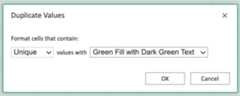
Now, the cells withunique values will be highlighted in green:
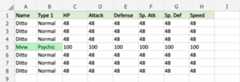
Mew and Psychic only appears once in the range, so these values are highlighted.
Note: You can remove the unwanted duplicates from a table withRemoving Duplicate Function.

