Excel AVERAGEIFS Function
AVERAGEIFS Function
TheAVERAGEIFS function is a premade function in Excel, which calculates theaverage of a range based on one or moretrue orfalsecondition.
It is typed=AVERAGEIFS:
Theconditions are referred to ascritera1, criteria2, .. and so on, which can check things like:
- If a number isgreater than another number
> - If a number issmaller than another number
< - If a number or text isequal to something
=
Thecriteria_range1,criteria_range2, and so on, are the ranges where the function check for the conditions.
Theaverage_range is the range where the function calculates the average.
Note: The different parts of the function are separated by a symbol, like comma, or semicolon;
The symbol depends on yourLanguage Settings.
Example AVERAGEIFS function
Find the average defense of Grass type 1st Generation Pokemon:
The conditions are that the type is "Grass" and Generation is 1.
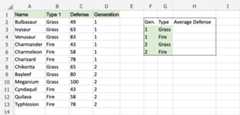
ExampleAVERAGEIFS function, step by step:
- Select the cell
H3 - Type
=AVERAGEIFS - Double click theAVERAGEIFS command
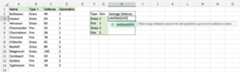
- Specify the range for the average
C2:C13(the Defense values) - Type
, - Specify the range for the first condition
B2:B13(the Type 1 values) - Type
, - Specify the criteria (the cell
F3, which has the value "Grass") - Type
, - Specify the range for the second condition
D2:D13(the Generation values) - Type
, - Specify the criteria (the cell
G3, which has the value "1") - Hit enter
Note: You can add more conditions by repeating steps 9-12 before hitting enter.
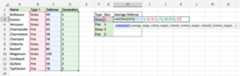
The function now calculates the average defense value of the 1st Generation Grass type Pokemon: Bulbasaur, Ivysaur and Venusaur.
The function can be repeated for Fire type Pokemon and 2nd Generation to compare them:
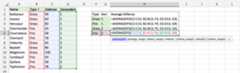
Note: You can use thefilling function for the other rows, but make sure to useabsolute references for the ranges.
Now, we can see the average defense values of each type between generations:
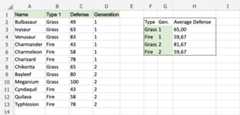
Notice how the 2nd Generation Grass type Pokemon got more defense, but the Fire type stayed the same.

