Movatterモバイル変換


[0]ホーム

URL:


Menu
×
See More 
Sign In
+1 Get Certified Upgrade Teachers Spaces Get Certified Upgrade Teachers Spaces
   ❮   
     ❯   

C Tutorial

C HOMEC IntroC Get StartedC SyntaxC OutputC CommentsC VariablesC Data TypesC Type ConversionC ConstantsC OperatorsC BooleansC If...ElseC SwitchC While LoopC For LoopC Break/ContinueC ArraysC StringsC User InputC Memory AddressC Pointers

C Functions

C FunctionsC Function ParametersC ScopeC Function DeclarationC Math FunctionsC Inline FunctionsC RecursionC Function Pointers

C Files

C Create FilesC Write To FilesC Read Files

C Structures

C StructuresC Nested StructuresC Structs & PointersC UnionsC typedefC Struct Padding

C Enums

C Enums

C Memory

C Memory Management

C Errors

C ErrorsC DebuggingC NULLC Error HandlingC Input Validation

C More

C DateC Random NumbersC MacrosC Organize CodeC Storage ClassesC Bitwise OperatorsC Fixed-width Integers

C Projects

C Projects

C Reference

C ReferenceC KeywordsC <stdio.h>C <stdlib.h>C <string.h>C <math.h>C <ctype.h>C <time.h>

C Examples

C ExamplesC Real-Life ExamplesC ExercisesC QuizC CompilerC SyllabusC Study PlanC Interview Q&AC Certificate

CGet Started


Get Started With C

At W3Schools, you can try C without installing anything.

Our Online C Editor runs directly in your browser, and shows both the code and the result:

Code:

#include <stdio.h>

int main() {
  printf("Hello World!");
  return 0;
}

Result:

Hello World!
Try it Yourself »

This editor will be used in the entire tutorial to demonstrate the different aspects of C.


Install C

If you want to run C on your own computer, you need two things:

  • A text editor, like Notepad, to write C code
  • A compiler, like GCC, to translate the C code into a language that the computer will understand

There are many text editors and compilers to choose from. In the next steps, we will show you how to use anIDE that includes both.


Install IDE

An IDE (Integrated Development Environment) is used to edit AND compile the code.

Popular IDE's include Code::Blocks, Eclipse, and Visual Studio. These are all free, and they can be used to both edit and debug C code.

Note: Web-based IDE's can work as well, but functionality is limited.

We will useCode::Blocks in our tutorial, which we believe is a good place to start.

You can find the latest version of Codeblocks athttp://www.codeblocks.org/. Download themingw-setup.exe file, which will install the text editor with a compiler.


C Quickstart

Let's create our first C file.

Open Codeblocks and go toFile > New > Empty File.

Write the following C code and save the file asmyfirstprogram.c (File > Save File as):

myfirstprogram.c

#include <stdio.h>

int main() {
  printf("Hello World!");
  return 0;
}

Don't worry if you don't understand the code above - we will discuss it in detail in later chapters. For now, focus on how to run the code.

In Codeblocks, it should look like this:
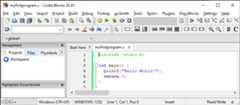
Then, go toBuild > Build and Run to run (execute) the program. The result will look something to this:

Hello World!
Process returned 0 (0x0) execution time : 0.011 s
Press any key to continue.

Congratulations! You have now written and executed your first C program.



×

Contact Sales

If you want to use W3Schools services as an educational institution, team or enterprise, send us an e-mail:
sales@w3schools.com

Report Error

If you want to report an error, or if you want to make a suggestion, send us an e-mail:
help@w3schools.com

W3Schools is optimized for learning and training. Examples might be simplified to improve reading and learning.
Tutorials, references, and examples are constantly reviewed to avoid errors, but we cannot warrant full correctness
of all content. While using W3Schools, you agree to have read and accepted ourterms of use,cookies andprivacy policy.

Copyright 1999-2025 by Refsnes Data. All Rights Reserved.W3Schools is Powered by W3.CSS.


[8]ページ先頭

©2009-2025 Movatter.jp