
- Python Pandas - Home
- Python Pandas - Introduction
- Python Pandas - Environment Setup
- Python Pandas - Basics
- Python Pandas - Introduction to Data Structures
- Python Pandas - Index Objects
- Python Pandas - Panel
- Python Pandas - Basic Functionality
- Python Pandas - Indexing & Selecting Data
- Python Pandas - Series
- Python Pandas - Series
- Python Pandas - Slicing a Series Object
- Python Pandas - Attributes of a Series Object
- Python Pandas - Arithmetic Operations on Series Object
- Python Pandas - Converting Series to Other Objects
- Python Pandas - DataFrame
- Python Pandas - DataFrame
- Python Pandas - Accessing DataFrame
- Python Pandas - Slicing a DataFrame Object
- Python Pandas - Modifying DataFrame
- Python Pandas - Removing Rows from a DataFrame
- Python Pandas - Arithmetic Operations on DataFrame
- Python Pandas - IO Tools
- Python Pandas - IO Tools
- Python Pandas - Working with CSV Format
- Python Pandas - Reading & Writing JSON Files
- Python Pandas - Reading Data from an Excel File
- Python Pandas - Writing Data to Excel Files
- Python Pandas - Working with HTML Data
- Python Pandas - Clipboard
- Python Pandas - Working with HDF5 Format
- Python Pandas - Comparison with SQL
- Python Pandas - Data Handling
- Python Pandas - Sorting
- Python Pandas - Reindexing
- Python Pandas - Iteration
- Python Pandas - Concatenation
- Python Pandas - Statistical Functions
- Python Pandas - Descriptive Statistics
- Python Pandas - Working with Text Data
- Python Pandas - Function Application
- Python Pandas - Options & Customization
- Python Pandas - Window Functions
- Python Pandas - Aggregations
- Python Pandas - Merging/Joining
- Python Pandas - MultiIndex
- Python Pandas - Basics of MultiIndex
- Python Pandas - Indexing with MultiIndex
- Python Pandas - Advanced Reindexing with MultiIndex
- Python Pandas - Renaming MultiIndex Labels
- Python Pandas - Sorting a MultiIndex
- Python Pandas - Binary Operations
- Python Pandas - Binary Comparison Operations
- Python Pandas - Boolean Indexing
- Python Pandas - Boolean Masking
- Python Pandas - Data Reshaping & Pivoting
- Python Pandas - Pivoting
- Python Pandas - Stacking & Unstacking
- Python Pandas - Melting
- Python Pandas - Computing Dummy Variables
- Python Pandas - Categorical Data
- Python Pandas - Categorical Data
- Python Pandas - Ordering & Sorting Categorical Data
- Python Pandas - Comparing Categorical Data
- Python Pandas - Handling Missing Data
- Python Pandas - Missing Data
- Python Pandas - Filling Missing Data
- Python Pandas - Interpolation of Missing Values
- Python Pandas - Dropping Missing Data
- Python Pandas - Calculations with Missing Data
- Python Pandas - Handling Duplicates
- Python Pandas - Duplicated Data
- Python Pandas - Counting & Retrieving Unique Elements
- Python Pandas - Duplicated Labels
- Python Pandas - Grouping & Aggregation
- Python Pandas - GroupBy
- Python Pandas - Time-series Data
- Python Pandas - Date Functionality
- Python Pandas - Timedelta
- Python Pandas - Sparse Data Structures
- Python Pandas - Sparse Data
- Python Pandas - Visualization
- Python Pandas - Visualization
- Python Pandas - Additional Concepts
- Python Pandas - Caveats & Gotchas
Python Pandas - scatter Plot
A scatter plot, also known as a scatter chart or scatter diagram, represents data as a collection of points plotted on an X-Y grid. The x axis represents one variable, while the y axis represents another. Additional visual variables like point size, color, or shape can represent a third variable. Scatter plots are helpful for visualizing the relationship or correlation between variables.
For example, imagine you have a dataset that records temperatures, and the corresponding amount of road traffic. A scatter plot visualizes the relationship between Temperature and Traffic range, where each dot represents a specific data point. Here the x-axis is the temperature in degrees Celsius, and the y-axis is the corresponding traffic range.
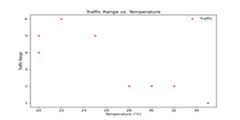
In this tutorial, we will learn about how to use the Pandas method for creating and customizing scatter plots with different examples.
Scatter Plot in Pandas
Pandas provides theDataFrame.plot.scatter() method to create scatter plots. This method internally use Matplotlib and return either amatplotlib.axes.Axes object or NumPy arraynp.ndarray object.
Syntax
Following is the syntax of the plot.scatter() Method −
DataFrame.plot.scatter(x, y, s=None, c=None, **kwargs)
Where,
x: Specifies the column name or position for the horizontal axis.
y: Specifies the column name or position for the vertical axis.
s: Optional parameter specifies the marker size of each point. Options include, a string, a single scalar, or A sequence of scalars.
c: It is also an optional parameter specifies the color of each point. Options include, a single color string, a sequence of color strings, or an array of colors.
**kwargs: Additional arguments to customize the plot.
Example
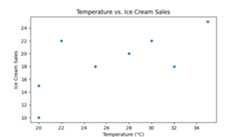
Here is a basic example of creating a scatter plot using theDataFrame.plot.scatter() method.
import pandas as pdimport matplotlib.pyplot as pltplt.rcParams["figure.figsize"] = [7, 4]# Create a DataFramedata = { 'Temperature': [20, 20, 25, 28, 30, 32, 22, 35], 'Ice_cream_sales': [15, 10, 18, 20, 22, 18, 22, 25]}df = pd.DataFrame(data)# Plot the scatter plotax = df.plot.scatter(x='Temperature', y='Ice_cream_sales')plt.xlabel('Temperature (C)')plt.ylabel('Ice Cream Sales')plt.title('Temperature vs. Ice Cream Sales')# Display the plotplt.show()After executing the above code, we get the following output −
Customizing Scatter Plot
You can customize the appearance of the scatter plot by modifying parameters like size, color, marker style, and more.
Example: Customizing Scatter Plot Color
This example changes the color of the scatter points using thec parameter with a single color string.
import pandas as pdimport matplotlib.pyplot as pltplt.rcParams["figure.figsize"] = [7, 4]# Create a DataFramedata = {'Temperature': [20, 20, 25, 28, 30, 32, 22, 35],'Ice_cream_sales': [15, 10, 18, 20, 22, 18, 22, 25]}df = pd.DataFrame(data)# Plot the scatter plotdf.plot.scatter(x='Temperature', y='Ice_cream_sales', c='red')plt.xlabel('Temperature (C)')plt.ylabel('Ice Cream Sales')plt.title('Customizing Scatter Plot Color')# Display the plotplt.show()Following is the output of the above code −

Example: Changing Scatter Marker
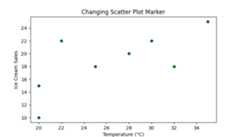
The following example changes the scatter plot marker style using themarker parameter.
import pandas as pdimport matplotlib.pyplot as pltplt.rcParams["figure.figsize"] = [7, 4]# Create a DataFramedata = {'Temperature': [20, 20, 25, 28, 30, 32, 22, 35],'Ice_cream_sales': [15, 10, 18, 20, 22, 18, 22, 25]}df = pd.DataFrame(data)# Plot the scatter plotdf.plot.scatter(x='Temperature', y='Ice_cream_sales', marker='D', c='darkgreen')plt.xlabel('Temperature (C)')plt.ylabel('Ice Cream Sales')plt.title('Changing Scatter Plot Marker')# Display the plotplt.show()After executing the above code, we get the following output −
Example: Customizing Marker Size
You can control the size of the markers using thes parameter.
import pandas as pdimport matplotlib.pyplot as pltplt.rcParams["figure.figsize"] = [7, 4]# Create a DataFramedata = {'Temperature': [20, 20, 25, 28, 30, 32, 22, 35],'Ice_cream_sales': [15, 10, 18, 20, 22, 18, 22, 25]}df = pd.DataFrame(data)# Plot the scatter plotdf.plot.scatter(x='Temperature', y='Ice_cream_sales', s=100, marker='*', c='darkgreen')plt.xlabel('Temperature (C)')plt.ylabel('Ice Cream Sales')plt.title('Customizing Marker Size')# Display the plotplt.show()Following is the output of the above code −

Plotting Multiple Columns on the Same Axes
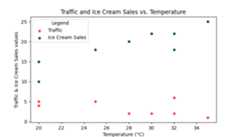
To plot multiple datasets on the same axes, specify theax parameter while reusing the previous plot's axes. And differentiate each dataset by specify colors and labels.
Example
This example demonstrates plotting multiple columns on the same axes with different colors and labels.
import pandas as pdimport matplotlib.pyplot as pltplt.rcParams["figure.figsize"] = [7, 4]# Sample dataset creationdata = { 'Temperature': [20, 20, 25, 28, 30, 32, 32, 35], 'Traffic': [4, 5, 5, 2, 2, 2, 6, 1], 'ice_cream_sales': [15, 10, 18, 20, 22, 18, 22, 25]}df = pd.DataFrame(data)# Plot the scatter plotax = df.plot.scatter(x='Temperature', y='Traffic', color='red', alpha=0.7, label="Traffic")df.plot.scatter(x="Temperature", y="ice_cream_sales", color="DarkGreen", label="Ice Cream Sales", ax=ax)# Add labels, title, and legendplt.xlabel('Temperature (C)')plt.ylabel('Traffic & Ice Cream Sales values')plt.title('Traffic and Ice Cream Sales vs. Temperature')plt.legend(title="Legend")# Display the plotplt.show()After executing the above code, we get the following output −
Coloring Scatter Points by Column Values
You can use a DataFrame column to dynamically assign colors to the scatter plot points.
Example
This example demonstrates coloring scatter plot markers by DaatFrame column Values.
import pandas as pdimport matplotlib.pyplot as pltimport numpy as npplt.rcParams["figure.figsize"] = [7, 4]# Create a DataFramedata = {'Temperature': [20, 20, 25, 28, 30, 32, 22, 35],'Ice_cream_sales': [15, 10, 18, 20, 22, 18, 22, 25]}df = pd.DataFrame(data)# Add a dynamic color columndf['Color'] = np.random.rand(len(df))# Plot the scatter plotdf.plot.scatter(x='Temperature', y='Ice_cream_sales', c='Color', cmap='viridis', s=100, marker='*')plt.xlabel('Temperature (C)')plt.ylabel('Ice Cream Sales')plt.title('Coloring Scatter Points by Column Values')# Display the plotplt.show()On executing the above code we will get the following output −

Categorical Coloring
If you provide a categorical column to thec parameter, then a discrete colorbar will be generated.
Example
This example applies the categorical column to thec parameter of theplot.scatter() method to get the discrete colorbar.
import pandas as pdimport matplotlib.pyplot as pltimport numpy as npplt.rcParams["figure.figsize"] = [7, 4]# Create a DataFramedata = {'Temperature': [20, 20, 25, 28, 30, 32, 22, 35],'Ice_cream_sales': [15, 10, 18, 20, 22, 18, 22, 25]}df = pd.DataFrame(data)# Add a columndf['Season'] = pd.Categorical(['Summer', 'Winter', 'Summer', 'Spring', 'Spring', 'Summer', 'Winter', 'Spring'])# Plot the scatter plotdf.plot.scatter(x='Temperature', y='Ice_cream_sales', c='Season', cmap='plasma', s=100, marker='*')plt.xlabel('Temperature (C)')plt.ylabel('Ice Cream Sales')plt.title('Scatter Plot Categorical Coloring')# Display the plotplt.show()Following is the output of the above code −
