Turn your code into any language with ourCode Converter. It's the ultimate tool for multi-language programming. Start converting now!
Idea
In this tutorial, we will make a calculator withTkinter, the built-in GUI Library in Python. We are going to make a 3 by 3 Grid with buttons that represent the possible inputs, a live result showing system, a history of calculations feature, and variable insertion.
So let's get right into it. You can always get the complete codehere.
Imports
As always, we start with the imports. Because we make the UI withtkinter, we need to import it. We also import thefont module fromtkinter to change the fonts on our elements later.
We continue by getting thepartial() function fromfunctools, it is a genius function that excepts another function as a first argument and someargs andkwargs and it will return a reference to this function with those arguments. This is especially useful when we want to insert one of our functions to a command argument of a button or a key binding.
In the following line, we importctypes, which allows us to enable high dpi, making our window look way sharper. This is done with the function call in the last line of this section's code block.
Because we'll save our history in a JSON file, we import thejson module towork with JSON files.We also need the built-inre module for our variable insertion feature.
Last but not least, we get themath module:
from tkinter import *import tkinter.font as fontfrom functools import partialimport ctypesimport jsonimport re# so the functions that can be used from the math module can be used in the line edit.import mathctypes.windll.shcore.SetProcessDpiAwareness(1)Variables and Tkinter setup
Next up, we make some variables, and we set up thetkinter:
# ColorsbuttonColor = (255, 255, 255)historyPanelBackground = (255, 255, 255)# Tkinter Setuproot = Tk()root.geometry("550x270")root.title("Calculator")# Setting icon for the Applicationphoto = PhotoImage(file = "icon.png")root.iconphoto(False, photo)# Loading Font from font namemyFont = font.Font(family='Consolas', size=12)The first two variables (buttonColor andhistoryPanelBackground) are just colors for our buttons and the background of the history panel.
Next, we set uptkinter by calling itsTk() class and saving this object in theroot variable. We then set the window dimensions with thegeometry() method and the window title with thetitle().
We then import an image fromour directory (you can get the directory fileshere), which we can set as the icon of our program.After that, we import the Consolas font in size 12. We do this with theFont() class from thefont module oftkinter.
Formulas and Variable Insertions
Now I will explain the variable insertion feature, or at least I will try to! So the idea is that we can have a space after our equations where we declare variables inserted into the equation by placeholders. Let us look at this in a concrete example. If we type the text below into the line edit:
{a} * {b} ? a=7 & b=3It should get us this result:
21Becausea will be placed by 7 andb by 3. Therefore, the equation will be evaluated to 21.We will later look at how this is done in practice.
Below we define a list of formulas that can be inserted into the line edit. We will make them pickable from a Menu:
# Formula Templatesformulas = [ ['Pythagoras->c', '(({a}**2)+({b}**2))**0.5 ? a=5 & b=5'], ['Pythagoras->c**2', '({a}**2)+({b}**2) ? a=5 & b=5'], ['pq->(x1, x2)', '-({p}/2) + sqrt(({p}/2)**2 - ({q})), -({p}/2) - sqrt(({p}/2)**2 - ({q})) ? p=-1 & q=-12'], ['abc->(x1, x2)', 'quadratic_formula({a}, {b}, {c}) ? a=1 & b=5 & c=6'], ['Incline->y', '{m}*{x} + {q} ? m=4 & x=5 & q=6'],]History Setup
Next, we set up the history feature.We start by declaring a list that will hold ourhistory items. Then we have a variable that holds the location of thehistory.json file.
In the end, we have a try and except block, where there is an attempt to make the file at the specified location. This is just done, so the file exists in all cases.
# All the history equations are in this list.history = []# Where the history file is located.historyFilePath = 'history.json'print("Reading history from:", historyFilePath)# Creating History file if it does not exist.try: with open(historyFilePath, 'x') as fp: pass print("Created file at:", historyFilePath)except: print('File already exists')RGB to Hex and Math Function
Now we talk about two functions that hold only minor importance:
rgb_to_hex()simply converts RGB colors to hex colors becausetkinteronly allows color names and hex colors.quadratic_formula()is a custom math function that can be used in the line edit.
# converting RGB values to HEXdef rgb_to_hex(rgb): return "#%02x%02x%02x" % rgbdef quadratic_formula(a, b, c): disc = b**2 - 4 * a * c x1 = (-b - math.sqrt(disc)) / (2 * a) x2 = (-b + math.sqrt(disc)) / (2 * a) return (x1, x2)Helper Functions
Now we will go over the several helper functions needed to make the program work.
TheaddSymbol() Function
This function will be called from the buttons to insert operators like* or+ and numbers into the line edit. That's where thesymbol parameter comes in. If the symbol is<, we won't append it; we will shorten the current input. We actually change the string variable that holds the current input.
# Add something to the current calculationdef addSymbol(event=None, symbol=None): if symbol == '<': entryVariable.set(entryVariable.get()[:-1]) else: entryVariable.set(entryVariable.get()+symbol)ThevarChange() Function
This function will be connected to change events on the input variable. In this function, we will also evaluate the equation and insert it into the result label.
Earlier, we took a look at how the variable insertion feature functioned, and now we look at how we do this in practice:
def varChange(*args): evaluationString = entryVariable.get().replace(' ', '').split('?')[0] print('Before insertion: ',evaluationString) if len(entryVariable.get().split('?')) == 2: parameters = entryVariable.get().replace(' ', '').split('?')[1] for param in parameters.split('&'): where, what = param.split('=') evaluationString = re.sub('{'+where+'}', what, evaluationString) try: print('After insertion: ', evaluationString) resultLabel.config(text=str(eval(evaluationString))) except: resultLabel.config(text='Invalid Input')As you see, we first split the input string by the ? and then save this to theevaluationString variable.
After that, we check if the input string divided by? would result in a list with two items. If that's the case, we know that there are insertion variables. Then we get this side of the string, and we loop over another split version of this where the separator is&. There we modify theevaluationString with these variables.
We will try to insert the evaluated value into the result label in either case. It could be that this doesn't work because the input is invalid, so we cover that case too.
ThesaveCurrentInputToHistory() Function
This function simply saves the current line edit input to the history file. We first check if the value is already in the list, so we don't have duplicates. We then save thehistory list to the history file. Here we use thejson.dump() function:
def saveCurrentInputToHistory(event=None): if entryVariable.get() in history: return history.append(entryVariable.get()) with open(historyFilePath, 'w') as file: file.write(json.dumps(history)) updateListBox()We also call theupdateListBox() function, which will be explained in the next section.
TheupdateListBox() Function
This function will delete all the contents of the history list and display them again. That's why we need thehistory variable here.
We delete all the elements in the list with thedelete(start, end) method. Then we open the history file and get the JSON from there. In the end, we loop over thehistory list and insert those values into thehistoryList:
def updateListBox(event=None): global history historyList.delete(0, END) try: with open(historyFilePath, 'r') as file: history = json.loads(file.read()) except json.decoder.JSONDecodeError: print('File does not contain JSON') for index, item in enumerate(history): historyList.insert(index, item)ThesetEntryFromHistory() andaddFormula() Functions
These two functions have simple jobs:
- The
setEntryFromHistory()function enables us to click on a list item, and this item will then be inserted into the line edit. - The
addFormula()function will do the same just for the formulas chosen from the dropdown menu.
def setEntryFromHistory(event=None): historyItem = historyList.get(historyList.curselection()[0]) entryVariable.set(historyItem)def addFormula(formula=''): saveCurrentInputToHistory() entryVariable.set(formula)Making the UI
Now we will make the UI. I won't go into the detail too much.The layout is done with thepack() method of all widgets, and make the two-column setup by usingFrame.
# Work with Frames to split the window in two parts: the calculator and the History Panel.# Calculation PanelcalcSide = Frame(root)calcSide.pack(side=LEFT, fill=BOTH, expand=1)# Entry Variable for the calculationsentryVariable = StringVar(root, '4/2**2')entryVariable.trace('w', varChange)Entry(calcSide, textvariable=entryVariable, font=myFont, borderwidth=0).pack(fill=X, ipady=10, ipadx=10)resultLabel = Label(calcSide, text='Result', font=myFont, borderwidth=0,anchor="e")resultLabel.pack(fill=X, ipady=10)# History PanelhistorySide = Frame(root, bg=rgb_to_hex(historyPanelBackground))historySide.pack(side=LEFT, fill=BOTH, expand=1)historyTopBar = Frame(historySide)historyTopBar.pack(fill=X)Label(historyTopBar, text='History').pack(side=LEFT)Button(historyTopBar, text='Save Current Input', bg=rgb_to_hex(buttonColor), borderwidth=0, command=saveCurrentInputToHistory).pack(side=RIGHT)historyList = Listbox(historySide, borderwidth=0)historyList.pack(fill=BOTH, expand=True)historyList.bind("<Double-Button-1>", setEntryFromHistory)We also call this function, so the list updates on startup:
# Insert stuff into the historyupdateListBox()Below you see how the buttons are made. We first define a list with other lists where the symbols on the button are layed out.
Then we loop over this first list and make a new frame for each row, and we continue by looping over these inner lists and generating buttons with the given symbols.
We set the background color on these buttons to our button color, and then we lower every number from the button color tuple; this will give us a nice gradient for the buttons:
# Button Symbols (and their position)symbols = [ ['1', '2', '3', '+'], ['4', '5', '6', '-'], ['7', '8', '9', '/'], ['0', '.', '<', '*'],]for rowList in symbols: # Make a row row = Frame(calcSide) row.pack(fill=BOTH, expand=True) for symbol in rowList: # Making and packing the Button Button( row, text=symbol, command=partial(addSymbol, symbol=symbol), font=myFont, bg=rgb_to_hex(buttonColor), borderwidth=0) \ .pack(side=LEFT, fill=BOTH, expand=1) # Change button color each iteration for gradient. buttonColor = (buttonColor[0] - 10, buttonColor[1] - 10, buttonColor[1] - 2)We make a menu where we have all our formulas ready to be inserted:
menubar = Menu(root)filemenu = Menu(menubar, tearoff=0)# Add all Formulas to the dropdown menu.for formula in formulas: filemenu.add_command(label=formula[0], command=partial(addFormula, formula[1]))filemenu.add_separator()# Quit commandfilemenu.add_command(label="Exit", command=root.quit)menubar.add_cascade(menu=filemenu, label='Formulas')root.config(menu=menubar)Finally, we call thevalueChange() function so the input is evaluated on startup, and we call themainloop() method:
# Call the var change once so it is evaluated without actual change.varChange('foo')root.mainloop()Showcase
Below you see a little showcase of how the calculator works:
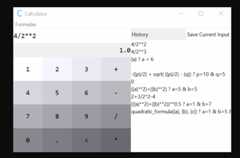
Conclusion
Excellent! You have successfully created a calculator using Python code! See how you can add more features to this program, such as more formulas or a converter for different things like inches to centimeters.
The complete code is on thefull code page.
If you want to build more GUIs with Python, check our GUI programming tutorials page!
Learn also:How to Make a File Explorer using Tkinter in Python.
Happy coding ♥
Let ourCode Converter simplify your multi-language projects. It's like having a coding translator at your fingertips. Don't miss out!
View Full Code Explain The Code for MeRead Also

Comment panel
Got a coding query or need some guidance before you comment? Check out thisPython Code Assistant for expert advice and handy tips. It's like having a coding tutor right in your fingertips!

Tags
- Ethical Hacking
- Machine Learning
- General Python Tutorials
- Web Scraping
- Finance
- Computer Vision
- Python Standard Library
- Application Programming Interfaces
- Database
- Game Development
- Web Programming
- Digital Forensics
- Natural Language Processing
- Healthcare
- PDF File Handling
- Python for Multimedia
- GUI Programming
- Cryptography
- Packet Manipulation Using Scapy
New Tutorials
Popular Tutorials