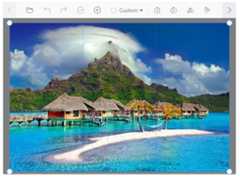
Vue Image Editor - A comprehensive tool to edit and enhance image
- Built-in support for cropping, rotating, flipping, zooming, and applying filters to images.
- Easily export edited images in JPEG, PNG, and SVG formats.
- Annotate images with shapes and customize their appearance.
Trusted by the world’s leading companies

Overview
The Vue Image Editor is a UI component for editing and enhancing images. With built-in support users can crop, rotate, flip, zoom, and apply filters. Additionally, users can annotate images with shapes such as rectangles, ellipses, lines, and text, as well as freehand drawings.
Selection and cropping
The Vue Image Editor makes it easy to get a perfect crop every time using multiple selection options, including square, circle, and customizable aspect ratios. The selection region can be dragged and resized for cropping an image.
Custom selection
Draw a custom selection rectangle on an image which can be repositioned by dragging and resizing it to get the desired selection.
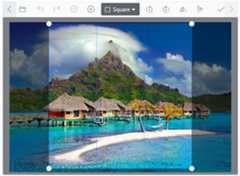
Square selection
Crop images into perfect square regions or maintain their aspect ratios.
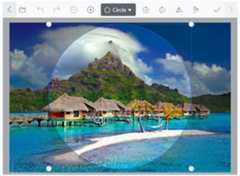
Circle selection
Crop images into perfect circular regions.
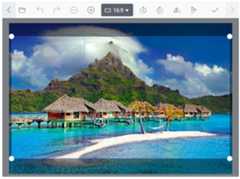
Predefined aspect ratios
Customize selection regions for cropping images according to predefined aspect ratios, including 4:3, 7:5, 16:9, and more.
Annotations
The Image Editor has multiple annotation tools, including text, freehand drawings, images, and shapes like rectangles, ellipses, and lines.
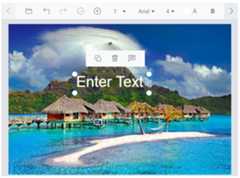
Text annotation
With the text annotation tool, users can add captions, labels, or other types of text-based information. Text annotations can be inserted anywhere on the image and customized by changing their color, outline color, fill color, outline width, font family, font size, and font styles, such as bold and italic.
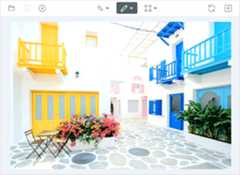
Freehand drawing annotation
Add hand-drawn content to an image using a mouse or touch. With the freehand drawing annotation, users can customize the pen color and stroke width to suit their needs. Also, it can be combined with other annotation tools, such as text and shapes, to create rich, annotated images.
Shapes annotation
Add shapes, such as rectangles, ellipses, and lines, to an image. With the shape annotation tool, customize the border color, fill color, and border width of the shapes.
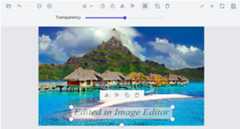
Image annotation
This feature allows users to insert and display multiple images in addition to the main image they are editing. These image annotations can be used for different purposes, such as adding logos, watermarks, or decorative elements to an image.
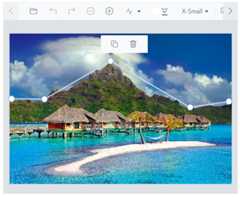
Path annotation
This feature enables manipulation of paths, which are editable curves consisting of anchor points connected by control handles that allow precise control over object boundaries. Users can create and modify custom shapes within an image using paths.
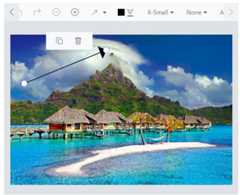
Arrow annotation
This feature provides the ability to draw and customize arrows with precision. Arrows can be created, modified, and personalized according to user preferences. They highlight objects or draw attention to specific details, effectively communicating the intended focal point.
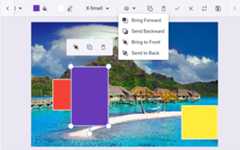
Z-order support
This feature allows users to adjust the positioning of annotations, particularly for designing personalized templates like greeting cards or posters, where managing the layering of multiple annotations is crucial for a polished final product.
Transform images
The Image Editor has built-in support to transform images by rotating, flipping, and zooming.
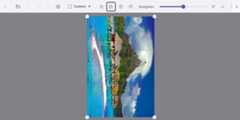
Rotate an image
Users can rotate images with annotations clockwise or counterclockwise.
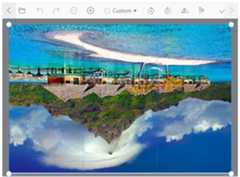
Flip an image
Flip images with annotations horizontally or vertically for creating a mirror image of the original image.
Undo and redo
The Image Editor provides an option to undo and redo changes made to an image. The undo option helps reverse the last action performed and the redo option reverses the last undo action performed with the Image Editor.

Zoom in/out images
Users can adjust the size of an image by zooming in or out to fine-tune their edits. The pan tool can also be used to reveal hidden areas of an image.
Pinch zoom
Pinch zoom is a technique for zooming in and out an image by using your fingers. On touch-enabled devices, you can use two fingers to pinch and zoom in or out.
Mouse wheel zoom
Mouse wheel zoom is a method of zooming in and out an image using your mouse. To zoom in, press thectrl key and roll your mouse wheel forward, and to zoom out, roll your mouse wheel backward.
Keyboard zoom
To zoom in, hold down the Ctrl key and press the + button and to zoom out, hold down Ctrl and press the - button. This will adjust the size of the image on your screen making it either larger or smaller depending on your needs.
Loading an image initially
Easily load an image into the Vue Image Editor using a base 64 string or URL, with support for PNG, JPEG, and SVG image formats.
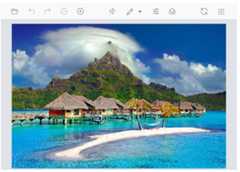
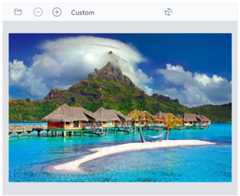
Image Editor toolbar
Offers a wide range of tools for annotating, selecting, cropping, zooming, panning, rotating, flipping, filtering, and more, enabling users to fully edit and manipulate their images. Additionally, users can customize the toolbar by defining their own items or the entire toolbar.
Exporting and saving images
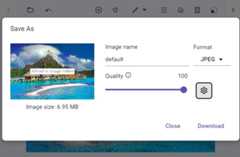
Easily save an image with a specified file name, file format, and image quality. Supported file formats for saving an image include PNG, JPEG, and SVG types. This feature provides more control over the output, ensuring that users can save their work exactly as they need it.
Quick access toolbar
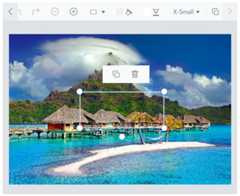
This feature enhances the Image Editor control by showing a toolbar when you select annotations like rectangle, ellipse, line, arrow, text, and freehand draw. It offers quick access to actions such as clone, delete, and edit text.
Frame support
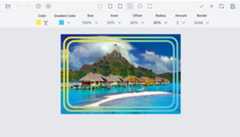
Users can add decorative borders or frames around images to enhance the visual appeal of an image.
Resize support
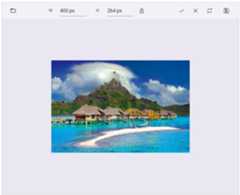
Users can adjust the size and dimensions of an image to suit their needs, such as for printing, web display, or other purposes.
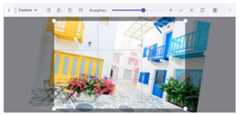
Straightening support
Users can adjust an image by rotating it clockwise or counter clockwise. The rotating degree value should be within the range of -45 to +45 degrees for accurate straightening. Positive values indicate clockwise rotation, while negative values indicate counter clockwise rotation.
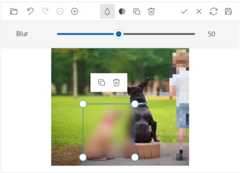
Redact support
Users can conceal sensitive information by applying blur or pixel effects to specific areas of an image. This feature is particularly valuable for protecting privacy and complying with data protection regulations, making it easier to securely share images without compromising sensitive information.
Localization
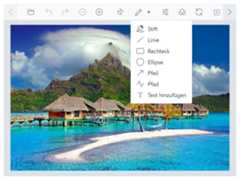
Localize user interface strings of the Vue Image Editor component by using the localization (l10n) library.
Touch-friendly editing
For a seamless experience on all devices, the Vue Image Editor includes a responsive mode that adapts the UI for mobile devices and offers a great user experience on phones, tablets, and desktops.
Developer-friendly APIs
With its extensive set of APIs, developers can control the appearance and behaviors of the Image Editor to suit their needs.
Built-in themes
The Vue Image Editor features built-in themes such as Bootstrap 5, Tailwind CSS, Fluent, high contrast, and more. Users can customize these themes or create their own using SASS variables or the Theme Studio application to achieve the desired look and feel.
Other supported frameworks
In addition to Vue, the Image Editor component is also available for the React, Angular, and JavaScript frameworks. You can access the component on these platforms using the links below.
Vue Image Editor Code Example
Easily get started with the Vue Image Editor using a few simple lines of Vue codes as demonstrated below. Also explore ourVue Image Editor Example that shows you how to render and configure the Image Editor in Vue.
<template><divclass="control-section"><divclass="col-lg-12 e-img-editor-sample"><ejs-imageeditor:theme="themeValue"id="image-editor"ref="imageEditorObj":created ="created"></ejs-imageeditor></div></div></template><script>importVuefrom"vue";import{ImageEditorPlugin}from"@syncfusion/ej2-vue-image-editor";import{Browser}from"@syncfusion/ej2-base";Vue.use(ImageEditorPlugin);exportdefaultVue.extend({data:function(){return{theme:'Bootstrap5'};},methods:{created:function(){if(Browser.isDevice){this.$refs.imageEditorObj.open('src/image-editor/images/flower.png');}else{this.$refs.imageEditorObj.open('src/image-editor/images/bridge.png');}this.themeValue=window.location.href.split('#')[1].split('/')[1];}},computed:{themeValue:{get:function(){returnthis.theme;},set:function(theme){this.theme=theme}}}});</script>
Not sure how to create your first Vue Image Editor? Our documentation can help.
I’d love to read it now145+ VUE UI COMPONENTS
Frequently Asked Questions
✅ Why should you choose Syncfusion Vue Image Editor?
Built-in support to crop, rotate, flip, zoom, andannotate.
- Convert images to base64 and download images in JPEG, PNG, and SVG formats.
- Flexible and completely customizable user interface.
- One of the best Vue Image Editor components in the market, that offers feature-rich UI to interact with the software.
- Simple configuration and API.
- Supports all modern browsers.
Expansive learning resources such asdemos anddocumentation to let you get started quickly with Vue Image Editor.
✅ Where can I find the Syncfusion Vue Image Editor demo?
You can find ourVue Image Editor demo, which demonstrates how to render and configure the Image Editor.
✅ Can I download and utilize the Syncfusion Vue Image Editor for free?
No, this is a commercial product and requires a paid license. However, afree community license is also available for companies and individuals whose organizations have less than $1 million USD in annual gross revenue, 5 or fewer developers, and 10 or fewer total employees.
✅ How do I get started with Syncfusion Vue Image Editor?
A good place to start would be our comprehensivegetting started documentation.
Our Customers Love Us


See Real Success Stories
Developers around the world trust Syncfusion’s Essential Studio to simplify complex projects and speed up delivery. With a vast library of UI controls, powerful SDKs, and reliable support, Essential Studio helps teams build enterprise-ready applications with confidence.
Explore Case StudiesIndustry
Software development
75% Cost reduction
50% Faster development

Industry
Utilities (oil and gas)

450+ hours saved
Streamlined processes and hours of development effort saved.

Advanced, flexible features
Empowered users through robust and versatile functionality.
Industry
Software and technology
1000+ of hours saved
Accelerated development with enterprise-ready UI components.

Efficient file management
Streamlined workflows with document libraries without building them from scratch.
Industry
Software and technology

2 Years of delay avoided
Two years of delays prevented with proactive planning.

On-time delivery
Projects delivered on schedule using trusted controls.
Industry
IT services and IT consulting

Improved performance
Large datasets handled with easy customization and quick debugging.

Highly customizable
Plug-and-play controls with quick template integration.
Industry
Professional services
Instant access
Quick availability of features and resources.
Reduced dependencies
Fewer dependencies for faster development.
Rated by users across the globe


Transform your applications today by downloading our free evaluation version Download Free TrialNo credit card required.
 Documentation


Awards
Greatness—it’s one thing to say you have it, but it means more when others recognize it.Syncfusion® is proud to hold the following industry awards.