Movatterモバイル変換


[0]ホーム

URL:


VM
Uploaded byvishnu murthy
DOC, PDF388 views

Css introduction

CSS (Cascading Style Sheets) allows separation of document content from document presentation by defining styles. CSS can be defined internally, inline, or externally in CSS files. CSS rules have selectors and declarations, where properties and values are used to style elements. Common CSS properties control color, text formatting, background images and colors. Styles can be applied to HTML elements, classes, or IDs. When multiple conflicting styles are defined, styles are cascaded according to precedence rules with inline styles having the highest priority.

Embed presentation

Download to read offline
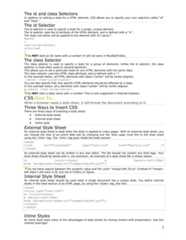
CSS IntroductionWhat You Should Already KnowBefore you continue you should have a basic understanding of the following:HTML / XHTMLWhat is CSS?• CSS stands for Cascading Style Sheets• Styles define how to display HTML elements• Styles were added to HTML 4.0 to solve a problem• External Style Sheets can save a lot of workExternal Style Sheets are stored in CSS filesStyles Solved a Big ProblemHTML was never intended to contain tags for formatting a document.HTML was intended to define the content of a document, like:<h1>This is a heading</h1><p>This is a paragraph.</p>When tags like <font>, and color attributes were added to the HTML 3.2 specification, it started anightmare for web developers. Development of large web sites, where fonts and color information wereadded to every single page, became a long and expensive process.To solve this problem, the World Wide Web Consortium (W3C) created CSS.In HTML 4.0, all formatting could be removed from the HTML document, and stored in a separate CSS file.All browsers support CSS today.CSS Saves a Lot of Work!CSS defines HOW HTML elements are to be displayed.Styles are normally saved in external .css files. External style sheets enable you to change the appearanceand layout of all the pages in a Web site, just by editing one single file!CSS SyntaxA CSS rule has two main parts: a selector, and one or more declarations:The selector is normally the HTML element you want to style.Each declaration consists of a property and a value.The property is the style attribute you want to change. Each property has a value.CSS ExampleCSS declarations always ends with a semicolon, and declaration groups are surrounded by curly brackets:p {color:red;text-align:center}To make the CSS more readable, you can put one declaration on each line, like this:p{color:red;text-align:center;}CSS CommentsComments are used to explain your code, and may help you when you edit the source code at a later date.Comments are ignored by browsers.A CSS comment begins with "/*", and ends with "*/", like this:/*This is a comment*/p{text-align:center;/*This is another comment*/color:black;font-family:arial}CSS Id and Class1
The id and class SelectorsIn addition to setting a style for a HTML element, CSS allows you to specify your own selectors called "id"and "class".The id SelectorThe id selector is used to specify a style for a single, unique element.The id selector uses the id attribute of the HTML element, and is defined with a "#".The style rule below will be applied to the element with id="para1":#para1{text-align:center;color:red}Do NOT start an ID name with a number! It will not work in Mozilla/Firefox.The class SelectorThe class selector is used to specify a style for a group of elements. Unlike the id selector, the classselector is most often used on several elements.This allows you to set a particular style for any HTML elements with the same class.The class selector uses the HTML class attribute, and is defined with a "."In the example below, all HTML elements with class="center" will be center-aligned:.center {text-align:center}You can also specify that only specific HTML elements should be affected by a class.In the example below, all p elements with class="center" will be center-aligned:p.center {text-align:center}Do NOT start a class name with a number! This is only supported in Internet Explorer.CSS How To...When a browser reads a style sheet, it will format the document according to it.Three Ways to Insert CSSThere are three ways of inserting a style sheet:• External style sheet• Internal style sheet• Inline styleExternal Style SheetAn external style sheet is ideal when the style is applied to many pages. With an external style sheet, youcan change the look of an entire Web site by changing one file. Each page must link to the style sheetusing the <link> tag. The <link> tag goes inside the head section:<head><link rel="stylesheet" type="text/css" href="mystyle.css" /></head>An external style sheet can be written in any text editor. The file should not contain any html tags. Yourstyle sheet should be saved with a .css extension. An example of a style sheet file is shown below:hr {color:sienna} p {margin-left:20px}body {background-image:url("images/back40.gif")}Do not leave spaces between the property value and the units! "margin-left:20 px" (instead of "margin-left:20px") will work in IE, but not in Firefox or Opera.Internal Style SheetAn internal style sheet should be used when a single document has a unique style. You define internalstyles in the head section of an HTML page, by using the <style> tag, like this:<head><style type="text/css">hr {color:sienna}p {margin-left:20px}body {background-image:url("images/back40.gif")}</style></head>Inline StylesAn inline style loses many of the advantages of style sheets by mixing content with presentation. Use thismethod sparingly!2
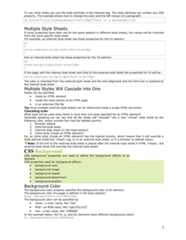
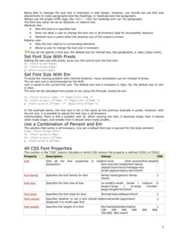
To use inline styles you use the style attribute in the relevant tag. The style attribute can contain any CSSproperty. The example shows how to change the color and the left margin of a paragraph:<p style="color:sienna;margin-left:20px">This is a paragraph.</p>Multiple Style SheetsIf some properties have been set for the same selector in different style sheets, the values will be inheritedfrom the more specific style sheet.For example, an external style sheet has these properties for the h3 selector:h3{color:red;text-align:left;font-size:8pt}And an internal style sheet has these properties for the h3 selector:h3{text-align:right;font-size:20pt}If the page with the internal style sheet also links to the external style sheet the properties for h3 will be:color:red;text-align:right;font-size:20ptThe color is inherited from the external style sheet and the text-alignment and the font-size is replaced bythe internal style sheet.Multiple Styles Will Cascade into OneStyles can be specified:• inside an HTML element• inside the head section of an HTML page• in an external CSS fileTip: Even multiple external style sheets can be referenced inside a single HTML document.Cascading orderWhat style will be used when there is more than one style specified for an HTML element?Generally speaking we can say that all the styles will "cascade" into a new "virtual" style sheet by thefollowing rules, where number four has the highest priority:1. Browser default2. External style sheet3. Internal style sheet (in the head section)4. Inline style (inside an HTML element)So, an inline style (inside an HTML element) has the highest priority, which means that it will override astyle defined inside the <head> tag, or in an external style sheet, or in a browser (a default value).Note: If the link to the external style sheet is placed after the internal style sheet in HTML <head>, theexternal style sheet will override the internal style sheet!CSS BackgroundCSS background properties are used to define the background effects of anelement.CSS properties used for background effects:• background-color• background-image• background-repeat• background-attachment• background-positionBackground ColorThe background-color property specifies the background color of an element.The background color of a page is defined in the body selector:body {background-color:#b0c4de}The background color can be specified by:• name - a color name, like "red"• RGB - an RGB value, like "rgb(255,0,0)"• Hex - a hex value, like "#ff0000"In the example below, the h1, p, and div elements have different background colors:h1 {background-color:#6495ed}3
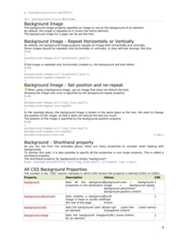
p {background-color:#e0ffff}div {background-color:#b0c4de}Background ImageThe background-image property specifies an image to use as the background of an element.By default, the image is repeated so it covers the entire element.The background image for a page can be set like this:Background Image - Repeat Horizontally or VerticallyBy default, the background-image property repeats an image both horizontally and vertically.Some images should be repeated only horizontally or vertically, or they will look strange, like this:body{background-image:url('gradient2.png');}If the image is repeated only horizontally (repeat-x), the background will look better:body{background-image:url('gradient2.png');background-repeat:repeat-x;}Background Image - Set position and no-repeatWhen using a background image, use an image that does not disturb the text.Showing the image only once is specified by the background-repeat property:body{background-image:url('img_tree.png');background-repeat:no-repeat;}In the example above, the background image is shown in the same place as the text. We want to changethe position of the image, so that it does not disturb the text too much.The position of the image is specified by the background-position property:body{background-image:url('img_tree.png');background-repeat:no-repeat;background-position:top right;}Background - Shorthand propertyAs you can see from the examples above, there are many properties to consider when dealing withbackgrounds.To shorten the code, it is also possible to specify all the properties in one single property. This is called ashorthand property.The shorthand property for background is simply "background":body {background:#ffffff url('img_tree.png') no-repeat top right}All CSS Background PropertiesThe number in the "CSS" column indicates in which CSS version the property is defined (CSS1 or CSS2).Property Description Values CSSbackground Sets all the backgroundproperties in one declarationbackground-color / background-image / background-repeatbackground-attachment /background-position /inherit1background-attachment Sets whether a backgroundimage is fixed or scrolls withthe rest of the pageScrollfixedinherit1background-color Sets the background color ofan elementcolor-rgb /color-hex /color-nametransparent /inherit1background-image Sets the background imagefor an elementurl(URL) /none /inherit 14
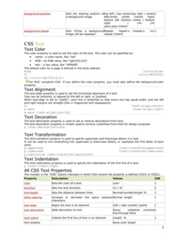
background-position Sets the starting position ofa background imagetop left / top center/top right / centerleft/center center /center right/bottom left /bottom center / bottomright / x% y%xpos ypos /inherit1background-repeat Sets if/how a backgroundimage will be repeatedRepeat repeat-x /repeat-y no-repeat /inherit1CSS TextText ColorThe color property is used to set the color of the text. The color can be specified by:• name - a color name, like "red"• RGB - an RGB value, like "rgb(255,0,0)"• Hex - a hex value, like "#ff0000"The default color for a page is defined in the body selector.body {color:blue}h1 {color:#00ff00}h2 {color:rgb(255,0,0)}For W3C compliant CSS: If you define the color property, you must also define the background-colorproperty.Text AlignmentThe text-align property is used to set the horizontal alignment of a text.Text can be centered, or aligned to the left or right, or justified.When text-align is set to "justify", each line is stretched so that every line has equal width, and the leftand right margins are straight (like in magazines and newspapers).h1 {text-align:center}p.date {text-align:right}p.main {text-align:justify}Text DecorationThe text-decoration property is used to set or remove decorations from text.The text-decoration property is mostly used to remove underlines from links for design purposes:a {text-decoration:none}Text TransformationThe text-transform property is used to specify uppercase and lowercase letters in a text.It can be used to turn everything into uppercase or lowercase letters, or capitalize the first letter of eachword.p.uppercase {text-transform:uppercase}p.lowercase {text-transform:lowercase}p.capitalize {text-transform:capitalize}Text IndentationThe text-indentation property is used to specify the indentation of the first line of a text.p {text-indent:50px}All CSS Text PropertiesThe number in the "CSS" column indicates in which CSS version the property is defined (CSS1 or CSS2).Property Description Values CSScolor Sets the color of a text color 1direction Sets the text direction Ltr / rtl 2line-height Sets the distance between lines Normal/number/length % 1letter-spacing Increase or decrease the space betweencharactersNormal length 1text-align Aligns the text in an element Left / right /center/ justify 1text-decoration Adds decoration to text None/ underline /overlineline-through blink1text-indent Indents the first line of text in an element Length % 1text-shadow None color length5
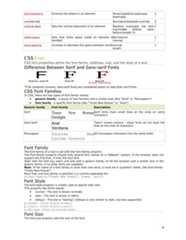
text-transform Controls the letters in an element None/capitalize/uppercaselowercase1unicode-bidi Normal/embed/bidi-override 2vertical-align Sets the vertical alignment of an element Baseline sub/super top text-top/middle bottom /text-bottom/length %1white-space Sets how white space inside an element ishandledNormal/prenowrap1word-spacing Increase or decrease the space between wordsnormallength1CSS FontCSS font properties define the font family, boldness, size, and the style of a text.Difference Between Serif and Sans-serif FontsOn computer screens, sans-serif fonts are considered easier to read than serif fonts.CSS Font FamiliesIn CSS, there are two types of font family names:• generic family - a group of font families with a similar look (like "Serif" or "Monospace")• font family - a specific font family (like "Times New Roman" or "Arial")Generic family Font family DescriptionSerif Times New RomanGeorgiaSerif fonts have small lines at the ends on somecharactersSans-serif ArialVerdana"Sans" means without - these fonts do not have thelines at the ends of charactersMonospace Courier NewLucida ConsoleAll monospace characters has the same widthFont FamilyThe font family of a text is set with the font-family property.The font-family property should hold several font names as a "fallback" system. If the browser does notsupport the first font, it tries the next font.Start with the font you want, and end with a generic family, to let the browser pick a similar font in thegeneric family, if no other fonts are available.Note: If the name of a font family is more than one word, it must be in quotation marks, like font-family:"Times New Roman".More than one font family is specified in a comma-separated list:p{font-family:"Times New Roman", Times, serif}Font StyleThe font-style property is mostly used to specify italic text.This property has three values:• normal - The text is shown normally• italic - The text is shown in italics• oblique - The text is "leaning" (oblique is very similar to italic, but less supported)p.normal {font-style:normal}p.italic {font-style:italic}p.oblique {font-style:oblique}Font SizeThe font-size property sets the size of the text.6
Being able to manage the text size is important in web design. However, you should not use font sizeadjustments to make paragraphs look like headings, or headings look like paragraphs.Always use the proper HTML tags, like <h1> - <h6> for headings and <p> for paragraphs.The font-size value can be an absolute, or relative size.Absolute size:• Sets the text to a specified size• Does not allow a user to change the text size in all browsers (bad for accessibility reasons)• Absolute size is useful when the physical size of the output is knownRelative size:• Sets the size relative to surrounding elements• Allows a user to change the text size in browsersIf you do not specify a font size, the default size for normal text, like paragraphs, is 16px (16px=1em).Set Font Size With PixelsSetting the text size with pixels, gives you full control over the text size:h1 {font-size:40px}h2 {font-size:30px}p {font-size:14px}Set Font Size With EmTo avoid the resizing problem with Internet Explorer, many developers use em instead of pixels.The em size unit is recommended by the W3C.1em is equal to the current font size. The default text size in browsers is 16px. So, the default size of 1emis 16px.The size can be calculated from pixels to em using this formula: pixels/16=emh1 {font-size:2.5em} /* 40px/16=2.5em */h2 {font-size:1.875em} /* 30px/16=1.875em */p {font-size:0.875em} /* 14px/16=0.875em */In the example above, the text size in em is the same as the previous example in pixels. However, withthe em size, it is possible to adjust the text size in all browsers.Unfortunately, there is still a problem with IE. When resizing the text, it becomes larger than it shouldwhen made larger, and smaller than it should when made smaller.Use a Combination of Percent and EmThe solution that works in all browsers, is to set a default font-size in percent for the body element:body {font-size:100%}h1 {font-size:2.5em}h2 {font-size:1.875em}p {font-size:0.875em}All CSS Font PropertiesThe number in the "CSS" column indicates in which CSS version the property is defined (CSS1 or CSS2).Property Description Values CSSfont Sets all the font properties in onedeclarationfont-style /font-variant/font-weightfont-size/line-height/font-familycaption/icon/menu/message-boxsmall-caption/status-bar/inherit1font-family Specifies the font family for text family-name/generic-familyinherit1font-size Specifies the font size of text xx-small/x-small /small / medium /large/x-large / xx-large /smallerlarger/length/%/inherit1font-style Specifies the font style for text Normal/italic/oblique/inherit 1font-variant Specifies whether or not a text should bedisplayed in a small-caps fontNormal/small-caps/inherit 1font-weight Specifies the weight of a font Normal/bold/bolder/lighter100 200 300 400 500 600700 800 900 inherit17
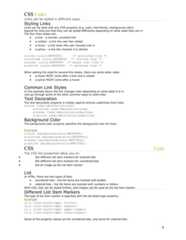
CSS LinksLinks can be styled in different ways.Styling LinksLinks can be style with any CSS property (e.g. color, font-family, background-color).Special for links are that they can be styled differently depending on what state they are in.The four links states are:• a:link - a normal, unvisited link• a:visited - a link the user has visited• a:hover - a link when the user mouses over it• a:active - a link the moment it is clickeda:link {color:#FF0000} /* unvisited link */a:visited {color:#00FF00} /* visited link */a:hover {color:#FF00FF} /* mouse over link */a:active {color:#0000FF} /* selected link */When setting the style for several link states, there are some order rules:• a:hover MUST come after a:link and a:visited• a:active MUST come after a:hoverCommon Link StylesIn the example above the link changes color depending on what state it is in.Lets go through some of the other common ways to style links:Text DecorationThe text-decoration property is mostly used to remove underlines from links:a:link {text-decoration:none}a:visited {text-decoration:none}a:hover {text-decoration:underline}a:active {text-decoration:underline}Background ColorThe background-color property specifies the background color for links:Examplea:link {background-color:#B2FF99;}a:visited {background-color:#FFFF85;}a:hover {background-color:#FF704D;}a:active {background-color:#FF704D;}CSS ListsThe CSS list properties allow you to:• Set different list item markers for ordered lists• Set different list item markers for unordered lists• Set an image as the list item markerListIn HTML, there are two types of lists:• unordered lists - the list items are marked with bullets• ordered lists - the list items are marked with numbers or lettersWith CSS, lists can be styled further, and images can be used as the list item marker.Different List Item MarkersThe type of list item marker is specified with the list-style-type property:Exampleul.a {list-style-type: circle;}ul.b {list-style-type: square;}ol.c {list-style-type: upper-roman;}ol.d {list-style-type: lower-alpha;}Some of the property values are for unordered lists, and some for ordered lists.8
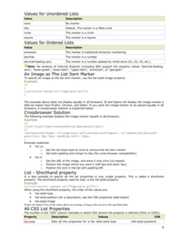
Values for Unordered ListsValue Descriptionnone No markerdisc Default. The marker is a filled circlecircle The marker is a circlesquare The marker is a squareValues for Ordered ListsValue Descriptionarmenian The marker is traditional Armenian numberingdecimal The marker is a numberdecimal-leading-zero The marker is a number padded by initial zeros (01, 02, 03, etc.)Note: No versions of Internet Explorer (including IE8) support the property values "decimal-leading-zero", "lower-greek", "lower-latin", "upper-latin", "armenian", or "georgian".An Image as The List Item MarkerTo specify an image as the list item marker, use the list-style-image property:Exampleul{list-style-image:url('sqpurple.gif');}The example above does not display equally in all browsers. IE and Opera will display the image-marker alittle bit higher than Firefox, Chrome, and Safari. If you want the image-marker to be placed equally in allbrowsers, a crossbrowser solution is explained below.Crossbrowser SolutionThe following example displays the image-marker equally in all browsers:Exampleul{list-style-type:none;padding:0px;margin:0px;}li{background-image: url(sqpurple.gif);background-repeat: no-repeat;background-position: 0px 5px; padding-left: 14px;}Example explained:• For ul:o Set the list-style-type to none to remove the list item markero Set both padding and margin to 0px (for cross-browser compatibility)• For li:o Set the URL of the image, and show it only once (no-repeat)o Position the image where you want it (left 0px and down 5px)o Position the text in the list with padding-leftList - Shorthand propertyIt is also possible to specify all the list properties in one, single property. This is called a shorthandproperty. The shorthand property used for lists, is the list-style property:Exampleul{list-style: square url("sqpurple.gif");}When using the shorthand property, the order of the values are:• list-style-type• list-style-position (for a description, see the CSS properties table below)• list-style-imageIt does not matter if one of the values above are missing, as long as the rest are in the specified order.All CSS List PropertiesThe number in the "CSS" column indicates in which CSS version the property is defined (CSS1 or CSS2).Property Description Values CSSlist-style Sets all the properties for a list inlist-style-type /list-style-position19
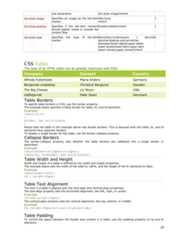
one declaration list-style-image/inheritlist-style-image Specifies an image as the list-itemmarkerURL/noneinherit1list-style-position Specifies if the list-item markersshould appear inside or outside thecontent flowInside/outside/inherit 1list-style-type Specifies the type of list-itemmarkerNone/disc/circle/square / decimaldecimal-leading-zero/armenianGeorgian/lower-alpha/upper-alphalower-greek/lower-latin/upper-latinlower-roman/upper-roman/inherit1CSS TablesThe look of an HTML table can be greatly improved with CSS:Company Contact CountryAlfreds Futterkiste Maria Anders GermanyBerglunds snabbköp Christina Berglund SwedenThe Big Cheese Liz Nixon USAVaffeljernet Palle Ibsen DenmarkTable BordersTo specify table borders in CSS, use the border property.The example below specifies a black border for table, th, and td elements:Exampletable,th,td{border: 1px solid black;}Notice that the table in the example above has double borders. This is because both the table, th, and tdelements have separate borders.To display a single border for the table, use the border-collapse property.Collapse BordersThe border-collapse property sets whether the table borders are collapsed into a single border orseparated:Exampletable{border-collapse:collapse;}table,th, td{border: 1px solid black;}Table Width and HeightWidth and height of a table is defined by the width and height properties.The example below sets the width of the table to 100%, and the height of the th elements to 50px:Exampletable{width:100%;}th { height:50px;}Table Text AlignmentThe text in a table is aligned with the text-align and vertical-align properties.The text-align property sets the horizontal alignment, like left, right, or center:Exampletd{text-align:right;}The vertical-align property sets the vertical alignment, like top, bottom, or middle:ExampleTd {height:50px;vertical-align:bottom;}Table PaddingTo control the space between the border and content in a table, use the padding property on td and thelements:10
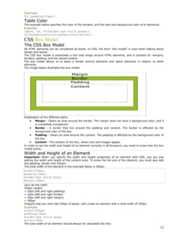
ExampleTd {padding:15px;}Table ColorThe example below specifies the color of the borders, and the text and background color of th elements:Exampletable, td, th{border:1px solid green;}th{background-color:green;color:white;}CSS Box ModelThe CSS Box ModelAll HTML elements can be considered as boxes. In CSS, the term "box model" is used when talking aboutdesign and layout.The CSS box model is essentially a box that wraps around HTML elements, and it consists of: margins,borders, padding, and the actual content.The box model allows us to place a border around elements and space elements in relation to otherelements.The image below illustrates the box model:Explanation of the different parts:• Margin - Clears an area around the border. The margin does not have a background color, and itis completely transparent• Border - A border that lies around the padding and content. The border is affected by thebackground color of the box• Padding - Clears an area around the content. The padding is affected by the background color ofthe box• Content - The content of the box, where text and images appearIn order to set the width and height of an element correctly in all browsers, you need to know how the boxmodel works.Width and Height of an ElementImportant: When you specify the width and height properties of an element with CSS, you are justsetting the width and height of the content area. To know the full size of the element, you must also addthe padding, border and margin.The total width of the element in the example below is 300px:width:250px;padding:10px;border:5px solid gray;margin:10px;Let's do the math:250px (width)+ 20px (left and right padding)+ 10px (left and right border)+ 20px (left and right margin)= 300pxImagine that you only had 250px of space. Let's make an element with a total width of 250px:Examplewidth:220px;padding:10px;border:5px solid gray;margin:0px;The total width of an element should always be calculated like this:11
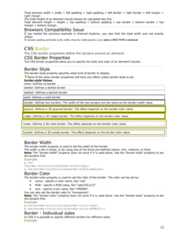
Total element width = width + left padding + right padding + left border + right border + left margin +right marginThe total height of an element should always be calculated like this:Total element height = height + top padding + bottom padding + top border + bottom border + topmargin + bottom marginBrowsers Compatibility IssueIf you tested the previous example in Internet Explorer, you saw that the total width was not exactly250px.IE includes padding and border in the width, when the width property is set, unless a DOCTYPE is declared.CSS BorderThe CSS border properties define the borders around an element:CSS Border PropertiesThe CSS border properties allow you to specify the style and color of an element's border.Border StyleThe border-style property specifies what kind of border to display.None of the other border properties will have any effect unless border-style is set.border-style Valuesnone: Defines no borderdotted: Defines a dotted borderdashed: Defines a dashed bordersolid: Defines a solid borderdouble: Defines two borders. The width of the two borders are the same as the border-width valuegroove: Defines a 3D grooved border. The effect depends on the border-color valueridge: Defines a 3D ridged border. The effect depends on the border-color valueinset: Defines a 3D inset border. The effect depends on the border-color valueoutset: Defines a 3D outset border. The effect depends on the border-color valueBorder WidthThe border-width property is used to set the width of the border.The width is set in pixels, or by using one of the three pre-defined values: thin, medium, or thick.Note: The "border-width" property does not work if it is used alone. Use the "border-style" property to setthe borders first.Examplep.one{border-style:solid;border-width:5px;}p.two{border-style:solid;border-width:medium;}Border ColorThe border-color property is used to set the color of the border. The color can be set by:• name - specify a color name, like "red"• RGB - specify a RGB value, like "rgb(255,0,0)"• Hex - specify a hex value, like "#ff0000"You can also set the border color to "transparent".Note: The "border-color" property does not work if it is used alone. Use the "border-style" property to setthe borders first.Examplep.one{border-style:solid;border-color:red;}p.two{border-style:solid;border-color:#98bf21;}Border - Individual sidesIn CSS it is possible to specify different borders for different sides:Example12
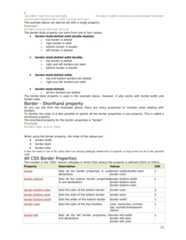
p{border-top-style:dotted; border-right-style:solid;border-bottom-style:dotted;border-left-style:solid;}The example above can also be set with a single property:Exampleborder-style:dotted solid;The border-style property can have from one to four values.• border-style:dotted solid double dashed;o top border is dottedo right border is solido bottom border is doubleo left border is dashed• border-style:dotted solid double;o top border is dottedo right and left borders are solido bottom border is double• border-style:dotted solid;o top and bottom borders are dottedo right and left borders are solid• border-style:dotted;o all four borders are dottedThe border-style property is used in the example above. However, it also works with border-width andborder-color.Border - Shorthand propertyAs you can see from the examples above, there are many properties to consider when dealing withborders.To shorten the code, it is also possible to specify all the border properties in one property. This is called ashorthand property.The shorthand property for the border properties is "border":Exampleborder:5px solid red;When using the border property, the order of the values are:• border-width• border-style• border-colorIt does not matter if one of the values above are missing (although, border-style is required), as long as the rest are in the specifiedorder.All CSS Border PropertiesThe number in the "CSS" column indicates in which CSS version the property is defined (CSS1 or CSS2).Property Description Values CSSborder Sets all the border properties in onedeclarationborder-width/border-styleborder-color1border-bottom Sets all the bottom border propertiesin one declarationborder-bottom-widthborder-bottom-styleborder-bottom-color1border-bottom-color Sets the color of the bottom border border-color 2border-bottom-style Sets the style of the bottom border border-style 2border-bottom-width Sets the width of the bottom border border-width 1border-color Sets the color of the four borders color_name/hex_numberrgb_number/transparentinherit1border-left Sets all the left border properties inone declarationborder-left-widthborder-left-styleborder-left-color113
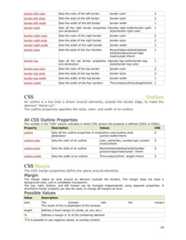
border-left-color Sets the color of the left border border-color 2border-left-style Sets the style of the left border border-style 2border-left-width Sets the width of the left border border-width 1border-right Sets all the right border properties inone declarationborder-right-width/border-right-style/border-right-color1border-right-color Sets the color of the right border border-color 2border-right-style Sets the style of the right border border-style 2border-right-width Sets the width of the right border border-width 1border-style Sets the style of the four borders None/hidden/dotted/dashedsolid/double/groove/ridgeinset/outset inherit1border-top Sets all the top border properties inone declarationborder-top-width/border-top-style/border-top-color1border-top-color Sets the color of the top border border-color 2border-top-style Sets the style of the top border border-style 2border-top-width Sets the width of the top border border-width 1border-width Sets the width of the four borders Thin/medium/thick/lengthinherit 1CSS OutlinesAn outline is a line that is drawn around elements, outside the border edge, to make theelement "stand out".The outline properties specifies the style, color, and width of an outline.All CSS Outline PropertiesThe number in the "CSS" column indicates in which CSS version the property is defined (CSS1 or CSS2).Property Description Values CSSoutline Sets all the outline properties in onedeclarationoutline-color/outline-styleoutline-width/inherit2outline-color Sets the color of an outline color_name/hex_number/rgb_numberinvert/inherit2outline-style Sets the style of an outline None/dotted/dashed/solid/double/groove/ridge/inset/outset inherit2outline-width Sets the width of an outline Thin/medium/thick length inherit 2CSS MarginThe CSS margin properties define the space around elements.MarginThe margin clears an area around an element (outside the border). The margin does not have abackground color, and is completely transparent.The top, right, bottom, and left margin can be changed independently using separate properties. Ashorthand margin property can also be used, to change all margins at once.Possible ValuesValue Descriptionauto The browser sets the margin.The result of this is dependant of the browserlength Defines a fixed margin (in pixels, pt, em, etc.)% Defines a margin in % of the containing elementIt is possible to use negative values, to overlap content.14
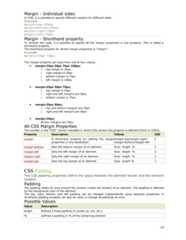
Margin - Individual sidesIn CSS, it is possible to specify different margins for different sides:Examplemargin-top:100px;margin-bottom:100px;margin-right:50px;margin-left:50px;Margin - Shorthand propertyTo shorten the code, it is possible to specify all the margin properties in one property. This is called ashorthand property.The shorthand property for all the margin properties is "margin":Examplemargin:100px 50px;The margin property can have from one to four values.• margin:25px 50px 75px 100px;o top margin is 25pxo right margin is 50pxo bottom margin is 75pxo left margin is 100px• margin:25px 50px 75px;o top margin is 25pxo right and left margins are 50pxo bottom margin is 75px• margin:25px 50px;o top and bottom margins are 25pxo right and left margins are 50px• margin:25px;all four margins are 25pxAll CSS Margin PropertiesThe number in the "CSS" column indicates in which CSS version the property is defined (CSS1 or CSS2).Property Description Values CSSmargin A shorthand property for setting the marginproperties in one declarationmargin-top/margin-right/margin-bottom/margin-left1margin-bottom Sets the bottom margin of an element Auto length % 1margin-left Sets the left margin of an element Auto length % 1margin-right Sets the right margin of an element Auto length % 1margin-top Sets the top margin of an element Auto length % 1CSS PaddingThe CSS padding properties define the space between the element border and the elementcontent.PaddingThe padding clears an area around the content (inside the border) of an element. The padding is affectedby the background color of the element.The top, right, bottom, and left padding can be changed independently using separate properties. Ashorthand padding property can also be used, to change all paddings at once.Possible ValuesValue Descriptionlength Defines a fixed padding (in pixels, pt, em, etc.)% Defines a padding in % of the containing element15
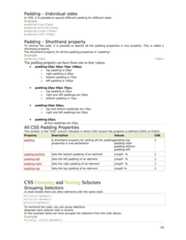
Padding - Individual sidesIn CSS, it is possible to specify different padding for different sides:Examplepadding-top:25px;padding-bottom:25px;padding-right:50px;padding-left:50px;Padding - Shorthand propertyTo shorten the code, it is possible to specify all the padding properties in one property. This is called ashorthand property.The shorthand property for all the padding properties is "padding":Examplepadding:25px 50px;The padding property can have from one to four values.• padding:25px 50px 75px 100px;o top padding is 25pxo right padding is 50pxo bottom padding is 75pxo left padding is 100px• padding:25px 50px 75px;o top padding is 25pxo right and left paddings are 50pxo bottom padding is 75px• padding:25px 50px;o top and bottom paddings are 25pxo right and left paddings are 50px• padding:25px;all four paddings are 25pxAll CSS Padding PropertiesThe number in the "CSS" column indicates in which CSS version the property is defined (CSS1 or CSS2).Property Description Values CSSpadding A shorthand property for setting all the paddingproperties in one declarationpadding-toppadding-rightpadding-bottompadding-left1padding-bottom Sets the bottom padding of an element Length % 1padding-left Sets the left padding of an element Length % 1padding-right Sets the right padding of an element Length % 1padding-top Sets the top padding of an element Length % 1CSS Grouping and Nesting SelectorsGrouping SelectorsIn style sheets there are often elements with the same style.h1{color:green;}h2{color:green;}p{color:green;}To minimize the code, you can group selectors.Separate each selector with a comma.In the example below we have grouped the selectors from the code above:Exampleh1,h2,p {color:green;}16
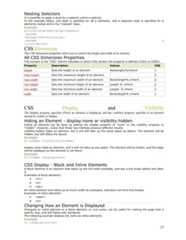
Nesting SelectorsIt is possible to apply a style for a selector within a selector.In the example below, one style is specified for all p elements, and a separate style is specified for pelements nested within the "marked" class:Examplep{color:blue;text-align:center;}.marked{background-color:blue;}.marked p{color:white;}CSS DimensionThe CSS dimension properties allow you to control the height and width of an element.All CSS Dimension PropertiesThe number in the "CSS" column indicates in which CSS version the property is defined (CSS1 or CSS2).Property Description Values CSSheight Sets the height of an element Autolength/%/inherit 1max-height Sets the maximum height of an element 2max-width Sets the maximum width of an element None/length% i/nherit 2min-height Sets the minimum height of an element Length % inherit 2min-width Sets the minimum width of an element Length % inherit 2width Sets the width of an element None/length% i/nherit 1CSS Display and VisibilityThe display property specifies if/how an element is displayed, and the visibility property specifies if an elementshould be visible or hidden.Hiding an Element - display:none or visibility:hiddenHiding an element can be done by setting the display property to "none" or the visibility property to"hidden". However, notice that these two methods produce different results:visibility:hidden hides an element, but it will still take up the same space as before. The element will behidden, but still affect the layout.Exampleh1.hidden {visibility:hidden}display:none hides an element, and it will not take up any space. The element will be hidden, and the pagewill be displayed as the element is not there:Exampleh1.hidden {display:none}CSS Display - Block and Inline ElementsA block element is an element that takes up the full width available, and has a line break before and afterit.Examples of block elements:• <h1>• <p>• <div>An inline element only takes up as much width as necessary, and does not force line breaks.Examples of inline elements:• <span>• <a>Changing How an Element is DisplayedChanging an inline element to a block element, or vice versa, can be useful for making the page look aspecific way, and still follow web standards.The following example displays list items as inline elements:Exampleli {display:inline}17
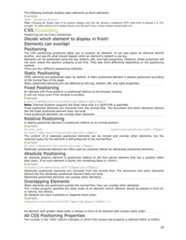
The following example displays span elements as block elements:Examplespan {display:block}Note: Changing the display type of an element changes only how the element is displayed, NOT what kind of element it is. Forexample: An inline element set to display:block is not allowed to have a block element nested inside of it.CSS PositioningPositioning can be tricky sometimes!Decide which element to display in front!Elements can overlap!PositioningThe CSS positioning properties allow you to position an element. It can also place an element behindanother, and specify what should happen when an element's content is too big.Elements can be positioned using the top, bottom, left, and right properties. However, these properties willnot work unless the position property is set first. They also work differently depending on the positioningmethod.There are four different positioning methods.Static PositioningHTML elements are positioned static by default. A static positioned element is always positioned accordingto the normal flow of the page.Static positioned elements are not affected by the top, bottom, left, and right properties.Fixed PositioningAn element with fixed position is positioned relative to the browser window.It will not move even if the window is scrolled:Examplep.pos_fixed{position:fixed;top:30px;right:5px;}Note: Internet Explorer supports the fixed value only if a !DOCTYPE is specified.Fixed positioned elements are removed from the normal flow. The document and other elements behavelike the fixed positioned element does not exist.Fixed positioned elements can overlap other elements.Relative PositioningA relative positioned element is positioned relative to its normal position.Exampleh2.pos_left {position:relative;left:-20px;}h2.pos_right{position:relative;left:20px;}The content of a relatively positioned elements can be moved and overlap other elements, but thereserved space for the element is still preserved in the normal flow.Exampleh2.pos_top{position:relative;top:-50px;}Relatively positioned element are often used as container blocks for absolutely positioned elements.Absolute PositioningAn absolute position element is positioned relative to the first parent element that has a position otherthan static. If no such element is found, the containing block is <html>:Exampleh2{position:absolute;left:100px;top:150px;}Absolutely positioned elements are removed from the normal flow. The document and other elementsbehave like the absolutely positioned element does not exist.Absolutely positioned elements can overlap other elements.Overlapping ElementsWhen elements are positioned outside the normal flow, they can overlap other elements.The z-index property specifies the stack order of an element (which element should be placed in front of,or behind, the others).An element can have a positive or negative stack order:Exampleimg{position:absolute;left:0px;top:0px;z-index:-1}An element with greater stack order is always in front of an element with a lower stack order.All CSS Positioning PropertiesThe number in the "CSS" column indicates in which CSS version the property is defined (CSS1 or CSS2).18
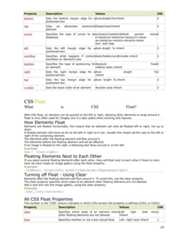
Property Description Values CSSbottom Sets the bottom margin edge for apositioned boxAuto/length/%/inherit 2clip Clips an absolutely positionedelementShape/auto/inherit 2cursor Specifies the type of cursor to bedisplayedurl/auto/crosshair/default pointer movee-resize/ne-resize/nw-resize///n-resizese-resize/sw-resize/s-resize/w-resizetext wait help2left Sets the left margin edge for apositioned boxAuto length % inherit 2overflow Specifies what happens if contentoverflows an element's boxAuto/hidden/scroll/visible inherit 2position Specifies the type of positioning foran elementAbsolute fixedrelative static inherit2right Sets the right margin edge for apositioned boxAuto length %inherit2top Sets the top margin edge for apositioned boxAuto length % inherit 2z-index Sets the stack order of an element Number auto inherit 2CSS FloatWhat is CSS Float?With CSS float, an element can be pushed to the left or right, allowing other elements to wrap around it.Float is very often used for images, but it is also useful when working with layouts.How Elements FloatElements are floated horizontally, this means that an element can only be floated left or right, not up ordown.A floated element will move as far to the left or right as it can. Usually this means all the way to the left orright of the containing element.The elements after the floating element will flow around it.The elements before the floating element will not be affected.If an image is floated to the right, a following text flows around it, to the left:ExampleImg { float:right;}Floating Elements Next to Each OtherIf you place several floating elements after each other, they will float next to each other if there is room.Here we have made an image gallery using the float property:Example.thumbnail {float:left; width:110px;height:90px;margin:5px;}Turning off Float - Using ClearElements after the floating element will flow around it. To avoid this, use the clear property.The clear property specifies which sides of an element other floating elements are not allowed.Add a text line into the image gallery, using the clear property:Example.text_line{clear:both;}All CSS Float PropertiesThe number in the "CSS" column indicates in which CSS version the property is defined (CSS1 or CSS2).Property Description Values CSSclear Specifies which sides of an element whereother floating elements are not allowedLeft right both noneinherit1float Specifies whether or not a box should float Left right none inherit 119
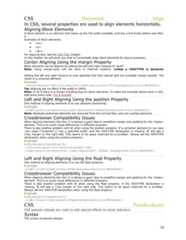
CSS Horizontal AlignIn CSS, several properties are used to align elements horizontally.Aligning Block ElementsA block element is an element that takes up the full width available, and has a line break before and afterit.Examples of block elements:• <h1>• <p>• <div>For aligning text, see the CSS Text chapter.In this chapter we will show you how to horizontally align block elements for layout purposes.Center Aligning Using the margin PropertyBlock elements can be aligned by setting the left and right margins to "auto".Note: Using margin:auto will not work in Internet Explorer, unless a !DOCTYPE is declared.Setting the left and right margins to auto specifies that they should split the available margin equally. Theresult is a centered element:Example.center{margin-left:auto;margin-right:auto;width:70%;background-color:#b0e0e6;}Tip: Aligning has no effect if the width is 100%.Note: In IE 5 there is a margin handling bug for block elements. To make the example above work in IE5,add some extra code. Try it yourselfLeft and Right Aligning Using the position PropertyOne method of aligning elements is to use absolute positioning:Example.right{position:absolute;right:0px;width:300px;background-color:#b0e0e6;}Note: Absolute positioned elements are removed from the normal flow, and can overlap elements.Crossbrowser Compatibility IssuesWhen aligning elements like this, it is always a good idea to predefine margin and padding for the <body>element. This is to avoid visual differences in different browsers.There is also another problem with IE when using the position property. If a container element (in our case<div class="container">) has a specified width, and the !DOCTYPE declaration is missing, IE will add a17px margin on the right side. This seems to be space reserved for a scrollbar. Always set the !DOCTYPEdeclaration when using the position property:Examplebody{margin:0;padding:0;}.container{position:relative;width:100%.right{position:absolute; right:0px;width: 300px; background-color:#b0e0e6;}Left and Right Aligning Using the float PropertyOne method of aligning elements is to use the float property:Example.right{float:right;width:300px;background-color:#b0e0e6;}Crossbrowser Compatibility IssuesWhen aligning elements like this, it is always a good idea to predefine margin and padding for the <body>element. This is to avoid visual differences in different browsers.There is also another problem with IE when using the float property. If the !DOCTYPE declaration ismissing, IE will add a 17px margin on the right side. This seems to be space reserved for a scrollbar.Always set the !DOCTYPE declaration when using the float property:Examplebody{margin:0;padding:0;}.right{float:right;width:300px;background-color:#b0e0e6;}CSS Pseudo-classesCSS pseudo-classes are used to add special effects to some selectors.SyntaxThe syntax of pseudo-classes:20
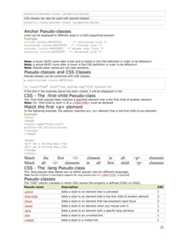
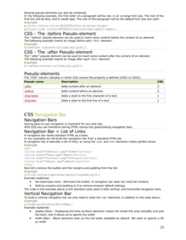
selector:pseudo-class {property:value}CSS classes can also be used with pseudo-classes:selector.class:pseudo-class {property:value}Anchor Pseudo-classesLinks can be displayed in different ways in a CSS-supporting browser:Examplea:link {color:#FF0000} /* unvisited link */a:visited {color:#00FF00} /* visited link */a:hover {color:#FF00FF} /* mouse over link */a:active {color:#0000FF} /* selected link */Note: a:hover MUST come after a:link and a:visited in the CSS definition in order to be effective!!Note: a:active MUST come after a:hover in the CSS definition in order to be effective!!Note: Pseudo-class names are not case-sensitive.Pseudo-classes and CSS ClassesPseudo-classes can be combined with CSS classes:a.red:visited {color:#FF0000}<a class="red" href="css_syntax.asp">CSS Syntax</a>If the link in the example above has been visited, it will be displayed in red.CSS - The :first-child Pseudo-classThe :first-child pseudo-class matches a specified element that is the first child of another element.Note: For :first-child to work in IE a <!DOCTYPE> must be declared.Match the first <p> elementIn the following example, the selector matches any <p> element that is the first child of any element:Example<html><head><style type="text/css">p:first-child{color:blue}</style></head><body><p>I am a strong man.</p><p>I am a strong man.</p></body></html>Match the first <i> element in all <p> elementsMatch all <i> elements in all first child <p> elementsCSS - The :lang Pseudo-classThe :lang pseudo-class allows you to define special rules for different languages.Note: Internet Explorer 8 (and higher) supports the :lang pseudo-class if a <!DOCTYPE> is specified.Pseudo-classesThe "CSS" column indicates in which CSS version the property is defined (CSS1 or CSS2).Pseudo name Description CSS:active Adds a style to an element that is activated 1:first-child Adds a style to an element that is the first child of another element 2:focus Adds a style to an element that has keyboard input focus 2:hover Adds a style to an element when you mouse over it 1:lang Adds a style to an element with a specific lang attribute 2:link Adds a style to an unvisited link 1:visited Adds a style to a visited link 121
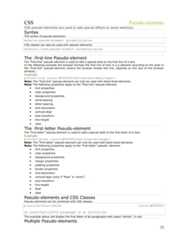
CSS Pseudo-elementsCSS pseudo-elements are used to add special effects to some selectors.SyntaxThe syntax of pseudo-elements:selector:pseudo-element {property:value}CSS classes can also be used with pseudo-elements:selector.class:pseudo-element {property:value}The :first-line Pseudo-elementThe "first-line" pseudo-element is used to add a special style to the first line of a text.In the following example the browser formats the first line of text in a p element according to the style inthe "first-line" pseudo-element (where the browser breaks the line, depends on the size of the browserwindow):Examplep:first-line {color:#ff0000;font-variant:small-caps;}Note: The "first-line" pseudo-element can only be used with block-level elements.Note: The following properties apply to the "first-line" pseudo-element:• font properties• color properties• background properties• word-spacing• letter-spacing• text-decoration• vertical-align• text-transform• line-height• clearThe :first-letter Pseudo-elementThe "first-letter" pseudo-element is used to add a special style to the first letter of a text:Examplep:first-letter {color:#ff0000;font-size:xx-large;}Note: The "first-letter" pseudo-element can only be used with block-level elements.Note: The following properties apply to the "first-letter" pseudo- element:• font properties• color properties• background properties• margin properties• padding properties• border properties• text-decoration• vertical-align (only if "float" is "none")• text-transform• line-height• float• clearPseudo-elements and CSS ClassesPseudo-elements can be combined with CSS classes:p.article:first-letter {color:#ff0000}<p class="article">A paragraph in an article</p>The example above will display the first letter of all paragraphs with class="article", in red.Multiple Pseudo-elements22
Several pseudo-elements can also be combined.In the following example, the first letter of a paragraph will be red, in an xx-large font size. The rest of thefirst line will be blue, and in small-caps. The rest of the paragraph will be the default font size and color:Examplep:first-letter{color:#ff0000;font-size:xx-large;}p:first-line {color:#0000ff;font-variant:small-caps;}CSS - The :before Pseudo-elementThe ":before" pseudo-element can be used to insert some content before the content of an element.The following example inserts an image before each <h1> element:Exampleh1:before {content:url(smiley.gif);}CSS - The :after Pseudo-elementThe ":after" pseudo-element can be used to insert some content after the content of an element.The following example inserts an image after each <h1> element:Exampleh1:after{content:url(smiley.gif);}Pseudo-elementsThe "CSS" column indicates in which CSS version the property is defined (CSS1 or CSS2).Pseudo name Description CSS:after Adds content after an element 2:before Adds content before an element 2:first-letter Adds a style to the first character of a text 1:first-line Adds a style to the first line of a text 1CSS Navigation BarNavigation BarsHaving easy-to-use navigation is important for any web site.With CSS you can transform boring HTML menus into good-looking navigation bars.Navigation Bar = List of LinksA navigation bar needs standard HTML as a base.In our examples we will build the navigation bar from a standard HTML list.A navigation bar is basically a list of links, so using the <ul> and <li> elements makes perfect sense:Example<ul><li><a href="default.asp">Home</a></li><li><a href="news.asp">News</a></li><li><a href="contact.asp">Contact</a></li><li><a href="about.asp">About</a></li></ul>Now let's remove the bullets and the margins and padding from the list:Exampleul{list-style-type:none;margin:0;padding:0;}Example explained:• list-style-type:none - Removes the bullets. A navigation bar does not need list markers• Setting margins and padding to 0 to remove browser default settingsThe code in the example above is the standard code used in both vertical, and horizontal navigation bars.Vertical Navigation BarTo build a vertical navigation bar we only need to style the <a> elements, in addition to the code above:Examplea{display:block;width:60px;}Example explained:• display:block - Displaying the links as block elements makes the whole link area clickable (not justthe text), and it allows us to specify the width• width:60px - Block elements take up the full width available by default. We want to specify a 60px width23
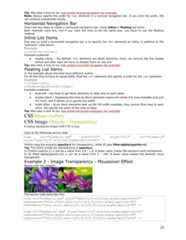
Tip: Also take a look at our fully styled vertical navigation bar example.Note: Always specify the width for <a> elements in a vertical navigation bar. If you omit the width, IE6can produce unexpected results.Horizontal Navigation BarThere are two ways to create a horizontal navigation bar. Using inline or floating list items.Both methods work fine, but if you want the links to be the same size, you have to use the floatingmethod.Inline List ItemsOne way to build a horizontal navigation bar is to specify the <li> elements as inline, in addition to the"standard" code above:Exampleli{display:inline;}Example explained:• display:inline; - By default, <li> elements are block elements. Here, we remove the line breaksbefore and after each list item, to display them on one lineTip: Also take a look at our fully styled horizontal navigation bar example.Floating List ItemsIn the example above the links have different widths.For all the links to have an equal width, float the <li> elements and specify a width for the <a> elements:Exampleli{float:left;}a{display:block;width:60px;}Example explained:• float:left - use float to get block elements to slide next to each other• display:block - Displaying the links as block elements makes the whole link area clickable (not justthe text), and it allows us to specify the width• width:60px - Since block elements take up the full width available, they cannot float next to eachother. We specify the width of the links to 60pxTip: Also take a look at our fully styled horizontal navigation bar example.CSS Image GalleryCSS Image Opacity / TransparencyCreating transparent images with CSS is easy.Look at the following source code:<img src="klematis.jpg" width="150" height="113" alt="klematis"style="opacity:0.4;filter:alpha(opacity=40)" />Firefox uses the property opacity:x for transparency, while IE uses filter:alpha(opacity=x).Tip: The CSS3 syntax for transparency is opacity:x.In Firefox (opacity:x) x can be a value from 0.0 - 1.0. A lower value makes the element more transparent.In IE (filter:alpha(opacity=x)) x can be a value from 0 - 100. A lower value makes the element moretransparent.Example 2 - Image Transparency - Mouseover EffectMouse over the images:The source code looks like this:<img src="klematis.jpg" style="opacity:0.4;filter:alpha(opacity=40)"onmouseover="this.style.opacity=1;this.filters.alpha.opacity=100"onmouseout="this.style.opacity=0.4;this.filters.alpha.opacity=40" /><img src="klematis2.jpg" style="opacity:0.4;filter:alpha(opacity=40)"onmouseover="this.style.opacity=1;this.filters.alpha.opacity=100"onmouseout="this.style.opacity=0.4;this.filters.alpha.opacity=40" />24
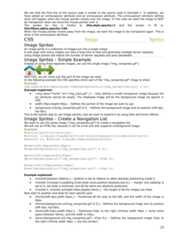
We see that the first line of the source code is similar to the source code in Example 1. In addition, wehave added an onmouseover attribute and an onmouseout attribute. The onmouseover attribute defineswhat will happen when the mouse pointer moves over the image. In this case we want the image to NOTbe transparent when we move the mouse pointer over it.The syntax for this in Firefox is: this.style.opacity=1 and the syntax in IE is:this.filters.alpha.opacity=100.When the mouse pointer moves away from the image, we want the image to be transparent again. This isdone in the onmouseout attribute.CSS Image SpritesImage SpritesAn image sprite is a collection of images put into a single image.A web page with many images can take a long time to load and generates multiple server requests.Using image sprites will reduce the number of server requests and save bandwidth.Image Sprites - Simple ExampleInstead of using three separate images, we use this single image ("img_navsprites.gif"):With CSS, we can show just the part of the image we need.In the following example the CSS specifies which part of the "img_navsprites.gif" image to show:Exampleimg.home{width:46px;height:44px;background:url(img_navsprites.gif) 0 0;}Example explained:• <img class="home" src="img_trans.gif" /> - Only defines a small transparent image because thesrc attribute cannot be empty. The displayed image will be the background image we specify inCSS• width:46px;height:44px; - Defines the portion of the image we want to use• background:url(img_navsprites.gif) 0 0; - Defines the background image and its position (left 0px,top 0px)This is the easiest way to use image sprites, now we want to expand it by using links and hover effects.Image Sprites - Create a Navigation ListWe want to use the sprite image ("img_navsprites.gif") to create a navigation list.We will use an HTML list, because it can be a link and also supports a background image:Example#navlist{position:relative;}#navlist li{margin:0;padding:0;list-style:none;position:absolute;top:0;}#navlist li, #navlist a{height:44px;display:block;}#home{left:0px;width:46px;}#home{background:url('img_navsprites.gif') 0 0;}#prev{left:63px;width:43px;}#prev{background:url('img_navsprites.gif') -47px 0;}#next{left:129px;width:43px;}#next{background:url('img_navsprites.gif') -91px 0;}Example explained:• #navlist{position:relative;} - position is set to relative to allow absolute positioning inside it• #navlist li{margin:0;padding:0;list-style:none;position:absolute;top:0;} - margin and padding isset to 0, list-style is removed, and all list items are absolute positioned• #navlist li, #navlist a{height:44px;display:block;} - the height of all the images are 44pxNow start to position and style for each specific part:• #home{left:0px;width:46px;} - Positioned all the way to the left, and the width of the image is46px• #home{background:url(img_navsprites.gif) 0 0;} - Defines the background image and its position(left 0px, top 0px)• #prev{left:63px;width:43px;} - Positioned 63px to the right (#home width 46px + some extraspace between items), and the width is 43px.• #prev{background:url('img_navsprites.gif') -47px 0;} - Defines the background image 47px tothe right (#home width 46px + 1px line divider)25
• #next{left:129px;width:43px;}- Positioned 129px to the right (start of #prev is 63px + #prevwidth 43px + extra space), and the width is 43px.• #next{background:url('img_navsprites.gif') no-repeat -91px 0;} - Defines the background image91px to the right (#home width 46px + 1px line divider + #prev width 43px + 1px line divider )Image Sprites - Hover EffectNow we want to add a hover effect to our navigation list.Our new image ("img_navsprites_hover.gif") contains three navigation images and three images to use forhover effects:Because this is one single image, and not six separate files, there will be no loading delay when a userhovers over the image.We only add three lines of code to add the hover effect:Example#home a:hover{background: url('img_navsprites_hover.gif') 0 -45px;}#prev a:hover{background: url('img_navsprites_hover.gif') -47px -45px;}#next a:hover{background: url('img_navsprites_hover.gif') -91px -45px;}Example explained:• Since the list item contains a link, we can use the :hover pseudo-class• #home a:hover{background: transparent url(img_navsprites_hover.gif) 0 -45px;} - For all threehover images we specify the same background position, only 45px further downCSS Attribute SelectorsStyle HTML Elements With Specific AttributesIt is possible to style HTML elements that have specific attributes, not just class and id.Note: Internet Explorer 7 (and higher) supports attribute selectors only if a !DOCTYPE is specified.Attribute selection is NOT supported in IE6 and lower.Attribute SelectorThe example below styles all elements with a title attribute:Example[title]{color:blue;}Attribute and Value SelectorThe example below styles all elements with title="W3Schools":Example[title=W3Schools]{border:5px solid green;}Attribute and Value Selector - Multiple ValuesThe example below styles all elements with a title attribute that contains a specified value. This workseven if the attribute has space separated values:Example[title~=hello] { color:blue; }Styling FormsThe attribute selectors are particularly useful for styling forms without class or ID:Exampleinput[type="text"]{width:150px;display:block;margin-bottom:10px;background-color:yellow;}input[type="button"]{width:120px;margin-left:35px;display:block;}CSS ReferenceBackground PropertiesProperty Description CSSbackground Sets all the background properties in one declaration 126
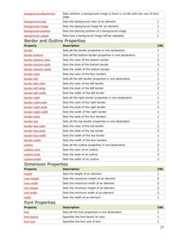
background-attachment Sets whether a background image is fixed or scrolls with the rest of thepage1background-color Sets the background color of an element 1background-image Sets the background image for an element 1background-position Sets the starting position of a background image 1background-repeat Sets how a background image will be repeated 1Border and Outline PropertiesProperty Description CSSborder Sets all the border properties in one declaration 1border-bottom Sets all the bottom border properties in one declaration 1border-bottom-color Sets the color of the bottom border 2border-bottom-style Sets the style of the bottom border 2border-bottom-width Sets the width of the bottom border 1border-color Sets the color of the four borders 1border-left Sets all the left border properties in one declaration 1border-left-color Sets the color of the left border 2border-left-style Sets the style of the left border 2border-left-width Sets the width of the left border 1border-right Sets all the right border properties in one declaration 1border-right-color Sets the color of the right border 2border-right-style Sets the style of the right border 2border-right-width Sets the width of the right border 1border-style Sets the style of the four borders 1border-top Sets all the top border properties in one declaration 1border-top-color Sets the color of the top border 2border-top-style Sets the style of the top border 2border-top-width Sets the width of the top border 1border-width Sets the width of the four borders 1outline Sets all the outline properties in one declaration 2outline-color Sets the color of an outline 2outline-style Sets the style of an outline 2outline-width Sets the width of an outline 2Dimension PropertiesProperty Description CSSheight Sets the height of an element 1max-height Sets the maximum height of an element 2max-width Sets the maximum width of an element 2min-height Sets the minimum height of an element 2min-width Sets the minimum width of an element 2width Sets the width of an element 1Font PropertiesProperty Description CSSfont Sets all the font properties in one declaration 1font-family Specifies the font family for text 1font-size Specifies the font size of text 127
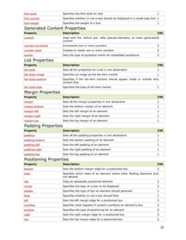
font-style Specifies the font style for text 1font-variant Specifies whether or not a text should be displayed in a small-caps font 1font-weight Specifies the weight of a font 1Generated Content PropertiesProperty Description CSScontent Used with the :before and :after pseudo-elements, to insert generatedcontent2counter-increment Increments one or more counters 2counter-reset Creates or resets one or more counters 2quotes Sets the type of quotation marks for embedded quotations 2List PropertiesProperty Description CSSlist-style Sets all the properties for a list in one declaration 1list-style-image Specifies an image as the list-item marker 1list-style-position Specifies if the list-item markers should appear inside or outside thecontent flow1list-style-type Specifies the type of list-item marker 1Margin PropertiesProperty Description CSSmargin Sets all the margin properties in one declaration 1margin-bottom Sets the bottom margin of an element 1margin-left Sets the left margin of an element 1margin-right Sets the right margin of an element 1margin-top Sets the top margin of an element 1Padding PropertiesProperty Description CSSpadding Sets all the padding properties in one declaration 1padding-bottom Sets the bottom padding of an element 1padding-left Sets the left padding of an element 1padding-right Sets the right padding of an element 1padding-top Sets the top padding of an element 1Positioning PropertiesProperty Description CSSbottom Sets the bottom margin edge for a positioned box 2clear Specifies which sides of an element where other floating elements arenot allowed1clip Clips an absolutely positioned element 2cursor Specifies the type of cursor to be displayed 2display Specifies the type of box an element should generate 1float Specifies whether or not a box should float 1left Sets the left margin edge for a positioned box 2overflow Specifies what happens if content overflows an element's box 2position Specifies the type of positioning for an element 2right Sets the right margin edge for a positioned box 2top Sets the top margin edge for a positioned box 228
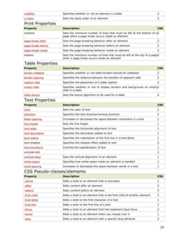
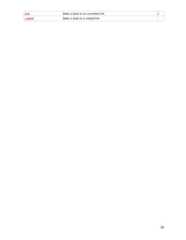
visibility Specifies whether or not an element is visible 2z-index Sets the stack order of an element 2Print PropertiesProperty Description CSSorphans Sets the minimum number of lines that must be left at the bottom of apage when a page break occurs inside an element2page-break-after Sets the page-breaking behavior after an element 2page-break-before Sets the page-breaking behavior before an element 2page-break-inside Sets the page-breaking behavior inside an element 2widows Sets the minimum number of lines that must be left at the top of a pagewhen a page break occurs inside an element2Table PropertiesProperty Description CSSborder-collapse Specifies whether or not table borders should be collapsed 2border-spacing Specifies the distance between the borders of adjacent cells 2caption-side Specifies the placement of a table caption 2empty-cells Specifies whether or not to display borders and background on emptycells in a table2table-layout Sets the layout algorithm to be used for a table 2Text PropertiesProperty Description CSScolor Sets the color of text 1direction Specifies the text direction/writing direction 2letter-spacing Increases or decreases the space between characters in a text 1line-height Sets the line height 1text-align Specifies the horizontal alignment of text 1text-decoration Specifies the decoration added to text 1text-indent Specifies the indentation of the first line in a text-block 1text-shadow Specifies the shadow effect added to text 2text-transform Controls the capitalization of text 1unicode-bidi 2vertical-align Sets the vertical alignment of an element 1white-space Specifies how white-space inside an element is handled 1word-spacing Increases or decreases the space between words in a text 1CSS Pseudo-classes/elementsProperty Description CSS:active Adds a style to an element that is activated 1:after Adds content after an element 2:before Adds content before an element 2:first-child Adds a style to an element that is the first child of another element 2:first-letter Adds a style to the first character of a text 1:first-line Adds a style to the first line of a text 1:focus Adds a style to an element that has keyboard input focus 2:hover Adds a style to an element when you mouse over it 1:lang Adds a style to an element with a specific lang attribute 229
:link Adds a style to an unvisited link 1:visited Adds a style to a visited link30

Recommended

PDF
TUTORIAL DE CSS 2.0
PPTX
DOC
Css introduction
PDF
Introduction to css
PPTX
Css Basics
PPT
CSS
PPT
CSS ppt
PPTX
Introduction to CSS
PPTX
CSS Basics part One
PPT
Css lecture notes
PPTX
Beginners css tutorial for web designers
PPT
Cascading Style Sheet
PDF
Css tutorial
PPTX
Cascading style sheet
PPTX
Complete Lecture on Css presentation
PPTX
Cascading Style Sheet
PDF
Basic-CSS-tutorial
ODP
Css
PPTX
PPTX
Html and css
PPTX
Css types internal, external and inline (1)
PPT
Cascading Style Sheet | CSS
PPTX
CSS Basics
PPT
Css Ppt
PPT
How Cascading Style Sheets (CSS) Works
PDF
PPTX
CSS

More Related Content

PDF
TUTORIAL DE CSS 2.0
PPTX
DOC
Css introduction
PDF
Introduction to css
PPTX
Css Basics
PPT
CSS
PPT
CSS ppt
TUTORIAL DE CSS 2.0
Css introduction
Introduction to css
Css Basics
CSS
CSS ppt

What's hot

PPTX
Introduction to CSS
PPTX
CSS Basics part One
PPT
Css lecture notes
PPTX
Beginners css tutorial for web designers
PPT
Cascading Style Sheet
PDF
Css tutorial
PPTX
Cascading style sheet
PPTX
Complete Lecture on Css presentation
PPTX
Cascading Style Sheet
PDF
Basic-CSS-tutorial
ODP
Css
PPTX
PPTX
Html and css
PPTX
Css types internal, external and inline (1)
PPT
Cascading Style Sheet | CSS
PPTX
CSS Basics
PPT
Css Ppt
PPT
How Cascading Style Sheets (CSS) Works
Introduction to CSS
CSS Basics part One
Css lecture notes
Beginners css tutorial for web designers
Cascading Style Sheet
Css tutorial
Cascading style sheet
Complete Lecture on Css presentation
Cascading Style Sheet
Basic-CSS-tutorial
Css
Html and css
Css types internal, external and inline (1)
Cascading Style Sheet | CSS
CSS Basics
Css Ppt
How Cascading Style Sheets (CSS) Works

Similar to Css introduction

PDF
PPTX
CSS
PPTX
CSS tutorial chapter 1
PPTX
v5-introduction to html-css-210321161444.pptx
PPTX
html-css
PPTX
CSS_Day_ONE (W3schools)
PPTX
PPTX
properties of css.pptx power pointpresentation
PDF
Unit 3 (it workshop).pptx
PPTX
uptu web technology unit 2 Css
PPTX
BITM3730 9-19.pptx
PPTX
basic programming language AND HTML CSS JAVApdf
PPTX
BITM3730 9-20.pptx
PDF
Css
DOCX
Css
PPTX
cascadingstylesheets,introduction.css styles-210909054722.pptx
PPTX
Cascading style sheets
PPTX
Cascading style sheets
CSS
CSS tutorial chapter 1
v5-introduction to html-css-210321161444.pptx
html-css
CSS_Day_ONE (W3schools)
properties of css.pptx power pointpresentation
Unit 3 (it workshop).pptx
uptu web technology unit 2 Css
BITM3730 9-19.pptx
basic programming language AND HTML CSS JAVApdf
BITM3730 9-20.pptx
Css
Css
cascadingstylesheets,introduction.css styles-210909054722.pptx
Cascading style sheets

More from vishnu murthy

DOC
Cao u1
PDF
Computer organisation -morris mano
DOC
555 timer
DOC
Html introduction
DOC
Irnss sps icd_june_2014 (1)
DOCX
Navic india's own navigation system
PDF
R13 ece
DOCX
DOCX
Automatic gear transmission
DOCX
Abstract E-BALL TECHNOLOGY
DOCX
Abstract 5G Technology
DOCX
Abstract Silent Sound Technology
DOCX
Abstract The Prospect of 3D-IC
DOCX
Solar tree using nanowire
DOCX
Abstract Radio Frequency Identificatication
DOCX
Abstract PAPER BATTERY-A PROMISING ENERGY SOLUTION
DOCX
Abstract Automatic Control of Railway Gates
DOCX
Abstract Robotics
DOCX
Abstract Black box flight recorders
DOCX
Abstract Smart Card Technology
Cao u1
Computer organisation -morris mano
555 timer
Html introduction
Irnss sps icd_june_2014 (1)
Navic india's own navigation system
R13 ece
Automatic gear transmission
Abstract E-BALL TECHNOLOGY
Abstract 5G Technology
Abstract Silent Sound Technology
Abstract The Prospect of 3D-IC
Solar tree using nanowire
Abstract Radio Frequency Identificatication
Abstract PAPER BATTERY-A PROMISING ENERGY SOLUTION
Abstract Automatic Control of Railway Gates
Abstract Robotics
Abstract Black box flight recorders
Abstract Smart Card Technology

Recently uploaded

PDF
A Newbie’s Journey: Hidden MySQL Pain Points That Vitess Quietly Solves
PPTX
UNIT 2 _8051.pptx ,INSTRUCTION SET OF 8051,EXAMPLES OF ARITHMETIC,LOGICAL.BRA...
PDF
CME397 SURFACE ENGINEERING UNIT 1 FULL NOTES
PDF
Formality - Logic Equivalence Checking - Part 1
PDF
Formality - Logic Equivalence Checking - Part 2
PDF
Brillouin zone analysis using Kronig-Penny model
PPTX
Using Bangladesh studies in cse why matter ppp.pptx
PDF
FPGA Fabric and Synthesis All Parts Combined
PDF
TechRush Hackathon 2026: A Platform for Innovation, Learning, and Real-World ...
PDF
ME25C05 RE-ENGINEERING FOR INNOVATION LAB.pdf
PPTX
We-Optimized-Everything-Except-Decision-Quality-Maintenance-MaintWiz.pptx
PPTX
MicroAccelerometers & microfluidics.pptx
PPTX
Top 3 winning teams announcement - TechSprint
PPTX
Explore how AI-powered maintenance checklists transform asset reliability and...
PDF
Fluid Mechanics, Heat Transfer, and Mass Transfer_ Chemical Engineering Pract...
PDF
10 Tips for Successfully Purchasing Twitter Accounts.pdf
PDF
(en/zhTW)All_Roads_Lead_to_IPC_DannyJiang
PPTX
15288-incose_system engineering_MBSE.pptx
PDF
God series - Physics video office crossed
PDF
EDIH TRAINING AI FOR COMPANIES: MODULE 4
A Newbie’s Journey: Hidden MySQL Pain Points That Vitess Quietly Solves
UNIT 2 _8051.pptx ,INSTRUCTION SET OF 8051,EXAMPLES OF ARITHMETIC,LOGICAL.BRA...
CME397 SURFACE ENGINEERING UNIT 1 FULL NOTES
Formality - Logic Equivalence Checking - Part 1
Formality - Logic Equivalence Checking - Part 2
Brillouin zone analysis using Kronig-Penny model
Using Bangladesh studies in cse why matter ppp.pptx
FPGA Fabric and Synthesis All Parts Combined
TechRush Hackathon 2026: A Platform for Innovation, Learning, and Real-World ...
ME25C05 RE-ENGINEERING FOR INNOVATION LAB.pdf
We-Optimized-Everything-Except-Decision-Quality-Maintenance-MaintWiz.pptx
MicroAccelerometers & microfluidics.pptx
Top 3 winning teams announcement - TechSprint
Explore how AI-powered maintenance checklists transform asset reliability and...
Fluid Mechanics, Heat Transfer, and Mass Transfer_ Chemical Engineering Pract...
10 Tips for Successfully Purchasing Twitter Accounts.pdf
(en/zhTW)All_Roads_Lead_to_IPC_DannyJiang
15288-incose_system engineering_MBSE.pptx
God series - Physics video office crossed
EDIH TRAINING AI FOR COMPANIES: MODULE 4

Css introduction

  • 1.
    CSS IntroductionWhat YouShould Already KnowBefore you continue you should have a basic understanding of the following:HTML / XHTMLWhat is CSS?• CSS stands for Cascading Style Sheets• Styles define how to display HTML elements• Styles were added to HTML 4.0 to solve a problem• External Style Sheets can save a lot of workExternal Style Sheets are stored in CSS filesStyles Solved a Big ProblemHTML was never intended to contain tags for formatting a document.HTML was intended to define the content of a document, like:<h1>This is a heading</h1><p>This is a paragraph.</p>When tags like <font>, and color attributes were added to the HTML 3.2 specification, it started anightmare for web developers. Development of large web sites, where fonts and color information wereadded to every single page, became a long and expensive process.To solve this problem, the World Wide Web Consortium (W3C) created CSS.In HTML 4.0, all formatting could be removed from the HTML document, and stored in a separate CSS file.All browsers support CSS today.CSS Saves a Lot of Work!CSS defines HOW HTML elements are to be displayed.Styles are normally saved in external .css files. External style sheets enable you to change the appearanceand layout of all the pages in a Web site, just by editing one single file!CSS SyntaxA CSS rule has two main parts: a selector, and one or more declarations:The selector is normally the HTML element you want to style.Each declaration consists of a property and a value.The property is the style attribute you want to change. Each property has a value.CSS ExampleCSS declarations always ends with a semicolon, and declaration groups are surrounded by curly brackets:p {color:red;text-align:center}To make the CSS more readable, you can put one declaration on each line, like this:p{color:red;text-align:center;}CSS CommentsComments are used to explain your code, and may help you when you edit the source code at a later date.Comments are ignored by browsers.A CSS comment begins with "/*", and ends with "*/", like this:/*This is a comment*/p{text-align:center;/*This is another comment*/color:black;font-family:arial}CSS Id and Class1
  • 2.
    The id andclass SelectorsIn addition to setting a style for a HTML element, CSS allows you to specify your own selectors called "id"and "class".The id SelectorThe id selector is used to specify a style for a single, unique element.The id selector uses the id attribute of the HTML element, and is defined with a "#".The style rule below will be applied to the element with id="para1":#para1{text-align:center;color:red}Do NOT start an ID name with a number! It will not work in Mozilla/Firefox.The class SelectorThe class selector is used to specify a style for a group of elements. Unlike the id selector, the classselector is most often used on several elements.This allows you to set a particular style for any HTML elements with the same class.The class selector uses the HTML class attribute, and is defined with a "."In the example below, all HTML elements with class="center" will be center-aligned:.center {text-align:center}You can also specify that only specific HTML elements should be affected by a class.In the example below, all p elements with class="center" will be center-aligned:p.center {text-align:center}Do NOT start a class name with a number! This is only supported in Internet Explorer.CSS How To...When a browser reads a style sheet, it will format the document according to it.Three Ways to Insert CSSThere are three ways of inserting a style sheet:• External style sheet• Internal style sheet• Inline styleExternal Style SheetAn external style sheet is ideal when the style is applied to many pages. With an external style sheet, youcan change the look of an entire Web site by changing one file. Each page must link to the style sheetusing the <link> tag. The <link> tag goes inside the head section:<head><link rel="stylesheet" type="text/css" href="mystyle.css" /></head>An external style sheet can be written in any text editor. The file should not contain any html tags. Yourstyle sheet should be saved with a .css extension. An example of a style sheet file is shown below:hr {color:sienna} p {margin-left:20px}body {background-image:url("images/back40.gif")}Do not leave spaces between the property value and the units! "margin-left:20 px" (instead of "margin-left:20px") will work in IE, but not in Firefox or Opera.Internal Style SheetAn internal style sheet should be used when a single document has a unique style. You define internalstyles in the head section of an HTML page, by using the <style> tag, like this:<head><style type="text/css">hr {color:sienna}p {margin-left:20px}body {background-image:url("images/back40.gif")}</style></head>Inline StylesAn inline style loses many of the advantages of style sheets by mixing content with presentation. Use thismethod sparingly!2
  • 3.
    To use inlinestyles you use the style attribute in the relevant tag. The style attribute can contain any CSSproperty. The example shows how to change the color and the left margin of a paragraph:<p style="color:sienna;margin-left:20px">This is a paragraph.</p>Multiple Style SheetsIf some properties have been set for the same selector in different style sheets, the values will be inheritedfrom the more specific style sheet.For example, an external style sheet has these properties for the h3 selector:h3{color:red;text-align:left;font-size:8pt}And an internal style sheet has these properties for the h3 selector:h3{text-align:right;font-size:20pt}If the page with the internal style sheet also links to the external style sheet the properties for h3 will be:color:red;text-align:right;font-size:20ptThe color is inherited from the external style sheet and the text-alignment and the font-size is replaced bythe internal style sheet.Multiple Styles Will Cascade into OneStyles can be specified:• inside an HTML element• inside the head section of an HTML page• in an external CSS fileTip: Even multiple external style sheets can be referenced inside a single HTML document.Cascading orderWhat style will be used when there is more than one style specified for an HTML element?Generally speaking we can say that all the styles will "cascade" into a new "virtual" style sheet by thefollowing rules, where number four has the highest priority:1. Browser default2. External style sheet3. Internal style sheet (in the head section)4. Inline style (inside an HTML element)So, an inline style (inside an HTML element) has the highest priority, which means that it will override astyle defined inside the <head> tag, or in an external style sheet, or in a browser (a default value).Note: If the link to the external style sheet is placed after the internal style sheet in HTML <head>, theexternal style sheet will override the internal style sheet!CSS BackgroundCSS background properties are used to define the background effects of anelement.CSS properties used for background effects:• background-color• background-image• background-repeat• background-attachment• background-positionBackground ColorThe background-color property specifies the background color of an element.The background color of a page is defined in the body selector:body {background-color:#b0c4de}The background color can be specified by:• name - a color name, like "red"• RGB - an RGB value, like "rgb(255,0,0)"• Hex - a hex value, like "#ff0000"In the example below, the h1, p, and div elements have different background colors:h1 {background-color:#6495ed}3
  • 4.
    p {background-color:#e0ffff}div {background-color:#b0c4de}BackgroundImageThe background-image property specifies an image to use as the background of an element.By default, the image is repeated so it covers the entire element.The background image for a page can be set like this:Background Image - Repeat Horizontally or VerticallyBy default, the background-image property repeats an image both horizontally and vertically.Some images should be repeated only horizontally or vertically, or they will look strange, like this:body{background-image:url('gradient2.png');}If the image is repeated only horizontally (repeat-x), the background will look better:body{background-image:url('gradient2.png');background-repeat:repeat-x;}Background Image - Set position and no-repeatWhen using a background image, use an image that does not disturb the text.Showing the image only once is specified by the background-repeat property:body{background-image:url('img_tree.png');background-repeat:no-repeat;}In the example above, the background image is shown in the same place as the text. We want to changethe position of the image, so that it does not disturb the text too much.The position of the image is specified by the background-position property:body{background-image:url('img_tree.png');background-repeat:no-repeat;background-position:top right;}Background - Shorthand propertyAs you can see from the examples above, there are many properties to consider when dealing withbackgrounds.To shorten the code, it is also possible to specify all the properties in one single property. This is called ashorthand property.The shorthand property for background is simply "background":body {background:#ffffff url('img_tree.png') no-repeat top right}All CSS Background PropertiesThe number in the "CSS" column indicates in which CSS version the property is defined (CSS1 or CSS2).Property Description Values CSSbackground Sets all the backgroundproperties in one declarationbackground-color / background-image / background-repeatbackground-attachment /background-position /inherit1background-attachment Sets whether a backgroundimage is fixed or scrolls withthe rest of the pageScrollfixedinherit1background-color Sets the background color ofan elementcolor-rgb /color-hex /color-nametransparent /inherit1background-image Sets the background imagefor an elementurl(URL) /none /inherit 14
  • 5.
    background-position Sets thestarting position ofa background imagetop left / top center/top right / centerleft/center center /center right/bottom left /bottom center / bottomright / x% y%xpos ypos /inherit1background-repeat Sets if/how a backgroundimage will be repeatedRepeat repeat-x /repeat-y no-repeat /inherit1CSS TextText ColorThe color property is used to set the color of the text. The color can be specified by:• name - a color name, like "red"• RGB - an RGB value, like "rgb(255,0,0)"• Hex - a hex value, like "#ff0000"The default color for a page is defined in the body selector.body {color:blue}h1 {color:#00ff00}h2 {color:rgb(255,0,0)}For W3C compliant CSS: If you define the color property, you must also define the background-colorproperty.Text AlignmentThe text-align property is used to set the horizontal alignment of a text.Text can be centered, or aligned to the left or right, or justified.When text-align is set to "justify", each line is stretched so that every line has equal width, and the leftand right margins are straight (like in magazines and newspapers).h1 {text-align:center}p.date {text-align:right}p.main {text-align:justify}Text DecorationThe text-decoration property is used to set or remove decorations from text.The text-decoration property is mostly used to remove underlines from links for design purposes:a {text-decoration:none}Text TransformationThe text-transform property is used to specify uppercase and lowercase letters in a text.It can be used to turn everything into uppercase or lowercase letters, or capitalize the first letter of eachword.p.uppercase {text-transform:uppercase}p.lowercase {text-transform:lowercase}p.capitalize {text-transform:capitalize}Text IndentationThe text-indentation property is used to specify the indentation of the first line of a text.p {text-indent:50px}All CSS Text PropertiesThe number in the "CSS" column indicates in which CSS version the property is defined (CSS1 or CSS2).Property Description Values CSScolor Sets the color of a text color 1direction Sets the text direction Ltr / rtl 2line-height Sets the distance between lines Normal/number/length % 1letter-spacing Increase or decrease the space betweencharactersNormal length 1text-align Aligns the text in an element Left / right /center/ justify 1text-decoration Adds decoration to text None/ underline /overlineline-through blink1text-indent Indents the first line of text in an element Length % 1text-shadow None color length5
  • 6.
    text-transform Controls theletters in an element None/capitalize/uppercaselowercase1unicode-bidi Normal/embed/bidi-override 2vertical-align Sets the vertical alignment of an element Baseline sub/super top text-top/middle bottom /text-bottom/length %1white-space Sets how white space inside an element ishandledNormal/prenowrap1word-spacing Increase or decrease the space between wordsnormallength1CSS FontCSS font properties define the font family, boldness, size, and the style of a text.Difference Between Serif and Sans-serif FontsOn computer screens, sans-serif fonts are considered easier to read than serif fonts.CSS Font FamiliesIn CSS, there are two types of font family names:• generic family - a group of font families with a similar look (like "Serif" or "Monospace")• font family - a specific font family (like "Times New Roman" or "Arial")Generic family Font family DescriptionSerif Times New RomanGeorgiaSerif fonts have small lines at the ends on somecharactersSans-serif ArialVerdana"Sans" means without - these fonts do not have thelines at the ends of charactersMonospace Courier NewLucida ConsoleAll monospace characters has the same widthFont FamilyThe font family of a text is set with the font-family property.The font-family property should hold several font names as a "fallback" system. If the browser does notsupport the first font, it tries the next font.Start with the font you want, and end with a generic family, to let the browser pick a similar font in thegeneric family, if no other fonts are available.Note: If the name of a font family is more than one word, it must be in quotation marks, like font-family:"Times New Roman".More than one font family is specified in a comma-separated list:p{font-family:"Times New Roman", Times, serif}Font StyleThe font-style property is mostly used to specify italic text.This property has three values:• normal - The text is shown normally• italic - The text is shown in italics• oblique - The text is "leaning" (oblique is very similar to italic, but less supported)p.normal {font-style:normal}p.italic {font-style:italic}p.oblique {font-style:oblique}Font SizeThe font-size property sets the size of the text.6
  • 7.
    Being able tomanage the text size is important in web design. However, you should not use font sizeadjustments to make paragraphs look like headings, or headings look like paragraphs.Always use the proper HTML tags, like <h1> - <h6> for headings and <p> for paragraphs.The font-size value can be an absolute, or relative size.Absolute size:• Sets the text to a specified size• Does not allow a user to change the text size in all browsers (bad for accessibility reasons)• Absolute size is useful when the physical size of the output is knownRelative size:• Sets the size relative to surrounding elements• Allows a user to change the text size in browsersIf you do not specify a font size, the default size for normal text, like paragraphs, is 16px (16px=1em).Set Font Size With PixelsSetting the text size with pixels, gives you full control over the text size:h1 {font-size:40px}h2 {font-size:30px}p {font-size:14px}Set Font Size With EmTo avoid the resizing problem with Internet Explorer, many developers use em instead of pixels.The em size unit is recommended by the W3C.1em is equal to the current font size. The default text size in browsers is 16px. So, the default size of 1emis 16px.The size can be calculated from pixels to em using this formula: pixels/16=emh1 {font-size:2.5em} /* 40px/16=2.5em */h2 {font-size:1.875em} /* 30px/16=1.875em */p {font-size:0.875em} /* 14px/16=0.875em */In the example above, the text size in em is the same as the previous example in pixels. However, withthe em size, it is possible to adjust the text size in all browsers.Unfortunately, there is still a problem with IE. When resizing the text, it becomes larger than it shouldwhen made larger, and smaller than it should when made smaller.Use a Combination of Percent and EmThe solution that works in all browsers, is to set a default font-size in percent for the body element:body {font-size:100%}h1 {font-size:2.5em}h2 {font-size:1.875em}p {font-size:0.875em}All CSS Font PropertiesThe number in the "CSS" column indicates in which CSS version the property is defined (CSS1 or CSS2).Property Description Values CSSfont Sets all the font properties in onedeclarationfont-style /font-variant/font-weightfont-size/line-height/font-familycaption/icon/menu/message-boxsmall-caption/status-bar/inherit1font-family Specifies the font family for text family-name/generic-familyinherit1font-size Specifies the font size of text xx-small/x-small /small / medium /large/x-large / xx-large /smallerlarger/length/%/inherit1font-style Specifies the font style for text Normal/italic/oblique/inherit 1font-variant Specifies whether or not a text should bedisplayed in a small-caps fontNormal/small-caps/inherit 1font-weight Specifies the weight of a font Normal/bold/bolder/lighter100 200 300 400 500 600700 800 900 inherit17
  • 8.
    CSS LinksLinks canbe styled in different ways.Styling LinksLinks can be style with any CSS property (e.g. color, font-family, background-color).Special for links are that they can be styled differently depending on what state they are in.The four links states are:• a:link - a normal, unvisited link• a:visited - a link the user has visited• a:hover - a link when the user mouses over it• a:active - a link the moment it is clickeda:link {color:#FF0000} /* unvisited link */a:visited {color:#00FF00} /* visited link */a:hover {color:#FF00FF} /* mouse over link */a:active {color:#0000FF} /* selected link */When setting the style for several link states, there are some order rules:• a:hover MUST come after a:link and a:visited• a:active MUST come after a:hoverCommon Link StylesIn the example above the link changes color depending on what state it is in.Lets go through some of the other common ways to style links:Text DecorationThe text-decoration property is mostly used to remove underlines from links:a:link {text-decoration:none}a:visited {text-decoration:none}a:hover {text-decoration:underline}a:active {text-decoration:underline}Background ColorThe background-color property specifies the background color for links:Examplea:link {background-color:#B2FF99;}a:visited {background-color:#FFFF85;}a:hover {background-color:#FF704D;}a:active {background-color:#FF704D;}CSS ListsThe CSS list properties allow you to:• Set different list item markers for ordered lists• Set different list item markers for unordered lists• Set an image as the list item markerListIn HTML, there are two types of lists:• unordered lists - the list items are marked with bullets• ordered lists - the list items are marked with numbers or lettersWith CSS, lists can be styled further, and images can be used as the list item marker.Different List Item MarkersThe type of list item marker is specified with the list-style-type property:Exampleul.a {list-style-type: circle;}ul.b {list-style-type: square;}ol.c {list-style-type: upper-roman;}ol.d {list-style-type: lower-alpha;}Some of the property values are for unordered lists, and some for ordered lists.8
  • 9.
    Values for UnorderedListsValue Descriptionnone No markerdisc Default. The marker is a filled circlecircle The marker is a circlesquare The marker is a squareValues for Ordered ListsValue Descriptionarmenian The marker is traditional Armenian numberingdecimal The marker is a numberdecimal-leading-zero The marker is a number padded by initial zeros (01, 02, 03, etc.)Note: No versions of Internet Explorer (including IE8) support the property values "decimal-leading-zero", "lower-greek", "lower-latin", "upper-latin", "armenian", or "georgian".An Image as The List Item MarkerTo specify an image as the list item marker, use the list-style-image property:Exampleul{list-style-image:url('sqpurple.gif');}The example above does not display equally in all browsers. IE and Opera will display the image-marker alittle bit higher than Firefox, Chrome, and Safari. If you want the image-marker to be placed equally in allbrowsers, a crossbrowser solution is explained below.Crossbrowser SolutionThe following example displays the image-marker equally in all browsers:Exampleul{list-style-type:none;padding:0px;margin:0px;}li{background-image: url(sqpurple.gif);background-repeat: no-repeat;background-position: 0px 5px; padding-left: 14px;}Example explained:• For ul:o Set the list-style-type to none to remove the list item markero Set both padding and margin to 0px (for cross-browser compatibility)• For li:o Set the URL of the image, and show it only once (no-repeat)o Position the image where you want it (left 0px and down 5px)o Position the text in the list with padding-leftList - Shorthand propertyIt is also possible to specify all the list properties in one, single property. This is called a shorthandproperty. The shorthand property used for lists, is the list-style property:Exampleul{list-style: square url("sqpurple.gif");}When using the shorthand property, the order of the values are:• list-style-type• list-style-position (for a description, see the CSS properties table below)• list-style-imageIt does not matter if one of the values above are missing, as long as the rest are in the specified order.All CSS List PropertiesThe number in the "CSS" column indicates in which CSS version the property is defined (CSS1 or CSS2).Property Description Values CSSlist-style Sets all the properties for a list inlist-style-type /list-style-position19
  • 10.
    one declaration list-style-image/inheritlist-style-imageSpecifies an image as the list-itemmarkerURL/noneinherit1list-style-position Specifies if the list-item markersshould appear inside or outside thecontent flowInside/outside/inherit 1list-style-type Specifies the type of list-itemmarkerNone/disc/circle/square / decimaldecimal-leading-zero/armenianGeorgian/lower-alpha/upper-alphalower-greek/lower-latin/upper-latinlower-roman/upper-roman/inherit1CSS TablesThe look of an HTML table can be greatly improved with CSS:Company Contact CountryAlfreds Futterkiste Maria Anders GermanyBerglunds snabbköp Christina Berglund SwedenThe Big Cheese Liz Nixon USAVaffeljernet Palle Ibsen DenmarkTable BordersTo specify table borders in CSS, use the border property.The example below specifies a black border for table, th, and td elements:Exampletable,th,td{border: 1px solid black;}Notice that the table in the example above has double borders. This is because both the table, th, and tdelements have separate borders.To display a single border for the table, use the border-collapse property.Collapse BordersThe border-collapse property sets whether the table borders are collapsed into a single border orseparated:Exampletable{border-collapse:collapse;}table,th, td{border: 1px solid black;}Table Width and HeightWidth and height of a table is defined by the width and height properties.The example below sets the width of the table to 100%, and the height of the th elements to 50px:Exampletable{width:100%;}th { height:50px;}Table Text AlignmentThe text in a table is aligned with the text-align and vertical-align properties.The text-align property sets the horizontal alignment, like left, right, or center:Exampletd{text-align:right;}The vertical-align property sets the vertical alignment, like top, bottom, or middle:ExampleTd {height:50px;vertical-align:bottom;}Table PaddingTo control the space between the border and content in a table, use the padding property on td and thelements:10
  • 11.
    ExampleTd {padding:15px;}Table ColorTheexample below specifies the color of the borders, and the text and background color of th elements:Exampletable, td, th{border:1px solid green;}th{background-color:green;color:white;}CSS Box ModelThe CSS Box ModelAll HTML elements can be considered as boxes. In CSS, the term "box model" is used when talking aboutdesign and layout.The CSS box model is essentially a box that wraps around HTML elements, and it consists of: margins,borders, padding, and the actual content.The box model allows us to place a border around elements and space elements in relation to otherelements.The image below illustrates the box model:Explanation of the different parts:• Margin - Clears an area around the border. The margin does not have a background color, and itis completely transparent• Border - A border that lies around the padding and content. The border is affected by thebackground color of the box• Padding - Clears an area around the content. The padding is affected by the background color ofthe box• Content - The content of the box, where text and images appearIn order to set the width and height of an element correctly in all browsers, you need to know how the boxmodel works.Width and Height of an ElementImportant: When you specify the width and height properties of an element with CSS, you are justsetting the width and height of the content area. To know the full size of the element, you must also addthe padding, border and margin.The total width of the element in the example below is 300px:width:250px;padding:10px;border:5px solid gray;margin:10px;Let's do the math:250px (width)+ 20px (left and right padding)+ 10px (left and right border)+ 20px (left and right margin)= 300pxImagine that you only had 250px of space. Let's make an element with a total width of 250px:Examplewidth:220px;padding:10px;border:5px solid gray;margin:0px;The total width of an element should always be calculated like this:11
  • 12.
    Total element width= width + left padding + right padding + left border + right border + left margin +right marginThe total height of an element should always be calculated like this:Total element height = height + top padding + bottom padding + top border + bottom border + topmargin + bottom marginBrowsers Compatibility IssueIf you tested the previous example in Internet Explorer, you saw that the total width was not exactly250px.IE includes padding and border in the width, when the width property is set, unless a DOCTYPE is declared.CSS BorderThe CSS border properties define the borders around an element:CSS Border PropertiesThe CSS border properties allow you to specify the style and color of an element's border.Border StyleThe border-style property specifies what kind of border to display.None of the other border properties will have any effect unless border-style is set.border-style Valuesnone: Defines no borderdotted: Defines a dotted borderdashed: Defines a dashed bordersolid: Defines a solid borderdouble: Defines two borders. The width of the two borders are the same as the border-width valuegroove: Defines a 3D grooved border. The effect depends on the border-color valueridge: Defines a 3D ridged border. The effect depends on the border-color valueinset: Defines a 3D inset border. The effect depends on the border-color valueoutset: Defines a 3D outset border. The effect depends on the border-color valueBorder WidthThe border-width property is used to set the width of the border.The width is set in pixels, or by using one of the three pre-defined values: thin, medium, or thick.Note: The "border-width" property does not work if it is used alone. Use the "border-style" property to setthe borders first.Examplep.one{border-style:solid;border-width:5px;}p.two{border-style:solid;border-width:medium;}Border ColorThe border-color property is used to set the color of the border. The color can be set by:• name - specify a color name, like "red"• RGB - specify a RGB value, like "rgb(255,0,0)"• Hex - specify a hex value, like "#ff0000"You can also set the border color to "transparent".Note: The "border-color" property does not work if it is used alone. Use the "border-style" property to setthe borders first.Examplep.one{border-style:solid;border-color:red;}p.two{border-style:solid;border-color:#98bf21;}Border - Individual sidesIn CSS it is possible to specify different borders for different sides:Example12
  • 13.
    p{border-top-style:dotted; border-right-style:solid;border-bottom-style:dotted;border-left-style:solid;}The exampleabove can also be set with a single property:Exampleborder-style:dotted solid;The border-style property can have from one to four values.• border-style:dotted solid double dashed;o top border is dottedo right border is solido bottom border is doubleo left border is dashed• border-style:dotted solid double;o top border is dottedo right and left borders are solido bottom border is double• border-style:dotted solid;o top and bottom borders are dottedo right and left borders are solid• border-style:dotted;o all four borders are dottedThe border-style property is used in the example above. However, it also works with border-width andborder-color.Border - Shorthand propertyAs you can see from the examples above, there are many properties to consider when dealing withborders.To shorten the code, it is also possible to specify all the border properties in one property. This is called ashorthand property.The shorthand property for the border properties is "border":Exampleborder:5px solid red;When using the border property, the order of the values are:• border-width• border-style• border-colorIt does not matter if one of the values above are missing (although, border-style is required), as long as the rest are in the specifiedorder.All CSS Border PropertiesThe number in the "CSS" column indicates in which CSS version the property is defined (CSS1 or CSS2).Property Description Values CSSborder Sets all the border properties in onedeclarationborder-width/border-styleborder-color1border-bottom Sets all the bottom border propertiesin one declarationborder-bottom-widthborder-bottom-styleborder-bottom-color1border-bottom-color Sets the color of the bottom border border-color 2border-bottom-style Sets the style of the bottom border border-style 2border-bottom-width Sets the width of the bottom border border-width 1border-color Sets the color of the four borders color_name/hex_numberrgb_number/transparentinherit1border-left Sets all the left border properties inone declarationborder-left-widthborder-left-styleborder-left-color113
  • 14.
    border-left-color Sets thecolor of the left border border-color 2border-left-style Sets the style of the left border border-style 2border-left-width Sets the width of the left border border-width 1border-right Sets all the right border properties inone declarationborder-right-width/border-right-style/border-right-color1border-right-color Sets the color of the right border border-color 2border-right-style Sets the style of the right border border-style 2border-right-width Sets the width of the right border border-width 1border-style Sets the style of the four borders None/hidden/dotted/dashedsolid/double/groove/ridgeinset/outset inherit1border-top Sets all the top border properties inone declarationborder-top-width/border-top-style/border-top-color1border-top-color Sets the color of the top border border-color 2border-top-style Sets the style of the top border border-style 2border-top-width Sets the width of the top border border-width 1border-width Sets the width of the four borders Thin/medium/thick/lengthinherit 1CSS OutlinesAn outline is a line that is drawn around elements, outside the border edge, to make theelement "stand out".The outline properties specifies the style, color, and width of an outline.All CSS Outline PropertiesThe number in the "CSS" column indicates in which CSS version the property is defined (CSS1 or CSS2).Property Description Values CSSoutline Sets all the outline properties in onedeclarationoutline-color/outline-styleoutline-width/inherit2outline-color Sets the color of an outline color_name/hex_number/rgb_numberinvert/inherit2outline-style Sets the style of an outline None/dotted/dashed/solid/double/groove/ridge/inset/outset inherit2outline-width Sets the width of an outline Thin/medium/thick length inherit 2CSS MarginThe CSS margin properties define the space around elements.MarginThe margin clears an area around an element (outside the border). The margin does not have abackground color, and is completely transparent.The top, right, bottom, and left margin can be changed independently using separate properties. Ashorthand margin property can also be used, to change all margins at once.Possible ValuesValue Descriptionauto The browser sets the margin.The result of this is dependant of the browserlength Defines a fixed margin (in pixels, pt, em, etc.)% Defines a margin in % of the containing elementIt is possible to use negative values, to overlap content.14
  • 15.
    Margin - IndividualsidesIn CSS, it is possible to specify different margins for different sides:Examplemargin-top:100px;margin-bottom:100px;margin-right:50px;margin-left:50px;Margin - Shorthand propertyTo shorten the code, it is possible to specify all the margin properties in one property. This is called ashorthand property.The shorthand property for all the margin properties is "margin":Examplemargin:100px 50px;The margin property can have from one to four values.• margin:25px 50px 75px 100px;o top margin is 25pxo right margin is 50pxo bottom margin is 75pxo left margin is 100px• margin:25px 50px 75px;o top margin is 25pxo right and left margins are 50pxo bottom margin is 75px• margin:25px 50px;o top and bottom margins are 25pxo right and left margins are 50px• margin:25px;all four margins are 25pxAll CSS Margin PropertiesThe number in the "CSS" column indicates in which CSS version the property is defined (CSS1 or CSS2).Property Description Values CSSmargin A shorthand property for setting the marginproperties in one declarationmargin-top/margin-right/margin-bottom/margin-left1margin-bottom Sets the bottom margin of an element Auto length % 1margin-left Sets the left margin of an element Auto length % 1margin-right Sets the right margin of an element Auto length % 1margin-top Sets the top margin of an element Auto length % 1CSS PaddingThe CSS padding properties define the space between the element border and the elementcontent.PaddingThe padding clears an area around the content (inside the border) of an element. The padding is affectedby the background color of the element.The top, right, bottom, and left padding can be changed independently using separate properties. Ashorthand padding property can also be used, to change all paddings at once.Possible ValuesValue Descriptionlength Defines a fixed padding (in pixels, pt, em, etc.)% Defines a padding in % of the containing element15
  • 16.
    Padding - IndividualsidesIn CSS, it is possible to specify different padding for different sides:Examplepadding-top:25px;padding-bottom:25px;padding-right:50px;padding-left:50px;Padding - Shorthand propertyTo shorten the code, it is possible to specify all the padding properties in one property. This is called ashorthand property.The shorthand property for all the padding properties is "padding":Examplepadding:25px 50px;The padding property can have from one to four values.• padding:25px 50px 75px 100px;o top padding is 25pxo right padding is 50pxo bottom padding is 75pxo left padding is 100px• padding:25px 50px 75px;o top padding is 25pxo right and left paddings are 50pxo bottom padding is 75px• padding:25px 50px;o top and bottom paddings are 25pxo right and left paddings are 50px• padding:25px;all four paddings are 25pxAll CSS Padding PropertiesThe number in the "CSS" column indicates in which CSS version the property is defined (CSS1 or CSS2).Property Description Values CSSpadding A shorthand property for setting all the paddingproperties in one declarationpadding-toppadding-rightpadding-bottompadding-left1padding-bottom Sets the bottom padding of an element Length % 1padding-left Sets the left padding of an element Length % 1padding-right Sets the right padding of an element Length % 1padding-top Sets the top padding of an element Length % 1CSS Grouping and Nesting SelectorsGrouping SelectorsIn style sheets there are often elements with the same style.h1{color:green;}h2{color:green;}p{color:green;}To minimize the code, you can group selectors.Separate each selector with a comma.In the example below we have grouped the selectors from the code above:Exampleh1,h2,p {color:green;}16
  • 17.
    Nesting SelectorsIt ispossible to apply a style for a selector within a selector.In the example below, one style is specified for all p elements, and a separate style is specified for pelements nested within the "marked" class:Examplep{color:blue;text-align:center;}.marked{background-color:blue;}.marked p{color:white;}CSS DimensionThe CSS dimension properties allow you to control the height and width of an element.All CSS Dimension PropertiesThe number in the "CSS" column indicates in which CSS version the property is defined (CSS1 or CSS2).Property Description Values CSSheight Sets the height of an element Autolength/%/inherit 1max-height Sets the maximum height of an element 2max-width Sets the maximum width of an element None/length% i/nherit 2min-height Sets the minimum height of an element Length % inherit 2min-width Sets the minimum width of an element Length % inherit 2width Sets the width of an element None/length% i/nherit 1CSS Display and VisibilityThe display property specifies if/how an element is displayed, and the visibility property specifies if an elementshould be visible or hidden.Hiding an Element - display:none or visibility:hiddenHiding an element can be done by setting the display property to "none" or the visibility property to"hidden". However, notice that these two methods produce different results:visibility:hidden hides an element, but it will still take up the same space as before. The element will behidden, but still affect the layout.Exampleh1.hidden {visibility:hidden}display:none hides an element, and it will not take up any space. The element will be hidden, and the pagewill be displayed as the element is not there:Exampleh1.hidden {display:none}CSS Display - Block and Inline ElementsA block element is an element that takes up the full width available, and has a line break before and afterit.Examples of block elements:• <h1>• <p>• <div>An inline element only takes up as much width as necessary, and does not force line breaks.Examples of inline elements:• <span>• <a>Changing How an Element is DisplayedChanging an inline element to a block element, or vice versa, can be useful for making the page look aspecific way, and still follow web standards.The following example displays list items as inline elements:Exampleli {display:inline}17
  • 18.
    The following exampledisplays span elements as block elements:Examplespan {display:block}Note: Changing the display type of an element changes only how the element is displayed, NOT what kind of element it is. Forexample: An inline element set to display:block is not allowed to have a block element nested inside of it.CSS PositioningPositioning can be tricky sometimes!Decide which element to display in front!Elements can overlap!PositioningThe CSS positioning properties allow you to position an element. It can also place an element behindanother, and specify what should happen when an element's content is too big.Elements can be positioned using the top, bottom, left, and right properties. However, these properties willnot work unless the position property is set first. They also work differently depending on the positioningmethod.There are four different positioning methods.Static PositioningHTML elements are positioned static by default. A static positioned element is always positioned accordingto the normal flow of the page.Static positioned elements are not affected by the top, bottom, left, and right properties.Fixed PositioningAn element with fixed position is positioned relative to the browser window.It will not move even if the window is scrolled:Examplep.pos_fixed{position:fixed;top:30px;right:5px;}Note: Internet Explorer supports the fixed value only if a !DOCTYPE is specified.Fixed positioned elements are removed from the normal flow. The document and other elements behavelike the fixed positioned element does not exist.Fixed positioned elements can overlap other elements.Relative PositioningA relative positioned element is positioned relative to its normal position.Exampleh2.pos_left {position:relative;left:-20px;}h2.pos_right{position:relative;left:20px;}The content of a relatively positioned elements can be moved and overlap other elements, but thereserved space for the element is still preserved in the normal flow.Exampleh2.pos_top{position:relative;top:-50px;}Relatively positioned element are often used as container blocks for absolutely positioned elements.Absolute PositioningAn absolute position element is positioned relative to the first parent element that has a position otherthan static. If no such element is found, the containing block is <html>:Exampleh2{position:absolute;left:100px;top:150px;}Absolutely positioned elements are removed from the normal flow. The document and other elementsbehave like the absolutely positioned element does not exist.Absolutely positioned elements can overlap other elements.Overlapping ElementsWhen elements are positioned outside the normal flow, they can overlap other elements.The z-index property specifies the stack order of an element (which element should be placed in front of,or behind, the others).An element can have a positive or negative stack order:Exampleimg{position:absolute;left:0px;top:0px;z-index:-1}An element with greater stack order is always in front of an element with a lower stack order.All CSS Positioning PropertiesThe number in the "CSS" column indicates in which CSS version the property is defined (CSS1 or CSS2).18
  • 19.
    Property Description ValuesCSSbottom Sets the bottom margin edge for apositioned boxAuto/length/%/inherit 2clip Clips an absolutely positionedelementShape/auto/inherit 2cursor Specifies the type of cursor to bedisplayedurl/auto/crosshair/default pointer movee-resize/ne-resize/nw-resize///n-resizese-resize/sw-resize/s-resize/w-resizetext wait help2left Sets the left margin edge for apositioned boxAuto length % inherit 2overflow Specifies what happens if contentoverflows an element's boxAuto/hidden/scroll/visible inherit 2position Specifies the type of positioning foran elementAbsolute fixedrelative static inherit2right Sets the right margin edge for apositioned boxAuto length %inherit2top Sets the top margin edge for apositioned boxAuto length % inherit 2z-index Sets the stack order of an element Number auto inherit 2CSS FloatWhat is CSS Float?With CSS float, an element can be pushed to the left or right, allowing other elements to wrap around it.Float is very often used for images, but it is also useful when working with layouts.How Elements FloatElements are floated horizontally, this means that an element can only be floated left or right, not up ordown.A floated element will move as far to the left or right as it can. Usually this means all the way to the left orright of the containing element.The elements after the floating element will flow around it.The elements before the floating element will not be affected.If an image is floated to the right, a following text flows around it, to the left:ExampleImg { float:right;}Floating Elements Next to Each OtherIf you place several floating elements after each other, they will float next to each other if there is room.Here we have made an image gallery using the float property:Example.thumbnail {float:left; width:110px;height:90px;margin:5px;}Turning off Float - Using ClearElements after the floating element will flow around it. To avoid this, use the clear property.The clear property specifies which sides of an element other floating elements are not allowed.Add a text line into the image gallery, using the clear property:Example.text_line{clear:both;}All CSS Float PropertiesThe number in the "CSS" column indicates in which CSS version the property is defined (CSS1 or CSS2).Property Description Values CSSclear Specifies which sides of an element whereother floating elements are not allowedLeft right both noneinherit1float Specifies whether or not a box should float Left right none inherit 119
  • 20.
    CSS Horizontal AlignInCSS, several properties are used to align elements horizontally.Aligning Block ElementsA block element is an element that takes up the full width available, and has a line break before and afterit.Examples of block elements:• <h1>• <p>• <div>For aligning text, see the CSS Text chapter.In this chapter we will show you how to horizontally align block elements for layout purposes.Center Aligning Using the margin PropertyBlock elements can be aligned by setting the left and right margins to "auto".Note: Using margin:auto will not work in Internet Explorer, unless a !DOCTYPE is declared.Setting the left and right margins to auto specifies that they should split the available margin equally. Theresult is a centered element:Example.center{margin-left:auto;margin-right:auto;width:70%;background-color:#b0e0e6;}Tip: Aligning has no effect if the width is 100%.Note: In IE 5 there is a margin handling bug for block elements. To make the example above work in IE5,add some extra code. Try it yourselfLeft and Right Aligning Using the position PropertyOne method of aligning elements is to use absolute positioning:Example.right{position:absolute;right:0px;width:300px;background-color:#b0e0e6;}Note: Absolute positioned elements are removed from the normal flow, and can overlap elements.Crossbrowser Compatibility IssuesWhen aligning elements like this, it is always a good idea to predefine margin and padding for the <body>element. This is to avoid visual differences in different browsers.There is also another problem with IE when using the position property. If a container element (in our case<div class="container">) has a specified width, and the !DOCTYPE declaration is missing, IE will add a17px margin on the right side. This seems to be space reserved for a scrollbar. Always set the !DOCTYPEdeclaration when using the position property:Examplebody{margin:0;padding:0;}.container{position:relative;width:100%.right{position:absolute; right:0px;width: 300px; background-color:#b0e0e6;}Left and Right Aligning Using the float PropertyOne method of aligning elements is to use the float property:Example.right{float:right;width:300px;background-color:#b0e0e6;}Crossbrowser Compatibility IssuesWhen aligning elements like this, it is always a good idea to predefine margin and padding for the <body>element. This is to avoid visual differences in different browsers.There is also another problem with IE when using the float property. If the !DOCTYPE declaration ismissing, IE will add a 17px margin on the right side. This seems to be space reserved for a scrollbar.Always set the !DOCTYPE declaration when using the float property:Examplebody{margin:0;padding:0;}.right{float:right;width:300px;background-color:#b0e0e6;}CSS Pseudo-classesCSS pseudo-classes are used to add special effects to some selectors.SyntaxThe syntax of pseudo-classes:20
  • 21.
    selector:pseudo-class {property:value}CSS classescan also be used with pseudo-classes:selector.class:pseudo-class {property:value}Anchor Pseudo-classesLinks can be displayed in different ways in a CSS-supporting browser:Examplea:link {color:#FF0000} /* unvisited link */a:visited {color:#00FF00} /* visited link */a:hover {color:#FF00FF} /* mouse over link */a:active {color:#0000FF} /* selected link */Note: a:hover MUST come after a:link and a:visited in the CSS definition in order to be effective!!Note: a:active MUST come after a:hover in the CSS definition in order to be effective!!Note: Pseudo-class names are not case-sensitive.Pseudo-classes and CSS ClassesPseudo-classes can be combined with CSS classes:a.red:visited {color:#FF0000}<a class="red" href="css_syntax.asp">CSS Syntax</a>If the link in the example above has been visited, it will be displayed in red.CSS - The :first-child Pseudo-classThe :first-child pseudo-class matches a specified element that is the first child of another element.Note: For :first-child to work in IE a <!DOCTYPE> must be declared.Match the first <p> elementIn the following example, the selector matches any <p> element that is the first child of any element:Example<html><head><style type="text/css">p:first-child{color:blue}</style></head><body><p>I am a strong man.</p><p>I am a strong man.</p></body></html>Match the first <i> element in all <p> elementsMatch all <i> elements in all first child <p> elementsCSS - The :lang Pseudo-classThe :lang pseudo-class allows you to define special rules for different languages.Note: Internet Explorer 8 (and higher) supports the :lang pseudo-class if a <!DOCTYPE> is specified.Pseudo-classesThe "CSS" column indicates in which CSS version the property is defined (CSS1 or CSS2).Pseudo name Description CSS:active Adds a style to an element that is activated 1:first-child Adds a style to an element that is the first child of another element 2:focus Adds a style to an element that has keyboard input focus 2:hover Adds a style to an element when you mouse over it 1:lang Adds a style to an element with a specific lang attribute 2:link Adds a style to an unvisited link 1:visited Adds a style to a visited link 121
  • 22.
    CSS Pseudo-elementsCSS pseudo-elementsare used to add special effects to some selectors.SyntaxThe syntax of pseudo-elements:selector:pseudo-element {property:value}CSS classes can also be used with pseudo-elements:selector.class:pseudo-element {property:value}The :first-line Pseudo-elementThe "first-line" pseudo-element is used to add a special style to the first line of a text.In the following example the browser formats the first line of text in a p element according to the style inthe "first-line" pseudo-element (where the browser breaks the line, depends on the size of the browserwindow):Examplep:first-line {color:#ff0000;font-variant:small-caps;}Note: The "first-line" pseudo-element can only be used with block-level elements.Note: The following properties apply to the "first-line" pseudo-element:• font properties• color properties• background properties• word-spacing• letter-spacing• text-decoration• vertical-align• text-transform• line-height• clearThe :first-letter Pseudo-elementThe "first-letter" pseudo-element is used to add a special style to the first letter of a text:Examplep:first-letter {color:#ff0000;font-size:xx-large;}Note: The "first-letter" pseudo-element can only be used with block-level elements.Note: The following properties apply to the "first-letter" pseudo- element:• font properties• color properties• background properties• margin properties• padding properties• border properties• text-decoration• vertical-align (only if "float" is "none")• text-transform• line-height• float• clearPseudo-elements and CSS ClassesPseudo-elements can be combined with CSS classes:p.article:first-letter {color:#ff0000}<p class="article">A paragraph in an article</p>The example above will display the first letter of all paragraphs with class="article", in red.Multiple Pseudo-elements22
  • 23.
    Several pseudo-elements canalso be combined.In the following example, the first letter of a paragraph will be red, in an xx-large font size. The rest of thefirst line will be blue, and in small-caps. The rest of the paragraph will be the default font size and color:Examplep:first-letter{color:#ff0000;font-size:xx-large;}p:first-line {color:#0000ff;font-variant:small-caps;}CSS - The :before Pseudo-elementThe ":before" pseudo-element can be used to insert some content before the content of an element.The following example inserts an image before each <h1> element:Exampleh1:before {content:url(smiley.gif);}CSS - The :after Pseudo-elementThe ":after" pseudo-element can be used to insert some content after the content of an element.The following example inserts an image after each <h1> element:Exampleh1:after{content:url(smiley.gif);}Pseudo-elementsThe "CSS" column indicates in which CSS version the property is defined (CSS1 or CSS2).Pseudo name Description CSS:after Adds content after an element 2:before Adds content before an element 2:first-letter Adds a style to the first character of a text 1:first-line Adds a style to the first line of a text 1CSS Navigation BarNavigation BarsHaving easy-to-use navigation is important for any web site.With CSS you can transform boring HTML menus into good-looking navigation bars.Navigation Bar = List of LinksA navigation bar needs standard HTML as a base.In our examples we will build the navigation bar from a standard HTML list.A navigation bar is basically a list of links, so using the <ul> and <li> elements makes perfect sense:Example<ul><li><a href="default.asp">Home</a></li><li><a href="news.asp">News</a></li><li><a href="contact.asp">Contact</a></li><li><a href="about.asp">About</a></li></ul>Now let's remove the bullets and the margins and padding from the list:Exampleul{list-style-type:none;margin:0;padding:0;}Example explained:• list-style-type:none - Removes the bullets. A navigation bar does not need list markers• Setting margins and padding to 0 to remove browser default settingsThe code in the example above is the standard code used in both vertical, and horizontal navigation bars.Vertical Navigation BarTo build a vertical navigation bar we only need to style the <a> elements, in addition to the code above:Examplea{display:block;width:60px;}Example explained:• display:block - Displaying the links as block elements makes the whole link area clickable (not justthe text), and it allows us to specify the width• width:60px - Block elements take up the full width available by default. We want to specify a 60px width23
  • 24.
    Tip: Also takea look at our fully styled vertical navigation bar example.Note: Always specify the width for <a> elements in a vertical navigation bar. If you omit the width, IE6can produce unexpected results.Horizontal Navigation BarThere are two ways to create a horizontal navigation bar. Using inline or floating list items.Both methods work fine, but if you want the links to be the same size, you have to use the floatingmethod.Inline List ItemsOne way to build a horizontal navigation bar is to specify the <li> elements as inline, in addition to the"standard" code above:Exampleli{display:inline;}Example explained:• display:inline; - By default, <li> elements are block elements. Here, we remove the line breaksbefore and after each list item, to display them on one lineTip: Also take a look at our fully styled horizontal navigation bar example.Floating List ItemsIn the example above the links have different widths.For all the links to have an equal width, float the <li> elements and specify a width for the <a> elements:Exampleli{float:left;}a{display:block;width:60px;}Example explained:• float:left - use float to get block elements to slide next to each other• display:block - Displaying the links as block elements makes the whole link area clickable (not justthe text), and it allows us to specify the width• width:60px - Since block elements take up the full width available, they cannot float next to eachother. We specify the width of the links to 60pxTip: Also take a look at our fully styled horizontal navigation bar example.CSS Image GalleryCSS Image Opacity / TransparencyCreating transparent images with CSS is easy.Look at the following source code:<img src="klematis.jpg" width="150" height="113" alt="klematis"style="opacity:0.4;filter:alpha(opacity=40)" />Firefox uses the property opacity:x for transparency, while IE uses filter:alpha(opacity=x).Tip: The CSS3 syntax for transparency is opacity:x.In Firefox (opacity:x) x can be a value from 0.0 - 1.0. A lower value makes the element more transparent.In IE (filter:alpha(opacity=x)) x can be a value from 0 - 100. A lower value makes the element moretransparent.Example 2 - Image Transparency - Mouseover EffectMouse over the images:The source code looks like this:<img src="klematis.jpg" style="opacity:0.4;filter:alpha(opacity=40)"onmouseover="this.style.opacity=1;this.filters.alpha.opacity=100"onmouseout="this.style.opacity=0.4;this.filters.alpha.opacity=40" /><img src="klematis2.jpg" style="opacity:0.4;filter:alpha(opacity=40)"onmouseover="this.style.opacity=1;this.filters.alpha.opacity=100"onmouseout="this.style.opacity=0.4;this.filters.alpha.opacity=40" />24
  • 25.
    We see thatthe first line of the source code is similar to the source code in Example 1. In addition, wehave added an onmouseover attribute and an onmouseout attribute. The onmouseover attribute defineswhat will happen when the mouse pointer moves over the image. In this case we want the image to NOTbe transparent when we move the mouse pointer over it.The syntax for this in Firefox is: this.style.opacity=1 and the syntax in IE is:this.filters.alpha.opacity=100.When the mouse pointer moves away from the image, we want the image to be transparent again. This isdone in the onmouseout attribute.CSS Image SpritesImage SpritesAn image sprite is a collection of images put into a single image.A web page with many images can take a long time to load and generates multiple server requests.Using image sprites will reduce the number of server requests and save bandwidth.Image Sprites - Simple ExampleInstead of using three separate images, we use this single image ("img_navsprites.gif"):With CSS, we can show just the part of the image we need.In the following example the CSS specifies which part of the "img_navsprites.gif" image to show:Exampleimg.home{width:46px;height:44px;background:url(img_navsprites.gif) 0 0;}Example explained:• <img class="home" src="img_trans.gif" /> - Only defines a small transparent image because thesrc attribute cannot be empty. The displayed image will be the background image we specify inCSS• width:46px;height:44px; - Defines the portion of the image we want to use• background:url(img_navsprites.gif) 0 0; - Defines the background image and its position (left 0px,top 0px)This is the easiest way to use image sprites, now we want to expand it by using links and hover effects.Image Sprites - Create a Navigation ListWe want to use the sprite image ("img_navsprites.gif") to create a navigation list.We will use an HTML list, because it can be a link and also supports a background image:Example#navlist{position:relative;}#navlist li{margin:0;padding:0;list-style:none;position:absolute;top:0;}#navlist li, #navlist a{height:44px;display:block;}#home{left:0px;width:46px;}#home{background:url('img_navsprites.gif') 0 0;}#prev{left:63px;width:43px;}#prev{background:url('img_navsprites.gif') -47px 0;}#next{left:129px;width:43px;}#next{background:url('img_navsprites.gif') -91px 0;}Example explained:• #navlist{position:relative;} - position is set to relative to allow absolute positioning inside it• #navlist li{margin:0;padding:0;list-style:none;position:absolute;top:0;} - margin and padding isset to 0, list-style is removed, and all list items are absolute positioned• #navlist li, #navlist a{height:44px;display:block;} - the height of all the images are 44pxNow start to position and style for each specific part:• #home{left:0px;width:46px;} - Positioned all the way to the left, and the width of the image is46px• #home{background:url(img_navsprites.gif) 0 0;} - Defines the background image and its position(left 0px, top 0px)• #prev{left:63px;width:43px;} - Positioned 63px to the right (#home width 46px + some extraspace between items), and the width is 43px.• #prev{background:url('img_navsprites.gif') -47px 0;} - Defines the background image 47px tothe right (#home width 46px + 1px line divider)25
  • 26.
    • #next{left:129px;width:43px;}- Positioned129px to the right (start of #prev is 63px + #prevwidth 43px + extra space), and the width is 43px.• #next{background:url('img_navsprites.gif') no-repeat -91px 0;} - Defines the background image91px to the right (#home width 46px + 1px line divider + #prev width 43px + 1px line divider )Image Sprites - Hover EffectNow we want to add a hover effect to our navigation list.Our new image ("img_navsprites_hover.gif") contains three navigation images and three images to use forhover effects:Because this is one single image, and not six separate files, there will be no loading delay when a userhovers over the image.We only add three lines of code to add the hover effect:Example#home a:hover{background: url('img_navsprites_hover.gif') 0 -45px;}#prev a:hover{background: url('img_navsprites_hover.gif') -47px -45px;}#next a:hover{background: url('img_navsprites_hover.gif') -91px -45px;}Example explained:• Since the list item contains a link, we can use the :hover pseudo-class• #home a:hover{background: transparent url(img_navsprites_hover.gif) 0 -45px;} - For all threehover images we specify the same background position, only 45px further downCSS Attribute SelectorsStyle HTML Elements With Specific AttributesIt is possible to style HTML elements that have specific attributes, not just class and id.Note: Internet Explorer 7 (and higher) supports attribute selectors only if a !DOCTYPE is specified.Attribute selection is NOT supported in IE6 and lower.Attribute SelectorThe example below styles all elements with a title attribute:Example[title]{color:blue;}Attribute and Value SelectorThe example below styles all elements with title="W3Schools":Example[title=W3Schools]{border:5px solid green;}Attribute and Value Selector - Multiple ValuesThe example below styles all elements with a title attribute that contains a specified value. This workseven if the attribute has space separated values:Example[title~=hello] { color:blue; }Styling FormsThe attribute selectors are particularly useful for styling forms without class or ID:Exampleinput[type="text"]{width:150px;display:block;margin-bottom:10px;background-color:yellow;}input[type="button"]{width:120px;margin-left:35px;display:block;}CSS ReferenceBackground PropertiesProperty Description CSSbackground Sets all the background properties in one declaration 126
  • 27.
    background-attachment Sets whethera background image is fixed or scrolls with the rest of thepage1background-color Sets the background color of an element 1background-image Sets the background image for an element 1background-position Sets the starting position of a background image 1background-repeat Sets how a background image will be repeated 1Border and Outline PropertiesProperty Description CSSborder Sets all the border properties in one declaration 1border-bottom Sets all the bottom border properties in one declaration 1border-bottom-color Sets the color of the bottom border 2border-bottom-style Sets the style of the bottom border 2border-bottom-width Sets the width of the bottom border 1border-color Sets the color of the four borders 1border-left Sets all the left border properties in one declaration 1border-left-color Sets the color of the left border 2border-left-style Sets the style of the left border 2border-left-width Sets the width of the left border 1border-right Sets all the right border properties in one declaration 1border-right-color Sets the color of the right border 2border-right-style Sets the style of the right border 2border-right-width Sets the width of the right border 1border-style Sets the style of the four borders 1border-top Sets all the top border properties in one declaration 1border-top-color Sets the color of the top border 2border-top-style Sets the style of the top border 2border-top-width Sets the width of the top border 1border-width Sets the width of the four borders 1outline Sets all the outline properties in one declaration 2outline-color Sets the color of an outline 2outline-style Sets the style of an outline 2outline-width Sets the width of an outline 2Dimension PropertiesProperty Description CSSheight Sets the height of an element 1max-height Sets the maximum height of an element 2max-width Sets the maximum width of an element 2min-height Sets the minimum height of an element 2min-width Sets the minimum width of an element 2width Sets the width of an element 1Font PropertiesProperty Description CSSfont Sets all the font properties in one declaration 1font-family Specifies the font family for text 1font-size Specifies the font size of text 127
  • 28.
    font-style Specifies thefont style for text 1font-variant Specifies whether or not a text should be displayed in a small-caps font 1font-weight Specifies the weight of a font 1Generated Content PropertiesProperty Description CSScontent Used with the :before and :after pseudo-elements, to insert generatedcontent2counter-increment Increments one or more counters 2counter-reset Creates or resets one or more counters 2quotes Sets the type of quotation marks for embedded quotations 2List PropertiesProperty Description CSSlist-style Sets all the properties for a list in one declaration 1list-style-image Specifies an image as the list-item marker 1list-style-position Specifies if the list-item markers should appear inside or outside thecontent flow1list-style-type Specifies the type of list-item marker 1Margin PropertiesProperty Description CSSmargin Sets all the margin properties in one declaration 1margin-bottom Sets the bottom margin of an element 1margin-left Sets the left margin of an element 1margin-right Sets the right margin of an element 1margin-top Sets the top margin of an element 1Padding PropertiesProperty Description CSSpadding Sets all the padding properties in one declaration 1padding-bottom Sets the bottom padding of an element 1padding-left Sets the left padding of an element 1padding-right Sets the right padding of an element 1padding-top Sets the top padding of an element 1Positioning PropertiesProperty Description CSSbottom Sets the bottom margin edge for a positioned box 2clear Specifies which sides of an element where other floating elements arenot allowed1clip Clips an absolutely positioned element 2cursor Specifies the type of cursor to be displayed 2display Specifies the type of box an element should generate 1float Specifies whether or not a box should float 1left Sets the left margin edge for a positioned box 2overflow Specifies what happens if content overflows an element's box 2position Specifies the type of positioning for an element 2right Sets the right margin edge for a positioned box 2top Sets the top margin edge for a positioned box 228
  • 29.
    visibility Specifies whetheror not an element is visible 2z-index Sets the stack order of an element 2Print PropertiesProperty Description CSSorphans Sets the minimum number of lines that must be left at the bottom of apage when a page break occurs inside an element2page-break-after Sets the page-breaking behavior after an element 2page-break-before Sets the page-breaking behavior before an element 2page-break-inside Sets the page-breaking behavior inside an element 2widows Sets the minimum number of lines that must be left at the top of a pagewhen a page break occurs inside an element2Table PropertiesProperty Description CSSborder-collapse Specifies whether or not table borders should be collapsed 2border-spacing Specifies the distance between the borders of adjacent cells 2caption-side Specifies the placement of a table caption 2empty-cells Specifies whether or not to display borders and background on emptycells in a table2table-layout Sets the layout algorithm to be used for a table 2Text PropertiesProperty Description CSScolor Sets the color of text 1direction Specifies the text direction/writing direction 2letter-spacing Increases or decreases the space between characters in a text 1line-height Sets the line height 1text-align Specifies the horizontal alignment of text 1text-decoration Specifies the decoration added to text 1text-indent Specifies the indentation of the first line in a text-block 1text-shadow Specifies the shadow effect added to text 2text-transform Controls the capitalization of text 1unicode-bidi 2vertical-align Sets the vertical alignment of an element 1white-space Specifies how white-space inside an element is handled 1word-spacing Increases or decreases the space between words in a text 1CSS Pseudo-classes/elementsProperty Description CSS:active Adds a style to an element that is activated 1:after Adds content after an element 2:before Adds content before an element 2:first-child Adds a style to an element that is the first child of another element 2:first-letter Adds a style to the first character of a text 1:first-line Adds a style to the first line of a text 1:focus Adds a style to an element that has keyboard input focus 2:hover Adds a style to an element when you mouse over it 1:lang Adds a style to an element with a specific lang attribute 229
  • 30.
    :link Adds astyle to an unvisited link 1:visited Adds a style to a visited link30

[8]ページ先頭

©2009-2026 Movatter.jp