How To Check Hard Drive Health

Reviewed By:Kevin Pocock
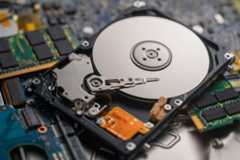
Hard drives are vital components of computers and are important for storing data, as well as providing access to programs and files. Hard drives come in various sizes and shapes, from laptop hard drives to desktop hard drives, and the exact type you have will depend on your device.
To ensure that your hard drive continues working properly, you should perform regular checks on the health of yourhard drive. There are a few techniques that you can use to carry out this task, and we will explore them in greater detail below.
Why Do You Need To Check Your Hard Drive Health?
Hard drives contain sensitive information, such as personal passwords, banking details, and other private information. If your hard drive is damaged or failing, it could be easier for hackers to gain access to this information, and, if they are successful, it can make it easier to steal your identity, or cause other issues.
In addition, hard drives tend to store large amounts of data, which can make them prone to failure.
If your hard drive has failed, then you will not be able to access your data, so it’s essential that you take steps to ensure that your hard drive is healthy before it fails completely.
Deals season is here folks, and with it comes a plethora of eye-catching price cuts on some of the industry's most popular tech. Below are some of the best deals you can find right now.
- AMD Ryzen 7 9800X3D Was $479/span> Now $454
- ASUS TUF RTX 5070 Ti Was $999 Now $849
- Samsung Odyssey OLED G6 Was $899 Now $649
- LG G5 65" OLED TV Was $2,996 Now $1,996
- Samsung Odyssey G9 (G95C) Was $1,299 Now $777
- Alienware Area-51 gaming laptop Was $3,499 Now $2,799
- Samsung 77-inch OLED S95F Was $4,297 Now $3,497
*Prices and savings subject to change. Click through to get the current prices.
What Is The Best Way To Check My Hard Drive Health?
There are several ways that you can check the health of your hard drive, including:
Step
Monitoring Your Computer’s Performance
You canmonitor the performance of your computer by using the built-in tools provided by Windows. This gives you an indication of how much power your hard drive needs, and whether there are any problems with its operation.
Simply run a search for the tools offered by your particular system, and use this to determine the health of your hard drive.
Step
Using Diagnostic Software
Diagnostic software is available online and allows you to test the health of your hard disk. The software will also give you an idea of what may be causing the problem.
It is important to ensure that you are only using software that is reliable and trustworthy; look for reviews and ask for recommendations.
Step
Checking Your Hard Drive’s SMART Status
The Self Monitoring Analysis and Reporting Technology (S.M.A. R.T.) system is a feature built into all modern hard drives and runs checks on a number of areas of your drive to check the overall health.
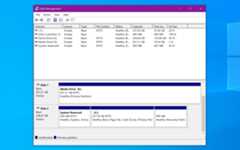
These tests include checking the temperature of the hard drive, the amount of energy used, the number of errors detected, and more. You can view the results of these tests through the Disk Management tool, which is included in Microsoft Windows.
How Can I Repair A Failing Hard Drive?
Once you have determined that your hard drive is failing, it is important to act quickly. This is because once your hard drive starts to fail, it can be very difficult to fix. If you wait too long, you could end up losing your entire hard drive, and your data.
Step
Back Up Your Data
To prevent this from happening, you should consider backing up your data as soon as you notice a problem. This means copying everything off your hard drive onto a separate storage device such as a USB stick, CD, or DVD.
Make sure that you back up regularly so that you don’t lose anything.
Final Thoughts
If you notice that your PC is slow, taking longer to load, or not responding at all, then this could be a sign that you need to check the health of your hard drive, and one of the above techniques or tools can help you with this.
About the Author
Kevin has a broad interest and enthusiasm for consumer electronics, PCs, and all things consumer tech. And more than 17 years experience in tech journalism.
Our team of experts use a combination of independent consumer research, in-depth testing where appropriate - which will be flagged as such, and market analysis when recommending products, software and services.Find out how we test here.

Related Articles

Three NVIDIA-powered gaming PCs that should be at the top of any tech-lover’s Christmas list
Last Updated Nov 28, 2025· byAaron Ritchie
How To Format A Hard Drive
Last Updated Aug 30, 2022· byKevin Pocock
How To Partition A Hard Drive in Windows 10
Last Updated Jul 4, 2022· byKevin Pocock
Internal Vs. External HDD
Last Updated Jun 20, 2019· byAndrew KirkcaldyWhat Is The Best HDD Brand?
Last Updated Jun 20, 2019· byAndrew Kirkcaldy
Best External Hard Drive Enclosure in 2025
Last Updated Apr 30, 2023· byAndrew KirkcaldyBest External Hard Drive For PS4 in 2025
Last Updated Apr 26, 2023· byTom Bardwell
Best external drive for PC backup in 2023
Last Updated Apr 25, 2023· byLewie Procter
PC-Doctor drive erasure: Why deleting data might not be good enough
Last Updated Feb 17, 2023· byKevin Pocock