Table of Contents
- 3.1. Introduction
- 3.2. The installation process
- 3.3. Keyboard layout
- 3.4. Starting the installation
- 3.5. MBR partitions
- 3.6. Disklabel partitions
- 3.7. Setting the disk name
- 3.8. Last chance!
- 3.9. The disk preparation process
- 3.10. Installation type
- 3.11. Choosing the installation medium
- 3.12. Extracting sets
- 3.13. System configuration
- 3.14. Finishing the installation
This chapter will guide you through the installation process. The concepts presented here apply to all installation methods. The only difference is in the way the distribution sets are fetched by the installer. Some details of the installation differ depending on the NetBSD release. The examples from this chapter were created with NetBSD 8.0.
Note
The following install screens are just examples. Do not simply copy them, as your hardware and configuration details may be different!
The installation process is divided logically into two parts. In the first part, you create a partition for NetBSD and write the disklabel for that partition. In the second part, you decide which distribution sets (subsets of the operating system) you want to install and then extract the files into the newly created partition(s).
The NetBSD install programsysinst allows you to change the keyboard layout during the installation. If for some reason this does not work for you, you can use the map in the following table.
| US | IT | DE | FR |
|---|---|---|---|
| - | ' | ß | ) |
| / | - | - | ! |
| = | ì | ' | - |
| : | ç | Ö | M |
| ; | ò | ö | m |
| # | £ | § | 3 |
| " | ° | Ä | % |
| * | ( | ( | 8 |
| ( | ) | ) | 9 |
| ) | = | = | 0 |
| ' | à | ä | ù |
| ` | \ | ^ | @ |
| \ | ù | # | ` |
To start the installation of NetBSD, insert your chosen boot medium (CD/DVD, USB drive, floppy, etc.) and reboot the computer. The kernel on the installation medium will be booted and it will start displaying a lot of messages on the screen about hardware being detected.

When the kernel has booted, you will find yourself in the NetBSD installation program,sysinst, shown inFigure 3.1, “Selecting the language”. From here on, you should follow the instructions displayed on the screen, using theINSTALL document as a companion reference. You will find the INSTALL document in various formats in the root directory of the NetBSD release. Thesysinst screens all have more or less the same layout: the upper part of the screen shows a short description of the current operation or a short help message, and the rest of the screen is made up of interactive menus and prompts. To make a choice, use the cursor keys, the“Ctrl+N” (next) and“Ctrl+P” (previous) keys, or press one of the letters displayed left of each choice. Confirm your choice by pressing the Return (also known as“Enter”) key.
Start by selecting the language you prefer to use for the installation process.
The next screenFigure 3.2, “Selecting a keyboard type” will allow you to select a suitable keyboard type.

This will bring you to the main menu of the installation program (Figure 3.3, “The sysinst main menu”).

Choosing the“Install NetBSD to hard disk” option brings you to the next screen (Figure 3.4, “Confirming to install NetBSD”), where you need to confirm that you want to continue the installation.

After choosing“Yes” to continue,sysinst displays a list of one or more disks and asks which one you want to install NetBSD on. In the example ofFigure 3.5, “Choosing a hard disk”, two disks are listed, and NetBSD will be installed on“wd0”, the first SATA or IDE disk found. If you use SCSI or external USB disks, the first one will be named“sd0”, the second one“sd1” and so on.

Then the installer will ask you to confirm the detected disk geometry from the information provided by the BIOS, as shown inFigure 3.6, “Disk geometry”. It almost always gives the right values. Choose“This is the correct geometry”, unless you know that the information provided by your BIOS is reportedly incorrect.

The first important step of the installation has come: the partitioning of the hard disk. First, you need to specify whether NetBSD will use a partition (suggested choice) or the whole disk. In the former case it is still possible to create a partition that uses the whole hard disk (Figure 3.7, “Choosing the partitioning scheme”), so we recommend that you select this option as it keeps the BIOS partition table in a format which is compatible with other operating systems.

The next screen shows the current state of the MBR partition table on the hard disk before the installation of NetBSD. There are four primary partitions, and as you can see, this example disk is currently empty. If you do have other partitions you can leave them around and install NetBSD on a partition that is currently unused, or you can overwrite a partition to use it for NetBSD.

Deleting a partition is simple: after selecting the partition, a menu with options for that partition will appear (Figure 3.9, “Partition options”). Change the partition kind to“Delete partition” to remove the partition. Of course, if you want to use the partition for NetBSD you can set the partition kind to“NetBSD”.
You can create a partition for NetBSD by selecting the partition you want to install NetBSD to. The partition names“a” to“d” correspond to the four primary partitions on other operating systems. After selecting a partition, a menu with options for that partition will appear, as shown inFigure 3.9, “Partition options”.

To create a new partition, the following information must be supplied:
the type (kind) of the new partition
the first (start) sector of the new partition
the size of the new partition
Choose the partition type“NetBSD” for the new partition (using the“type” option). The installation program will try to guess the“start” position based on the end of the preceding partition. Change this value if necessary. The same thing applies to the“size” option; the installation program will try to fill in the space that is available until the next partition or the end of the disk (depending on which comes first). You can change this value if it is incorrect, or if you do not want NetBSD to use all the suggested amount of space.
After you have chosen the partition type, start position, and size, it is a good idea to set the name that should be used in the boot menu. You can do this by selecting the“bootmenu” option and providing a label, e.g.,“NetBSD”. Repeat this step for other bootable partitions, so you can boot both NetBSD and a Windows system (or other operating systems) using the NetBSD bootselector. You can also choose one of the labelled partitions as default for the boot menu. If you are satisfied with the partition options, confirm your choice by selecting“Partition OK”. Choose“Partition table OK” to leave the MBR partition table editor.
If you have made an error in partitioning (for example you have created overlapping partitions)sysinst will display a message and suggest to go back to the MBR partition editor (but you are also allowed to continue). If the data is correct but the NetBSD partition lies outside the range of sectors which is bootable by the BIOS,sysinst will warn you and ask if you want to proceed anyway. Doing so may lead to problems on older PCs.
Note
This is not a limitation of NetBSD. Some old BIOSes cannot boot a partition which lies outside the first 1024 cylinders. To fully understand the problem, you should study the different types of BIOSes and the many addressing schemes that they use (physical CHS,logical CHS,LBA, ...). These topics are not described in this guide.
On modern computers (those with support forint13 extensions), it is possible to install NetBSD in partitions that live outside the first 8 GB of the hard disk, provided that the NetBSD boot selector is installed.
Next,sysinst will offer to install a boot selector on the hard disk. This screen is shown inFigure 3.10, “Installing the boot selector”.

At this point, theBIOS partitions (calledslices on BSD systems) have been created. They are also calledPC BIOS partitions,MBR partitions orfdisk partitions.
Note
Do not confuse theslices orBIOS partitions with theBSD partitions, which are different things.
Some platforms, like PC systems (amd64 and i386), use DOS-style MBR partitions to separate file systems. The MBR partition you created earlier in the installation process is necessary to make sure that other operating systems do not overwrite the diskspace that you allocated to NetBSD.
NetBSD uses its own partition scheme, called adisklabel, which is stored at the start of the MBR partition: for more information, refer toSection 2.2.2, “Partitions”. In the next few steps you will create adisklabel(5) and set the sizes of the NetBSD partitions, or use existing partition sizes, as shown inFigure 3.11, “Edit partitions?”.

When you choose to set the sizes of the NetBSD partitions you can define the partitions you would like to create. The installation program will generate a disklabel based on these settings. This installation screen is shown inFigure 3.12, “Setting partition sizes”.

As specified inFigure 3.3, “The sysinst main menu”, the items of the installation menus can be selected pressing the letter displayed left of them. Be careful that, in these menus, they do not always correspond to the BSD disklabel partition letters. For example, third line (letter“c”) ofFigure 3.12, “Setting partition sizes” does not refer to the whole NetBSD partition, as well as the fourth line (letter“d”) does not correspond to BSD disklabel partition“d”.
The default partition scheme of just using a big/ (root) file system (plus swap) works fine with NetBSD, and there is little need to change this.Figure 3.12, “Setting partition sizes” shows how to change the size of the swap partition to 4096 MB. Note also that partition/ is marked with a“+”, so it will occupy all the remaining free space (not located for any other partition). Changing/tmp to reside on aRAM disk (mount_tmpfs(8) ormfs(8)) for extra speed may be a good idea. Other partition schemes may use separate partitions for/var,/usr and/or/home, but you should use your own experience to decide if you need this. When you completed the definition of all the desired partitions, choose“Accept partition sizes”.
The next step is to create the disklabel and edit its partitions, if necessary, using the disklabel editor (Figure 3.13, “The disklabel editor”). If you predefined the partition sizes in the previous step, the resulting disklabel will probably fit your wishes. In that case you can complete the process immediately by selecting“Partition sizes ok”.

Letters inFigure 3.13, “The disklabel editor” are used for line selectionand to represent the corresponding BSD disklabel partitions, with the meaning specified inSection 2.2.2, “Partitions”. In the amd64 port, there are two reserved partitions:“c”, representing the NetBSD partition, and“d”, representing the whole disk. You can edit all the other partitions by using the cursor keys and pressing the Return key, or using their corresponding letters. You can add a partition by selecting an unused slot and setting parameters for that partition. The partition editing screen is shown inFigure 3.14, “Disklabel partition editing”. When you are satisfied with all the values, choose“Partition sizes ok”.

After defining the partitions in the new disklabel, the last item is to enter a name for the NetBSD disk as shown inFigure 3.15, “Naming the NetBSD disk”. This can be used later to distinguish between disklabels of otherwise identical disks.

The installer now has all the data it needs to prepare the disk. Nothing has been written to the disk at this point but, and now is your last chance to abort the installation process before actually writing data to the disk. Choose“no” to abort the installation process and return to the main menu, or continue by selecting“yes”.

After confirming thatsysinst should prepare the disk, it will rundisklabel(8) to create the NetBSD partition layout andnewfs(8) to create the file systems on the disk.
After preparing the NetBSD partitions and their filesystems, the next question (shown inFigure 3.17, “Selecting bootblocks”) is whichbootblocks to install. Usually you will choose the default ofBIOS console, i.e., show boot messages on your computer's display.
If you run a farm of machines without monitor, it may be more convenient to use a serial console running on one of the serial ports. The menu also allows changing the serial port's baud rate from the default of 9600 baud, 8 data bits, no parity and one stopbit.

The installer will then ask whether you want to do a full, minimal or custom installation. NetBSD is broken into a collection of distributions sets.“Full installation” is the default and will install all sets;“Minimal installation” will only install a small core set, the minimum of what is needed for a working system. If you select“Custom installation” you can select which sets you would like to have installed. This step is shown inFigure 3.18, “Full or custom installation”.

If you choose to do a custom installation,sysinst will allow you to choose which distribution sets to install, as shown inFigure 3.19, “Selecting distribution sets”. At a minimum, you must select a kernel and the“Base” and“Configuration files (/etc)” sets.

At this point, you have finished the first and most difficult part of the installation!
The second half of the installation process consists in populating the file systems by extracting the distribution sets that you selected earlier (“Base”,“Compiler tools”,“Games”, etc.). Nowsysinst needs to find the NetBSD sets and you must tell it where to find them: it can be the same medium wheresysinst resides, or a different one, according to your preferences. The menu offers several choices, as shown inFigure 3.20, “Installation media”. The options are explained in detail in theINSTALL documents.

Choose this option if you want to install NetBSD from either an optic medium (“CD-ROM / DVD”) or another medium, such as an USB drive. If the runningsysinst itself has been loaded from there, the corresponding device will be automatically selected and the extraction of the distribution sets will begin.
The CD-ROM/DVD or other device name
Ifsysinst is not able to detect the CD-ROM/DVD or the USB flash device, you can gather more information about the hardware configuration as follows:
Press“Ctrl+Z” to pausesysinst and go to the shell prompt.
Type the command:
#dmesgThis will show the kernel startup messages, including information about not detected or not configured devices. When the first CD-ROM or DVD drive in the system is properly working, it is usually namedcd0, regardless of whether it is IDE or SCSI (or even USB or FireWire). The first USB flash drive is namedsd0 when it is correctly configured.
If the display scrolls too quickly, you can also usemore:
#dmesg | moreAs instructed, you can return to the NetBSD installation by typing either“exit” or“^D” (“Ctrl+D”).
Figure 3.21, “Mounting a file system” shows the menu to install NetBSD from an unmounted file system. It is necessary to specify the device (“Device”), its file system type (“File system”) and a root directory inside it (“Base directory”). The binary installation sets and the source sets are.tgz files. The default mountpoint is“mnt” in amd64. The path is formed as follows:
/<default mountpoint>/<Base directory>/<Binary set directory> or <Source set directory>/set.tgz
Choose a combination of“Base directory” and“Binary set directory” (or“Source set directory”) that generates a valid path in your unmounted filesystem. If more than one consecutive/ appear, only the first/ will actually be considered. You need to specify a“Source set directory” only if you previously chose to install some sources. Source sets are usually not included in the installation images.
In the following example the install sets are stored on aMSDOS file system, on partition“e” on the device“sd0”.

Specify the device name and the partition.Figure 3.22, “Mounting a partition ” shows how to specify device "sd0" with partition "e".

InFigure 3.23, “Accessing a MSDOS file system” the file system type specified is“msdos”. This value is used to form the commandmount_<File system> to mount the volume. Any string (representing a“File system” type) which forms a valid command is accepted: for example, the NetBSD file system“ffs” or“ext2fs”, a Linux file system. In this example, the“Base directory” item is left blank and the binary sets are stored under/sets, so that the path becomes:
/mnt///sets
Ignoring the multiple/, this is equivalent to/mnt/sets and it is a valid one. Choosing“Continue” will start the extraction of the sets.

If you choose to install from a local network or the Internet via FTP,sysinst must be instructed to properly get the distribution sets, as shown inFigure 3.24, “Defining the FTP settings”.

The defaults work most of the time. You also need to configure your network connection, before proceeding: go to the corresponding menu item, pressing letter“j”.
NetBSD currently supports installation via ethernet, USB ethernet or wireless, and wireless LAN. Installation via DSL (PPP over Ethernet) is not supported during installation.
In the first step, shown inFigure 3.25, “Which network interface to configure”, the network card to be configured must be selected.sysinst will determine a list of available network interfaces, present them and ask which one to use.

Note
The exact names of your network interfaces depend on the hardware you use. Example interfaces are“wm” for Intel Gigabit interfaces,“ne” for NE2000 and compatible ethernet cards, and“ath” for Atheros based wireless cards. This list is by no means complete, and NetBSD supports many more network devices.
If your network device is not listed inFigure 3.25, “Which network interface to configure”, maybe it has not been properly detected. To get a list of network interfaces available on your system, interrupt the installation process by pressing“Ctrl+Z”, then enter
#ifconfig -awm0: flags=0x8802<BROADCAST,SIMPLEX,MULTICAST> mtu 1500 capabilities=2bf80<TSO4,IP4CSUM_Rx,IP4CSUM_Tx,TCP4CSUM_Rx> capabilities=2bf80<TCP4CSUM_Tx,UDP4CSUM_Rx,UDP4CSUM_Tx,TCP6CSUM_Tx> capabilities=2bf80<UDP6CSUM_Tx> enabled=0 ec_capabilities=7<VLAN_MTU,VLAN_HWTAGGING,JUMBO_MTU> ec_enabled=0 address: 08:00:27:7e:85:d7 media: Ethernet autoselect (1000baseT full-duplex) status: activelo0: flags=0x8048<LOOPBACK,RUNNING,MULTICAST> mtu 33624
If the desired interface has not been shown, get more information about all the devices found during system boot. Type:
#dmesg | more
As instructed, you can return to the NetBSD installation by typing either“exit” or“^D” (“Ctrl+D”).
Next, you have a chance to set your network medium. Press“Enter” to choose the default.
Note
It is unlikely that you will need anything other than the default here. If you experience problems like very slow transfers or timeouts, you may, for example, force different duplex settings for ethernet cards. To get a list of supported media and media options for a given network device (“wm0”, for example), escape fromsysinst by pressing“Ctrl+Z”, then enter:
#ifconfig -m wm0wm0: flags=0x8802<BROADCAST,SIMPLEX,MULTICAST> mtu 1500 capabilities=2bf80<TSO4,IP4CSUM_Rx,IP4CSUM_Tx,TCP4CSUM_Rx> capabilities=2bf80<TCP4CSUM_Tx,UDP4CSUM_Rx,UDP4CSUM_Tx,TCP6CSUM_Tx> capabilities=2bf80<UDP6CSUM_Tx> enabled=0 ec_capabilities=7<VLAN_MTU,VLAN_HWTAGGING,JUMBO_MTU> ec_enabled=0 address: 08:00:27:7e:85:d7 media: Ethernet autoselect (1000baseT full-duplex) status: active supported Ethernet media: medianone media10baseT media10baseT mediaopt full-duplex media100baseTX media100baseTX mediaopt full-duplex mediaautoselect
The several values printed after“media” may be of interest here, including keywords like“autoselect” but also including any“mediaopt” settings.
Return to the installation by typing“exit” or“^D” (“Ctrl+D”).
The next question, shown inFigure 3.26, “Using autoconfiguration”, is whether you want to perform autoconfiguration. This procedure uses DHCP (Dynamic Host Configuration Protocol).sysinst will fetch a number of defaults from it, giving most likely the correct settings. This procedure is recommended, unless you want to set a static IP address, and/or specify some custom parameters.

You will then be asked for your“DNS domain”; if the machine is not in a registered public domain, it can be left blank.
At the end of this procedure, a list of all the settings is shown, as inFigure 3.27, “Confirm autoconfiguration”. If they are correct, choose“Yes”. Otherwise, choosing“No”, the network configuration will restart from the beginning, giving the opportunity to perform again all the steps (and also to perform a manual configuration).

If you chose“No” inFigure 3.26, “Using autoconfiguration”, you will be asked several questions to manually configure the network. All the parameters are presented in the form“Parameter_name [default_value]:”. Press“Enter” to use the default value. If no default value is provided, the parameter will be left blank.
- Your host name:
The name by which other machines can usually address your computer. Not used during installation.
- Your DNS Domain:
This is the name of the domain you are in. You may leave it blank if you are not in a public domain.
- Your IPv4 address:
Enter your numerical Internet Protocol address in“dotted quad” notation here, for example, 192.168.1.3. It will be used as a static IP for your network card.
- IPv4 Netmask:
The netmask for your network, either given as a hex value (“0xffffff00”) or in dotted-quad notation (“255.255.255.0”).
- IPv4 gateway:
Your router's (or default gateway's) IP address. Do not use a hostname here!
- Your name server:
Your (first) DNS server's IP address. Again, don't use a hostname.
After answering all of your network configuration info, their list is shown as inFigure 3.27, “Confirm autoconfiguration”. You will have a chance to go back and make changes. If you are satisfied with your settings, choose“Yes”.
sysinst will now run a few commands (not displayed in detail here) to configure the network: flushing the routing table, setting the default route, and testing if the network connection is operational.
Now that you have a functional network connection, the menu inFigure 3.24, “Defining the FTP settings” will be shown again. Choose“Get Distribution” to continue:sysinst will download the selected set files to a temporary directory, and then extract them.
If you want to install NetBSD from a server in your local network, NFS is an alternative to FTP.
Note
Using this installation method requires the ability to set up an NFS server, a topic which is not discussed here.
As shown inFigure 3.28, “NFS install screen”, you must specify: the IP address of the NFS server as“Host”; the directoryexported by the NFS server as“Base directory”; the directory containing the install sets as“Set directory”.

Figure 3.29, “NFS example” shows an example: Host“192.168.1.50” is the NFS server which exports the directory/home/username/Downloads. The NetBSD install sets are stored in/home/username/Downloads/sets on the NFS server. Choose“Continue” to start the installation of the distribution sets.

After the method to obtain the distribution sets has been chosen, and (if applicable) after those sets have been transferred, they will be extracted into the new NetBSD file system.
A message (seeFigure 3.30, “Extraction of sets completed”) will let you know that the set extraction is now completed and that you have the opportunity to perform some essential configuration before finishing the NetBSD installation.

A menu with all the available configuration options is shown like inFigure 3.31, “Configuration menu”. After the configuration of each item, you will get back to this menu, having the chance to select another one.

If you have not yet configured Network, you can do it now, following the same procedure already presented inSection 3.11.3, “Installing via FTP and Network configuration”.
The timezone can also be configured. It isUniversal Time Coordinated (UTC) by default. Use the two-level menu ofContinents/Countries and cities shown inFigure 3.32, “Selecting the system's time zone” to select your local timezone with the Return key. After a valid selection, the cursor will automatically be moved to an“Exit” item. Then, simply press Return to exit the timezone selection.

The next item inFigure 3.31, “Configuration menu” allows you to choose which command-line interpreter - also known as“shell” - will be used for the root account. The default is the Bourne-compatibleAlmquist shell,sh(1). Other choices are theKorn shell (ksh(1)) and theC shell (csh(1)). If, upon reading this, you don't have some idea on which shell you prefer, simply use the default, as this is a highly subjective decision. Should you later change your mind, root's shell can always be changed.

The root account still does not have a password. It is recommended to set it at this point for security reasons, choosing the related item inFigure 3.31, “Configuration menu”.

When you agree to set a root password,sysinst will run thepasswd(1) utility for you. Please note that the password is not echoed.

To ease the future installation of binary packages, it is possible to make a preliminary configuration ofpkgin: choose“Enable installation of binary packages” inFigure 3.31, “Configuration menu”.pkgin will be fetched and installed from an FTP server, so be sure that the network configuration has already been done. Specify the“Host” name, its“Base directory” (where the packages for all the NetBSD ports are stored), and the“Package directory”, related to your port and your NetBSD version. Usually, the defaults are correct.

Choosing“ftp” as“User”, no password will be required. As shown inFigure 3.36, “Enabling installation of binary packages”, you can also choose to install one or more additional packages, typing their names using a space as separator, pressing“Enter” at the end. To proceed to the installation, type“x” and press“Enter”. A“pkgin update” will be run after the installation ofpkgin, to let the repository be immediately up to date.

After the procedure is completed,sysinst will show the command to install further packages. Hit“Enter” to go back to the configuration menu.
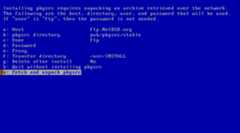
If you need or want to build packages from their source code via pkgsrc, choose“Fetch and unpack pkgsrc for building from source” inFigure 3.31, “Configuration menu”. As before, specify the“Host” name;“pkgsrc directory” is the sources base directory. Defaults are usually the best values. A single archive file will be downloaded, for examplepkgsrc.tgz: if you want to automatically remove it after the pkgsrc installation, move the cursor on“Delete after install” and press“Enter”. To proceed with the download, type“x” and then press“Enter”.
In the initial configuration menu (Figure 3.31, “Configuration menu”), it is also possible to enable some useful services such as the daemon listening forssh. For information aboutntpd andntpdate, refer toSection 29.2, “TheNetwork Time Protocol (NTP)”.xdm handles the authentication and the session of users through an X display. Usage of the Cryptographic Device Driver (cgd) is shown inChapter 14,The cryptographic device driver (CGD). Logical Volume Manager (lvm) is documented inChapter 17,NetBSD Logical Volume Manager (LVM) configuration, raidframe inChapter 16,NetBSD RAIDframe.mdnsd provides a Multicast DNS service, and also DNS Service Discovery on NetBSD: checkmdnsd(8) for more details.
Finally, the menu inFigure 3.31, “Configuration menu” lets you add a regular user to the system. For all the base information about users and root accounts, as well as the wheel group, refer toSection 5.6, “Adding users”.
When you completed the configuration of all the desired items, choose“Finished configuring” inFigure 3.31, “Configuration menu”.
At this point the installation is finished.

After passing the dialog that confirms the installation,sysinst will return to the main menu. Remove any installation media (CD, floppy, etc.) and choose“Reboot the computer” to boot your new NetBSD installation.
