
Purging with surrogate keys
- English
- 日本語
Fastly provides several levels of cache purging and choosing the right purging method is essential to keeping your website fast. While Fastly'spurge all is a speedy way to invalidate your cache, it may temporarily increase your website's load time while the cache rebuilds. If you find yourself purging all cache on more than a weekly basis, consider usingsurrogate keys for more targeted purging.
Surrogate keys are unique identifiers that you assign to portions of content that share common traits, making them easier to process as groups in some way. Using theSurrogate-Key header, you can tag an object, such as an image or a blog post, with one or more keys. When you need to explicitly remove content from the Fastly edge cache, rather than allowing it to expire or to be evicted, you can use surrogate keys to purge groups of content selectively instead of purging all content.
Before you begin
This guide assumes you're already familiar with how towork with theSurrogate-Key header to tag related pieces of cacheable content.
Purging objects with surrogate keys
You can use the Fastly control panel to manually purge objects via key:
Log in to theFastly control panel.
From theHome page, select the appropriate service. You can use the search box to search by ID, name, or domain.
From thePurge menu, selectPurge key.
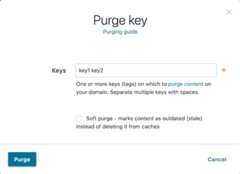
In theKeys field, enter one or more surrogate keys. Use spaces to separate multiple keys.
(Optional) Select theSoft purge checkbox to mark your content as outdated instead of deleting it from cache.
ClickPurge.
You can also use ourPurge API to purge objects via key.
What's next
Explore the other purging methods available with Fastly such aspurging a URL andpurging all content.
