Getting Started
Assuming you already have a CMake project to configure, skip to theConfiguring Your Project section.
CMake Tools’Quick Start
CMake Tools provides aCMake: Quick Start command to quickly generate a verybare-bones CMake project that can be configured and built with minimal friction.
Start by selectingCMake: Quick Start from the command palette:

CMake Tools will then prompt you for the following information:
The project name - Will be written to the generated
CMakeLists.txtanda few initial source files.The project type - Decides what initial source files to write. Not hugelyimportant as the project can be tweaked arbitrarily after generation.Currently offers two choices:
Library - Writes an
add_library()command and a basic source andheader file.Executable - Writes an
add_executable()command and a basic sourcefile with aHello, world stylemain()function.
Once this information is collected, CMake will try an initial configure andbuild of the project straight away.
Configuring Your Project
Configuring a project is simple, but has two steps before configuration can takeplace.
Pre-Configure Steps
Selecting a Kit
Before we can configure, you must select aKit.(Read more about kits).
- What are kits?
Kits represent atoolchain: A set of compilers, linkers, or other toolsthat will be used to build a project. If you have no Kit selected, CMakeTools will start by asking you to select a Kit.
When first opening a project, a status bar item will readNo Kit Selected:
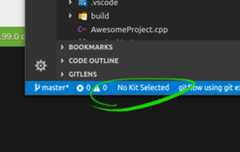
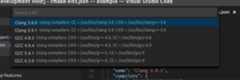
To select a kit, click this statusbar button, or run theSelect a Kit commandfrom the command palette. A quick-pick will appear:
Upon choosing a kit, the statusbar button will display the name of the activekit:
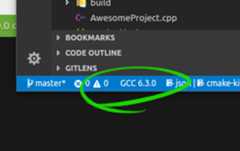
The chosen kit will be remembered between sessions. Should the availability ofthe kit change, the statusbar item may revert and you will be required to selecta kit again.
Note
If you try to configure your project without an active Kit selected, youwill be prompted to choose one before configuring can proceed.
CMake Tools will use the compilers/toolchain from the kit when building yourproject.
Find out more on theCMake Kits page.
Selecting a Variant
Similar to selecting a kit, we must select aVariant.(Read more about variants).
Before selecting a variant, the variant slot on the statusbar will readUnknown:
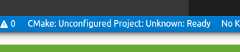
To select a variant, click this statusbar button, or run theSet build typecommand from the command palette. A quick-pick will appear:
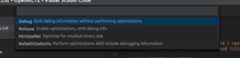
The active build variant will be displayed on the same statusbar button, alongwith the project name and extension status.
Note
Just like with kits, CMake Tools will ask you which variant to build if youhaven’t already made a selection.
Variants can be customized to a wide variety of purposes. Find out more on theCMake Variants page.
Running Configuration
Configuration can be run by clicking the project button in the statusbar andchanging the build type, by running theCMake: Configure command from thecommand palette, or by running a build when configuration has not yet takenplace.
When configuration runs, theCMake/Build output panel will reveal and showthe live output from CMake as configuration runs:
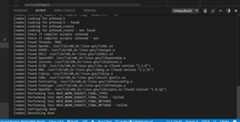
At this point, CMake Tools has loaded information about your project and you arefree to roam about the cabin.
See also
Building Your Project
More important than just configuring, you probably want tobuild your projectas well.
Building is simple: Run theCMake: Build command from the command palette:
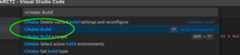
Note
The default keybinding for this command isF7.
You can also press theBuild button in the statusbar:
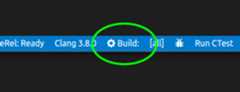
While the the build is running, theBuild button will be replaced with abuild progress bar:
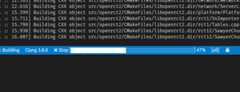
The build can be stopped by clicking theStop button.
See also
Accessing Build Results
By default, CMake Tools writes build output to thebuild/ subdirectory ofyour source tree, so build results are visible from the file explorer withinVisual Studio Code. This can be changed by changing thecmake.buildDirectory setting.
