CMake Building
Once you haveconfigured your project, you can run a CMakebuild. Most work with CMake Tools will be done with configuring, and the buildprocess is much simpler.
Starting a build can be done in one of three ways:
Executing theCMake: Build command
Hitting the associated hotkey (the default beingF7).
Pressing theBuild button in the status bar.
When the build starts, the CMake Tools output panel will be opened and theoutput from the build tool will be shown as it runs. TheBuild button willchange to aStop button and may show a progress bar for the running build.Pressing theStop button will cancel the running build. Attempting to executea build while a build is running will cancel the running build and start a newone.
Note
The progress bar will only be shown if the build tool emits output linesthat can be parsed to contain a percentage of the build progress. Thisincludes Ninja and Makefile generators. MSBuild does not emit thisinformation, so no progress bar will be visible.
The results of the build will be written to the directory specified bycmake.buildDirectory. This defaults to a subdirectory of the projectdirectory, so the build results will be visible within the project explorer.The exact file paths will depend on the CMake project configuration.
The Default Target
CMake Tools persists a “default target” for the build process. The defaulttarget is the “all” target (namedALL_BUILD in some generators), which willbuild all targets CMake has designated for a default build.
The name of the default target is shown in the status bar to the right of theBuild button in square brackets:
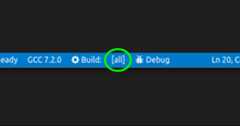
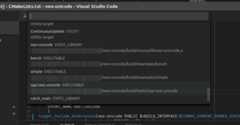
Clicking this button will show a quick-pick for all the target CMake Tools isaware of that can be built, along with the full path to the build result thatwill be generated by the target:
Building a Single Target
Instead of changing the build target, one can also request to build a singletarget a single time. Run theCMake: Build a target command, or hit theassociated hotkey (defaults toShift+F7).
Note
CMake will build dependent targets, even if they aren’t directly selected.
How CMake Tools Builds
Build Flags
CMake Tools builds by passing the--build flag to CMake. This flag is usedas a generator-agnostic build invocation tool. CMake tools also passes--config<build-type> based on the current build type from the activevariant. This instructs multi-conf build tools on whatconfiguration they should build.
Additional flags to--build can be set withcmake.buildArgs,and additional flags for the underlying build tool can be set withcmake.buildToolArgs. These are advanced options and should only beused if you know what you are doing.
The Build Environment
Environment variables will be inherited from the calling Visual Studio Codeprocess, with additional variables from thecmake.buildEnvironmentandcmake.environment setting.
If using aVisual Studio Kit, CMake Tools runs the buildwith the appropriate environment variables set to build with the chosenVisual Studio, much like how it sets these environment variables whenconfiguring.
Cleaning Up
CMake Tools lets you clean the build output by running theCMake: Cleancommand. One can also run theCMake: Clean rebuild to quickly delete buildresults and run the build from scratch.
