
Node has gained a lot of popularity since it was introduced in 2009. Despite its success, Ryan Dahl, Node’s original creator, believes there’s room for improvement, and so he has recently releasedDeno, a new runtime for JavaScript and TypeScript, as its successor.
How is Deno different? Well, Deno, like Node, uses the V8 engine and event-driven architecture. But here is where the similarities end.
- TypeScript gets first-class support at last. Deno compiles to JavaScript without additional packages.
- Deno ships as a single executable with built-in, Go-inspiredtest runners anddependency management.
- Deno has better security by default. Programs run in a sandbox that doesn’t have access to the network, the environment, or the filesystem unless explicitly granted.
The most significant difference, though, is that Deno doesn’t have a package manager (say goodbye to npm). That means Node.js modules are largely unsupported. Instead, Deno uses decentralized ES Modules. To compensate, Deno developers have introduced an auditedstandard library and support forthird-party modules.
In this tutorial, we’ll learn how to use SemaphoreContinuous Integration (CI) to test Deno applications. As a bonus, we’ll explore how to release Deno applications in Docker usingContinuous Delivery (CD).
Prerequisites
If you wish to do this tutorial along with me, you’ll need the following:
- Deno on your Mac, Linux, or Windows machine.
- Git andGitHub account.
- Docker and aDocker Hub account.
- A Semaphore account. You can get one for free atsemaphore.io.
To get started quickly, you can use our starterdemo project; feel free tofork it.
It features anoak-based HTTP API service with a PostgreSQL backend and includes integration tests. The project comes with everything you need to build Docker images.
Otherwise, these instructions should work with any Deno application. You may need to make slight adjustments, though, depending on how your code is organized.
Prepare a Testing Image
Semaphore’scomposable containers feature lets us work with cutting-edge tools and languages like Deno. We can tailor Docker images to exact specifications and use them to drive CI/CD jobs seamlessly. Semaphore supports any container as long as it includes some basic packages like SSH, Git, and FTP.
Let’s take a few minutes to prepare aDockerfile for Deno.
We can start from a Debian image:
FROM debian:busterThen, we tweak some settings and install the required packages:
RUN echo 'APT::Get::Assume-Yes "true";' > /etc/apt/apt.conf.d/99semaphoreRUN echo 'DPkg::Options "--force-confnew";' >> /etc/apt/apt.conf.d/99semaphoreENV DEBIAN_FRONTEND=noninteractiveRUN apt-get update \ && apt-get install -y --no-install-recommends \ ca-certificates sudo locales netbase netcat \ procps lftp curl unzip git openssh-client \ && rm -rf /var/cache/apt/archivesNext, we set up the locale, so logs have the correct dates and format:
RUN ln -sf /usr/share/zoneinfo/Etc/UTC /etc/localtimeRUN locale-gen C.UTF-8 || trueENV LANG=C.UTF-8And finally, install Deno. We’ll the most current version at the time of writing this, v1.1.1:
RUN curl -fsSL https://deno.land/x/install/install.sh | sh -s v1.1.1RUN cp /root/.deno/bin/deno /usr/local/bin && rm -rf /root/.denoThe final result, which we’ll callDockerfile.ci should look like this:
# Dockerfile.ciFROM debian:busterRUN echo 'APT::Get::Assume-Yes "true";' > /etc/apt/apt.conf.d/99semaphoreRUN echo 'DPkg::Options "--force-confnew";' >> /etc/apt/apt.conf.d/99semaphoreENV DEBIAN_FRONTEND=noninteractiveRUN apt-get update \ && apt-get install -y --no-install-recommends \ ca-certificates sudo locales netbase netcat \ procps lftp curl unzip git openssh-client \ && rm -rf /var/cache/apt/archivesRUN ln -sf /usr/share/zoneinfo/Etc/UTC /etc/localtimeRUN locale-gen C.UTF-8 || trueENV LANG=C.UTF-8RUN curl -fsSL https://deno.land/x/install/install.sh | sh -s v1.1.1RUN cp /root/.deno/bin/deno /usr/local/bin && rm -rf /root/.denoCMD ["/bin/sh"]Now all we have to do is build the image:
$ docker build -t YOUR_DOCKER_HUB_USER/deno:v1.1.1 -f Dockerfile.ci .Upload it to Docker Hub:
$ docker login -u YOUR_DOCKER_HUB_USER$ docker push YOUR_DOCKER_HUB_USER/deno:v1.1.1And we are set to go.
Add Your Project to Semaphore
To add your project to Semaphore follow these steps:
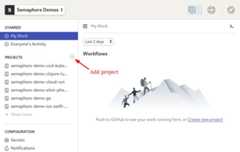
- Log in with your account and click on the+ (plus sign) next to projects.
- Select your repository from the list.

- In the next screen, you can add more people to the project. Once done, click onGo to Workflow Builder to continue.

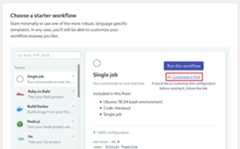
- Choose the Single Job starter workflow and click onCustomize it first.
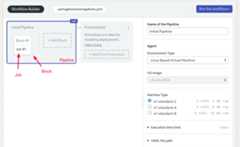
You are now at the Workflow Builder, which lets you visually set up the CI/CD pipeline.
- The main element in the view is thepipeline. A pipeline consists of a series ofblocks which are executed from left to right.
- Each block has one or morejobs. Once all jobs in a block complete, the next block starts.
- Jobs contain the commands that do the work and run in parallel. If any command fails, the pipeline stops and is marked as failed.
Let’s create our first job:
- Click the pipeline to view its settings. On the right side, underEnvironment Type selectDocker containers.
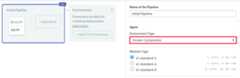
- Type the name of the image you uploaded in the previous section:
YOUR_DOCKER_HUB_USER/deno:v1.1.1.
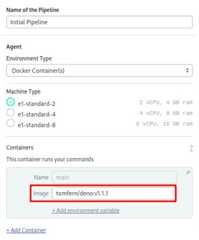
- Click on the first block in the pipeline to begin editing it.
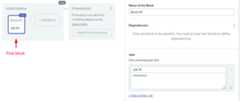
In this block, we only need to download and cache the project’s dependencies. For this, we can combine Semaphore’scache tool withdeno cache:
cache restoretakes a list of keys and retrieves the first match. Our project lists all dependencies insrc/deps.ts, so we can use it as part of the key:
cache restore deps-$(checksum src/deps.ts),deps-masterdeno cachedownloads dependencies without executing any code. To download them in the current directory:
export DENO_DIR=$PWD/depsdeno cache src/deps.tscache storetakes a list of keys and a directory and saves it for future runs:
cache store deps-$(checksum src/deps.ts),deps-master depsPut together, the commands for the job are:
checkoutexport DENO_DIR=$PWD/depscache restore deps-$(checksum src/deps.ts),deps-masterdeno cache src/deps.tscache store deps-$(checksum src/deps.ts),deps-master deps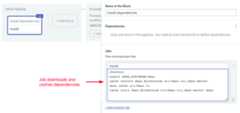
Click onRun the Workflow >Start to try the CI pipeline. Semaphore creates a new git branch calledsetup-semaphore.
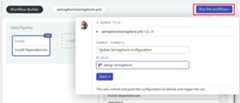
Wait a few seconds for the job to complete. You can check the logs by clicking on the job.

Nice work! We’re ready to start testing.
Testing with Continuous Integration
In this section, we’ll create a new block with two test jobs. The tests use a PostgreSQL database. The easiest way to get one is to connect a new container since we’re already using them in the pipeline.
- Open the Workflow Builder.

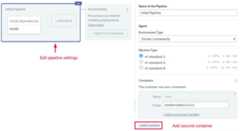
- Select the pipeline and click on+Add Container
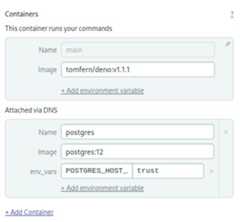
- Call the new container “postgres”
- Type the name of a postgres image onImage:
postgres:12 - Click on+Add environment variable and add the
POSTGRES_HOST_AUTH_METHODvariable with valuetrustto allow connections without a password.
- Create a new block using+Add Block.

- Open thePrologue section. The commands we put here will be executed before every job in the block. We’ll use these commands to retrieve the dependencies:
checkoutexport DENO_DIR=$PWD/depscache restore deps-$(checksum src/deps.ts),deps-master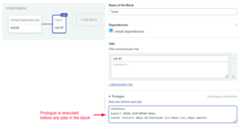
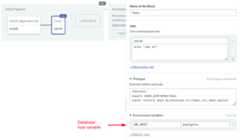
- Open theEnvironment Variables section and create the variable
DB_HOST=postgres
Create three test jobs:
- The first job doesDatabase tests. Type the following commands:
deno run --allow-net --allow-env src/migrate.jsdeno test --allow-net --allow-env src/tests/database.test.js- Click on+Add another job.
- The second job doesIntegration tests. Type the following commands. Note that in this one, we also need to start the application before running the tests.
deno run --allow-net --allow-env src/app.js &deno run --allow-net --allow-env src/migrate.jsdeno test --allow-net --allow-env src/tests/app.test.js- The third job doesStatic tests. Deno ships with a code linter. To enable it, we need to use the
--unstableflag.
deno lint --unstable src/*.js src/*.ts src/tests/*.js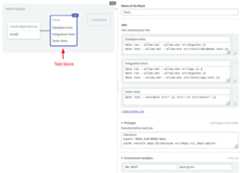
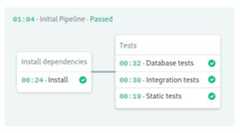
You can try the pipeline once more withRun the Workflow >Start.
Run Deno with Docker
Docker lets us create portable images that can run anywhere. In this section, we’ll learn how to prepare a production image Deno.
Before Semaphore can push to your Docker registry, you must create asecret with the login details.
To do it:
- Click onSecrets under Configuration on the left menu.
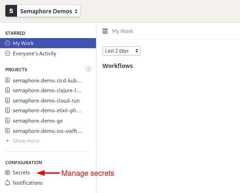
- ClickCreate New Secret.
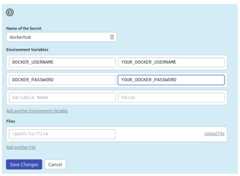
- Create two variables for your Docker Hub username and password:
DOCKER_USERNAME=YOUR DOCKER USERNAMEDOCKER_PASSWORD=YOU DOCKER PASSWORD
- Click onSave changes
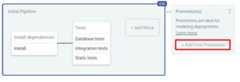
Open the Workflow Builder again and scroll right to the end of the pipeline. We’ll add a second pipeline using apromotion. Promotions lets us tie multiple pipelines together with user-defined conditions.
- Click on+ Add First Promotion.
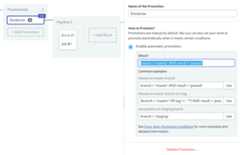
- Check theEnable automatic promotion option. You can set start conditions here.
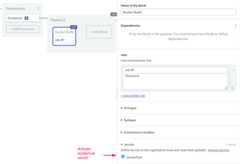
- Click on the first block on the new pipeline.
- Rename the job to “Docker Build”.
- On the right side of the screen, scroll down to theSecrets section and enable the dockerhub secret.
The Docker build job consists of four commands:
- Log in to the Docker registry.
echo "${DOCKER_PASSWORD}" | docker login -u "${DOCKER_USERNAME}" --password-stdin- Pull the latest image available.
docker pull "${DOCKER_USERNAME}"/addressbook-deno:latest || true- Build the new version of the image, reusing layers from previous versions when possible.
docker build -t "${DOCKER_USERNAME}"/addressbook-deno:latest --cache-from "${DOCKER_USERNAME}"/addressbook-deno:latest .- Push the new image version.
docker push "${DOCKER_USERNAME}"/addressbook-deno:latestWe’ll use thisDockerfile to build the production image:
FROM debian:busterRUN apt-get update \ && apt-get install -y --no-install-recommends ca-certificates curl unzip netcat \ && rm -rf /var/cache/apt/archivesRUN groupadd --gid 1000 deno \ && useradd --uid 1000 --gid deno --shell /bin/bash --create-home denoUSER denoRUN curl -fsSL -k https://deno.land/x/install/install.sh | sh -s v1.1.1ENV HOME "/home/deno"ENV DENO_INSTALL "${HOME}/.deno"ENV PATH "${DENO_INSTALL}/bin:${PATH}"RUN mkdir -p $HOME/app/srcCOPY --chown=deno:deno src/ $HOME/app/srcWORKDIR $HOME/app/srcEXPOSE 4000RUN deno cache deps.tsCMD deno run --allow-env --allow-net app.jsCompared with the image we used in the CI pipeline, this production image is leaner, has all the code and dependencies baked in, and runs as the deno user instead of root.
The final Docker build job should look like this:
checkoutecho "${DOCKER_PASSWORD}" | docker login -u "${DOCKER_USERNAME}" --password-stdindocker pull "${DOCKER_USERNAME}"/addressbook-deno:latest || truedocker build -t "${DOCKER_USERNAME}"/addressbook-deno:latest --cache-from "${DOCKER_USERNAME}"/addressbook-deno:latest .docker push "${DOCKER_USERNAME}"/addressbook-deno:latest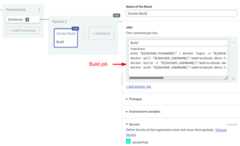
We’re done configuring the pipeline. Start it one last time.
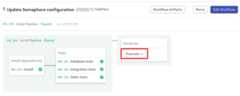
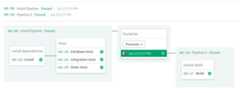
Once it completes, click onpromote to start the build.
That’s all! From now on, Semaphore will run the pipelines on every push to GitHub.
What’s Next?
You have prepared a production image with your application, now it’s time to think about deploying it—don’t leave it sitting on Docker Hub, collecting dust.
Do you want to run your Deno application in Kubernetes but don’t know how to begin? Download our freeCI/CD with Docker and Kubernetes ebook, which explains everything you need to know to get started and includes detailed how-to tutorials.
After that, check out our Kubernetes guides:
- A Step-by-Step Guide to Continuous Deployment on Kubernetes
- CI/CD for Microservices on DigitalOcean Kubernetes
- Continuous Integration and Delivery to AWS Kubernetes
- How to Release Faster with Continuous Delivery for Google Kubernetes
Interested in JavaScript or TypeScript? Don’t miss these great posts:
- Dockerizing a Node.js Application
- JavaScript and TypeScript Continuous Integration Guide
- JavaScript and Node.js Continuous Integration Guide
- Getting Started with Node.js and Mocha
Thanks for reading!
Want to discuss this article?Join our Discord.