The most magical aspect ofthematic is its autotheming capabilities, which gives R plots to ability to style themselvesinShiny(via CSS),RMarkdown (viabslib), andRStudio(viaRStudiothemes). To gain a sense for how auto theming works, it’srecommended you read through the next section, which walks throughseveral variants on a basic Shiny app, and demonstrates how auto themingmakes R plots responsive to changes in CSS styling. Also, as discussedinother scenarios, it possible to configure theinformationthematic uses for auto theming, but you canalso opt-out of auto theming by providing desired colors and fonts tothematic (as discussed oncustomthemes).
Shiny
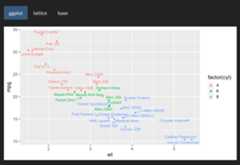
One frustrating thing about styling Shiny apps is that R plots knownothing about CSS. That means, if you writecustom CSS to stylethe app, you’ll likely also want to translate those same styles tothe R graphics. You may have never noticed this problem before if youjust use the default styles in both systems because they’re quitesimilar. Here’s the default styles in a Shiny app with a few R plotsinside atabsetPanel():
library(shiny)library(ggplot2)tabs<-tabsetPanel(type="pills",tabPanel("ggplot",plotOutput("ggplot")),tabPanel("lattice",plotOutput("lattice")),tabPanel("base",plotOutput("base")))ui<-fluidPage(tabs)server<-function(input,output){output$ggplot<-renderPlot({ggplot(mtcars,aes(wt,mpg, label=rownames(mtcars), color=factor(cyl)))+geom_point()+ggrepel::geom_text_repel()})output$lattice<-renderPlot({lattice::show.settings()})output$base<-renderPlot({image(volcano, col=thematic_get_option("sequential"))})}shinyApp(ui,server)
By bringing in a new set of CSS rules, say thedarklyshinytheme,the difference in CSS vs R styles becomes much more apparent:
By activatingthematic auto coloring (as shownbelow), R plot(s) generated by the Shiny app gain new color defaultsbased on the surrounding CSS styles. This works because, at plot time,thematic grabs CSS styles from the plot(s) HTMLcontainer (viashiny::getCurrentOutputInfo())1 and uses that info toset new R styling defaults.
thematic_shiny()shinyApp(ui,server)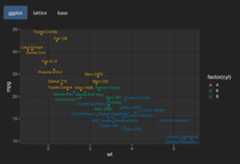
From theggplot2 example above, we can seethematic_shiny() has done the following for us:
- Set new
ggplot2::theme()-ing defaults based on thebackground and foreground colors (as well as appropriate mixtures ofthese colors for the panel background). - Set a new color-blind safe default for
scale_color_discrete()(andscale_fill_discrete()).
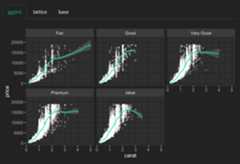
Now, if we change ourtabsetPanel() fromtype="pills" totype="tabs" and look at acouple otherggplot2 examples, we can see thatthematic_shiny() does a few more things:
- Sets new
geom_*()defaults using the new foreground (inthis case,geom_point()’scolor) and accentcolor (in this case,geom_smooth()’s color).- The accent color comes from the hyperlink color of the plot’s HTMLcontainer. It just so happens that thisdarkly theme colors
type="tabs"the same as hyperlinks, buttype="pills"is colored differently.
- The accent color comes from the hyperlink color of the plot’s HTMLcontainer. It just so happens that thisdarkly theme colors
Also:
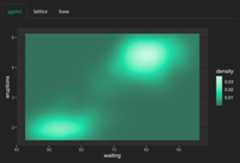
- Uses the background, foreground, and accent colors to construct anew default for
scale_fill_continuous()(andscale_color_continuous()).
As you’ll learn in thecustom themesarticle, you can always override the defaults set bythematic by using plot-specific code (i.e., by addingtheme() elements to the plot). However, if you want to usea differentcompleteggplot2 theme (e.g.,theme_minimal() instead of the defaulttheme_gray()), you should set the theme globally withggplot2::theme_set().
ggplot2::theme_set(ggplot2::theme_minimal())thematic_shiny()shinyApp(ui,server)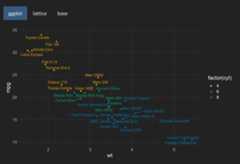
Sincethematic knows the CSS rules on the plot’sHTML container, auto theming works regardless of how the HTML isactually styled. That said, consider using the newbslibpackage to theme your Shiny apps (and R Markdown docs). It providesa rich set of tools for influencing Bootstrap CSS from R, includingconvenience functions forsettingthe main colors and fonts:
library(bslib)solar_theme<-bs_theme( bg="#002B36", fg="#EEE8D5", primary="#2AA198", base_font=font_google("Pacifico"))ui<-fluidPage(theme=solar_theme,tabs)thematic_shiny()shinyApp(ui,server)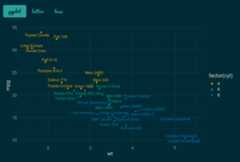
As shown in the image above, text rendered by the browser (i.e.,tabsetPanel()’s titles) now uses the Pacifico font, but theR plots are still using the default font because, by default,thematic_shiny() only enables automatic colors. To enableauto fonts, setfont = "auto"; and when doing so, make surethe font to be rendered is either a font already supported by R, or isGoogle Font and theshowtext package is installed(learn more in thefonts article).
library(showtext)thematic_shiny(font="auto")shinyApp(ui,server)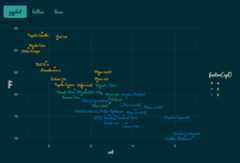
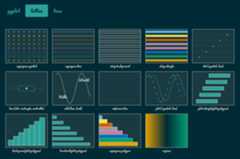
thematic also works great withbslib’s realtime theming widget. This interactivewidget influences the CSS on the page, so as long as thematic’s autotheming enabled, those CSS changes automatically influence the R plotstyling. Note how here we still have both auto fonts and colors, whichmeans that as long as we choose Google Fonts (and/or fonts already knownto R), the R plots can automatically render them.
bs_theme_preview(bs_theme(bg="#444444", fg="#E4E4E4", primary="#E39777"))R Markdown
Auto theming can also work withrmarkdown::html_document(). The main catch is that, if Rplots are not generatedviaShiny, then any custom styling must be done via thebslib package in order forthematic toknow about it. In the example below, we set a custom background,foreground, and accent color viabslib; then usethematic_rmd() to apply automatic coloring to every R plotgenerated in the R Markdown document.

Auto theming doesn’t necessarily work for non-HTML output formats. Inthat case, provide the document’s colors and fonts either directly tothematic_rmd() or toauto_config(). To learnmore about various options for

RStudio
Here’s aggplot2 plot inside the RStudio IDE beforethematic is enabled. Note the colors in the IDE arebased on the Tomorrow Night 80sRStudioTheme and the editor’s font isFiraCode.
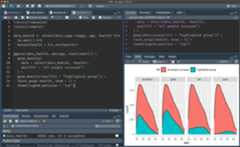
After callingthematic_on(font = "Fira Sans Condensed")to enable automatic colors and request theFira SansCondensed Google Font, the colors in the Plots viewer pane now matchthe RStudio theme2, and the fonts nicely complement theeditor’s font.
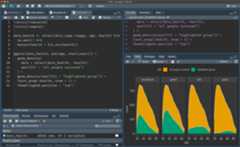
By the way, rendering of Google Fonts in RStudio requires a specialsetup that’s discussed in thefontsarticle.
Other scenarios
As theR Markdown section already eluded to (inreference to non-HTML output formats),thematic’s autotheming won’t know what styles to use in every scenario. In thesescenarios, you have the following options:
- Avoid
'auto'values entirely by providing the desiredcolors and fonts directly tothematic_on(). The nextarticle,Custom Themes, discusses this optionin depth. - Allow auto theming to “fail”, meaning thatthematiceffectively has no effect on the visual output.
- Use
auto_config()andauto_config_set()toset “fallbacks” for'auto'values. For example:
config<-auto_config(bg="black", fg="white", accent="purple")auto_config_set(config)thematic_on()ggplot(faithfuld,aes(waiting,eruptions))+geom_raster(aes(fill=density))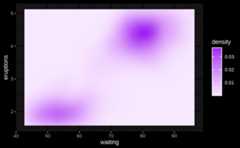
The main use case forauto_config() is for developers ofa custom rmarkdown output document that wish to provide an auto themingexperience for users of the document (seeauto_config() formore details). However, there may also be scenarios where more controlover the set and priority of information thatauto_resolve_theme() uses to resolve'auto'values. This can be done via thepriority argument ofauto_config(). The defaultpriority is:
shiny::getCurrentOutputInfo()("shiny")auto_config_get()("config")bslib::bs_get_variables()("bslib")rstudioapi::getThemeInfo()("rstudio")
If you’re ashiny developer and wish toadd similar auto theming capabilities to a custom output, you can add a
.shiny-report-themeclass to the output container to obtainstyles viagetCurrentOutputInfo(). And similarly, if you’reanhtmlwidgets developer, you can just setreportTheme = TRUEinhtmlwidgets::shinyWidgetOutput().↩︎Auto detection of background and foreground shouldalways work in RStudio, but
accent='auto'is currentlylimited to non-customRStudiothemes. Moreover,font='auto'is fully supported onRStudio Server Pro (1.4 or higher), but may not work on RStudioDesktop.↩︎