Using the Input Assistant
Using the Input Assistant
The Input Assistant helps you automatically complete code, discover functions and options, and reduce oversights and typographical errors while coding.
•Context-sensitive autocompletion—Type only a few characters and complete your code fragment by selecting a match from a list of suggestions.
•Function templates—Insert fully editable descriptions of common functions into your notebook.
•Option templates—View and insert options related to your current function.
•Dynamic highlighting—Highlight code as you type to more easily identify which part of the code you are working in.
•String completion—Autocomplete string arguments inside functions.
•File name completion—Autocomplete file names and paths from the files and directories on your machine.
•Color chooser—Choose a specific RGB color from an autocomplete interface.
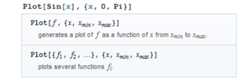
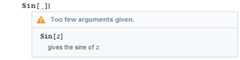
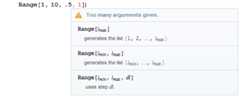
•Function template tooltip—Bring up function templates by clicking a tooltip. This also works to give descriptions of errors in your code.
•Function templates—Insert fully editable descriptions of common functions into your notebook.
•Option templates—View and insert options related to your current function.
•Dynamic highlighting—Highlight code as you type to more easily identify which part of the code you are working in.
•String completion—Autocomplete string arguments inside functions.
•File name completion—Autocomplete file names and paths from the files and directories on your machine.
•Color chooser—Choose a specific RGB color from an autocomplete interface.
•Function template tooltip—Bring up function templates by clicking a tooltip. This also works to give descriptions of errors in your code.
Context-Sensitive Autocompletion
As you type, a list of possible functions and variables (both system- and user-defined) is displayed after a user-defined delay. The list is refined automatically as you type additional characters.
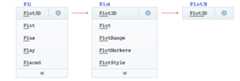
Completion suggestions are intelligently and automatically prioritized, based in part on your usage patterns and the context in which you are coding.
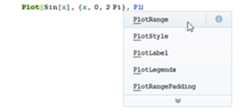
Completions can be inserted using the keyboard or the mouse. Select a completion with the mouse pointer or arrow keys. PressEnter orTab, or click to insert the completion.
Access documentation for a function or variable by clicking the document icon next to the function name. The documentation will open in a new window.
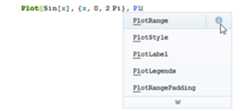
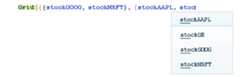
The delay before code completion suggestions are displayed can be adjusted viaMathematica▶Preferences▶Interface.
Function Templates
Function templates can be accessed via code completion. If an inserted function has associated templates, a new button will display after inserting the completion.
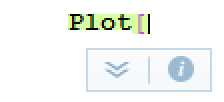
PressTab orEnter, or click the displayed down arrow icon to access a list of templates for the current function.
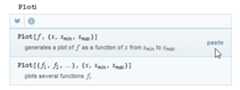
Alternatively, pressingCtrl+Shift+ K after fully typing a function name will access the template list.
Inserted function templates are fully editable text. Variables that require completion are represented by a yellow placeholder. The currently selected placeholder is highlighted in blue. Typing any character will replace the placeholder with that character.


Note that while placeholders may describe a valid value, they are not part of the code. You must replace each placeholder to successfully evaluate your input.
Option Templates
Similar to function templates, option templates are insertable and editable descriptions of options for a given function. A list of available option templates is invoked by typing, after the arguments. You may also be prompted to add options upon completion of a template.
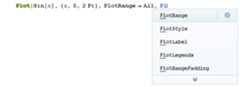
To insert an option template, select it with the arrow keys and then pressEnter. You may also click a suggestion to insert the option template.
Dynamic Highlighting
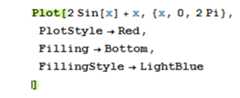
Dynamic highlighting adds emphasis to the current function name as well as any matching brackets, braces, and parentheses. Your cursor position determines what is highlighted.

The current function name, opening bracket, and matching end bracket are highlighted while inside of that function.

Matching parentheses() and braces{} are highlighted whenever your cursor is placed by the opening or closing character.
String Completion
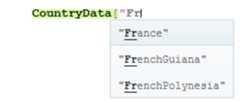
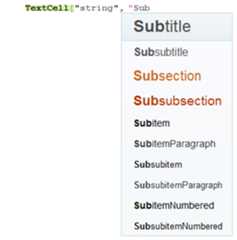
When assigning string arguments inside a function, you will be provided with a list of applicable arguments. This includes completing arguments for computable data, character encodings, and text styles.
File Name Completion
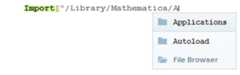
The Input Assistant can complete file paths, helping you to build them up from the current directory. As you type, folders and files inside the parent folder are listed and filtered. Complete the name of a folder or file on the list by selecting and clicking it or by continuing to type until it is highlighted and pressingEnter (Return on Mac).
Color Chooser
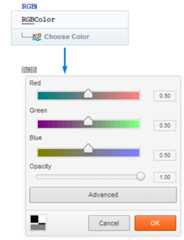
Selecting "choose color" in the autocompletion menu for the functionRGBColor brings up a contextual interface that helps you to visually select a specific color in RGB format. Color models such as HSB, CMYK, LAB, LUV, and XYZ are also supported.
Function Template Tooltip
Related Guides
[8]ページ先頭
©2009-2025 Movatter.jp