Basics Intermediate Advanced
aialgorithmsapibest-practicescareercommunitydatabasesdata-sciencedata-structuresdata-vizdevopsdjangodockereditorsflaskfront-endgamedevguimachine-learningnewsnumpyprojectspythonstdlibtestingtoolsweb-devweb-scraping
Recommended Course

Using Python's pathlib Module
25m · 9 lessons
Python's pathlib Module: Taming the File System
Table of Contents
Recommended Course
Python’spathlib module helps streamline your work with file and directory paths. Instead of relying on traditional string-based path handling, you can use thePath object, which provides a cross-platform way to read, write, move, and delete files.
pathlib also brings together functionality previously spread across other libraries likeos,glob, andshutil, making file operations more straightforward. Plus, it includes built-in methods for reading and writing text or binary files, ensuring a clean and Pythonic approach to handling file tasks.
By the end of this tutorial, you’ll understand that:
pathlibprovides anobject-oriented interface for managing file and directory paths in Python.- You caninstantiate
Pathobjects using class methods like.cwd(),.home(), or by passing strings toPath. pathliballows you toread, write, move, and delete files efficiently using methods.- To get alist of file paths in a directory, you can use
.iterdir(),.glob(), or.rglob(). - You can use
pathlibtocheck if a path corresponds to a file by calling the.is_file()method on aPathobject.
You’ll also explore a bunch of code examples in this tutorial, which you can use for your everyday file operations. For example, you’ll dive into counting files, finding the most recently modified file in a directory, and creating unique filenames.
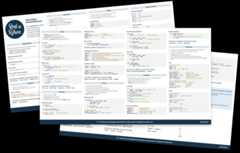
It’s great thatpathlib offers so many methods and properties, but they can be hard to remember on the fly. That’s where a cheat sheet can come in handy. To get yours, click the link below:
Free Download:Click here to claim yourpathlib cheat sheet so you can tame the file system with Python.
The Problem With Representing Paths as Strings
With Python’spathlib, you can save yourself some headaches. Its flexiblePath class paves the way for intuitive semantics. Before you have a closer look at the class, take a moment to see how Python developers had to deal with paths beforepathlib was around.
Traditionally, Python has represented file paths using regulartext strings. However, since paths are more than plain strings, important functionality was spread all around the standard library, including in libraries likeos,glob, andshutil.
As an example, the following code block moves files into a subfolder:
importglobimportosimportshutilforfile_nameinglob.glob("*.txt"):new_path=os.path.join("archive",file_name)shutil.move(file_name,new_path)You need threeimport statements in order to move all the text files to an archive directory.
Python’spathlib provides aPath class that works the same way on different operating systems.Instead of importing different modules such asglob,os, andshutil, you can perform the same tasks by usingpathlib alone:
frompathlibimportPathforfile_pathinPath.cwd().glob("*.txt"):new_path=Path("archive")/file_path.namefile_path.replace(new_path)Just as in the first example, this code finds all the text files in the current directory and moves them to anarchive/ subdirectory.However, withpathlib, you accomplish these tasks with fewerimport statements and more straightforward syntax, which you’ll explore in depth in the upcoming sections.
Path Instantiation With Python’s pathlib
One motivation behindpathlib is to represent the file system with dedicated objectsinstead of strings. Fittingly, theofficial documentation ofpathlib is calledpathlib — Object-oriented filesystem paths.
Theobject-oriented approach is already quite visible when you contrast thepathlib syntax with the oldos.path way of doing things. It gets even more obvious when you note that the heart ofpathlib is thePath class:
If you’ve never used this module before or just aren’t sure which class is right for your task,
Pathis most likely what you need. (Source)
In fact,Path is so frequently used that you usually import it directly:
>>>frompathlibimportPath>>>Path<class 'pathlib.Path'>Because you’ll mainly be working with thePath class ofpathlib, this way of importingPath saves you a few keystrokes in your code. This way, you can work withPath directly, rather than importingpathlib as amodule and referring topathlib.Path.
There are a few different ways of instantiating aPath object. In this section, you’ll explore how to create paths by usingclass methods, passing in strings, or joining path components.
Using Path Methods
Once you’ve importedPath, you can make use of existing methods to get thecurrent working directory or your user’shome directory.
The current working directory is the directory in the file system that the current process is operating in. You’ll need to programmatically determine the current working directory if, for example, you want to create or open a file in the same directory as the script that’s being executed.
Additionally, it’s useful to know your user’s home directory when working with files. Using the home directory as a starting point, you can specify paths that’ll work on different machines, independent of any specific usernames.
To get your current working directory, you can use.cwd():
>>>frompathlibimportPath>>>Path.cwd()WindowsPath('C:/Users/philipp/Desktop/realpython')>>>frompathlibimportPath>>>Path.cwd()PosixPath('/home/philipp/Desktop/realpython')>>>frompathlibimportPath>>>Path.cwd()PosixPath('/Users/philipp/Desktop/realpython')When you instantiatepathlib.Path, you get either aWindowsPath or aPosixPath object.The kind of object will depend on which operating system you’re using.
On Windows,.cwd() returns aWindowsPath. On Linux and macOS, you get aPosixPath.Despite the differences under the hood, these objects provide identical interfaces for you to work with.
It’s possible to ask for aWindowsPath or aPosixPath explicitly, but you’ll only be limiting your code to that system without gaining any benefits. A concrete path like this won’t work on a different system:
>>>importpathlib>>>pathlib.WindowsPath("test.md")Traceback (most recent call last):...NotImplementedError:cannot instantiate 'WindowsPath' on your systemBut what if you want to manipulate Unix paths on a Windows machine, or vice versa? In that case, you can directly instantiatePureWindowsPath orPurePosixPath on any system.When you make a path like this, you create aPurePath object under the hood. You can use such an object if you need a representation of a path without access to the underlying file system.
Generally, it’s a good idea to usePath. WithPath, you instantiate aconcrete path for the platform that you’re using while also keeping your code platform-independent. Concrete paths allow you to do system calls on path objects, butpure paths only allow you to manipulate paths without accessing the operating system.
Working with platform-independent paths means that you can write a script on Windows that usesPath.cwd(), and it’ll work correctly when you run the file on macOS or Linux.The same is true for.home():
>>>frompathlibimportPath>>>Path.home()WindowsPath('C:/Users/philipp')>>>frompathlibimportPath>>>Path.home()PosixPath('/home/philipp')>>>frompathlibimportPath>>>Path.home()PosixPath('/Users/philipp')WithPath.cwd() andPath.home(), you can conveniently get a starting point for your Python scripts.In cases where you need to spell paths out or reference a subdirectory structure, you can instantiatePath with a string.
Passing in a String
Instead of starting in your user’s home directory or your current working directory, you can point to a directory or file directly by passing its string representation intoPath:
>>>frompathlibimportPath>>>Path(r"C:\Users\philipp\realpython\file.txt")WindowsPath('C:/Users/philipp/Desktop/realpython/file.txt')>>>frompathlibimportPath>>>Path("/home/philipp/Desktop/realpython/file.txt")PosixPath('/home/philipp/Desktop/realpython/file.txt')>>>frompathlibimportPath>>>Path("/Users/philipp/Desktop/realpython/file.txt")PosixPath('/Users/philipp/Desktop/realpython/file.txt')This process creates aPath object. Instead of having to deal with a string, you can now work with the flexibility thatpathlib offers.
On Windows, thepath separator is a backslash (\). However, in many contexts, the backslash is also used as anescape character to represent non-printable characters. To avoid problems, useraw string literals to represent Windows paths:
>>>r"C:\Users"'C:\\Users'A string with anr in front of it is a raw string literal. In raw string literals, the\ represents a literal backslash. In a normal string, you’d need to use two backslashes (\\) to indicate that you want to use the backslash literally and not as an escape character.
Note: An idiomatic way of working with the current module’s location as the path is using__file__:
hello.pyfrompathlibimportPathprint(f"You can find me here:{Path(__file__).parent}!")The__file__ attribute contains the path to the file that Python is currently importing or executing. You can pass in__file__ toPath when you need to work with the path to the module itself. For example, maybe you want to get the parent directory with.parent.
You may have already noticed that although you enter paths on Windows with backslashes,pathlib represents them with the forward slash (/) as the path separator. This representation is namedPOSIX style.
POSIX stands forPortable Operating System Interface, which is a standard for maintaining the compability between operating systems. The standard covers much more than path representation. You can learn more about it inOpen Group Base Specifications Issue 7.
Still, when you convert a path back to a string, it’ll use the native form—for example, with backslashes on Windows:
>>>frompathlibimportPath>>>str(Path(r"C:\Users\gahjelle\realpython\file.txt"))'C:\\Users\\gahjelle\\realpython\\file.txt'In general, you should try to usePath objects as much as possible in your code to take advantage of their benefits, but converting them to strings can be necessary in certain contexts. Some libraries and APIs still expect you to pass file paths as strings, so you may need to convert aPath object to a string before passing it to certain functions.
Joining Paths
A third way to construct a path is to join the parts of the path using the special forward slash operator (/), which is possibly the most unusual part of thepathlib library. You may have already raised your eyebrows about it in the example at the beginning of this tutorial:
frompathlibimportPathforfile_pathinPath.cwd().glob("*.txt"):new_path=Path("archive")/file_path.namefile_path.rename(new_path)The forward slash operator can join several paths or a mix of paths and strings as long as you include onePath object. You use a forward slash regardless of your platform’s actual path separator.
If you don’t like the special slash notation, then you can do the same operation with the.joinpath() method:
>>>frompathlibimportPath>>>Path.home().joinpath("python","scripts","test.py")PosixPath('/home/gahjelle/python/scripts/test.py')This notation is closer toos.path.join(), which you may have used in the past. It can feel more familiar than a forward slash if you’re used to backslashed paths.
After you’ve instantiatedPath, you probably want to do something with your path. For example, maybe you’re aiming to perform file operations or pick parts from the path. That’s what you’ll do next.
File System Operations With Paths
You can perform a bunch of handyoperations on your file system usingpathlib.In this section, you’ll get a broad overview of some of the most common ones. But before you start performing file operations, have a look at the parts of a path first.
Picking Out Components of a Path
A file or directory path consists of different parts. When you usepathlib, these parts are conveniently available as properties. Basic examples include:
.name: The filename without any directory.stem: The filename without the file extension.suffix: The file extension.anchor: The part of the path before the directories.parent: The directory containing the file, or the parent directory if the path is a directory
Here, you can observe these properties in action:
>>>frompathlibimportPath>>>path=Path(r"C:\Users\gahjelle\realpython\test.md")>>>pathWindowsPath('C:/Users/gahjelle/realpython/test.md')>>>path.name'test.md'>>>path.stem'test'>>>path.suffix'.md'>>>path.anchor'C:\\'>>>path.parentWindowsPath('C:/Users/gahjelle/realpython")>>>path.parent.parentWindowsPath('C:/Users/gahjelle')>>>frompathlibimportPath>>>path=Path("/home/gahjelle/realpython/test.md")>>>pathPosixPath("/home/gahjelle/realpython/test.md")>>>path.name'test.md'>>>path.stem'test'>>>path.suffix'.md'>>>path.anchor'/'>>>path.parentPosixPath("/home/gahjelle/realpython")>>>path.parent.parentPosixPath('/home/gahjelle')>>>frompathlibimportPath>>>path=Path("/users/gahjelle/realpython/test.md")>>>pathPosixPath("/users/gahjelle/realpython/test.md")>>>path.name'test.md'>>>path.stem'test'>>>path.suffix'.md'>>>path.anchor'/'>>>path.parentPosixPath("/users/gahjelle/realpython")>>>path.parent.parentPosixPath('/users/gahjelle')Note that.parent returns a newPath object, whereas the other properties return strings. This means, for instance, that you can chain.parent in the last example or even combine it with the slash operator to create completely new paths:
>>>path.parent.parent/f"new{path.suffix}"PosixPath('/home/gahjelle/new.md')That’s quite a few properties to keep straight. If you want a handy reference for thesePath properties, then you can download the Real Pythonpathlib cheat sheet by clicking the link below:
Free Download:Click here to claim yourpathlib cheat sheet so you can tame the file system with Python.
Reading and Writing Files
Consider that you want toprint all the items on a shopping list that you wrote down in aMarkdown file. The content ofshopping_list.md looks like this:
<!-- shopping_list.md --># Shopping List## Fruit*Banana*Apple*Peach## Candy*Chocolate*Nougat BitsTraditionally, the way toread or write a file in Python has been to use the built-inopen() function.Withpathlib, you can useopen() directly onPath objects.
So, a first draft of your script that finds all the items inshopping_list.md and prints them may look like this:
read_shopping_list.pyfrompathlibimportPathpath=Path.cwd()/"shopping_list.md"withpath.open(mode="r",encoding="utf-8")asmd_file:content=md_file.read()groceries=[lineforlineincontent.splitlines()ifline.startswith("*")]print("\n".join(groceries))In fact,Path.open() is calling thebuilt-inopen() function behind the scenes. That’s why you can use parameters likemode andencoding withPath.open().
On top of that,pathlib offers some convenient methods to read and write files:
.read_text()opens the path in text mode and returns the contents as a string..read_bytes()opens the path in binary mode and returns the contents as a byte string..write_text()opens the path and writes string data to it..write_bytes()opens the path in binary mode and writes data to it.
Each of these methods handles the opening and closing of the file. Therefore, you can updateread_shopping_list.py using.read_text():
read_shopping_list.pyfrompathlibimportPathpath=Path.cwd()/"shopping_list.md"content=path.read_text(encoding="utf-8")groceries=[lineforlineincontent.splitlines()ifline.startswith("*")]print("\n".join(groceries))You can also specify paths directly as filenames, in which case they’re interpreted relative to the current working directory. So you can condense the example above even more:
read_shopping_list.pyfrompathlibimportPathcontent=Path("shopping_list.md").read_text(encoding="utf-8")groceries=[lineforlineincontent.splitlines()ifline.startswith("*")]print("\n".join(groceries))If you want to create a plain shopping list that only contains the groceries, then you can use.write_text() in a similar fashion:
write_plain_shoppinglist.pyfrompathlibimportPathcontent=Path("shopping_list.md").read_text(encoding="utf-8")groceries=[lineforlineincontent.splitlines()ifline.startswith("*")]Path("plain_list.md").write_text("\n".join(groceries),encoding="utf-8")When using.write_text(), Python overwrites any existing files on the same path without giving you any notice. That means you could erase all your hard work with a single keystroke!As always, when you write files with Python, you should be cautious of what your code is doing. The same is true when you’re renaming files.
Renaming Files
When you want to rename files, you can use.with_stem(),.with_suffix(), or.with_name(). They return the original path but with the filename, the file extension, or both replaced.
If you want to change a file’s extension, then you can use.with_suffix() in combination with.replace():
>>>frompathlibimportPath>>>txt_path=Path("/home/gahjelle/realpython/hello.txt")>>>txt_pathPosixPath("/home/gahjelle/realpython/hello.txt")>>>md_path=txt_path.with_suffix(".md")PosixPath('/home/gahjelle/realpython/hello.md')>>>txt_path.replace(md_path)Using.with_suffix() returns a new path. To actually rename the file, you use.replace(). This movestxt_path tomd_path and renames it when saving.
If you want to change the complete filename, including the extension, then you can use.with_name():
>>>frompathlibimportPath>>>txt_path=Path("/home/gahjelle/realpython/hello.txt")>>>txt_pathPosixPath("/home/gahjelle/realpython/hello.txt")>>>md_path=txt_path.with_name("goodbye.md")PosixPath('/home/gahjelle/realpython/goodbye.md')>>>txt_path.replace(md_path)The code above renameshello.txt togoodbye.md.
If you want to rename the filename only, keeping the suffix as it is, then you can use.with_stem(). You’ll explore this method in the next section.
Copying Files
Surprisingly,Path doesn’t have a method to copy files. But with the knowledge that you’ve gained aboutpathlib so far, you can create the same functionality with a few lines of code:
>>>frompathlibimportPath>>>source=Path("shopping_list.md")>>>destination=source.with_stem("shopping_list_02")>>>destination.write_bytes(source.read_bytes())You’re using.with_stem() to create the new filename without changing the extension.The actual copying takes place in the highlighted line, where you use.read_bytes() to read the content ofsource and then write this content todestination using.write_bytes().
While it’s tempting to usepathlib for everything path related, you may also considerusingshutil for copying files. It’s a great alternative that also knows how to work withPath objects.
Moving and Deleting Files
Throughpathlib, you also have access to basic file system–level operations like moving, updating, and even deleting files. For the most part, these methods don’t give a warning or wait for confirmation before getting rid of information or files. So, be careful when using these methods.
To move a file, you can use.replace(). Note that if the destination already exists, then.replace() will overwrite it. To avoid possibly overwriting the destination path, you can test whether the destination exists before replacing:
frompathlibimportPathsource=Path("hello.py")destination=Path("goodbye.py")ifnotdestination.exists():source.replace(destination)However, this does leave the door open for a possiblerace condition. Another process may add a file at thedestination path between the execution of theif statement and the.replace() method. If that’s a concern, then a safer way is to open the destination path forexclusive creation then explicitly copy the source data and delete the source file afterward:
frompathlibimportPathsource=Path("hello.py")destination=Path("goodbye.py")try:withdestination.open(mode="xb")asfile:file.write(source.read_bytes())exceptFileExistsError:print(f"File{destination} exists already.")else:source.unlink()Ifdestination already exists, then the code above catches aFileExistsError and prints a warning. To perform a move, you need to deletesource with.unlink() after the copy is done. Usingelse ensures that the source file isn’t deleted if the copying fails.
Creating Empty Files
To create an empty file withpathlib, you can use.touch().This method is intended to update a file’s modification time, but you can use its side effect to create a new file:
>>>frompathlibimportPath>>>filename=Path("hello.txt")>>>filename.exists()False>>>filename.touch()>>>filename.exists()True>>>filename.touch()In the example above, you instantiate aPath object and create the file using.touch(). You use.exists() both to verify that the file didn’t exist before and then to check that it was successfully created.If you use.touch() again, then it updates the file’s modification time.
If you don’t want to modify files accidentally, then you can use theexist_ok parameter and set it toFalse:
>>>filename.touch(exist_ok=False)Traceback (most recent call last):...FileExistsError:[Errno 17] File exists: 'hello.txt'When you use.touch() on a file path that doesn’t exist, you create a file without any content.Creating an empty file withPath.touch() can be useful when you want to reserve a filename for later use, but you don’t have any content to write to it yet. For example, you may want to create an empty file to ensure that a certain filename is available, even if you don’t have content to write to it at the moment.
Pythonpathlib Examples
In this section, you’ll see some examples of how to usepathlib to deal with everyday challenges that you’re facing as a Python developer.You can use these examples as starting points for your own code or save them as code snippets for later reference.
Counting Files
There are a few different ways toget a list of all the files in a directory with Python. Withpathlib, you can conveniently use the.iterdir() method, which iterates over all the files in the given directory. In the following example, you combine.iterdir() with thecollections.Counter class to count how many files of each file type are in the current directory:
>>>frompathlibimportPath>>>fromcollectionsimportCounter>>>Counter(path.suffixforpathinPath.cwd().iterdir())Counter({'.md': 2, '.txt': 4, '.pdf': 2, '.py': 1})You can create more flexible file listings with the methods.glob() and.rglob(). For example,Path.cwd().glob("*.txt") returns all the files with a.txt suffix in the current directory. In the following, you only count file extensions starting withp:
>>>Counter(path.suffixforpathinPath.cwd().glob("*.p*"))Counter({'.pdf': 2, '.py': 1})If you want to recursively find all the files in both the directory and its subdirectories, then you can use.rglob(). This method also offers a cool way to display a directory tree, which is the next example.
Displaying a Directory Tree
In this example, you define a function namedtree(), which will print a visual tree representing the file hierarchy, rooted at a given directory. This is useful when, for example, you want to peek into the subdirectories of a project.
To traverse the subdirectories as well, you use the.rglob() method:
display_dir_tree.pydeftree(directory):print(f"+{directory}")forpathinsorted(directory.rglob("*")):depth=len(path.relative_to(directory).parts)spacer=" "*depthprint(f"{spacer}+{path.name}")Note that you need to know how far away from the root directory a file is located. To do this, you first use.relative_to() to represent a path relative to the root directory. Then, you use the.parts property to count the number of directories in the representation. When run, this function creates a visual tree like the following:
>>>frompathlibimportPath>>>fromdisplay_dir_treeimporttree>>>tree(Path.cwd())+ /home/gahjelle/realpython + directory_1 + file_a.md + directory_2 + file_a.md + file_b.pdf + file_c.py + file_1.txt + file_2.txtIf you want to push this code to the next level, then you can try building adirectory tree generator for the command line.
Finding the Most Recently Modified File
The.iterdir(),.glob(), and.rglob() methods are great fits forgenerator expressions andlist comprehensions. To find the most recently modified file in a directory, you can use the.stat() method to get information about the underlying files. For instance,.stat().st_mtime gives the time of last modification of a file:
>>>frompathlibimportPath>>>fromdatetimeimportdatetime>>>directory=Path.cwd()>>>time,file_path=max((f.stat().st_mtime,f)forfindirectory.iterdir())>>>print(datetime.fromtimestamp(time),file_path)2023-03-28 19:23:56.977817 /home/gahjelle/realpython/test001.txtThe timestamp returned from a property like.stat().st_mtime represents seconds since January 1, 1970, also known as theepoch. If you’d prefer a different format, then you can usetime.localtime ortime.ctime to convert the timestamp to something more usable. If this example has sparked your curiosity, then you may want learn more abouthow to get and use the current time in Python.
Creating a Unique Filename
In the last example, you’ll construct a unique numbered filename based on a template string.This can be handy when you don’t want to overwrite an existing file if it already exists:
unique_path.pydefunique_path(directory,name_pattern):counter=0whileTrue:counter+=1path=directory/name_pattern.format(counter)ifnotpath.exists():returnpathInunique_path(), you specify a pattern for the filename, with room for a counter. Then, you check the existence of the file path created by joining a directory and the filename, including a value for the counter. If it already exists, then you increase the counter and try again.
Now you can use the script above to get unique filenames:
>>>frompathlibimportPath>>>fromunique_pathimportunique_path>>>template="test{:03d}.txt">>>unique_path(Path.cwd(),template)PosixPath("/home/gahjelle/realpython/test003.txt")If the directory already contains the filestest001.txt andtest002.txt, then the above code will setpath totest003.txt.
Conclusion
Python’spathlib module provides a modern and Pythonic way of working with file paths, making code more readable and maintainable.Withpathlib, you can represent file paths with dedicatedPath objects instead of plain strings.
In this tutorial, you’ve learned how to:
- Work with file and directorypaths in Python
- Instantiate a
Pathobject in different ways - Use
pathlibtoread and write files - Carefullycopy, move, and delete files
- Manipulate paths and the underlying file system
- Pick out components of a path
Thepathlib module makes dealing with file paths convenient by providing helpful methods and properties.Peculiarities of the different systems are hidden by thePath object, which makes your code more consistent across operating systems.
If you want to get an overview PDF of the handy methods and properties thatpathlib offers, then you can click the link below:
Free Download:Click here to claim yourpathlib cheat sheet so you can tame the file system with Python.
Frequently Asked Questions
Now that you have some experience with Python’spathlib module, you can use the questions and answers below to check your understanding and recap what you’ve learned.
These FAQs are related to the most important concepts you’ve covered in this tutorial. Click theShow/Hide toggle beside each question to reveal the answer.
Thepathlib module provides a more intuitive and readable way to handle file paths with its object-oriented approach, methods, and attributes, reducing the need to import multiple libraries and making your code more platform-independent.
You can instantiate aPath object by importingPath frompathlib and then usingPath() with a string representing the file or directory path. You can also use class methods likePath.cwd() for the current working directory orPath.home() for the user’s home directory.
You can check if a path is a file by using the.is_file() method on aPath object. This method returnsTrue if the path points to a file andFalse otherwise.
You can join paths using the forward slash operator (/) or the.joinpath() method to combine path components into a singlePath object.
You can read a file usingpathlib by creating aPath object for the file and then calling the.read_text() method to get the file’s contents as a string. Alternatively, use.open() with awith statement to read the file using traditional file handling techniques.
You can use the.touch() method of aPath object to create an empty file withpathlib.
You can use the.read_text() and.write_text() methods of apathlib.Path object for reading and writing text files, and.read_bytes() and.write_bytes() for binary files. These methods handle file opening and closing for you.
You can create a unique filename by constructing a path with a counter in a loop, checking for the existence of the file using.exists(), and incrementing the counter until you find a filename that doesn’t exist.
Recommended Course
🐍 Python Tricks 💌
Get a short & sweetPython Trick delivered to your inbox every couple of days. No spam ever. Unsubscribe any time. Curated by the Real Python team.
AboutGeir Arne Hjelle

Geir Arne is an avid Pythonista and a member of the Real Python tutorial team.
» More about Geir Arne


MasterReal-World Python Skills With Unlimited Access to Real Python

Join us and get access to thousands of tutorials, hands-on video courses, and a community of expert Pythonistas:
MasterReal-World Python Skills
With Unlimited Access to Real Python
Join us and get access to thousands of tutorials, hands-on video courses, and a community of expert Pythonistas:
What Do You Think?
What’s your #1 takeaway or favorite thing you learned? How are you going to put your newfound skills to use? Leave a comment below and let us know.
Commenting Tips: The most useful comments are those written with the goal of learning from or helping out other students.Get tips for asking good questions andget answers to common questions in our support portal.
Looking for a real-time conversation? Visit theReal Python Community Chat or join the next“Office Hours” Live Q&A Session. Happy Pythoning!
Keep Learning
Keep reading Real Python by creating a free account or signing in:
Already have an account?Sign-In