Calendar plot in R using ggplot2

ThecalendR package allows creating fully customizable ggplot2 calendar plots with a single function. In addition, the package provides arguments to create calendar heatmaps. In this tutorialyou will learn how to create ready to print yearly and monthly calendar plots in R.
Yearly calendar plot in R
The package is very straightforward to use, as it only contains a function named the same way as the package,calendR. By default, if no argument is specified, the function will create the calendar of the current year in landscape andall the texts will be in the language of your system.
# install.packages("calendR")library(calendR)calendR() # Defaults to current year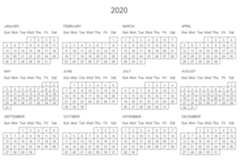
If you don’t want the calendar to be on the language of your operating system, you can modify it. As an example, if you want the calendars to be on Spanish you can type:Sys.setlocale("LC_ALL", "Spanish") before executing thecalendR function.
If you prefer to create a yearly calendar plot of other year you can specify it on theyear argument as follows:
calendR(year = 2021) # Specify the year you prefer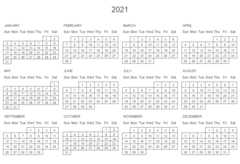
In the following subsections we are going to discuss how to start the weeks on Sunday or Monday and how to add a color to some days.
Note that the described features are also available for monthly calendars, but we will only explain them in this section to avoid repeating the same twice.
Start of the calendar weeks
Weeks of the calendars will start on Sunday by default. If you prefer, you can set the argumentstart as"M" to obtain a calendar plot where the week starts on Monday instead of on Sunday.
calendR(year = 2021, start = "M") # Start the week on Monday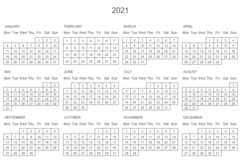
Adding colors to the days
Thespecial.days argument will add color to the specified days inside a numericvector. The color will be the one set on thespecial.col argument. Note that you have to specify the corresponding day of the year (from 1 to 365 or 366).
calendR(year = 2025, start = "M", special.days = c(9, 19, 56, 79, 102, # Days to color 126, 257, 300, 342), special.col = "lightblue", # Color of the specified days low.col = "white") # Background color of the rest of the days
If you want to highlight all the weekends in your calendars, you can set thespecial.days argument to"weekend". This shortcut will color them all at once.
calendR(year = 2025, start = "M", special.days = "weekend") # Color all weekends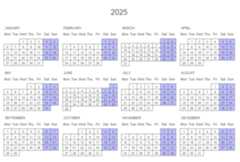
In order to add several events you will need to create a vector ofNA values of the same length of the number of days of the corresponding year. Then, you can add the events to the corresponding days of the year on the vector, which you will need to specify inside thespecial.days argument. Note that you will need to specify as many colors as events.
# Vector of NA of the same length of the number of days of the yearevents <- rep(NA, 365)# Set the corresponding eventsevents[40:45] <- "Trip"events[213:240] <- "Holidays"events[252] <- "Birthday"events[359] <- "Christmas" # Creating the calendar with a legendcalendR(year = 2025, special.days = events, special.col = c("pink", "lightblue", # Colors "lightgreen", "lightsalmon"), legend.pos = "right") # Legend to the right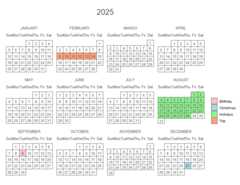
Vertical yearly calendar
It is worth to mention that you can also create yearly calendars in R in portrait mode. For that purpose, you will need to set the argumentorientation as"portrait" or as"p". This configuration will lead to a three column calendar.
calendR(orientation = "portrait", # Equivalent to: orientation = "p" months.pos = 0) # Month names aligned to the left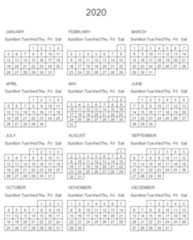
Monthly calendar plot in R
The previously described features of the yearly calendar are also available for monthly calendars. Nonetheless, monthly calendars also allows you toadd text to the days of the month if desired.
In order to create a monthly calendar you will need to specify both the year and the month as follows:
calendR(year = 2021, month = 8)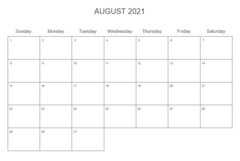
Adding colors to the days
As we discussed in the previous section, you can add color of the days specified in thespecial.days argument.
On the one hand, foronly one event the colored days will be the ones specified on thespecial.days argument and the color will be the one chosen with thespecial.col argument. You can also specifyspecial.days = "weekend" to color all the weekends.
calendR(year = 2021, month = 8, special.days = c(1, 9, 12, 23, 28), special.col = "#bfe2f2", low.col = "white")
On the other hand, to addmore than one event to the R calendar you will need to create a vector ofNA values of the same length of the number of days of the corresponding month and set the events on the corresponding days. In the following example we show how to add several events, weekends included and how to add a legend.
# Vector of datesdates <- seq(as.Date("2020-08-01"), as.Date("2020-08-31"), by = "1 day")# Vector of NA and weekends# (with the week starting on Monday)events <- ifelse(format(dates, "%w") %in% c(5, 6), "Weekend", NA)# Adding more eventsevents[c(3, 5, 10, 12, 17, 19, 24, 26)] <- "Academy"events[c(13, 27)] <- "Swimming"events[30] <- "Exam"# Creating the calendarcalendR(year = 2021, month = 8, start = "M", special.days = events, special.col = c("lightgreen", "pink", # As many colors "#f7f7f7", "#bfe2f2"), # as events low.col = "white", legend.pos = "bottom", # Legend position legend.title = "") # Legend title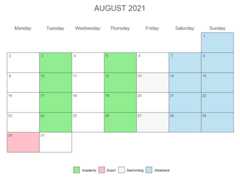
Adding text to the days
When working with monthly calendar plots you can also add some text to the days with thetext argument and specify its position (the days) with thetext.pos argument. Note that you can modify the size and color of the texts with thetext.size andtext.col arguments, respectively.
calendR(year = 2021, month = 8, # Year and month start = "M", # Start the week on Monday text = c("Running", "Running", # Add text (only for monthly calendars) "Class"), text.pos = c(5, 16, 25), # Days of the month where to put the texts text.size = 4.5, # Font size of the text text.col = 4) # Color of the texts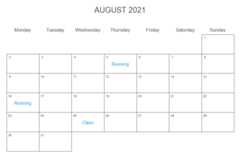
Note that you can add more text to the same day separating the texts with"\n". Eg:text = "Running\nSwimming".
Lunar calendar in ggplot2
If you create a monthly calendar you can also add the moon phases to its days. To do this setlunar = TRUE and modify the size of the moons with thelunar.size argument. You can also change the color of the hidden area of the moons with thelunar.col argument.
calendR(month = 2, lunar = TRUE, # Add moons to the calendar lunar.col = "gray60", # Color of the non-visible area of the moons lunar.size = 7) # Size of the moons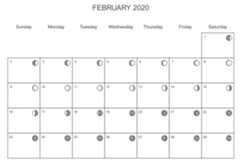
Custom start and end date
If instead of setting theyear andmonth arguments you setstart_date andend_date. These calendars have the same functionalities than yearly calendars, despite you specify only one month.
calendR(start_date = "2023-10-01", # Custom start date end_date = "2024-05-31") # Custom end date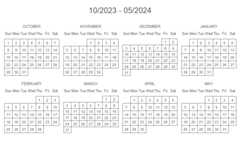
Academic calendar
Thestart_date andend_date arguments are specially useful for creating academic calendars. See an example below:
calendR(start_date = "2020-09-01", # Custom start date end_date = "2021-05-31", # Custom end date start = "M", # Start the weeks on Monday mbg.col = 4, # Color of the background of the names of the months months.col = "white", # Color text of the names of the months special.days = "weekend", # Color the weekends special.col = "lightblue", # Color of the special.days lty = 0, # Line type bg.col = "#f4f4f4", # Background color title = "Academic calendar 2020-2021", # Title title.size = 30, # Title size orientation = "p") # Vertical orientation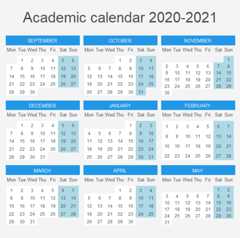
Calendar heatmap in R
In addition, the function of thecalendR package allows creating calendar heatmaps, setting the argumentgradient asTRUE and specifying a vector of the length of the number of days of the corresponding year or month in thespecial.days argument.
It is worth to mention that the color specified in thespecial.col will be used as the higher color of the gradient, while the lower will be set with thelow.col argument, which defaults to"white".
calendR(year = 2021, special.days = 1:365, # Vector of the same length as the number of days of the year gradient = TRUE, # Set gradient = TRUE to create the heatmap special.col = rgb(1, 0, 0, alpha = 0.6), # Color of the gradient for the highest value low.col = "white") # Color of the gradient for the lowest value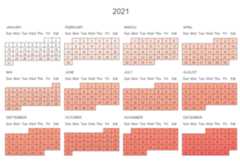
You can do the same with a monthly calendar:
set.seed(2)calendR(year = 2020, month = 5, special.days = rnorm(31), # Vector of the same length as the number of days of the month gradient = TRUE, # Set gradient = TRUE to create the heatmap special.col = "lightblue", # Color of the gradient for the highest value low.col = "white") # Color of the gradient for the lowest value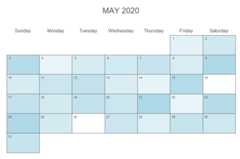
Moreover, you can add a legend to yearly and monthly calendar heatmaps in R setting the position of the legend with thelegend.pos argument. Note that you can also specify a legend title with thelegend.title argument.
set.seed(2)calendR(year = 2021, month = 6, special.days = rnorm(30), gradient = TRUE, special.col = "lightblue", legend.pos = "right", # Position of the legend legend.title = "Legend") # Title of the legend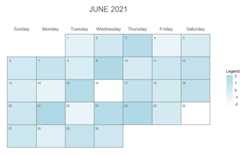
Further customization of the calendar plots
There are awide variety of arguments that you can modify to customize the resulting output. In this section we are going to show some custom examples to learn to customize each argument. In the following block of code you can see a simple example:
calendR(year = 2020, # Year month = 10, # Month start = "S", # Start of the week ("S": Sunday, "M": Monday) title = "My calendar", # Change the title title.size = 30, # Font size of the title title.col = 2, # Color of the title subtitle = "Have annice day", # Add a subtitle subtitle.col = 3, # Color of the subtitle weeknames = c("S", "M", "T", "W", # Change week day names "T", "F", "S"), special.days = "weekend", # Colorize the weekends (you can also set a vector of days) special.col = rgb(0, 0, 1, 0.15), # Color of the special days col = "#f2f2f2", # Color of the lines of the calendar lwd = 1, # Width of the lines of the calendar lty = 1, # Line type of the lines of the calendar font.family = "mono", # Font family of all the texts font.style = "bold", # Font style of the texts except the subtitle weeknames.col = "gray30", # Color of the names of the days of the week months.col = "gray30", # If month = NULL, is the color of the month names days.col = 4, # Color of the number of the days day.size = 3.5, # Size of the number of days bg.img = "") # Background image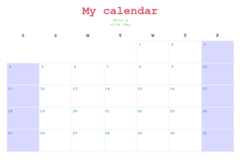
Next we create another calendar, with dark colors:
calendR(month = 10, # Month start = "M", # Week starts on Monday orientation = "landscape", # Horizontal # Size and color of the title title.size = 40, title.col = "white", # Subtitle, color y and size subtitle = "Trick or Treat", subtitle.col = "white", subtitle.size = 16, # Text, color, size and position text = "Halloween", text.col = "red", text.size = 5, text.pos = 31, # Color the weekends with gray special.days = "weekend", special.col = "grey40", # Color of the lines, of the background # and of the days col = "white", bg.col = "grey20", low.col = "transparent", # The same color as the background # Color and size of the number of the days days.col = "white", day.size = 4, # Moon phases and moon sizes lunar = TRUE, lunar.size = 8, # Color and size of the week names weeknames.col = "white", weeknames.size = 6, # Width and line types lwd = 0.25, lty = 1, # Font family and font styles font.family = "sans", font.style = "plain")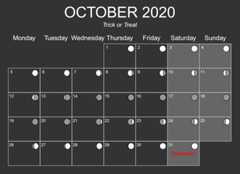
Last, we are going to create a calendar in R with a background image:
# Background image (link or source file)# If the image is from a local source it must be on the working directory,# in other case you must indicate the full pathimg <- "https://i.pinimg.com/originals/10/1e/f6/101ef6a9e146b23de28fa2cd568ad17b.jpg"calendR(start = "M", # Weeks start on Monday mbg.col = 4, # Background color of the month names months.col = "white", # Color of the text of the month names special.days = "weekend", # Color the weekends special.col = "lightblue", # Color of the special.days lty = 0, # Line type (no line) weeknames = c("Mo", "Tu", # Week names "We", "Th", "Fr", "Sa", "Su"), title.size = 40, # Title size orientation = "p", # Vertical orientation bg.img = img) # Background image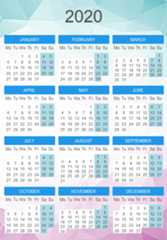
Saving the calendar as PDF format
Finally, you can set the argumentpdf toTRUE to save the calendars in a ready to print PDF format (A4 format by default).
You can also specify the name of the generated PDF file in thedoc_name argument, but if not specified, the name of the file will be of the format:Calendar_year.pdf for yearly calendars orCalendar_month_year.pdf for monthly calendars. As an example, you can save a four column yearly calendar plot in R with the following code:
calendR(year = 2021, orientation = "landscape", # Set orientation = "portrait" for a three column calendar pdf = TRUE, doc_name = "My_calendar") # Name of the PDF (don't write the extension)Moreover, you can choose between several paper sizes to save the calendar, from"A6" to"A0" but note you may need to fine tune some font sizes to get the desired output.
calendR(year = 2021, orientation = "landscape", pdf = TRUE, papersize = "A6") # Choose the paper sizeNote that if you set"portrait" orientation for a monthly calendar, the calendar will be displayed the same as"landscape" on the plot window but it will be saved vertically on the PDF.
calendR(year = 2021, month = 1, orientation = "portrait", pdf = TRUE)



PYTHON CHARTS
Learn how to create plots in Python with matplotlib, seaborn, plotly and folium
Related content
Add legend to a plot in R
Graphs in R
Learn how to add a legend in R to a plot ▷ Change the legend size, add two legends modify the border and colors and put legends outside the plot ◁
Economics charts in R using ggplot2
Graphs in R
Create microeconomics and macroeconomics charts in R, such as supply and demand curves or indifference curves, among others

Correlation plot in R
Graphs in R
Learn how to create a CORRELATION PLOT in R. Use the pairs and cpairs functions, the corrgram and corrplot packages and other alternatives