Also, please see themagnificentvignette and otherdocumentation.
Step 1: Locate Zotero settings
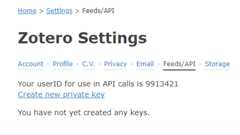
A likely purpose of usingc2z is to manipulate a(personal) Zotero library. Thus, the first step is to acquire an accesskey for your account, which you will find in thesettings. As seen fromthe screenshot below, this is also where you can find youruserID.
Step 2: Create a key
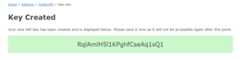
Next, enter a key description and decide what kind of access you willneed. A bare minimum is to “allow library access”, however, if you wantto create, edit, copy, or delete items you will need to “allow writeaccess” as well. You can also add group permissions. Now that you havecreated a key, as seen below, you will need to make it available toc2z.
Step 3: Add key toR
Though it is possible to directly apply the key in the variousfunctions, it is recommended to add the key to the.Renviron. The simplest approach is to use theusethisedit_r_environ() function, that will open the file for yourconvenience.
usethis::edit_r_environ()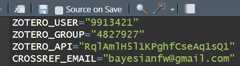
.Renviron content.How it works
# Access default zotero libraryuser.library<-Zotero(library=TRUE)#> Searching for collections#> Found 0 collections#> Searching for all items in library#> Found 0 items# Print type of library and idsprintf("The library has the prefix: %s",user.library$prefix)#> [1] "The library has the prefix: users/9913421"# Access the group zotero librarygroup.library<-Zotero(user=FALSE, library=TRUE, silent=TRUE)# Print type of library and idsprintf("The library has the prefix: %s",group.library$prefix)#> [1] "The library has the prefix: groups/4827927"# Print the APIsprintf("The API key for these libraries is: %s",Sys.getenv("ZOTERO_API"))#> [1] "The API key for these libraries is: Io1bwAiOjB1jPgUNegjJhJxF"