
This vignette explains what an API key is, how to get yours and howto set it up to usenixtlar.
1. What is an API key?
An API key is a unique string of characters that is used toauthenticate your requests when usingnixtlar. It isnecessary to have a valid API key to use any of the core functions fromnixtlar that interact withTimeGPT:
# core functions that interact with TimeGPT-nixtlar::nixtla_client_forecast()-nixtlar::nixtla_client_historic()-nixtlar::nixtla_client_detect_anomalies()-nixtlar::nixtla_client_cross_validation()2. How can I get one?
To obtain you API key, please sign up here:https://dashboard.nixtla.io/sign_in
After registering, you will have access to your developer dashboard.UnderAPI keys, you will find your personal API key. Pleasenote that your API key should not be shared with others, and it is yourresponsibility to keep it safe.
3. How do I set up my API key?
There are several methods to set up your API key.
3.1 Using thenixtlar::nixtla_client_setupfunction
nixtlar provides a function to directly set up your APIkey:
nixtlar::nixtla_client_setup(api_key="Your API key here")Keep in mind that if you close your R session or restart it, then youwill need to set up your API key again.
In earlier versions ofnixtlar, the function to set upyour API key was callednixtla_set_api_key. However,nixtla_client_setup now provides the same functionality,along with the ability to set Azure endpoints. Thenixtla_set_api_key function is still available, but it nowsimply callsnixtla_client_setup.
In addition to theapi_key parameter,nixtla_client_setup has abase_url parameter.It’s default value isNULL, and in this case, it uses theTimeGPT URL. You can leave is asNULL unlessyou are working with Azure. See Section 5 below for moreinformation.
3.2 Using an environment variable
a. Usingoptions
You can set up your API key usingoptions.
options(NIXTLA_API_KEY="Your API key here")This will make your API key globally available throughout your Rsession. Although it will not appear in the list of variables, it willpersist until you close or restart the session or until you explicitlychange it.
To verify that it was set up correctly, use:
getOption("NIXTLA_API_KEY")b. Using.Renviron
For a more persistent method that can be used across differentprojects, set up your API key as environment variable. To do this, youfirst need to load theusethis package.
library(usethis)usethis::edit_r_environ()This will open your.Reviron file. Place your API keyhere, namedNIXTLA_API_KEY.
# Inside the .Renviron fileNIXTLA_API_KEY="paste your API key here"You will need to restart R for the changes to take effect. Note thatmodifying the.Renviron file affectsallyour R sessions, so if you are not comfortable with this, set your APIkey using thenixtlar::nixtla_client_setup function.
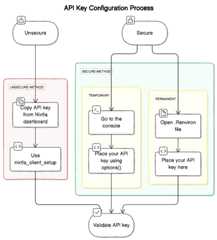
4. Validate your API key (optional)
nixtlar includes a function to validate your APIkey.
nixtlar::nixtla_validate_api_key()Thenixtla_validate_api_key function will returnTRUE if your key is valid, andFALSEotherwise.
You do not need to validate your API key every time you set it up,only when you are unsure of its status. Alternatively, in yourdashboard, underAPI keys, there is a label next to yourAPI key indicating its status, for example,active.
5. Azure endpoints
When working on Azure, you will need to specify both a Base URL andyour API key, as shown below.
nixtlar::nixtla_client_setup( base_url="Base URL here", api_key="Your API key here")You can also use one of the more secure and permanent methoddescribed above, by specifying theNIXTLA_BASE_URL inaddition to theNIXTLA_API_KEY.
To learn more, please refer to theTimeGEN-1Quickstart (Azure) vignette.