

Note
Go to the endto download the full example code.
Textbox#
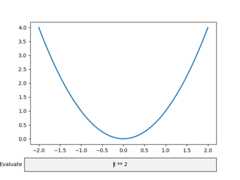
The Textbox widget lets users interactively provide text input, includingformulas. In this example, the plot is updated using theon_submit method.This method triggers the execution of thesubmit function when theuser presses enter in the textbox or leaves the textbox.
Note: Thematplotlib.widgets.TextBox widget is different from the followingstatic elements:Annotations andPlacing text boxes.
importmatplotlib.pyplotaspltimportnumpyasnpfrommatplotlib.widgetsimportTextBoxfig,ax=plt.subplots()fig.subplots_adjust(bottom=0.2)t=np.arange(-2.0,2.0,0.001)l,=ax.plot(t,np.zeros_like(t),lw=2)defsubmit(expression):""" Update the plotted function to the new math *expression*. *expression* is a string using "t" as its independent variable, e.g. "t ** 3". """ydata=eval(expression,{'np':np},{'t':t})l.set_ydata(ydata)ax.relim()ax.autoscale_view()plt.draw()axbox=fig.add_axes((0.1,0.05,0.8,0.075))text_box=TextBox(axbox,"Evaluate",textalignment="center")text_box.on_submit(submit)text_box.set_val("t ** 2")# Trigger `submit` with the initial string.plt.show()
References
The use of the following functions, methods, classes and modules is shownin this example: