

Note
Go to the endto download the full example code.
Path effects guide#
Defining paths that objects follow on a canvas.
Matplotlib'spatheffects module provides functionality to apply amultiple draw stage to any Artist which can be rendered via apath.Path.
Artists which can have a path effect applied to them includepatches.Patch,lines.Line2D,collections.Collection and eventext.Text. Each artist'spath effects can be controlled via theArtist.set_path_effects method,which takes an iterable ofAbstractPathEffect instances.
The simplest path effect is theNormal effect, which simply draws the artistwithout any effect:
importmatplotlib.pyplotaspltimportmatplotlib.patheffectsaspath_effectsfig=plt.figure(figsize=(5,1.5))text=fig.text(0.5,0.5,'Hello path effects world!\nThis is the normal ''path effect.\nPretty dull, huh?',ha='center',va='center',size=20)text.set_path_effects([path_effects.Normal()])plt.show()
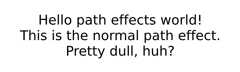
Whilst the plot doesn't look any different to what you would expect withoutany path effects, the drawing of the text has now been changed to use thepath effects framework, opening up the possibilities for more interestingexamples.
Adding a shadow#
A far more interesting path effect thanNormal is the drop-shadow, which wecan apply to any of our path based artists. The classesSimplePatchShadowandSimpleLineShadow do precisely this by drawing either a filled patch ora line patch below the original artist:
importmatplotlib.patheffectsaspath_effectstext=plt.text(0.5,0.5,'Hello path effects world!',path_effects=[path_effects.withSimplePatchShadow()])plt.plot([0,3,2,5],linewidth=5,color='blue',path_effects=[path_effects.SimpleLineShadow(),path_effects.Normal()])plt.show()

Notice the two approaches to setting the path effects in this example. Thefirst uses thewith* classes to include the desired functionalityautomatically followed with the "normal" effect, whereas the latterexplicitly defines the two path effects to draw.
Making an Artist stand out#
One nice way of making artists visually stand out is to draw an outline ina bold color below the actual artist. TheStroke path effect makesthis a relatively simple task:
fig=plt.figure(figsize=(7,1))text=fig.text(0.5,0.5,'This text stands out because of\n''its black border.',color='white',ha='center',va='center',size=30)text.set_path_effects([path_effects.Stroke(linewidth=3,foreground='black'),path_effects.Normal()])plt.show()

It is important to note that this effect only works because we have drawnthe text path twice; once with a thick black line, and then once with theoriginal text path on top.
You may have noticed that the keywords toStroke andSimplePatchShadowandSimpleLineShadow are not the usual Artist keywords (facecoloredgecolor, etc.). This is because with these path effects we are operatingat lower level of Matplotlib. In fact, the keywords which are accepted arethose for amatplotlib.backend_bases.GraphicsContextBase instance, whichhave been designed for making it easy to create new backends - and not forits user interface.
Greater control of the path effect Artist#
As already mentioned, some of the path effects operate at a lower levelthan most users will be used to, meaning that setting keywords such asfacecolor andedgecolor raise an AttributeError. Luckily there is agenericPathPatchEffect path effect which creates apatches.PathPatchclass with the original path. The keywords to this effect are identical tothose ofpatches.PathPatch:
fig=plt.figure(figsize=(8.5,1))t=fig.text(0.02,0.5,'Hatch shadow',fontsize=75,weight=1000,va='center')t.set_path_effects([path_effects.PathPatchEffect(offset=(4,-4),hatch='xxxx',facecolor='gray'),path_effects.PathPatchEffect(edgecolor='white',linewidth=1.1,facecolor='black')])plt.show()
