

Note
Go to the endto download the full example code.
Tight layout guide#
How to use tight-layout to fit plots within your figure cleanly.
Tip
tight_layout was the first layout engine in Matplotlib. The more modernand more capableConstrained Layout shouldtypically be used instead.
tight_layout automatically adjusts subplot params so that thesubplot(s) fits in to the figure area. This is an experimentalfeature and may not work for some cases. It only checks the extentsof ticklabels, axis labels, and titles.
Simple example#
With the default Axes positioning, the axes title, axis labels, or tick labelscan sometimes go outside the figure area, and thus get clipped.
importmatplotlib.pyplotaspltimportnumpyasnpplt.rcParams['savefig.facecolor']="0.8"defexample_plot(ax,fontsize=12):ax.plot([1,2])ax.locator_params(nbins=3)ax.set_xlabel('x-label',fontsize=fontsize)ax.set_ylabel('y-label',fontsize=fontsize)ax.set_title('Title',fontsize=fontsize)plt.close('all')fig,ax=plt.subplots()example_plot(ax,fontsize=24)

To prevent this, the location of Axes needs to be adjusted. Forsubplots, this can be done manually by adjusting the subplot parametersusingFigure.subplots_adjust.Figure.tight_layout does thisautomatically.
fig,ax=plt.subplots()example_plot(ax,fontsize=24)plt.tight_layout()

Note thatmatplotlib.pyplot.tight_layout() will only adjust thesubplot params when it is called. In order to perform this adjustment eachtime the figure is redrawn, you can callfig.set_tight_layout(True), or,equivalently, setrcParams["figure.autolayout"] (default:False) toTrue.
When you have multiple subplots, often you see labels of differentAxes overlapping each other.

tight_layout() will also adjust spacing betweensubplots to minimize the overlaps.

tight_layout() can take keyword arguments ofpad,w_pad andh_pad. These control the extra padding around thefigure border and between subplots. The pads are specified in fractionof fontsize.

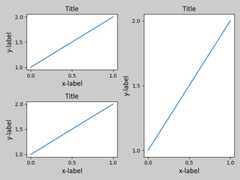
tight_layout() will work even if the sizes ofsubplots are different as far as their grid specification iscompatible. In the example below,ax1 andax2 are subplots of a 2x2grid, whileax3 is of a 1x2 grid.
plt.close('all')fig=plt.figure()ax1=plt.subplot(221)ax2=plt.subplot(223)ax3=plt.subplot(122)example_plot(ax1)example_plot(ax2)example_plot(ax3)plt.tight_layout()
It works with subplots created withsubplot2grid(). In general, subplots createdfrom the gridspec (Arranging multiple Axes in a Figure) will work.
plt.close('all')fig=plt.figure()ax1=plt.subplot2grid((3,3),(0,0))ax2=plt.subplot2grid((3,3),(0,1),colspan=2)ax3=plt.subplot2grid((3,3),(1,0),colspan=2,rowspan=2)ax4=plt.subplot2grid((3,3),(1,2),rowspan=2)example_plot(ax1)example_plot(ax2)example_plot(ax3)example_plot(ax4)plt.tight_layout()

Although not thoroughly tested, it seems to work for subplots withaspect != "auto" (e.g., Axes with images).
arr=np.arange(100).reshape((10,10))plt.close('all')fig=plt.figure(figsize=(5,4))ax=plt.subplot()im=ax.imshow(arr,interpolation="none")plt.tight_layout()

Caveats#
tight_layoutconsiders all artists on the Axes bydefault. To remove an artist from the layout calculation you can callArtist.set_in_layout.tight_layoutassumes that the extra space needed for artists isindependent of the original location of Axes. This is often true, but thereare rare cases where it is not.pad=0can clip some texts by a few pixels. This may be a bug ora limitation of the current algorithm, and it is not clear why ithappens. Meanwhile, use of pad larger than 0.3 is recommended.The algorithm of
tight_layoutdoes not necessarily converge,i.e. callingtight_layoutmultiple times can lead to slightvariations in the layout between the calls.
Use with GridSpec#
GridSpec has its ownGridSpec.tight_layout method (the pyplot apipyplot.tight_layout also works).
importmatplotlib.gridspecasgridspecplt.close('all')fig=plt.figure()gs1=gridspec.GridSpec(2,1)ax1=fig.add_subplot(gs1[0])ax2=fig.add_subplot(gs1[1])example_plot(ax1)example_plot(ax2)gs1.tight_layout(fig)
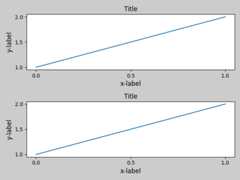
You may provide an optionalrect parameter, which specifies the boundingbox that the subplots will be fit inside. The coordinates are innormalized figure coordinates and default to (0, 0, 1, 1) (the whole figure).
fig=plt.figure()gs1=gridspec.GridSpec(2,1)ax1=fig.add_subplot(gs1[0])ax2=fig.add_subplot(gs1[1])example_plot(ax1)example_plot(ax2)gs1.tight_layout(fig,rect=[0,0,0.5,1.0])

However, we do not recommend that this be used to manually construct morecomplicated layouts, like having one GridSpec in the left and one in theright side of the figure. For these use cases, one should instead takeadvantage ofNested Gridspecs, ortheFigure subfigures.
Legends and annotations#
Pre Matplotlib 2.2, legends and annotations were excluded from the boundingbox calculations that decide the layout. Subsequently, these artists wereadded to the calculation, but sometimes it is undesirable to include them.For instance in this case it might be good to have the Axes shrink a bitto make room for the legend:
fig,ax=plt.subplots(figsize=(4,3))lines=ax.plot(range(10),label='A simple plot')ax.legend(bbox_to_anchor=(0.7,0.5),loc='center left',)fig.tight_layout()plt.show()
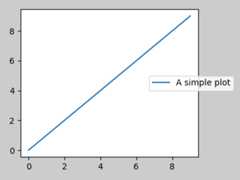
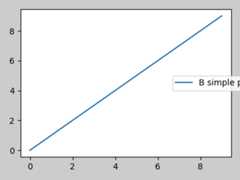
However, sometimes this is not desired (quite often when usingfig.savefig('outname.png',bbox_inches='tight')). In order toremove the legend from the bounding box calculation, we simply set itsboundingleg.set_in_layout(False) and the legend will be ignored.
fig,ax=plt.subplots(figsize=(4,3))lines=ax.plot(range(10),label='B simple plot')leg=ax.legend(bbox_to_anchor=(0.7,0.5),loc='center left',)leg.set_in_layout(False)fig.tight_layout()plt.show()
Use with AxesGrid1#
Limited support formpl_toolkits.axes_grid1 is provided.
frommpl_toolkits.axes_grid1importGridplt.close('all')fig=plt.figure()grid=Grid(fig,rect=111,nrows_ncols=(2,2),axes_pad=0.25,label_mode='L',)foraxingrid:example_plot(ax)ax.title.set_visible(False)plt.tight_layout()

Colorbar#
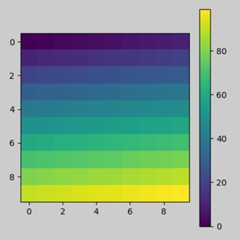
If you create a colorbar withFigure.colorbar, the created colorbar isdrawn in a Subplot as long as the parent Axes is also a Subplot, soFigure.tight_layout will work.
plt.close('all')arr=np.arange(100).reshape((10,10))fig=plt.figure(figsize=(4,4))im=plt.imshow(arr,interpolation="none")plt.colorbar(im)plt.tight_layout()
Another option is to use the AxesGrid1 toolkit toexplicitly create an Axes for the colorbar.
frommpl_toolkits.axes_grid1importmake_axes_locatableplt.close('all')arr=np.arange(100).reshape((10,10))fig=plt.figure(figsize=(4,4))im=plt.imshow(arr,interpolation="none")divider=make_axes_locatable(plt.gca())cax=divider.append_axes("right","5%",pad="3%")plt.colorbar(im,cax=cax)plt.tight_layout()

Total running time of the script: (0 minutes 6.732 seconds)