
Table of Contents
📢 🎓 ⭐Learn Common Lisp efficiently in videos, by the Cookbook's main contributor.Learn more.
LispWorks is a Common Lisp implementation thatcomes with its own Integrated Development Environment (IDE) and its share ofunique features, such as the CAPI GUI toolkit. It isproprietary andprovides afree limited version.
Here, we will mainly explore its IDE, asking ourselves what it canoffer to a seasoned lisper used to Emacs and Slime. The short answeris: more graphical tools, such as an easy to use graphical stepper, atracer, a code coverage browser or again a class browser. Setting andusing breakpoints was easier than on Slime.
LispWorks also provides more integrated tools (the Process browserlists all processes running in the Lisp image and we canstop, break or debug them) and presents many information in the form ofgraphs (for example, a graph of function calls or a graph of all thecreated windows).
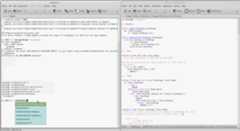
We can see a matrix of LispWorks features by edition and platform here:http://www.lispworks.com/products/features.html.
We highlight:
And, of course, a built-in IDE.
LispWorks is used in diverse areas of the industry. They maintaina list of success stories. As for software that we can use ourselves, we findScoreCloud amazing (a music notation software: you play an instrument, sing or whistle and it writes the music) orOpenMusic (opensource composition environment).
The download instructions and the limitations are givenon the download page.
The limitations are the following:
What does it prevent us to do? As an illustration, we can not load this set of libraries together in the same image:
(ql:quickload '("alexandria" "serapeum" "bordeaux-threads" "lparallel" "dexador" "hunchentoot" "quri" "cl-ppcre" "mito"))There is atime limit of 5 hours for each session, after which LispWorks Personal exits, possibly without saving your work or performing cleanups such as removing temporary files. You are warned after 4 hours of use.
It isimpossible to build a binary. Indeed, the functionssave-image,deliver (the function to create a stand-alone executable), and load-all-patches are not available.
Initialization files are not loaded. If you are used to initializing Quicklisp from your~/.sbclrc on Emacs, you’ll have to load an init file manually every time you start LispWorks ((load #p"~/.your-init-file)).
For the record, the snippet provided by Quicklisp to put in one’s startup file is the following:
;; provided you installed quicklisp in ~/quicklisp/(let ((quicklisp-init (merge-pathnames "quicklisp/setup.lisp" (user-homedir-pathname)))) (when (probe-file quicklisp-init) (load quicklisp-init)))You’ll have to paste it to the listener window (with theC-y key, y as “yank”).
The installation process requires you to fill an HTML form to receivea download link, then to run a first script that makes you accept theterms and the licence, then to run a second script that installs the software.
LispWorks actually comes in four paid editions. It’s all explained by themselves here:http://www.lispworks.com/products/lispworks.html. In short, there is:
save-image andload-all-patches, to apply updates of minor versions, without the obvious limitations, for non-commercial and non-academic use,deliver function to create executables (still for non-commercial and non-academic uses),deliver function, for commercial and academic uses,At the time of writing, the licence of the hobbyist edition costs 750 USD, the pro version the double. They are bought for a LW version, per platform. They have no limit of time.
The LispWorks IDE is self-contained, but it is also possible to use LispWorks-the-implementation from Emacs and Slime (see below). The IDE runsinside the Common Lisp image, unlike Emacs which is an external program that communicates with the Lisp image through Swank and Slime. User code runs in the same process.
The editor offers what’s expected: a TAB-completion pop-up, syntaxhighlighting, Emacs-like keybindings (including theM-x extendedcommand). The menus help the discovery.
We personally found the editing experience a bit “raw”. For example:
We also had an issue, in that the go-to-source function bound toM-.did not work out for built-in Lisp symbols. Apparently, LispWorksdoesn’t provide much source code, and mostly code of the editor. Someother commercial Lisps, like Allegro CL, provide more source code
The editor provides an interesting tab: Changed Definitions. It lists the functions and methods that were redefined since, at our choosing: the first edit of the session, the last save, the last compile.
See also:
Most of the keybindings are similar to Emacs, but not all. Here are some differences:
C-S-c (control, shift and c), instead of C-c C-c.C-S-b (instead of C-c C-k).Similar ones include:
C-g to cancel what you’re doing,C-x C-s to save the current buffer,M-w andC-y to copy and paste,M-b,M-f,C-a,C-e… to move around words, to go to the beginning or the end of the line,C-k to kill until the end of the line,C-w to kill a selected region,M-. to find the source of a symbol,C-x C-e to evaluate the current defun,Some useful functions don’t have a keybinding by default, for example:
M-x Clear ListenerBackward Kill LineIt is possible to useclassical keybindings, à la KDE/Gnome. Go to thePreferences menu, Environment and in the Emulation tab.
There isno Vim layer.
It is possible to search for a keybinding associated to a function, ora function name from its keybinding, with the menu (Help -> Editing ->Key to Command / Command to Key) or withC-h followed by a key,as in Emacs. For example typeC-h k then enter a keybinding toget the command name. See more withC-h ?.
It is possible to change keybindings. The editor’s state is accessiblefrom theeditor package, and the editor is built with the CAPIframework, so we can use thecapi interface too. Useful functionsinclude:
`editor:bind-keyeditor:defcommandeditor:current-pointeditor:with-point ;; save point locationeditor:move-pointeditor:*buffer-list*editor:*in-listener* ;; returns T when we are in the REPL…Here’s how you can bind keys:
;; Indent new lines.;; By default, the point is not indented after a Return.(editor:bind-key "Indent New Line" #\Return :mode "Lisp");; Insert pairs.(editor:bind-key "Insert Parentheses For Selection" #\( :mode "Lisp")(editor:bind-key "Insert Double Quotes For Selection" #\" :mode "Lisp")Here’s how to define a new command. We make the) keyto go past the next closing parenthesis.
(editor:defcommand "Move Over ()" (p) "Move past the next close parenthesis.Any indentation preceeding the parenthesis is deleted." "Move past the next close parenthesis." ;; thanks to Thomas Hermann ;; https://github.com/ThomasHermann/LispWorks/blob/master/editor.lisp (declare (ignore p)) (let ((point (editor:current-point))) (editor:with-point ((m point)) (cond ((editor::forward-up-list m) (editor:move-point point m) (editor::point-before point) (loop (editor:with-point ((back point)) (editor::back-to-indentation back) (unless (editor:point= back point) (return))) (editor::delete-indentation point)) (editor::point-after point)) (t (editor:editor-error))))))(editor:bind-key "Move Over ()" #\) :mode "Lisp")And here’s how you can change indentation for special forms:
(editor:setup-indent "if" 1 4 1)See also:
The listener is the REPL we are expecting to find, but it has a slightdifference from Slime.
It doesn’t evaluate the input line by line or form by form, instead itparses the input while typing. So we get some errors instantly. Forexample, we type(abc. So far so good. Once we type a colon to get(abc:, an error message is printed just above our input:
Error while reading: Reader cannot find package ABC.CL-USER 1 > (abc:Indeed, nowabc: references a package, but such a package doesn’t exist.
Its interactive debugger is primarily textual but you can alsointeract with it with graphical elements. For example, you can use theAbort button of the menu bar, which brings you back to the toplevel. You can invoke the graphical debugger to see the stacktracesand interact with them. See the Debugger button at the very end of thetoolbar.
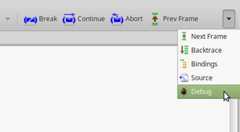
If you see the name of your function in the stacktraces (you will ifyou wrote and compiled your code in a file, and not directly wrote itin the REPL), you can double-click on its name to go back to theeditor and have it highlight the part of your code that triggered theerror.
M-v in Slime.It is possible to choose the graphical debugger to appear by default, instead of the textual one.
The listener provides some helper commands, not unlike Slime’s ones starting with a comma,:
CL-USER 1 > :help:bug-form <subject> &key <filename> Print out a bug report form, optionally to a file.:get <variable> <command identifier> Get a previous command (found by its number or a symbol/subform within it) and put it in a variable.:help Produce this list.:his &optional <n1> <n2> List the command history, optionally the last n1 or range n1 to n2.:redo &optional <command identifier> Redo a previous command, found by its number or a symbol/subform within it.:use <new> <old> &optional <command identifier> Do variant of a previous command, replacing old symbol/subform with new symbol/subform.Thestepper is oneof the areas where LispWorks shines.
When your are writing code in the editor window, you can setbreakpoints with the big red “Breakpoint” button (or by callingM-x Stepper Breakpoint).This puts a red mark in your code.
The next time your code is executed, you’ll get a comprehensive Stepper pop-up window showing:
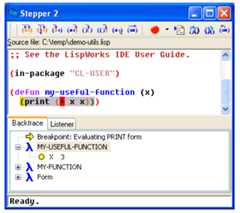
That’s not all. The non-visual, REPL-oriented stepper is also nice. It shows the forms that are being evaluated and their results.
In this example, we use:s to “step” though the current form and its subforms. We are using the usual listener, we can write any Lisp code after the prompt (the little ` -> ` here), and we have access to the local variables (X).
CL-USER 4 > (defun my-abs (x) (cond ((> x 0) x) ((< x 0) (- x)) (t 0)))CL-USER 5 > (step (my-abs -5))(MY-ABS -5) -> :s -5 -> :s -5 (COND ((> X 0) X) ((< X 0) (- X)) (T 0)) <=> (IF (> X 0) (PROGN X) (IF (< X 0) (- X) (PROGN 0))) ;; Access to the local variables: (IF (> X 0) (PROGN X) (IF (< X 0) (- X) (PROGN 0))) -> (format t "Is X equal to -5? ~a~&" (if (equal x -5) "yes" "no"))Is X equal to -5? yes (IF (> X 0) (PROGN X) (IF (< X 0) (- X) (PROGN 0))) -> :s (> X 0) -> :s X -> :s -5 0 -> :s 0 NIL (IF (< X 0) (- X) (PROGN 0)) -> :s (< X 0) -> :s X -> :s -5 0 -> :s 0 T (- X) -> :s X -> :s -5 5 5 55Here are the available stepper commands (see:?):
:s Step this form and all of its subforms (optional +ve integer arg):st Step this form without stepping its subforms:si Step this form without stepping its arguments if it is a function call:su Step up out of this form without stepping its subforms:sr Return a value to use for this form:sq Quit from the current stepper level:bug-form <subject> &key <filename> Print out a bug report form, optionally to a file.:get <variable> <command identifier> Get a previous command (found by its number or a symbol/subform within it) and put it in a variable.:help Produce this list.:his &optional <n1> <n2> List the command history, optionally the last n1 or range n1 to n2.:redo &optional <command identifier> Redo a previous command, found by its number or a symbol/subform within it.:use <new> <old> &optional <command identifier> Do variant of a previous command, replacing old symbol/subform with new symbol/subform.The class browser allows us to examine a class’s slots, parent classes, available methods, and some more.
Let’s create a simple class:
(defclass person () ((name :accessor name :initarg :name :initform "") (lisper :accessor lisperp :initform t)))Now call the class browser:
M-x Describe class.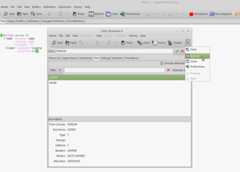
It is composed of several panes:
The Functions pane lists all methods applicable to that class, so we can discover public methods provided by the CLOS object system:initialize-instance,print-object,shared-initialize, etc. We can double-click on them to go to their source. We can choose not to include the inherited methods too (see the “include inherited” checkbox).
You’ll find buttons on the toolbar (for example, Inspect a genericfunction) and more actions on the Methods menu, such as a way to seethefunctions calls, a menu toundefine ortrace a function.
See more:
The function call browser allows us to see a graph of the callers andthe callees of a function. It provides several ways to filter thedisplayed information and to further inspect the call stack.
slime-who-[calls, references, binds, sets, depends-on, specializes, macroexpands].After loading a couple packages, here’s a simple example showing who calls thestring-trim function.
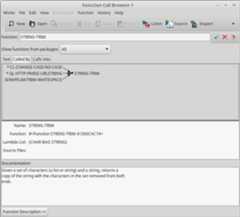
It shows functions from all packages, but there is a select box to restrict it further, for example to the “current and used” or only to the current packages.
Double click on a function shown in the graph to go to its source. Again, as in many LispWorks views, the Function menu allows to further manipulate selected functions: trace, undefine, listen (paste the object to the Listener)…
The Text tab shows the same information, but textually, the callers and callees side by side.
We can see cross references for compiled code, and we must ensure the feature is on. When we compile code, LispWorks shows a compilation output likes this:
;;; Safety = 3, Speed = 1, Space = 1, Float = 1, Interruptible = 1;;; Compilation speed = 1, Debug = 2, Fixnum safety = 3;;; Source level debugging is on;;; Source file recording is on;;; Cross referencing is onWe see that cross referencing is on. Otherwise, activate it with(toggle-source-debugging t).
See more:
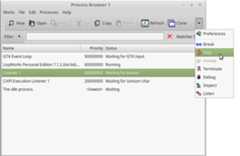
The Process Browser shows us a list of all threads running. The input area allows to filter by name. It accepts regular expressions. Then we can stop, inspect, listen, break into these processes.
See more:
Saving images with LispWorks is different than with SBCL:
So, effectively, we can save an image and have our developmentenvironment back to the same state, effectively allowing to takesnapshots of our current work and to continue where we left of.
For example, we can start a game from the REPL, play a little bit inits window, save an image, and when restored we will get the game andits state back.
We like theSearch Files functionality. It is like a recursivegrep, but we get a typical LispWorks graphical windowthat displays the results, allows to double-click on them and that offerssome more actions.
Last but not least, have a look at thecompilation conditionsbrowser. LispWorks puts all warnings and errors into a specialbrowser when we compile a system. From now on we can work on fixingthem and see them disappear from the browser. That helps keeping trackof warnings and errors during development.
To do that, you have two possibilities. The first one is to start LispWorks normally, start a Swank server and connect to it from Emacs (Swank is the backend part of Slime).
First, let’s load the dependencies:
(ql:quickload "swank");; or(load "~/.emacs.d/elpa/slime-20xx/swank-loader.lisp")Start a server:
(swank:create-server :port 9876);; Swank started at port: 9876.9876From Emacs, runM-x slime-connect, chooselocalhost and9876 for the port.
You should be connected. Check with:(lisp-implementation-type). You are now able to use LispWorks’ features:
(setq button (make-instance 'capi:push-button :data "Button"))(capi:contain button)The second possibility is to create a non-GUI LispWorks image, withSwank loaded, and to run this image from SLIME or SLY. For example, tocreate a so-calledconsole image with multiprocessing enabled:
(in-package "CL-USER")(load-all-patches)(save-image "~/lw-console" :console t :multiprocessing t :environment nil)and run LispWorks like this to create the new image ~/lw-console:
lispworks-7-0-0-x86-linux -build /tmp/resave.lispHowever:console is implementedonly for Windows and Mac.
See LispWorks’ documentation.
LispWorks’ delivery method revolves around itsdelivery function. It has good documentation:https://www.lispworks.com/documentation/lw80/deliv/deliv.htm.
Unlike other open-source Lisps, LispWorks provides a tree-shaker thatcan strip-off packages from the delivered application, allowing tobuild small binaries, around 7MB.
LispWorks’s deliverydoesn’t includecompile-file into the deliveredapplication (norsave-image,deliver and the IDE). As such, it isn’t possible to change code on the fly on adelivered image. No Swank server, no possibility to useql:quickload.
To allow remote debugging, LW however provides its own debugger client. On the backend, do:
(require "remote-debugger-client")(dbg:start-client-remote-debugging-server :announce t)and on the IDE, do:
(require "remote-debugger-full")(dbg:ide-connect-remote-debugging "host" :open-a-listener t)Page source:lispworks.md