Use a data file to simulate virtual users
When youconfigure a performance test, you specify a number ofvirtual users. During the test, each virtual user (VU) runs the selected requests in the specified order in a repeating loop. You can customize the behavior of the virtual users by importing a CSV or JSON file
By default, each virtual user runs the same requests using the same values. If you import a data file, each virtual user can instead send requests using different values from the imported file. Using custom data for each virtual user can help you to simulate real-world traffic when testing the performance of your API.
Run a performance test with a data file
Import a data file to populate variables with custom data when running a performance test. Each virtual user can use data from a different row in the data file, customizing their behavior and simulating real-world usage of your API.
Before you begin,add variables to the requests in your collection. Thencreate a data file with the data to use for each variable.
To run a performance test with a data file, do the following:
Configure a performance test, specifying the number ofVirtual users, theTest duration, and aLoad profile.
Select aData file with custom values to use for each virtual user. After you select your data file, a preview of the data file displays.
The data file must be in CSV or JSON format. Learn more aboutformatting a data file.
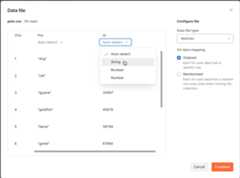
Postman automatically detects theData file type. If needed, you can select a different file type (CSV or JSON).
UnderVU data mapping, select how rows in the data file are mapped to virtual users:
- Ordered - Each VU uses data from a specific row of the data file. The first VU uses the first data row, the second VU uses the second data row, and the pattern continues until each VU has been assigned a data row. Extra rows aren’t used.
- Randomized - Each VU uses data from a random row of the data file every time the VU runs the collection.
If you selectOrdered and your data file has fewer rows than the number of VUs, some VUs won’t receive data during the performance test. You can add more rows to your data file and import the file again, or you can selectRandomized.
(Optional) For CSV files, Postman automatically detects the data type for each column in the file. If needed, you can use the dropdown menu at the top of a column to select a different data type (String,Boolean, orNumber).
If your CSV file has numbers longer than 16 digits, numbers with preceding zeroes (for example,
000000345), or phone numbers (for example,+12125556709), select theString data type to prevent values from being truncated.ClickContinue when you’re done configuring the data file.
You can click
 Open preview to reconfigure the data file. You can also select a new data file or click
 Delete to remove the data file.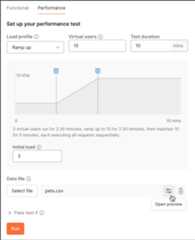
ClickRun to run the performance test using the data file. Each VU uses the assigned data from the data file to populate variables when running the requests in the collection.
Data file format
Format the CSV file so that the first row has the variable names you want to use inside the requests. After that, every row will be used as a data row. The line endings of the CSV file must be in Unix format. Each row must have the same number of columns.
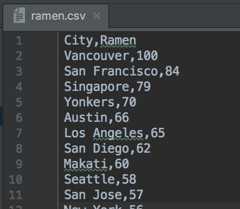
For CSV files, note the following:
If the numbers in your data file are longer than 15 digits, you’ll need to format them as text in your spreadsheet program, so they’re not truncated when exporting to CSV format.
If your CSV file has numbers longer than 16 digits, numbers with preceding zeroes (for example,
000000345), or phone numbers (for example,+12125556709), you’ll need to configure the file in Postman and specifyString for the column data type. Learn more aboutrunning a performance test with a data file.
Format JSON files as an array of key-value pairs. Each key is the name of a variable, and the value is the data to use within the request.
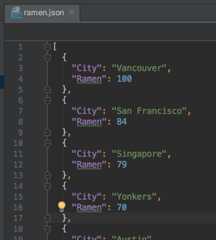
Variable names are case sensitive, so make sure to use the same case for variables in Postman as in the CSV or JSON file. Variables in data files are resolved aslocal variables, so you can access them using
pm.variables.get("variable_key"). Learn more aboutusing variables in scripts.
Debug errors when using data files
You canview details about errors that occurred during the performance test to help in the debugging process. After the performance test finishes, select theErrors tab. Expand an error class below the graph, then click a request to view the response, headers, and body. Click the data file name to view the variable data that was used for the request.
Data files aren’t saved forpast performance test runs.
Last modified: 2025/08/13

Additional resources
Explore ready-to-use Collection Templates, build API-first workflows with Postman Flows, and more!