


Contribute#
If you’re reading this section, you’re probably interested incontributing to JupyterLab. Welcome and thanks for your interest incontributing!
Please take a look at the Contributor documentation, familiarizeyourself with using JupyterLab, and introduce yourself to the community(on thechat and/or theforum)and share what area of the project you are interested in working on. Please also see the JupyterCommunityGuides.
You can help make it better by:
improving the code base and fixing bug (see below)
We have labeled some issues asgood firstissueorhelpwantedthat we believe are good examples of small, self-contained changes. Weencourage those that are new to the code base to implement and/or askquestions about these issues. You are not required to ask for a permissionto work on such issue, but if you do and do not get a reply within 48 hoursplease assume that no one else is working on it (even if someone previouslyvolunteered) and open a pull request with proposed implementation.If you are not certain about the implementation, using draft pull requests is encouraged.
If you believe you’ve found a security vulnerability in JupyterLab orany Jupyter project, please report it tosecurity@ipython.org. If youprefer to encrypt your security reports, you can usethis PGP publickey.
General Guidelines for Contributing#
For general documentation about contributing to Jupyter projects, seetheProject Jupyter ContributorDocumentationandCode ofConduct.
Backwards Compatibility, Versions and Breaking Changes#
New versions of JupyterLab may break backwards compatibility with extensions and other Jupytercustomizations. Breaking changes are kept to a minimum where possible. JupyterLab developmentand release cycles followsemantic versioning, so when breakingchanges are necessary, they are communicated via the version numbering scheme. In short, thismeans that, for a JupyterLab version X.Y.Z:
Major version (X) number changes indicate breaking changes (NOT backwards compatible)
Minor Version (Y) number changes indicate a backwards compatible addition of new features
Patch version (Z) number changes indicate backwards compatible bug fixes
Contributions to JupyterLab extensions and other customizations should plan for possiblebreaking changes. Consider documenting your maintenance plans to users in these projects.You may also wish to consider pinning the major version of JupyterLab when developingextensions (in your package metadata).
We maintain a major version of JupyterLab forone year after its successor’s first release.Seeversion lifecycle for details.JupyterLab v4 was released on May 15, 2023, so JupyterLab v3 will be maintaineduntil May 15, 2024. JupyterLab v1 and v2 are no longer maintained.All JupyterLab v2 and v3 users are strongly advised to upgrade as soon as possible.
Languages, Tools and Processes#
All source code is written inTypeScript. See theStyleGuide.
All non-python source code is formatted usingprettier, and python source code is formatted usingruff.When code is modified and committed, all staged files will beautomatically formatted using pre-commit git hooks (with help frompre-commit). The benefit ofusing a code formatters likeprettier andruff is that it removes the topic ofcode style from the conversation when reviewing pull requests, therebyspeeding up the review process.
As long as your code is valid,the pre-commit hook should take care of how it should look.pre-commit and its associated hooks will automatically be installed whenyou runpipinstall-e".[dev,test]"
To installpre-commit manually, run the following:
pipinstallpre-commitpre-commitinstall
You can invoke the pre-commit hook by hand at any time with:
pre-commitrun
which should run any autoformatting on your codeand tell you about any errors it couldn’t fix automatically.You may also installruff integrationinto your text editor to format code automatically.
If you have already committed files before setting up the pre-commithook withpre-commitinstall, you can fix everything up usingpre-commitrun--all-files. You need to make the fixing commityourself after that.
You may also use the prettier npm script (e.g.npmrunprettier oryarnprettier orjlpmprettier) to format the entire code base.We recommend installing a prettier extension for your code editor andconfiguring it to format your code with a keyboard shortcut orautomatically on save.
Submitting a Pull Request Contribution#
Generally, an issue should be opened describing a piece of proposed workand the issues it solves before a pull request is opened. A triager willensure that your issue meets our definition of ready before we can mergeany pull requests that relate to it.
Pull requests must target the development branch (=main) even ifit aims at addressing an issue seen in a stable release. Once the pullrequest is merged on the development branch, it will be backported tothe stable branch using a bot action (or manually if the bot actionfailed).
Note
Don’t hesitate to mention the targeted version in a PR description.A maintainer will set the milestone accordingly.
Issue Management#
Opening an issue lets community members participate in the designdiscussion, makes others aware of work being done, and sets the stagefor a fruitful community interaction. When you open a new bug orenhancement request, please provide all the requested informationin the issue templateso that a responder will be able to triage your bug without delay.
A pull request should referencethe issue it is addressing. Once the pull request is merged, the issuerelated to it will also be closed. If there is additional discussionaround implementation the issue may be re-opened. Once 30 days havepassed with no additional discussion, thelockbot will lock the issue. If additionaldiscussion is desired, or if the pull request doesn’t fully address thelocked issue, please open a new issue referencing the locked issue.
New issues are subject to triage. A developer with triage permissions(atriager) will do the following:
Read the issue
Search the existing issues and mark it as a duplicate if necessary
If additional information is required, add a comment requesting it
If the issue is ready to be worked on, assign it to a milestone
Apply appropriate labels to the issue (see examples below)
A developer may start to work on an issue as soon as it is filed. Pleasework with a triager if they have any questions about your issue so thatyour changes can be merged in without delay.
Definition of Ready#
One of the main goals of triage is to get issues into a state where theyareready for someone to work on. Once a triager is satisfied that anissue meets the definition below, they will remove thestatus:NeedsTriagelabel from it. We will not merge a pull request for an issue that stillneeds triage.
Triagers should also ensure that the issue has appropriate labels thatdescribe it, such as labels with thepkg: prefix for issues thataffect one or more packages.
All requested information, where applicable, is provided. From thetemplates in JupyterLab’s issues:
For abug:
Description, preferably including screen shots
Steps to reproduce
Expected behavior
Context, such as OS, browser, JupyterLab version, and output or log excerpts
For afeature request:
Description of the problem
Description of the proposed solution
Additional context
The issue should represent real, relevant, feasible work. In short, if aknowledgeable person were to be assigned this issue, they would be able tocomplete it with a reasonable amount of effort and assistance, and itfurthers the goals of the Jupyter project.
Issues should be unique; triage is the best time to identify duplicates.
Bugs represent valid expectations for use of Jupyter products and services.
Expectations for security, performance, accessibility, and localization matchgenerally-accepted norms in the community that uses Jupyter products.
The issue represents work that one developer can commit to owning, even ifthey collaborate with other developers for feedback. Excessively large issuesshould be split into multiple issues, each triaged individually, or intoteam-compass issues to discussmore substantive changes.
Labels Used by Triagers#
All new bugs and enhancement requests have thestatus:NeedsTriage label.
On a regular basis, Jupyter contributors (triage reviewers or triagers)review JupyterLab issues taggedwithstatus:NeedsTriage, starting with the oldest, and determinewhether they meet the definition of ready.
Once triaged, if the issue is ready, the reviewer removes thestatus:NeedsTriage label; no additional label is required. If thereis not enough information in the issue as filed, the triage reviewer appliesthestatus:NeedsInfo label and leavesstatus:NeedsTriage in place.If an issue has remained instatus:NeedsInfo for more than 14 dayswithout any follow-up communication, the reviewer should applystatus:Blocked. A blocked issue should be closed after another 14 dayspass without a reply that unblocks it.
Our expectation is that every new issue should be examined within a week ofits creation.
Triagers should label easier/lower complexity issues asgoodfirstissue tofacilitate beginner contributions. A good first issue should have:
A clear, easily understood description with screen shots and expectations that do not require much familiarity with the project
Links, either in the description or in comments, to documentation and source code files that are relevant to the issue
Recommended points of contact, either by GitHub username or on other forums (Discourse, etc) where a contributor can get help
Unless an issue is time-sensitive, such as if it is a release blockerfor an imminent release, experienced Jupyter contributors should avoidpicking up recent issues with thegoodfirstissue label.
Tagging Issues with Labels#
Users without the commit rights to the JupyterLab repository can tagissues with labels using the@meeseeksdev bot. For example: To applythe labelfoo andbarbaz to an issue, comment@meeseeksdevtagfoo"barbaz" on the issue.
Contributing from within the browser#
Contributing to JupyterLab codebase is also possible without setting upa local environment, directly from the Web browser:
GitHub’scodespaceis available (free account havelimited monthly resources).
GitHub’sbuilt-in editoris suitable for contributing very small fixes,
more advancedgithub.deveditor can be accessed by pressing the dot (
.) key while in the JupyterLab GitHub repository,jupyterlab-playground,allows to prototype JupyterLab extensions from within JupyterLab andcan be run without installation in the browser using Binder.
UsingBinder, you can test the current main branch and yourchanges within the browser as well. We recommend you have at least 8 GB of RAM for this.To build and launch an instance of the latest JupyterLab main, openthis linkin a new tab. The build takes about 7 minutes to complete.
To test your own branch hosted on GitHub, enter it onhttps://mybinder.org.If everything goes right, filling out the form takes about 2 minutes, and the build should takeabout 7 minutes again.
Setting up a local development environment#
Note
Look at theautomated dev environment section,for some automation ways to set up a local development environment.
This section explains how to set up a local development environment. We assume you use GNU/Linux,macOS, or Windows Subsystem for Linux. If using Windows, we recommend installingAnaconda for windowsand then using the Anaconda command prompt for all installation steps.
Installing Node.js and jlpm#
Building JupyterLab from its GitHub source code requires Node.js. Thedevelopment version requires Node.js version 20+, as defined in theengines specification indev_mode/package.json.
If you useconda, you can get it with:
condainstall-cconda-forgenodejs=20
If you useHomebrew on macOS:
brewinstallnode
You can also use the installer from theNode.jswebsite.
To check which version of Node.js is installed:
node-v
Using automation to set up a local development environment#
While there is a lot to learn by following the steps above, they can be automated to save time.The main advantages of using automation are: reduced time to get the environment up-and-running, reduced time tore-build the environment, better standardisation (“baseline”, reproducible environments).This section shows how to do that using VS Code dev containers, Docker and Vagrant.
Setup for VS Code#
To start a local development environment for JupyterLab using VS Code dev containers,you need to:
Install the VS CodeDev Containers extension.
Fork the JupyterLabrepository.
Clone your fork locally:
gitclonehttps://github.com/<your-github-username>/jupyterlab.git
Open the local clone with VS Code.
Open the repository in a container.VS Code should prompt you with a pop-up to do so. In case it does not, you can click on theicon
><on the bottom left. Then chooseReopen in container.
Note
It will take quite some times the first time.
Setup using Docker#
To start a JupyterLab development container in a UNIX system with docker installed:
Fork the JupyterLabrepository.
Start the container:
gitclonehttps://github.com/<your-github-username>/jupyterlab.gitcdjupyterlabbashdocker/start.shThe above command will build the docker image if it does not exist, then start the container with JupyterLab running in watch mode. The port 8888 is exposed and the current JupyterLab repo is mounted into the container. Then you can start developing JupyterLab with your favorite IDE, JupyterLab will be rebuilt on the fly.
Other available commands:
bashdocker/start.shdev4567# Start JupyterLab dev container at port 4567bashdocker/start.shstop# Stop the running containerbashdocker/start.shclean# Remove the docker imagebashdocker/start.shbuild# Rebuild the docker image# Log into the container's shell with the JupyterLab environment activated.# It's useful to run the tests or install dependencies.bashdocker/start.shshell
To add TypeScript dependencies to the project, you need to log into the container’s shell, install the dependencies to update the package.json and yarn.lock files, and then rebuild the docker image.
bashdocker/start.shshell# In the container shelljlpmadd...exit# Back to host shellbashdocker/start.shbuild
Setup using Vagrant#
A practical example can be foundthere andincludes aVagrantfile, the bootstrap files and additional documentation.
Installing JupyterLab#
Fork the JupyterLabrepository.
Then use the following steps:
gitclonehttps://github.com/<your-github-username>/jupyterlab.gitcdjupyterlabpipinstall-e".[dev,test]"jlpminstalljlpmrunbuild# Build the dev mode assets# Build the core mode assetsjlpmrunbuild:core# Build the app dir assetsjupyterlabbuild
Frequent issues#
Important
On Windows, symbolic links need to be activated on Windows 10 or above for Python version 3.8 or higherby activating the ‘Developer Mode’. That may not be allowed by your administrators.SeeActivate Developer Mode on Windowsfor instructions.
A few of the scripts will run “python”. If your target python iscalled something else (such as “python3”) then parts of the buildwill fail. You may wish to build in a conda environment, or make analias.
The
jlpmcommand is a JupyterLab-provided, locked version of theyarn package manager. If you haveyarninstalled already, you can use theyarncommand whendeveloping, and it will use the local version ofyarninjupyterlab/yarn.jswhen run in the repository or a builtapplication directory.If you decide to use the
jlpmcommand and encounter thejlpm:commandnotfounderror, try adding the user-level bindirectory to yourPATHenvironment variable. You alreadyinstalledjlpmalong with JupyterLab in the previous command, butjlpmmight not be accessible due toPATHenvironment variablerelated issues. If you are using a Unix derivative (FreeBSD, GNU /Linux, OS X), you can achieve this by usingexportPATH="$HOME/.local/bin:$PATH"command.At times, it may be necessary to clean your local repo with thecommand
npmrunclean:slate. This will clean the repository, andre-install and rebuild.If
pipgives aVersionConflicterror, it usually means thatthe installed version ofjupyterlab_serveris out of date. Runpipinstall--upgradejupyterlab_serverto get the latestversion.To install JupyterLab in isolation for a single conda/virtualenvironment, you can add the
--sys-prefixflag to the extensionactivation above; this will tie the installation to thesys.prefixlocation of your environment, without writing anythingin your user-wide settings area (which are visible to all your envs):You can run
jlpmrunbuild:dev:prodto build more accuratesourcemaps that show the original Typescript code when debugging.However, it takes a bit longer to build the sources, so is used onlyto build for production by default.
For installation instructions for contributors who want to write documentation, please seeWriting Documentation
Run JupyterLab#
Start JupyterLab in development mode:
jupyterlab--dev-mode
Development mode ensures that you are running the JavaScript assets thatare built in the dev-installed Python package. Note that when running indev mode, extensions will not be activated by default - referdocumentation on extension development to know more.
When running in dev mode, a red stripe will appear at the top of thepage; this is to indicate running an unreleased version.
If you want to change the TypeScript code and rebuild on the fly(needs page refresh after each rebuild):
jupyterlab--dev-mode--watch
Build and Run the Tests#
jlpmrunbuild:testutilsjlpmtestYou can run tests for an individual package by changing to theappropriate package folder:
cdpackages/notebookjlpmrunbuild:testjlpmtest--runInBand
Note
--runInBand option will run all tests serially in the current process.We advice to use it as some tests are spinning a Jupyter Server that does notlike to be executed in parallel.
We usejest for all tests, so standardjest workflows apply.Tests can be debugged in either VSCode or Chrome. It can help to add anit.only to a specific test when debugging. All of thetest*scripts in each package acceptjestclioptions.
VSCode Debugging#
To debug in VSCode, open a package folder in VSCode. We provide a launchconfiguration in each package folder. In a terminal, runjlpmtest:debug:watch. In VSCode, select “Attach to Jest” from the“Run” sidebar to begin debugging. SeeVSCode docs ondebugging formore details.
Chrome Debugging#
To debug in Chrome, runjlpmtest:debug:watch in the terminal. OpenChrome and go tochrome://inspect/. Select the remote device andbegin debugging.
Testing Utilities#
There are some helper functions intestutils (which is a public npmpackage called@jupyterlab/testutils) that are used by many of thetests.
For tests that rely on@jupyterlab/services (starting kernels,interacting with files, etc.), there are two options. If a simpleinteraction is needed, theMock namespace exposed bytestutilshas a number of mock implementations (seetestutils/src/mock.ts). Ifa full server interaction is required, use theJupyterServer class.
We have a helper function calledtestEmission to help with writingtests that useLumino signals, as well as aframePromisefunction to get aPromise for arequestAnimationFrame. Wesometimes have to set a sentinel value inside aPromise and thencheck that the sentinel was set if we need a promise to run withoutblocking.
Internationalization#
Translatable strings update#
The translatable strings update cannot occur on patch release. Theymust be delayed on minor or major versions.
Performance Testing#
Benchmark of JupyterLab is done using Playwright. The actions measured are:
Opening a file
Switching from the file to a simple text file
Switching back to the file
Closing the file
Two files are tested: a notebook with many code cells and another with many markdown cells.
The test is run on the CI by comparing the result in the commit at which a PR branch started and the PR branch head onthe same CI job to ensure using the same hardware.The benchmark job is triggered on:
Approved PR review
PR review that contains the sentence
pleaserunbenchmark
The tests are located in the subfoldergalata/test/benchmark. And they can beexecuted with the following command:
jlpmruntest:benchmark
A special report will be generated in the folderbenchmark-results that will contain 4 files:
lab-benchmark.json: The execution time of the tests and some metadata.lab-benchmark.md: A report in Markdownlab-benchmark.png: A comparison of execution time distributionlab-benchmark.vl.json: TheVega-Lite description used to produce the PNG file.
The reference, taggedexpected, is stored inlab-benchmark-expected.json. It can becreated using the-u option of Playwright; i.e.jlpmruntest:benchmark-u.
Benchmark parameters#
The benchmark can be customized using the following environment variables:
BENCHMARK_NUMBER_SAMPLES: Number of samples to compute the execution time distribution; default 20.BENCHMARK_OUTPUTFILE: Benchmark result output file; defaultbenchmark.json. It is overridden in theplaywright-benchmark.config.js.BENCHMARK_REFERENCE: Reference name of the data; default isactualfor current data andexpectedfor the reference.
More tests can be carried out manually on JupyterLab branches and run weekly on the default branch injupyterlab/benchmarks repository.
Visual Regression and UI Tests#
As part of JupyterLab CI workflows, UI tests are run with visual regression checks.Galata is used for UItesting. Galata providesPlaywright helpers to control andinspect JupyterLab UI programmatically.
UI tests are run for each commit into JupyterLab project in PRs or direct commits. Codechanges can sometimes cause UI tests to fail for various reasons. After each test run,Galata generates a user friendly test result report which can be used to inspect failingUI tests. Result report shows the failure reason, call-stack up to the failure anddetailed information on visual regression issues. For visual regression errors, referenceimage and test capture image, along with diff image generated during comparison areprovided in the report. You can use these information to debug failing tests. Galata testreport can be downloaded from GitHub Actions page for a UI test run. Test artifact isnamedgalata-report and once you extract it, you can access the report by launchinga server to serve the filespython-mhttp.server-d<path-to-extracted-report>.Then openhttp://localhost:8000/ with your web browser.
Main reasons for UI test failures are:
A visual regression caused by code changes:
Sometimes unintentional UI changes are introduced by modifications to project sourcecode. Goal of visual regression testing is to detect this kind of UI changes. If yourPR / commit is causing visual regression, then debug and fix the regression caused.You can locally run and debug the UI tests to fix the visual regression. To debug yourtest, you may run
PWDEBUG=1jlpmplaywrighttest<path-to-test-file>. Once youhave a fix, you can push the change to your GitHub branch and test with GitHub actions.An intended update to user interface:
If your code change is introducing an update to UI which causes existing UI Tests tofail, then you will need to update reference image(s) for the failing tests. In orderto do that, you can post a comment on your PR with the following content:
pleaseupdategalatasnapshots: A bot will push a new commit to your PR updating galatatest snapshots.pleaseupdatedocumentationsnapshots: A bot will push a new commit to your PR updatingdocumentation test snapshots.pleaseupdatesnapshots: Combine the two previous comments effects.
The bot will react with +1 emoji to indicate that the run started and then commentback once it concluded. This feature is restricted to a subset of users with higherprivileges due to security concerns.
For more information on UI Testing, please read theUI Testing developer documentationandPlaywright documentation.
Good Practices for Integration tests#
Here are some good practices to follow when writing integration tests:
Don’t compare multiple screenshots in the same test; if the first comparison breaks,it will require running multiple times the CI workflow to fix all tests.
Contributing to the debugger front-end#
To make changes to the debugger extension, a kernel with support for debugging is required.
Check out the user documentation to learn how to install such kernel:Debugger.
Then refresh the page and the debugger sidebar should appear in the right area.
The Debugger Adapter Protocol#
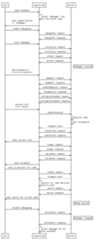
The following diagram illustrates the types of messages sent between the JupyterLab extension and the kernel.
Inspecting Debug Messages in VS Code#
Inspecting the debug messages in VS Code can be useful to understand when debug requests are made (for example triggered by a UI action), and to compare the behavior of the JupyterLab debugger with the Python debugger in VS Code.
The first step is to create a test file and a debug configuration (launch.json):

{"version":"0.2.0","configurations":[{"name":"Python: Current File","type":"python","request":"launch","program":"${file}","console":"integratedTerminal","env":{"DEBUGPY_LOG_DIR":"/path/to/logs/folder"}}]}
Then start the debugger:
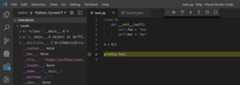
The content of the log file looks like this:
...D00000.032:IDE-->{"command":"initialize","arguments":{"clientID":"vscode","clientName":"Visual Studio Code","adapterID":"python","pathFormat":"path","linesStartAt1":true,"columnsStartAt1":true,"supportsVariableType":true,"supportsVariablePaging":true,"supportsRunInTerminalRequest":true,"locale":"en-us"},"type":"request","seq":1}...
With:
IDE= VS CodePYD= pydev debuggerMessages follow theDAP
References#
Dump cell and state restoration:jupyterlab/debugger#52
Protocol Overview:https://microsoft.github.io/debug-adapter-protocol/overview
Specification:https://microsoft.github.io/debug-adapter-protocol/specification
Build and run the stand-alone examples#
To install and build the examples in theexamples directory:
jlpmrunbuild:examples
To run a specific example, change to the examples directory (i.e.examples/filebrowser) and enter:
pythonmain.py
Debugging in the Browser#
All methods of building JupyterLab produce source maps. The source mapsshould be available in the source files view of your browser’sdevelopment tools under thewebpack:// header.
When running JupyterLab normally, expand the~ header to see thesource maps for individual packages.
When running in--dev-mode, the core packages are available underpackages/, while the third party libraries are available under~. Note: it is recommended to usejupyterlab--watch--dev-modewhile debugging.
When running a test, the packages will be available at the top level(e.g.application/src), and the current set of test files availableunder/src. Note: it is recommended to usejlpmrunwatch in thetest folder while debugging test options. Seeabove for more info.
High level Architecture#
The JupyterLab application is made up of two major parts:
an npm package
a Jupyter server extension (Python package)
Each part is namedjupyterlab. Thedeveloper tutorial documentationprovides additional architecture information.
The NPM Packages#
The repository consists of many npm packages that are managed using thelerna build tool. The npm package source files are in thepackages/subdirectory.
Build the NPM Packages from Source#
gitclonehttps://github.com/jupyterlab/jupyterlab.gitcdjupyterlabpipinstall-e.jlpmjlpmrunbuild:packagesRebuild
jlpmruncleanjlpmrunbuild:packages
Writing Documentation#
Documentation is written in Markdown. To ensure that the Read the Docs page builds, you’llneed to install the documentation dependencies withpip:
pipinstall-e".[docs]"To test the docs run:
python-mpytest--check-links-k.md.||python-mpytest--check-links-k.md--lf.The Read the Docs pages can be built usingmake:
cddocsmakehtmlThe JupyterLab API reference documentation is also included in the previous step.To access the documentation, first launch a server to serve the generated files:
makeserve
And then go tohttp://localhost:8000/ in your browser.
The JupyterLab API reference documentation can be built separately usingjlpm:
jlpmrundocs
Writing Style#
Write documentation in the second person, referringto the reader as “you”. Do not use the first person plural “we.”The author of the documentation is not sitting next to the user, sousing “we” can lead to frustration when things don’t work asexpected.
Avoid words that trivialize using JupyterLab such as “simply” or“just.” Tasks that developers find simple or easy may not be forusers.
Write in the active tense. For example, “drag the notebook cells…” ratherthan “notebook cells can be dragged…”.
The beginning of each section should begin with a short (1–2sentence) high-level description of the topic, feature or component.
Use “enable” rather than “allow” to indicate what JupyterLab makespossible for users. Using “allow” connotes that we are giving thempermission, whereas “enable” connotes empowerment.
User Interface Naming Conventions#
Documents, Files, and Activities#
Refer to files as either files or documents, depending on the context.
Documents are more human centered. If human viewing, interpretation,or interaction is an important part of the experience, use the term“document”. For example, notebooks and Markdown files will often bereferred to as documents except in the context of a file system(e.g., the notebook filename).
Use the termfiles in a less human-focused context. For example,refer to files in relation to a file system or file name.
Activities are either an opened document or another UI panel that isnot related to a file, such as terminals, consoles or the inspector.
Notebook Cells#
A notebook containscells, each of which haveinput and one or moreoutputs. When the user runs a cell, the kernel reads and executes theinput and generates outputs. The notebook then displays the cell’s output.The termoutput describes one of possibly multiple results of running acell.Cell output describes the collective output of one cell. Useoutputs of all cells to describe all outputs from all cells.
Command Names#
Command names appear in menus, in the Command Palette, and in toolbar buttons(where the name typically appears on hover).
Keep command names short, concise, and unambiguous.
Add an ellipsis (…) after any command name that requires more options. Thistells the user that they should expect a pop-up window to appear before theyexecute the command.
Commands should use verbs in the imperative case. Do not use articles with nouns.For example, write “Clear Cell”, not “Clear the Cell” or “Clearing Cell”.
Element Names#
The generic content area of a tabbed UI is apanel. Refer to a panelby its most specific name, such as “File browser.”Tab barshavetabs that let a user view different panels.
Themenu bar containsmenu items that have their ownsubmenus.
Refer to themain work area as the work area when the nameis unambiguous.
When describing elements in the UI, prefer colloquial names overtechnical names. For example, use “File browser” instead of “Files panel”.
Write most element names in lowercase. These names include:
tab
panel
menu bar
sidebar
file
document
activity
tab bar
main work area
file browser
command palette
cell inspector
code console
Write the following sections of the user interface with one or moreinitial capitals, mirroring their use in the UI:
Activity Bar
File menu
Files tab
Running panel
Tabs panel
Simple Interface mode
SeeThe JupyterLab Interface for descriptions of elements in the UI.
The Jupyter Server Extension#
The Jupyter server extension source files are in the jupyterlab/subdirectory. To use this extension, make sure the Jupyter Notebookserver version 4.3 or later is installed.
Build the JupyterLab server extension#
When you make a change to JupyterLab npm package source files, run:
jlpmrunbuild
to build the changes, and then refresh your browser to see the changes.
To have the system build after each source file change, run:
jupyterlab--dev-mode--watch
Build Utilities#
There is a range of build utilities for maintaining the repository. Toget a suggested version for a library usejlpmrunget:dependencyfoo. To update the version of a libraryacross the repo usejlpmrunupdate:dependencyfoo^latest. Toremove an unwanted dependency usejlpmrunremove:dependencyfoo.
The key utility isjlpmrunintegrity, which ensures the integrityof the packages in the repo. It will:
Ensure the core package version dependencies match everywhere.
Ensure imported packages match dependencies.
Ensure a consistent version of all packages.
Manage the meta package.
Thepackages/metapackage package is used to build all of theTypeScript in the repository at once, instead of 50+ individual builds.
The integrity script also allows you to automatically add a dependencyfor a package by importing from it in the TypeScript file, and thenrunning:jlpmrunintegrity from the repo root.
We also have scripts for creating and removing packages inpackages/,jlpmruncreate:package andjlpmrunremove:package. When creating a package, if it is meant tobe included in the core bundle, add thejupyterlab:{coreDependency:true} metadata to thepackage.json. Packages withextension ormimeExtensionmetadata are considered to be a core dependency unless they areexplicitly marked otherwise.
Testing Changes to External Packages#
Linking/Unlinking Packages to JupyterLab#
If you want to make changes to one of JupyterLab’s external packages(for example,Lumino) and testthem out against your copy of JupyterLab, you can easily do so using thelink command:
Make your changes and then build the external package
Link JupyterLab to modded package
navigate to top level of your JupyterLab repo, then run
jlpmlink<path-to-external-repo>--all
3. You can then (re)build JupyterLab (egjlpmrunbuild) and yourchanges should be picked up by the build.
To restore JupyterLab to its original state, you use theunlinkcommand:
Unlink JupyterLab and modded package
navigate to top level of your JupyterLab repo, then run
jlpmunlink<path-to-external-repo>--all
Reinstall original version of the external package in JupyterLab
run
jlpminstall--check-files
3. You can then (re)build JupyterLab and everything should be back todefault.
Possible Linking Pitfalls#
If you’re working on an external project with more than one package,you’ll probably have to link in your copies of every package in theproject, including those you made no changes to. Failing to do so maycause issues relating to duplication of shared state.
Specifically, when working with Lumino, you’ll probably have to linkyour copy of the"@lumino/messaging" package (in addition towhatever packages you actually made changes to). This is due topotential duplication of objects contained in theMessageLoopnamespace provided by themessaging package.
Keyboard Shortcuts#
Typeset keyboard shortcuts as follows:
Monospace typeface, with spaces between individual keys:
ShiftEnter.For modifiers, use the platform independent word describing key:
Shift.For the
Accelkey use the phrase:Command/Ctrl.Don’t use platform specific icons for modifier keys, as they aredifficult to display in a platform specific way on Sphinx/RTD.
Screenshots and Animations#
Our documentation should contain screenshots and animations thatillustrate and demonstrate the software. Here are some guidelines forpreparing them:
Make sure the screenshot does not contain copyrighted material(preferable), or the license is allowed in our documentation andclearly stated.
For screenshots, you should prefer creating visual tests. This allowsto update them dynamically. Those tests are defined in
galata/test/documentationfolder.If taking a png screenshot, use the Firefox or Chrome developer toolsto do the following:
set the browser viewport to 1280x720 pixels
set the device pixel ratio to 1:1 (i.e., non-hidpi, non-retina)
screenshot the entireviewport using the browser developertools. Screenshots should not include any browser elements such asthe browser address bar, browser title bar, etc., and should notcontain any desktop background.
If creating a movie, adjust the settings as above (1280x720 viewportresolution, non-hidpi) and use a screen capture utility of yourchoice to capture just the browser viewport.
For PNGs, reduce their size using
pngquant--speed1<filename>.The resulting filename will have-fs8appended, so make sure torename it and use the resulting file. Commit the optimized png fileto the main repository. Each png file should be no more than a fewhundred kilobytes.For movies, upload them to the IPython/Jupyter YouTube channel andadd them to thejupyterlab-mediarepository. To embed a movie in the documentation, use the
www.youtube-nocookie.comwebsite, which can be found by clickingon the ‘privacy-enhanced’ embedding option in the Share dialog onYouTube. Add the following parameters the end of the URL?rel=0&showinfo=0. This disables the video title and relatedvideo suggestions.Screenshots or animations should be preceded by a sentence describingthe content, such as “To open a file, double-click on its name in theFile Browser:”.
We have custom CSS that will add box shadows, and proper sizing ofscreenshots and embedded YouTube videos. See examples in thedocumentation for how to embed these assets.
To help us organize screenshots and animations, please name the fileswith a prefix that matches the names of the source file in which theyare used:
sourcefile.mdsourcefile_filebrowser.pngsourcefile_editmenu.png
This will help us to keep track of the images as documentation contentevolves.
Notes#
By default, the application will load from the JupyterLab stagingdirectory (default is
<sys-prefix>/share/jupyter/lab/build. Ifyou wish to run the core application in<gitroot>/jupyterlab/build, runjupyterlab--core-mode.This is the core application that will be shipped.If working with extensions, see theextension documentation.
The npm modules are fully compatible with Node/Babel/ES6/ES5. Simplyomit the type declarations when using a language other thanTypeScript.