

Running the Notebook#
Basic Steps#
Start the notebook server from thecommand line:
jupyternotebook
You should see the notebook open in your browser.
Starting the Notebook Server#
After you have installed the Jupyter Notebook on your computer, you are readyto run the notebook server. You can start the notebook server from thecommand line (usingTerminal on Mac/Linux,Command Prompt on Windows) by running:
jupyternotebook
This will print some information about the notebook server in your terminal,including the URL of the web application(by default,http://localhost:8888):
$jupyternotebook[I08:58:24.417NotebookApp]Servingnotebooksfromlocaldirectory:/Users/catherine[I08:58:24.417NotebookApp]0activekernels[I08:58:24.417NotebookApp]TheJupyterNotebookisrunningat:http://localhost:8888/[I08:58:24.417NotebookApp]UseControl-Ctostopthisserverandshutdownallkernels(twicetoskipconfirmation).
It will then open your default web browser to this URL.
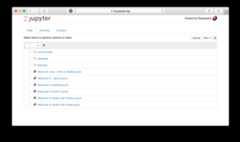
When the notebook opens in your browser, you will see theNotebook Dashboard,which will show a list of the notebooks, files, and subdirectories in thedirectory where the notebook server was started. Most of the time, you willwish to start a notebook server in the highest level directory containingnotebooks. Often this will be your home directory.
Notebook Dashboard
Introducing the Notebook Server’s Command Line Options#
How do I open a specific Notebook?#
The following code should open the given notebook in the currently running notebook server, starting one if necessary.
jupyternotebooknotebook.ipynb
How do I start the Notebook using a custom IP or port?#
By default, the notebook server starts on port 8888. If port 8888 isunavailable or in use, the notebook server searches the next available port.You may also specify a port manually. In this example, we set the server’sport to 9999:
jupyternotebook--port9999How do I start the Notebook server without opening a browser?#
Start notebook server without opening a web browser:
jupyternotebook--no-browser
How do I get help about Notebook server options?#
The notebook server provides help messages for other command line argumentsusing the--help flag:
jupyternotebook--help
See also
- Jupyter Installation, Configuration, and Usage
Detailed information about command line arguments, configuration, and usage.
Using a command-line interface#
Notebooks can be executed from your terminal using theexecute subcommand. It expects notebook paths as input arguments and accepts optional flags to modify the default behavior.
Running a notebook is this easy.
jupyterexecutenotebook.ipynb
You can pass more than one notebook as well.
jupyterexecutenotebook.ipynbnotebook2.ipynb
By default, notebook errors will be raised and printed into the terminal. You can suppress them by passing the--allow-errors flag.
jupyterexecutenotebook.ipynb--allow-errors
For more sophisticated execution options, consider thepapermill library.