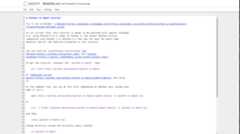
User interface components#
When opening bug reports or sending emails to the Jupyter mailing list, it isuseful to know the names of different UI components so that other developersand users have an easier time helping you diagnose your problems. This sectionwill familiarize you with the names of UI elements within the Notebook and thedifferent Notebook modes.
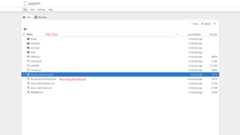
Notebook Dashboard#
When you launchjupyternotebook the first page that you encounter is theNotebook Dashboard.
Notebook Editor#
Once you’ve selected a Notebook to edit, the Notebook will open in the NotebookEditor.

Interactive User Interface Tour of the Notebook#
If you would like to learn more about the specific elements within the NotebookEditor, you can go through the user interface tour by selectingHelp in themenubar then selectingUser Interface Tour.
Edit Mode and Notebook Editor#
When a cell is in edit mode, the Cell Mode Indicator will change to reflectthe cell’s state. This state is indicated by a small pencil icon on thetop right of the interface. When the cell is in command mode, there is noicon in that location.
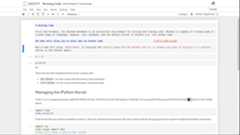
File Editor#
Now let’s say that you’ve chosen to open a Markdown file instead of a Notebookfile whilst in the Notebook Dashboard. If so, the file will be opened in theFile Editor.