
This getting started guide aims to empower individuals without aprogramming background to engage in code-based plotting with tidyplots.We will start by covering essential software tools and discussing datapreparation. Next, we will introduce the tidyplots workflow, whichincludes adding, removing, and adjusting plot components. Finally, wewill showcase the application of themes and multiplot layouts.
Prerequisites
You never generated code-based scientific plots? Great to have youhere! To get you started, we will install a couple of software tools tosetup your new working environment.
Install R and RStudio Desktop
We will be using the programming language R and the software RStudioDesktop, which serves as an editor for your code but also comes with abunch of additional features.
- Download and installR foryour operating system. On Windows, choose thebaseversion.
- Download and installRStudioDesktop
For more information about R programming have a look at the freeonline bookHands-OnProgramming with R by Garrett Grolemund, which has a chapter withdetailedinstallationinstructions. For a quick video tour of the RStudio Desktop userinterface check outRStudio for the TotalBeginner.
Install packages
After opening RStudio, you will find your R console in the lower leftcorner. All code you enter in the console will be directly executed byR. Let’s start by installing some essential packages. Packages deliveradditional functionality that is not built into base R.
install.packages("tidyverse")install.packages("tidyplots")Data preparation
Before starting to plot, the first thing is to ensure that your dataistidy. More formally, in tidy data
- eachvariable must have its own column
- eachobservation must have its own row and
- eachvalue must have its own cell
For more details about tidy data analysis have a look at the freeonline bookR for Data Science byHadley Wickham, which has a chapter dedicated totidy data.
tidyplots comes with a number of tidy demo dataset that are ready touse for plotting. We start by loading the tidyplots package and have alook at thestudy dataset.
library(tidyplots)study#> treatment group dose participant age sex score#> 1 A placebo high p01 23 female 2#> 2 A placebo high p02 45 male 4#> 3 A placebo high p03 32 female 5#> 4 A placebo high p04 37 male 4#> 5 A placebo high p05 24 female 6#> 6 B placebo low p06 23 female 9#> 7 B placebo low p07 45 male 8#> 8 B placebo low p08 32 female 12#> 9 B placebo low p09 37 male 15#> 10 B placebo low p10 24 female 16#> 11 C treatment high p01 23 female 32#> 12 C treatment high p02 45 male 35#> 13 C treatment high p03 32 female 24#> 14 C treatment high p04 37 male 45#> 15 C treatment high p05 24 female 56#> 16 D treatment low p06 23 female 23#> 17 D treatment low p07 45 male 25#> 18 D treatment low p08 32 female 21#> 19 D treatment low p09 37 male 22#> 20 D treatment low p10 24 female 23As you can see, thestudy dataset consists of a tablewith 7 columns, also calledvariables, and 20 rows, also calledobservations. The study participants received 4 different kindsoftreatment (A, B, C, or D) and ascore wasmeasured to assess treatment success.
Plotting
Now it is time for the fun part! Make sure that you loaded thetidyplots package. This needs to be done once for every R session.
Then we start with thestudy dataset and pipe it intothetidyplot() function.
study|>tidyplot(x=treatment, y=score)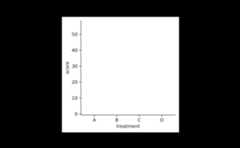
And here it is, your first tidyplot! Admittedly, it still looks alittle bit empty. We will take care of this in a second. But first let’shave a closer look at the code above.
In the first line we start with thestudy dataset. The|> is called apipe and makes sure, that theoutput of the first line is handed over as input to the next line. Inthe second line, we generate the tidyplot and specify which variables wewant to use for the x and y-axis using thex andy arguments of thetidyplot() function.
Tip: The keyboard shortcut for the pipe isCmd +Shift +M on the Mac andCtrl +Shift +M on Windows.
Add
Next, let’s add some more elements to the plot. This is done by usinga family of functions that all start withadd_. Forexample, we can add the data points by adding one more line to the code.Note, that we need a|> at the end of each line, wherethe output should be piped into the next line. When you combine multiplelines like this, you have generated apipeline.
study|>tidyplot(x=treatment, y=score)|>add_data_points()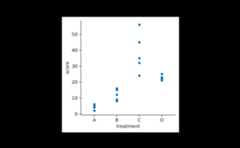
Of course, you do not have to stop here. There are manyadd_*() functions you can choose from. An overview of allfunction in the tidyplots package can be found in thePackageindex.
For now, let’s add some bars to the plot. As soon as you start typing“add” in RStudio you should see a little window next to your courserthat shows all available function that start with “add” and can thus beused to build up your plot. You can also manually trigger theauto-completion window by hitting thetab key.
In tidyplots, function names that start withadd_usually continue with the statistical entity to plot,e.g. mean,median,count, etc. Asa next piece, you decide which graphical representation to use,e.g. bar,dash,line etc. In ourexample we chooseadd_mean_bar() to show the mean value ofeach treatment group represented as a bar.
study|>tidyplot(x=treatment, y=score)|>add_data_points()|>add_mean_bar(alpha=0.4)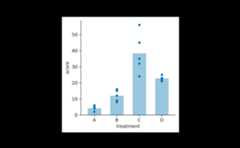
One thing to note here is that I addedalpha = 0.4 as aargument to theadd_mean_bar() function. This adds a littletransparency to the bars and results in a lighter blue color incomparison to the data points.
Some people might do not like bars so much. So let’s exchange thebar for adash. And while we are on it, let’sadd the standard error of the meansem, represented aserror bar.
study|>tidyplot(x=treatment, y=score)|>add_data_points()|>add_mean_dash()|>add_sem_errorbar()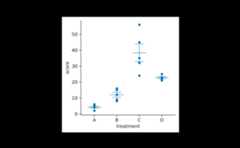
I think by now you got the principle. You can just keep adding layersuntil your plot has all the elements you need.
But there is one more building block that we need to cover and thatis color. Color is a very powerful way to encode information in a plot.As colors can encodevariables in a similar way as axes, theargumentcolor needs to be to provided in the initial callof thetidyplot() function.
study|>tidyplot(x=group, y=score, color=dose)|>add_data_points()|>add_mean_dash()|>add_sem_errorbar()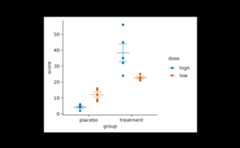
As you can see,color acts as a way to group the data bya thirdvariable, thus complementing thex andy axis.
Although there are many moreadd_*() functionsavailable, I will stop here and leave you with thePackageindex and the article aboutVisualizingdata for further inspiration.
Remove
Besides adding plot elements, you might want to remove certain partsof the plot. This can be achieved with theremove_*()family of functions. For example, you might want to remove the colorlegend title, or in some rare cases even the entire y-axis.
study|>tidyplot(x=group, y=score, color=dose)|>add_data_points()|>add_mean_dash()|>add_sem_errorbar()|>remove_legend_title()|>remove_y_axis()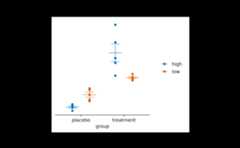
Moreremove_*() functions can be found in thePackageindex.
Adjust
After you have assembled your plot, you often want to tweak somedetails about how the plot or its components are displayed. For thistask, tidyplots provides a number ofadjust_*()functions.
Let’s start with this plot.
study|>tidyplot(x=treatment, y=score, color=treatment)|>add_data_points()|>add_mean_bar(alpha=0.4)|>add_sem_errorbar()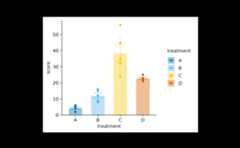
When preparing figures for a paper, you might want ensure, that allplots have a consistent size. The default in tidyplots is a width of 50mm and a height of 50 mm. Please note that these values refer to size oftheplot area, which is the area enclosed by the x and y-axis.Therefore labels, titles, and legends are not counting towards theplot area size.
This is perfect to achieve a consistent look, which is most easilydone by selecting a consistentheight across plots, whilethewidth can vary depending on the number of categories inthe x-axis.
study|>tidyplot(x=treatment, y=score, color=treatment)|>add_data_points_beeswarm(shape=1)|>add_mean_bar(alpha=0.4)|>add_sem_errorbar()|>adjust_size(width=20, height=20)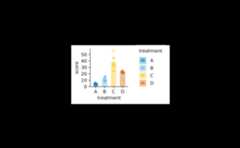
Another common adjustment is to change the titles of the plot, axes,or legend. For this we will use the functionadjust_title()and friends.
study|>tidyplot(x=treatment, y=score, color=treatment)|>add_data_points()|>add_mean_bar(alpha=0.4)|>add_sem_errorbar()|>adjust_title("This is my fantastic plot title")|>adjust_x_axis_title("Treatment group")|>adjust_y_axis_title("Disease score")|>adjust_legend_title("")|>adjust_caption("Here goes the caption")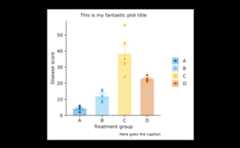
Note that I removed the legend title by setting it to an empty stringadjust_legend_title(""). This is alternative toremove_legend_title(), however the result is not exactlythe same. I am sure you will figure out the difference.
Another common task is to adjust the colors in your plot. You can dothis using theadjust_colors() function.
study|>tidyplot(x=treatment, y=score, color=treatment)|>add_data_points()|>add_mean_bar(alpha=0.4)|>add_sem_errorbar()|>adjust_colors(new_colors=c("#644296","#F08533","#3B78B0","#D1352C"))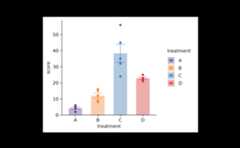
You can also use the color schemes, that are built into tidyplots. Tolearn more about these color schemes have a look at the articleColorschemes.
study|>tidyplot(x=treatment, y=score, color=treatment)|>add_data_points()|>add_mean_bar(alpha=0.4)|>add_sem_errorbar()|>adjust_colors(new_colors=colors_discrete_seaside)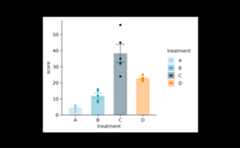
Rename, reorder, sort, and reverse
A special group of adjust functions deals with thedatalabels in your plot. These function are special because they needto modify the underlying data of the plot. Moreover, they do not startwithadjust_ but withrename_,reorder_,sort_, andreverse_.
For example, to rename the data labels for thetreatmentvariable on the x-axis, you can do this.
study|>tidyplot(x=treatment, y=score, color=treatment)|>add_data_points()|>add_mean_bar(alpha=0.4)|>add_sem_errorbar()|>rename_x_axis_labels(new_names=c("A"="This","B"="is","C"="totally","D"="new"))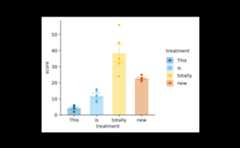
Note that we provide anamed character vector to make itclear which old label should be replace with which new label.
The remaining functions, starting withreorder_,sort_, andreverse_, do not change the name ofthe label but their order in the plot.
For example, you can bring the treatment “D” and “C” to thefront.
study|>tidyplot(x=treatment, y=score, color=treatment)|>add_data_points()|>add_mean_bar(alpha=0.4)|>add_sem_errorbar()|>reorder_x_axis_labels("D","C")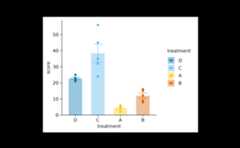
Sort the treatments by their score.
study|>tidyplot(x=treatment, y=score, color=treatment)|>add_data_points()|>add_mean_bar(alpha=0.4)|>add_sem_errorbar()|>sort_x_axis_labels()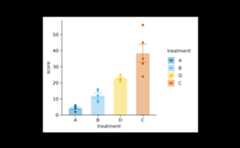
Or simply reverse the order of the labels.
study|>tidyplot(x=treatment, y=score, color=treatment)|>add_data_points()|>add_mean_bar(alpha=0.4)|>add_sem_errorbar()|>reverse_x_axis_labels()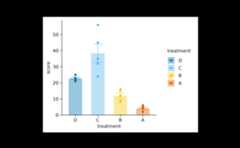
Of course, there are many moreadjust_ functions thatyou can find in thePackageindex.
Themes
Themes are a great way to modify the look an feel of your plotwithout changing the representation of the data. You can stay with thedefault tidyplots theme.
study|>tidyplot(x=treatment, y=score, color=treatment)|>add_data_points()|>add_sem_errorbar()|>add_mean_dash()|>theme_tidyplot()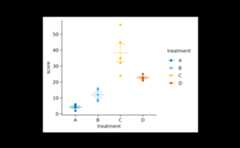
Or try something more like ggplot2.
study|>tidyplot(x=treatment, y=score, color=treatment)|>add_data_points()|>add_sem_errorbar()|>add_mean_dash()|>theme_ggplot2()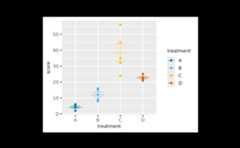
Or something more minimal.
study|>tidyplot(x=treatment, y=score, color=treatment)|>add_data_points()|>add_sem_errorbar()|>add_mean_dash()|>theme_minimal_y()|>remove_x_axis_line()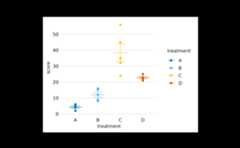
Split
When you have a complex dataset, you might want split the plot intomultiple subplots. In tidyplots, this can be done with the functionsplit_plot().
Starting with thestudy dataset, you could plot thescore against the treatmentgroup and splitthis plot bydose into a high dose and a low dose plot.
study|>tidyplot(x=group, y=score, color=group)|>add_data_points()|>add_sem_errorbar()|>add_mean_dash()|>adjust_size(width=30, height=25)|>split_plot(by=dose)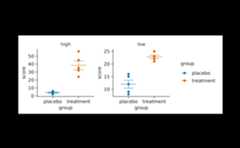
Output
The classical way to output a plot is to write it to a PDF or PNGfile. This can be easily done by piping the plot into the functionsave_plot().
study|>tidyplot(x=group, y=score, color=group)|>add_data_points()|>add_sem_errorbar()|>add_mean_dash()|>save_plot("my_plot.pdf")Conveniently,save_plot() also gives back the plot itreceived, allowing it to be used in the middle of a pipeline. Ifsave_plot() is a the end of pipeline, the plot will berendered on screen, providing a visual confirmation of what was saved tofile.
What’s more?
To dive deeper into code-based plotting, here a couple ofresources.
tidyplots documentation
Packageindex
Overview of all tidyplots functionsGetstarted
Getting started guideVisualizingdata
Article with examples for common data visualizationsAdvancedplotting
Article about advanced plotting techniques and workflowsColorschemes
Article about the use of color schemes
Other resources
Hands-OnProgramming with R
Free online book by Garrett GrolemundR for Data Science
Free online book by Hadley WickhamFundamentals of DataVisualization
Free online book by Claus O. Wilke