Istio 1.29 is now available! Click here to learn more
Plug in CA Certificates
This task shows how administrators can configure the Istio certificate authority (CA) with a root certificate,signing certificate and key.
By default the Istio CA generates a self-signed root certificate and key and uses them to sign the workload certificates.To protect the root CA key, you should use a root CA which runs on a secure machine offline,and use the root CA to issue intermediate certificates to the Istio CAs that run in each cluster.An Istio CA can sign workload certificates using the administrator-specified certificate and key, and distribute anadministrator-specified root certificate to the workloads as the root of trust.
The following graph demonstrates the recommended CA hierarchy in a mesh containing two clusters.
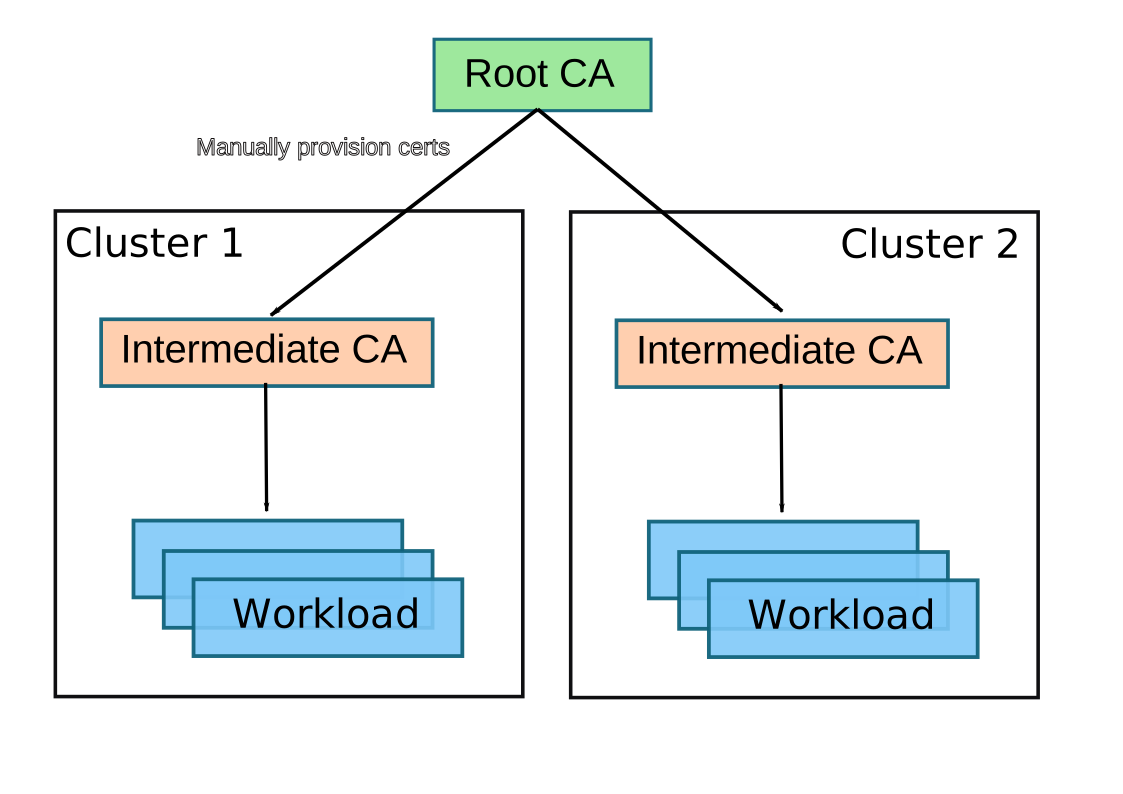
This task demonstrates how to generate and plug in the certificates and key for the Istio CA. These steps can be repeatedto provision certificates and keys for Istio CAs running in each cluster.
Plug in certificates and key into the cluster
The following instructions are for demo purposes only.For a production cluster setup, it is highly recommended to use a production-ready CA, such asHashicorp Vault.It is a good practice to manage the root CA on an offline machine with strongsecurity protection.
Support for SHA-1 signatures isdisabled by default in Go 1.18. If you are generating the certificate on macOS make sure you are using OpenSSL as described inGitHub issue 38049.
In the top-level directory of the Istio installation package, create a directory to hold certificates and keys:
$ mkdir -p certs$ pushd certsGenerate the root certificate and key:
$ make -f ../tools/certs/Makefile.selfsigned.mk root-caThis will generate the following files:
root-cert.pem: the generated root certificateroot-key.pem: the generated root keyroot-ca.conf: the configuration foropensslto generate the root certificateroot-cert.csr: the generated CSR for the root certificate
For each cluster, generate an intermediate certificate and key for the Istio CA.The following is an example for
cluster1:$ make -f ../tools/certs/Makefile.selfsigned.mk cluster1-cacertsThis will generate the following files in a directory named
cluster1:ca-cert.pem: the generated intermediate certificatesca-key.pem: the generated intermediate keycert-chain.pem: the generated certificate chain which is used by istiodroot-cert.pem: the root certificate
You can replace
cluster1with a string of your choosing. For example, with the argumentcluster2-cacerts,you can create certificates and key in a directory calledcluster2.If you are doing this on an offline machine, copy the generated directory to a machine with access to theclusters.
In each cluster, create a secret
cacertsincluding all the input filesca-cert.pem,ca-key.pem,root-cert.pemandcert-chain.pem. For example, forcluster1:$ kubectl create namespace istio-system$ kubectl create secret generic cacerts -n istio-system \ --from-file=cluster1/ca-cert.pem \ --from-file=cluster1/ca-key.pem \ --from-file=cluster1/root-cert.pem \ --from-file=cluster1/cert-chain.pemReturn to the top-level directory of the Istio installation:
$ popd
Deploy Istio
Deploy Istio using the
demoprofile.Istio’s CA will read certificates and key from the secret-mount files.
$ istioctl install --set profile=demo
Deploying example services
Deploy the
httpbinandcurlsample services.$ kubectl create ns foo$ kubectl apply -f <(istioctl kube-inject -f samples/httpbin/httpbin.yaml) -n foo$ kubectl apply -f <(istioctl kube-inject -f samples/curl/curl.yaml) -n fooDeploy a policy for workloads in the
foonamespace to only accept mutual TLS traffic.$ kubectl apply -n foo -f - <<EOFapiVersion: security.istio.io/v1kind: PeerAuthenticationmetadata: name: "default"spec: mtls: mode: STRICTEOF
Verifying the certificates
In this section, we verify that workload certificates are signed by the certificates that we plugged into the CA.This requires you haveopenssl installed on your machine.
Sleep 20 seconds for the mTLS policy to take effect before retrieving the certificate chainof
httpbin. As the CA certificate used in this example is self-signed,theverify error:num=19:self signed certificate in certificate chainerror returned by theopenssl command is expected.$ sleep 20; kubectl exec "$(kubectl get pod -l app=curl -n foo -o jsonpath={.items..metadata.name})" -c istio-proxy -n foo -- openssl s_client -showcerts -connect httpbin.foo:8000 > httpbin-proxy-cert.txtParse the certificates on the certificate chain.
$ sed -n '/-----BEGIN CERTIFICATE-----/{:start /-----END CERTIFICATE-----/!{N;b start};/.*/p}' httpbin-proxy-cert.txt > certs.pem$ awk 'BEGIN {counter=0;} /BEGIN CERT/{counter++} { print > "proxy-cert-" counter ".pem"}' < certs.pemVerify the root certificate is the same as the one specified by the administrator:
$ openssl x509 -in certs/cluster1/root-cert.pem -text -noout > /tmp/root-cert.crt.txt$ openssl x509 -in ./proxy-cert-3.pem -text -noout > /tmp/pod-root-cert.crt.txt$ diff -s /tmp/root-cert.crt.txt /tmp/pod-root-cert.crt.txtFiles /tmp/root-cert.crt.txt and /tmp/pod-root-cert.crt.txt are identicalVerify the CA certificate is the same as the one specified by the administrator:
$ openssl x509 -in certs/cluster1/ca-cert.pem -text -noout > /tmp/ca-cert.crt.txt$ openssl x509 -in ./proxy-cert-2.pem -text -noout > /tmp/pod-cert-chain-ca.crt.txt$ diff -s /tmp/ca-cert.crt.txt /tmp/pod-cert-chain-ca.crt.txtFiles /tmp/ca-cert.crt.txt and /tmp/pod-cert-chain-ca.crt.txt are identicalVerify the certificate chain from the root certificate to the workload certificate:
$ openssl verify -CAfile <(cat certs/cluster1/ca-cert.pem certs/cluster1/root-cert.pem) ./proxy-cert-1.pem./proxy-cert-1.pem: OK
Cleanup
Remove the certificates, keys, and intermediate files from your local disk:
$ rm -rf certsRemove the secret
cacerts:$ kubectl delete secret cacerts -n istio-systemRemove the authentication policy from the
foonamespace:$ kubectl delete peerauthentication -n foo defaultRemove the sample applications
curlandhttpbin:$ kubectl delete -f samples/curl/curl.yaml -n foo$ kubectl delete -f samples/httpbin/httpbin.yaml -n fooUninstall Istio from the cluster:
$ istioctl uninstall --purge -yRemove the namespace
fooandistio-systemfrom the cluster:$ kubectl delete ns foo istio-system
Was this information useful?
Do you have any suggestions for improvement?
Thanks for your feedback!