

Your First Ionic App: Vue
The great thing about Ionic is that with one codebase, you can build for any platform using just HTML, CSS, and JavaScript. Follow along as we learn the fundamentals of Ionic app development by creating a realistic app step by step.
Here’s the finished app running on all 3 platforms:
What We'll Build
We'll create a Photo Gallery app that offers the ability to take photos with your device's camera, display them in a grid, and store them permanently on the device.
Highlights include:
- One Vue-based codebase that runs on the web, iOS, and Android using Ionic FrameworkUI components.
- Deployed as a native iOS and Android mobile app usingCapacitor, Ionic's official native app runtime.
- Photo Gallery functionality powered by the CapacitorCamera,Filesystem, andPreferences APIs.
Find thecomplete app code referenced in this guide on GitHub.
Download Required Tools
Download and install these right away to ensure an optimal Ionic development experience:
- Node.js for interacting with the Ionic ecosystem.Download the LTS version here.
- A code editor for... writing code! We are fans ofVisual Studio Code.
- Command-line interface/terminal (CLI):
- Windows users: for the best Ionic experience, we recommend the built-in command line (cmd) or the Powershell CLI, running in Administrator mode.
- Mac/Linux users: virtually any terminal will work.
Install Ionic Tooling
Run the following in the command line terminal to install the Ionic CLI (ionic),native-run, used to run native binaries on devices and simulators/emulators, andcordova-res, used to generate native app icons and splash screens:
To open a terminal in Visual Studio Code, go to Terminal -> New Terminal.
npm install -g @ionic/cli native-run cordova-res
The-g option meansinstall globally. When packages are installed globally,EACCES permission errors can occur.
Consider setting up npm to operate globally without elevated permissions. SeeResolving Permission Errors for more information.
Create an App
Next, create an Ionic Vue app that uses the "Tabs" starter template and adds Capacitor for native functionality:
ionic start photo-gallery tabs --type vue
This starter project comes complete with three pre-built pages and best practices for Ionic development. With common building blocks already in place, we can add more features easily!
Next, change into the app folder:
cd photo-gallery
Next we'll need to install the necessary Capacitor plugins to make the app's native functionality work:
npm install @capacitor/camera @capacitor/preferences @capacitor/filesystem
PWA Elements
Some Capacitor plugins, including theCamera API, provide the web-based functionality and UI via the IonicPWA Elements library.
It's a separate dependency, so install it next:
npm install @ionic/pwa-elements
Next, import@ionic/pwa-elements by editingsrc/main.ts.
import{ createApp}from'vue';
import Appfrom'./App.vue';
import routerfrom'./router';

import{ IonicVue}from'@ionic/vue';
// CHANGE: Add the following import
import{ defineCustomElements}from'@ionic/pwa-elements/loader';

/* ...existing Ionic styles... */

/* Theme variables */
import'./theme/variables.css';

// CHANGE: Call the element loader before the createApp() call
defineCustomElements(window);

const app=createApp(App).use(IonicVue).use(router);

router.isReady().then(()=>{
  app.mount('#app');
});
That’s it! Now for the fun part - let’s see the app in action.
Run the App
Run this command next:
ionic serve
And voilà! Your Ionic app is now running in a web browser. Most of your app can be built and tested right in the browser, greatly increasing development and testing speed.
Photo Gallery
There are three tabs. Click on the "Tab2" tab. It’s a blank canvas, aka the perfect spot to transform into a Photo Gallery. The Ionic CLI features Live Reload, so when you make changes and save them, the app is updated immediately!
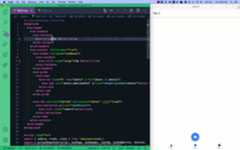
Open/src/views/Tab2Page.vue. We see:
<template>
<ion-page>
<ion-header>
<ion-toolbar>
<ion-title>Tab 2</ion-title>
</ion-toolbar>
</ion-header>
<ion-content:fullscreen="true">
<ion-headercollapse="condense">
<ion-toolbar>
<ion-titlesize="large">Tab 2</ion-title>
</ion-toolbar>
</ion-header>

<ExploreContainername="Tab 2 page"/>
</ion-content>
</ion-page>
</template>

<scriptsetuplang="ts">
import{IonPage,IonHeader,IonToolbar,IonTitle,IonContent}from'@ionic/vue';
importExploreContainerfrom'@/components/ExploreContainer.vue';
</script>
ion-header represents the top navigation and toolbar, with "Tab 2" as the title (there are two of them due to iOSCollapsible Large Title support). Rename bothion-title elements to:
<template>
<ion-page>
<ion-header>
<ion-toolbar>
<!-- CHANGE: Update title -->
<ion-title>Photo Gallery</ion-title>
</ion-toolbar>
</ion-header>
<ion-content:fullscreen="true">
<ion-headercollapse="condense">
<ion-toolbar>
<!-- CHANGE: Update title -->
<ion-titlesize="large">Photo Gallery</ion-title>
</ion-toolbar>
</ion-header>

<!-- ...existing code... -->
</ion-content>
</ion-page>
</template>
We put the visual aspects of our app into<ion-content>. In this case, it’s where we’ll add a button that opens the device’s camera as well as displays the image captured by the camera. Start by adding afloating action button (FAB) to the bottom of the page and set the camera image as the icon.
<template>
<ion-page>
<ion-header>
<ion-toolbar>
<ion-title>Photo Gallery</ion-title>
</ion-toolbar>
</ion-header>
<ion-content:fullscreen="true">
<ion-headercollapse="condense">
<ion-toolbar>
<ion-titlesize="large">Photo Gallery</ion-title>
</ion-toolbar>
</ion-header>

<!-- CHANGE: Add the floating action button -->
<ion-fabvertical="bottom"horizontal="center"slot="fixed">
<ion-fab-button>
<ion-icon:icon="camera"></ion-icon>
</ion-fab-button>
</ion-fab>

<!-- CHANGE: Remove or comment out <ExploreContainer /> -->
<!-- <ExploreContainer name="Tab 2 page" /> -->
</ion-content>
</ion-page>
</template>

<scriptsetuplang="ts">
// CHANGE: Add import from `ionicons/icons`
import{ camera}from'ionicons/icons';
// CHANGE: Update import from `@ionic/vue` to include necessary Ionic components
import{IonPage,IonHeader,IonFab,IonFabButton,IonIcon,IonToolbar,IonTitle,IonContent}from'@ionic/vue';
// CHANGE: Remove or comment out the ExploreContainer import
// import ExploreContainer from '@/components/ExploreContainer.vue';
</script>
Next, opensrc/views/TabsPage.vue. Change the label to "Photos" and theellipse icon toimages for the middle tab button.
<template>
<ion-page>
<ion-tabs>
<ion-router-outlet></ion-router-outlet>
<ion-tab-barslot="bottom">
<ion-tab-buttontab="tab1"href="/tabs/tab1">
<ion-iconaria-hidden="true":icon="triangle"/>
<ion-label>Tab 1</ion-label>
</ion-tab-button>

<ion-tab-buttontab="tab2"href="/tabs/tab2">
<!-- CHANGE: Update icon -->
<ion-iconaria-hidden="true":icon="images"/>
<!-- CHANGE: Update label -->
<ion-label>Photos</ion-label>
</ion-tab-button>

<ion-tab-buttontab="tab3"href="/tabs/tab3">
<ion-iconaria-hidden="true":icon="square"/>
<ion-label>Tab 3</ion-label>
</ion-tab-button>
</ion-tab-bar>
</ion-tabs>
</ion-page>
</template>

<scriptsetuplang="ts">
import{IonTabBar,IonTabButton,IonTabs,IonLabel,IonIcon,IonPage,IonRouterOutlet}from'@ionic/vue';
// CHANGE: Update import by removing `ellipse` and adding `images`
import{ images, square, triangle}from'ionicons/icons';
</script>
That’s just the start of all the cool things we can do with Ionic. Up next, implement camera taking functionality on the web, then build it for iOS and Android.