

Ionic JavaScript Quickstart
Welcome! This guide will walk you through the basics of Ionic JavaScript development using Vite. You'll learn how to set up your development environment, create a simple project, explore the project structure, and understand how Ionic components work. This is perfect for getting familiar with Ionic JavaScript before building your first real app.
If you're looking for a high-level overview of what Ionic JavaScript is and how it fits into the web development ecosystem, see theIonic JavaScript Overview.
Prerequisites
Before you begin, make sure you have Node.js and npm installed on your machine.You can check by running:
node -v
npm -v
If you don't have Node.js and npm,download Node.js here (which includes npm).
Create a Project with Vite
First, create a new Vite project with vanilla #"0">npm create vite@latest my-app -- --template vanilla
cd my-app
Install the project dependencies and Ionic Core:
npm install
npm install @ionic/core
After installation, start the development server:
npm run dev
Open your browser and visit the URL shown in the console.
Explore the Project Structure
Your new app's directory will look like this:
├── index.html
└── src/
    ├── counter.js
    ├── main.js
    └── style.css
Thecounter.js andstyle.css files can be deleted. We will not be using them.
All file paths in the examples below are relative to the project root directory.
Let's configure the project, initialize Ionic, and add components to create our app.
Configure Vite
Install thevite-plugin-static-copy package:
npm install vite-plugin-static-copy --save-dev
Add avite.config.js file at the project root with the following:
import{ defineConfig}from'vite';
import{ viteStaticCopy}from'vite-plugin-static-copy';

exportdefaultdefineConfig({
optimizeDeps:{
exclude:['@ionic/core'],
},
build:{
rollupOptions:{
output:{
manualChunks:undefined,
},
external:['/ionic.esm.js'],
},
},
plugins:[
viteStaticCopy({
targets:[
{
src:'node_modules/@ionic/core/dist/ionic/*',
dest:'',
},
],
}),
],
});
This copies the necessary Ionic files that Capacitor will need to work with lazy loaded Ionic components.
Initialize Ionic
Replace the contents ofmain.js with the following:
// Load Ionic
(async()=>{
// Set the path to a variable to
// prevent Vite from analyzing in dev
const ionicPath='/ionic.esm.js';
awaitimport(/* @vite-ignore */ ionicPath);
})();

// Core CSS required for Ionic components to work properly
import'@ionic/core/css/core.css';

// Basic CSS for apps built with Ionic
import'@ionic/core/css/normalize.css';
import'@ionic/core/css/structure.css';
import'@ionic/core/css/typography.css';

// Optional CSS utils that can be commented out
import'@ionic/core/css/padding.css';
import'@ionic/core/css/float-elements.css';
import'@ionic/core/css/text-alignment.css';
import'@ionic/core/css/text-transformation.css';
import'@ionic/core/css/flex-utils.css';
import'@ionic/core/css/display.css';
This initializes Ionic based on the environment and then imports all of the available CSS files.
Add the App Component
Update yourindex.html to configure the metadata and use Ionic components:
<!DOCTYPEhtml>
<htmllang="en"dir="ltr">
<head>
<metacharset="UTF-8"/>
<linkrel="icon"type="image/svg+xml"href="/vite.svg"/>
<meta
name="viewport"
content="viewport-fit=cover, width=device-width, initial-scale=1.0, minimum-scale=1.0, maximum-scale=1.0, user-scalable=no"
/>
<title>my-app</title>
</head>
<body>
<ion-app>
<ion-router>
<ion-routeurl="/"component="home-page"></ion-route>
<ion-routeurl="/new"component="new-page"></ion-route>
</ion-router>
<ion-router-outlet></ion-router-outlet>
</ion-app>

<scripttype="module"src="/src/main.js"></script>
</body>
</html>
This sets up the root of your application, using Ionic'sion-app,ion-router, andion-router-outlet components. The key change is replacing the default<div id="app"> with Ionic's routing and layout components. The router outlet is where your pages will be displayed.
View Routes
Routes are defined in theindex.html usingion-route components inside theion-router:
<ion-router>
<ion-routeurl="/"component="home-page"></ion-route>
<ion-routeurl="/new"component="new-page"></ion-route>
</ion-router>
When you visit the root URL (/), thehome-page component will be loaded. When you visit the/new URL, thenew-page component will be loaded. We will define these components next.
Add the Home Page
Create a new directory calledpages inside thesrc folder, then add a file calledHomePage.js in that directory with the following content:
classHomePageextendsHTMLElement{
connectedCallback(){
this.innerHTML=`
<ion-header>
<ion-toolbar>
<ion-title>Blank</ion-title>
</ion-toolbar>
</ion-header>
<ion-contentclass="ion-padding">
<divid="container">
<strong>Ready to create an app?</strong>
<p>
            Start with Ionic
<atarget="_blank"rel="noopener noreferrer"href="https://ionicframework.com/docs/components">UI Components</a>
</p>
</div>
</ion-content>
`;
}
}

customElements.define('home-page',HomePage);
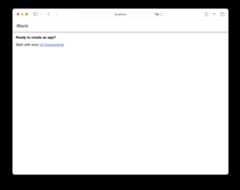
This creates a custom element calledhome-page that contains the layout for your Home page. The page uses Ionic's layout components to create a header with a toolbar and scrollable content area.
Next, add a<script> tag before themain.js import inindex.html to import the Home page:
<scripttype="module">
import'./src/pages/HomePage.js';
</script>

<scripttype="module"src="/src/main.js"></script>
At this point your browser should be displaying the Home page.
Add an Ionic Component
You can enhance your Home page with more Ionic UI components. For example, add aButton to navigate to another page. Update theHomePage component inHomePage.js:
classHomePageextendsHTMLElement{
connectedCallback(){
this.innerHTML=`
<ion-header>
<ion-toolbar>
<ion-title>Blank</ion-title>
</ion-toolbar>
</ion-header>
<ion-contentclass="ion-padding">
<divid="container">
<strong>Ready to create an app?</strong>
<p>
            Start with Ionic
<atarget="_blank"rel="noopener noreferrer"href="https://ionicframework.com/docs/components">UI Components</a>
</p>
</div>

<ion-button>Navigate</ion-button>
</ion-content>
`;
}
}

customElements.define('home-page',HomePage);
Add a New Page
Add a new file namedNewPage.js tosrc/pages with the following content:
classNewPageextendsHTMLElement{
connectedCallback(){
this.innerHTML=`
<ion-header>
<ion-toolbar>
<ion-buttonsslot="start">
<ion-back-buttondefault-href="/"></ion-back-button>
</ion-buttons>
<ion-title>New</ion-title>
</ion-toolbar>
</ion-header>
<ion-contentclass="ion-padding">
<h2>Welcome to the new page!</h2>
</ion-content>
`;
}
}

customElements.define('new-page',NewPage);
This creates a page with aBack Button in theToolbar. The back button will automatically handle navigation back to the previous page, or to/ if there is no history.
Next, update the<script> tag which imports the Home page in theindex.html file to also import the New page:
<scripttype="module">
import'./src/pages/HomePage.js';
import'./src/pages/NewPage.js';
</script>
Navigate to the New Page
To navigate to the new page, update the button inHomePage.js to be inside of anion-router-link:
<ion-router-linkhref="/new">
<ion-button>Navigate</ion-button>
</ion-router-link>
When the button is clicked, Ionic's router will automatically navigate to the/new route and display thenew-page component.
Navigating can also be performed programmatically usingdocument.querySelector('ion-router').push('/new'). See theIonic Router documentation for more information.
Add Icons to the New Page
Ionic JavaScript comes withIonicons support. To use icons, you need to import them, register them withaddIcons, and then use them with theion-icon component.
Add the necessary imports and register the icons inmain.js:
// ...Ionic initialization

// Icon imports
import{ addIcons}from'ionicons';
import{ heart, logoIonic}from'ionicons/icons';

addIcons({ heart, logoIonic});

// ...CSS imports
Next, updateNewPage.js to include the icons:
classNewPageextendsHTMLElement{
connectedCallback(){
this.innerHTML=`
<ion-header>
<ion-toolbar>
<ion-buttonsslot="start">
<ion-back-buttondefault-href="/"></ion-back-button>
</ion-buttons>
<ion-title>New</ion-title>
</ion-toolbar>
</ion-header>
<ion-contentclass="ion-padding">
<h2>Welcome to the new page!</h2>

<ion-iconname="heart"></ion-icon>
<ion-iconname="logo-ionic"></ion-icon>
</ion-content>
`;
}
}

customElements.define('new-page',NewPage);
For more information, see theIcon documentation and theIonicons documentation.
Call Component Methods
Let's add a button that can scroll the content area to the bottom. UpdateNewPage.js to include scrollable content and a scroll button:
classNewPageextendsHTMLElement{
connectedCallback(){
this.innerHTML=`
<ion-header>
<ion-toolbar>
<ion-buttonsslot="start">
<ion-back-buttondefault-href="/"></ion-back-button>
</ion-buttons>
<ion-title>New</ion-title>
</ion-toolbar>
</ion-header>
<ion-contentclass="ion-padding">
<h2>Welcome to the new page!</h2>

<ion-iconname="heart"></ion-icon>
<ion-iconname="logo-ionic"></ion-icon>

<ion-buttonid="scroll-btn">Scroll to Bottom</ion-button>

<!-- Add lots of content to make scrolling possible -->
<divid="item-list"></div>
</ion-content>
`;

// Generate items and add scroll functionality after the element is connected
this.setupScrolling();
}

setupScrolling(){
// Wait for ion-content to be ready
    customElements.whenDefined('ion-content').then(()=>{
// Generate items
const itemList=this.querySelector('#item-list');
for(let i=1; i<=50; i++){
const item=document.createElement('ion-item');
const label=document.createElement('ion-label');
        label.textContent=`Item${i}`;
        item.appendChild(label);
        itemList.appendChild(item);
}

// Add scroll functionality
const scrollBtn=this.querySelector('#scroll-btn');
const content=this.querySelector('ion-content');

if(scrollBtn&& content){
        scrollBtn.addEventListener('click',()=>{
          content.scrollToBottom(300);
});
}
});
}
}

customElements.define('new-page',NewPage);
To call methods on Ionic components:
- Get a reference to the component element using
querySelector - Call the method directly on the element
You can find available methods for each component in theMethods section of their API documentation.
Run on a Device
Ionic's components work everywhere: on iOS, Android, and PWAs. To deploy to mobile, useCapacitor:
npm install @capacitor/core @capacitor/cli @capacitor/ios @capacitor/android
npx cap init

npm run build

npx cap add ios
npx cap add android
Open the native projects in their IDEs:
npx cap open ios
npx cap open android
SeeCapacitor's Getting Started guide for more.
Framework Integrations
Ionic Core also works with other frameworks and libraries that support custom elements, such asAlpine.js,Lit, andSvelte. However, when using Ionic Core with these libraries, you won't have the built-in form and routing capabilities that are tightly coupled with Ionic's official Angular, React, and Vue framework integrations, and will need to use their respective routing and form solutions instead.
Explore More
This guide covered the basics of creating an Ionic JavaScript app with Vite, adding navigation, and introducing Capacitor for native builds. To dive deeper, check out:

Learn advanced Vite configuration and optimization techniques for Ionic JavaScript apps.

Learn more about JavaScript's core concepts, tools, and best practices from MDN Web Docs.

Discover how to handle routing and navigation in Ionic JavaScript apps using the Ionic Router.

Explore Ionic's rich library of UI components for building beautiful apps.

Learn how to customize the look and feel of your app with Ionic's powerful theming system.

Explore how to access native device features and deploy your app to iOS, Android, and the web with Capacitor.
Contents
- Prerequisites
- Create a Project with Vite
- Explore the Project Structure
- Configure Vite
- Initialize Ionic
- Add the App Component
- View Routes
- Add the Home Page
- Add an Ionic Component
- Add a New Page
- Navigate to the New Page
- Add Icons to the New Page
- Call Component Methods
- Run on a Device
- Framework Integrations
- Explore More