
Tableau REST API Help
Fundamentals of the Tableau Server REST API
Tableau Server provides an application programming interface (API) that lets you programmatically manage users, workbooks, data connections, and other resources on the server. By using the API, you can create users or import them from Active Directory, publish workbooks, create, view, and delete data sources, and perform other actions on the server.
Using the API, you can perform many of the tasks that you can do usingtabcmd. However, the REST API methods provide more granular control over your interaction with the server. You can think of them as a set of programmatic blocks that you can use to put together complex operations that chain the output of one operation to the input of the next one, and that might involve conditions and other scenarios that are best addressed in programming logic.
About the REST API
The Tableau Server REST API is based on the principles of REST (representational state transfer) protocol for client-server communication. In Tableau Server, the client-server communication occurs over HTTP, using standard web requests.
In REST, resources are identified in a consistent way using a URI (uniform resource identifier). Actions are expressed using standard verbs like GET and POST. The client passes all necessary information to the server for each action—that is, the server does not have to maintain any state about the client. For more information about REST principles and architecture, seeA Brief Introduction to REST(Link opens in a new window).
Note: As a security measure, you should make API calls to Tableau Server using the HTTPS protocol (SSL/TLS). SeeUsing HTTPS (SSL/TLS) for API Calls.
Using HTTP Verbs to Request Server Actions
When you work with the Tableau Server REST API, you use the following HTTP verbs to request actions from the server:
- GET to read information, such as getting a list of users or downloading a workbook.
- POST to create or publish new resources, such as sites, users, workbooks, and data sources.
- PUT to update existing resources, such as updating a user’s password, updating permissions, or changing a workbook owner.
- DELETE to remove a resource, such as deleting a user, or workbook. This verb can also dissociate a resource from a collection—for example, you can use the DELETE verb to remove a user from a site, which dissociates the user from collection of users on the site, but doesn't remove the user from the server.
Using URIs to Specify Resources
The HTTP verb indicates the type of operation you want to perform on a resource. You indicate what resource to work with by making requests using a URI. The URI specifies the site, project, workbook, user, or other resource that you are creating, viewing, or deleting. For example, to get a list of the users in a specific group, you send a GET request that has the following format:
https://your-server/api/3.27/sites/site-id/groups/group-id/usersIn this URI,your-server is the name or IP address for your Tableau Server installation. Thesite-id value is an identifier for the site, andgroup-id is an ID for the group.
If you want to use the REST API with Tableau Cloud, seeSpecifying Resources on Tableau Cloud.
Note: IDs for the site, groups, and other resources consist of locally unique IDs (LUIDs) that contain 16 hexadecimal values in the following format:9a8b7c6d5-e4f3-a2b1-c0d9-e8f7a6b5c4d. For more information, seeIdentifying Resources Using Locally Unique Identifiers (LUIDs).
In the previous example, you used a GET request because you were reading resources from the server. To delete a workbook, you would send a DELETE request that has this form:
https://your-server/api/3.27/sites/site-id/workbooks/workbook-idAs in the previous example, you substitute your own values foryour-server andsite-id. In this case, forworkbook-id, you would include the unique identifier for the workbook you want to delete.
The URI specifies a hierarchy for the resource. To get users in a group, you use a URI that includessites and the site ID, and thengroups and the group within that site, and finallyusers to indicate that you want users from the specified group. In the URI for deleting a workbook, you specifysites plus the site ID, thenworkbooks plus the ID of the workbook to delete.
You reference other resources in a similar way. The following URI specifies an individual project on the site:
https://your-server/api/3.27/sites/site-id/projects/project-idThis example URI specifies an individual data source on the site:
http://your-server/api/3.27/sites/site-id/datasources/datasource-idAnd this URI references the preview image for an individual view within a specific workbook on the site:
https://your-server/api/3.27/sites/site-id/workbooks/workbook-id/views/view-id/previewImageNotice in these examples that the URI itself does not contain information about the operation to perform—for example, when you want to delete a workbook, there’s nothing in the URI that includes a term like “delete” or “remove.” The action is specified only by the HTTP verb that you use when you make the request (DELETE); the URI indicates only the resource on which the action should take place.
Specifying Resources on Tableau Cloud
For scalability and reliability, the Tableau Cloud infrastructure extends over multiple server instances. In this environment, each site is assigned to a distinct instance (or pod). When you sign in using online.tableau.com, the site redirects you to the instance where your site resides. You will see the redirect reflected in the URL shown in the browser’s address bar. For example, instead of online.tableau.com, it might show the following address:
https://10ay.online.tableau.com
When you make REST API calls to Tableau Cloud, rather than using online.tableau.com, you need to use the URL for the instance on which your site exists.
The following URI specifies an individual project on a site on the 10ay instance:
https://10ay.online.tableau.com/api/3.27/sites/site-id/projects/project-id
Request Limits on Tableau Cloud
Requests for extract refreshes and scheduled tasks have limits to how frequently they can be used, with quotas that are refreshedperiodically (one or more times per day). If you encounter the errors shown below, your request has hit these limits, and you will need to try again later:
Unknown 429
And
ApiCallError: 429000: Too Many Requests
Using JSON with the REST API
The REST API documentation provides most syntax examples in XML. To use the REST API with JSON, you can convert the syntax examples included in the REST API documentation to JSON using the same JSON parser used by the REST API: the open-source Jackson Project JSON Parser (previously known as “JSON for Java”). You can install the Jackson Project JSON Parser on a laptop or other computer and use that to convert the XML syntax provided in the REST API documentation to JSON, so there is no need to install this parser on the same server where Tableau Server is installed. To install and use the Jackson Project JSON Parser, see theJackson Project on GitHub(Link opens in a new window).
Disclaimer: Clicking this link will take you away from the Tableau website. Although we make every effort to ensure that links to external websites are accurate, up to date, and relevant; Tableau cannot take responsibility for the accuracy or freshness of pages maintained by external providers. Contact the external site for answers to questions regarding its content.
Sending Information for New and Updated Resources (POST and PUT)
You create new resources by sending a POST request, and you update existing ones by sending a PUT request. You include the information for the operation in the body of the request, sometimes referred to as thepayload or simply thedata.
Note: For POST and PUT requests, the request should include theContent-Length andContent-Type headers. The request can be in XML or JSON. For more information, seePassing MIME Type and Authentication Information in the Header.
For example, to create a user on a site, you send a POST request using a URI in the following format:
https://your-server/api/3.27/sites/site-id/users/
The information for the new user can be placed in the body of the request block. The request block can be in either XML or JSON. By default, theContent-Type is (text/xml). If you use XML, the block must have root element called<tsRequest>. The body of the XML request might look like the following:
<tsRequest> <user name="Bob" siteRole="Viewer" /></tsRequest>
If you set theContent-Type to JSON (application/json), the request block might look like the following:
{ "user": { "name": "Bob", "siteRole": "Viewer" }}
ThesiteRole value is the role you want the new user to have, such asViewer,Publisher, orInteractor. In response to the POST request to create a user, Tableau Server returns the response that includes theuser-id assigned to the new user.
To update a user, you make a PUT request and use a URI like the following to update the user with the specificuser-id:
http://your-server/api/3.27/sites/site-id/users/user-idIn XML, the body of the request might look like this:
<tsRequest> <user fullName="Adam Davis" email="adamd@example.com" password="passw0rd" /></tsRequest>Or like the following in JSON:
{ "user": { "fullName": "Adam Davis", "email": "adamd@example.com", "password": "passw0rd" }}Note: Some query path parameters, such asuser-id in the preceeding example, are legal in both the query and request body parameters of a REST API method. Where this is true, the parameter should be declared in the query path, not the request body. If it is declared in both places, the request body parameter value will be ignored.
The XML and JSON requests and responses follow a schema. You can use the XML schema to generate classes that you can use when programming. For more information, seeREST API XML Schema.
Passing MIME Type and Authentication Information in the Header
Some information for a request is passed using the request header. This includes the content length, MIME-type information, and authentication information.
All POST and PUT requests should include the
Content-Lengthheader, which indicates the length of the request body.All POST and PUT requests should include a
Content-Typeheader that indicates the MIME type of the data in the request body. For most POST and PUT requests, this should betext/xmlorapplication/xmlfor XML andapplication/jsonfor JSON. If not specified, the default istext/xml. If theAcceptheader is specified, it must match theContent-Type; useapplication/jsonorapplication/xml. (Setting theContent-Typeheading to an incorrect type, such asapplication/x-www-form-urlencoded, can result in unexpected corruption of your posted data.)For publish requests likePublish Datasource andPublish Workbook, the
Content-Typeheader is set tomultipart/mixed; boundary=boundary-string, whereboundary-string is a string that is used to separate parts of the request body. For more information, seePublishing Resources.To specify whether you want the response in XML or JSON, set the
Acceptheader. By default, the response matches theContent-Type. If theAcceptheader andContent-Typeare not specified, the default istext/xmlandapplication/xml.All requests except the initialSign In request must include an authentication token in the
X-Tableau-Authheader. For more information about signing in and authentication, seeSigning In and Signing Out (Authentication).
The documentation for individual methods discusses any additional headers you need to set for that call.
For examples of requests, including headers and request body information, seeREST API Example Requests.
Enabling CORS on Tableau Server for the REST API
For security, most web browsers restrict HTTP requests to the same origin. That is, to access a resource on a server through an API, the request must come from the same origin (server), or a proxy must be set up to handle the request.
Tableau Server now supportsCross-Origin Resource Sharing(CORS), so you can do away with your proxy and call the REST API from the browser. The CORS mechanism is currently only enabled for Tableau Server, and can be turned on by server administrators in a couple of steps using the TSM command-line tool. To learn more, see the description of thevizportal.rest_api.cors.allow_origin option intsm configuration set Options. As a security measure, you should make API calls to Tableau Server using the HTTPS protocol (SSL or TLS). SeeUsing HTTPS (SSL/TLS) for API Calls.
Add the origins that need access to the Tableau Server.
Determine the origins (servers) you want to allow access to the REST API, and use the
tsm configuration setcommand with thevizportal.rest_api.cors.allow_originoption. For example, to grant access to one two origins, https://mysite and https://yoursite, you would stop the server (tsm stop) and then use the following command:tsm configuration set -k vizportal.rest_api.cors.allow_origin -v https://mysite,https://yoursite
You can enter multiple origins. Use a comma to separate the entries.
Note: You could also use an asterisk (*) as a wild card to match all sites. This is not recommended as it allows access from any origin that has access to the server and could present a security risk. Do not use an asterisk (*) unless you fully understand the implications and risks for your site.
Enable CORS on Tableau Server.
Use the
tsm configuration setcommand with thevizportal.rest_api.cors.enabledoption. The default setting isfalse, so set this totrueas follows:tsm configuration set -k vizportal.rest_api.cors.enabled -v true
Update your Tableau Server configuration (
tsm pending-changes apply) to restart Tableau Server and make the changes take effect. Only the origins you specify will have access.For information about CORS, seehttps://www.w3.org/TR/cors/(Link opens in a new window).
Passing Additional Information in the Query String
For some calls, you pass parameters using the query string. These parameters indicate processing instructions for the request, as distinct from data. One example is theoverwrite query string parameter that you can include when you publish a workbook, to indicate that Tableau should overwrite any existing workbook. Another example is pagination instructions. The following example shows the URI for a GET request to list all the sites on the server. The parameters in the query string specify that the request should return elements 51 through 100.
https://my-server/api/3.27/sites?pageSize=50&pageNumber=2Some methods also let you pass parameters in the query string that let you filter the results to return. For example, when you callGet Users on Site, you can add thefilter parameter and a filter expression like the following to the URI in order to return only users whose site role is Viewer:
https://MY-SERVER/api/3.27/sites/9a8b7c6d-5e4f-3a2b-1c0d-9e8f7a6b5c4d/users?filter=siteRole:eq:ViewerFor some methods, you can also add thesort parameter and a sort expression to the query string, as in this example:
https://MY-SERVER/api/3.27/sites/9a8b7c6d-5e4f-3a2b-1c0d-9e8f7a6b5c4d/users?sort=name:descFor some methods, you can add thefieldsparameter to qualify the results by the fields and resources you are interested in. For example, when you callList Metrics for Site - Retired in API 3.22, you can add thefieldsparameter and a field expression to return just the id and name of all the workbooks:
https://localhost/api/2.5/sites/1a10f5b9-029b-43e4-a620-773d1690338c/workbooks?fields=id,name
For more information, seeFiltering and Sorting in the Tableau REST API andUsing Fields in the REST API.
Getting Results from the Server
Tableau Server sends a response to each REST API request. The response includes a standard HTTP status code, such as200 (OK) or201 (Created). For most requests, the server returns a response body as you specify in theAcceptorContent-Type header as either JSON or XML. In XML, the root element is<tsResponse>.
(The exception is DELETE requests. These do not return a response body. The HTTP status code for successful DELETE operations is204 (No Content), because there is nothing to return.)
For example, to get a list of projects for a site, you make a GET request using a URI with the following format:
https://your-server/api/3.27/sites/site-id/projectsThe body of the response includes the list of projects. It might look like the following XML example:
<?xml version="1.0" encoding="UTF-8"?><tsResponseversion-and-namespace-settings > <pagination pageNumber="1" pageSize="100" totalAvailable="16" /> <projects> <project name="SampleProject" description="This is a test project" /> <project name="MarketingProject" description="Contains resources used by the Marketing department" /> ... more projects ... </projects></tsResponse>Following these declarations, the<projects> element contains a collection of<project> elements. Each one includes information about an individual project.
This response also includes a<pagination> element that is useful if the number of projects is large and you need to make multiple requests to get successive pages of project information. For more information about paginating results, seePaginating Results.
When you create or update a resource, the body of the response lists the new or updated state of the affected resource. For example, to create a new project, you make a POST request using a URI with the following format:
https://your-server/api/3.27/sites/site-id/projectsThe body of the request contains the XML that defines the new project values.
In XML:
<tsRequest> <project name="SampleProject" description="This is a new description of the test project" /></tsRequest>
In JSON:
{ "project": { "name": "SampleProject", "description": "This is a new description of a test project" }}
If the request is successful, the response body includes a block that describes the new project.
In XML:
<?xml version="1.0" encoding="UTF-8"?><tsResponseversion-and-namespace-settings > <project name="SampleProject" description="This is a new description of the test project" /></tsResponse>
In JSON:
{ "project": { "id": "1f2f3e4e5-d6d7-c8c9-b0b1-a2a3f4f5e6e", "name": "SampleProject", "description": "This is a new description of a test project", "contentPermissions": "ManagedByOwner" }}Notice that the response body echoes some of the information that you sent in the request body. The server is returning state information about the project to the client, including both the information you originally sent (name and description) and new information (the ID that was generated for the new project). Having the original request information echoed in the response makes it easier to use that information as input into a subsequent request (that is, to chain requests), because you don’t have to save this information in your application between calls.
Importing CSV files with Multipart Requests
Tableau REST API methods that involve uploading or importing the content of a file, such asImport Users to Site from CSV(Link opens in a new window),requireMIME multipart form-data requests(Link opens in a new window).These are requests where the request-payload is one of three parts in the request body, separated from eachother by a boundary string. The other two parts define the type of request being sent and, typically, and the content of the request infile path or other form.
Using cURL
cURL is a common command line tool for making REST requests. A request to import users listed in a .csv fileto a Tableau site, would look like the following:
curl -X POST \http://10.108.21.238//api/3.15/sites/8aa3291f-1b5a-4f52-a3be-6512661f574d/users/import \-H 'cache-control: no-cache' \-H 'content-type: multipart/form-data; boundary=----WebKitFormBoundary7MA4YWxkTrZu0gW' \-H 'x-tableau-auth: AVjAKZb3SQimzoqyMmQXEg|9OSHQrwCXF83SIR2XCuDEK91AM7v3FZr' \-F tableau_user_import=@users.csv \-F 'request_payload=<tsRequest><user name="username1"/%gt;</tsRequest>'Note that the form includes two key/value elements:
tableau_user_importis a typical key whose value defines the path of the file.The key name will be different for each endpoint, for instance, the key for theDelete Users from Site with CSV(Link opens in a new window)endpoint istableau_user_delete.request_payload‘s value contains the XML or JSON statement of the request.Some multipart requests may not have a request payload.
The content-type header element specifies the form of the request as multipart/form-data andprovides the boundary string for separating the parts of the request.
Using Postman
Postman is another common tool. Most requests can be made by placing XML or JSON statements in the request body with theraw option. For multipart requests use theform-data option instead.
SelectHeader and set theContent-Type tomultipart/form-data
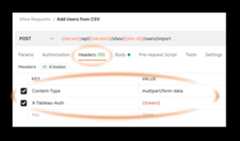
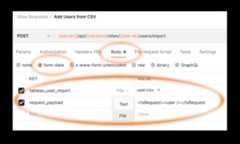
SelectBody and thenform-data.
The following screen capture show the request-payload and .csv path key in the form.
For the .csv path key, select theFile option, then browse to the path using theSelect Files button.
Using Python
The following Python script shows the basics of making a multipart request.
import requestsurl = "http://10.108.21.238/api/3.15/sites/7bc03892-6693-43c1-aa2d-d374f4a2cc2b/users/import"payload = "------WebKitFormBoundary7MA4YWxkTrZu0gW\r\nContent-Disposition: form-data; name=\"tableau_user_import\"; filename=\"users.csv\"\r\nContent-Type: text/csv\r\n\r\n\r\n------WebKitFormBoundary7MA4YWxkTrZu0gW\r\nContent-Disposition: form-data; name=\"request_payload\"\r\n\r\n<tsRequest><user name=\"username\"/></tsRequest<\r\n------WebKitFormBoundary7MA4YWxkTrZu0gW--"headers = { 'content-type': "multipart/form-data; boundary=----WebKitFormBoundary7MA4YWxkTrZu0gW", 'x-tableau-auth': "hTurCCimQ16PM9drlqrORw|3MJFkUrvwCFvjAYILBc7kE0QdrN4WZxb", 'cache-control': "no-cache",}response = requests.request("POST", url, data=payload, headers=headers)print(response.text)