- Notifications
You must be signed in to change notification settings - Fork25
Create a local Kubernetes development environment on macOS or Windows and WSL2, including HTTPS/TLS and OAuth2/OIDC authentication.
License
unfor19/kubernetes-localdev
Folders and files
| Name | Name | Last commit message | Last commit date | |
|---|---|---|---|---|
Repository files navigation

Create a local Kubernetes development environment on macOS or Windows and WSL2.
Throughout this self-paced course, you'll gain hands-on experience with:
- Creating a local Kubernetes cluster withminikube
- Deploying applications in Kubernetes usingkubectl and this project's YAML files
- Serving applications securely via HTTPS withNGINX Ingress Controller (LoadBalancer) andcert-manager
- Managing Kubernetes resources as packages usingHelm v3
- Authenticating users withGoogle as an Identity Provider (IdP), implementing bothOAuth2 andOAuth2+OIDC usingoauth2-proxy
- Building the webserver applicationdocker-cats and deploying it to the Kubernetes cluster withkubectl rollout
05-Feb-2022: Updated to Kubernetes v1.21.2
04-May-2021: Added Challenges (Exercises): That is the first and last time you'll see the word
exercisein this repository. So from now on, I'll refer to it as achallenge. I've added thechallenges directory, which currently, contains two challenges, seechallenges/README.md. Feel free to post your feedback in theDiscussions section. I'll add more challenges, according to your feedback (yes,your feedback).06-Apr-2021: Asynchronous Support And Discussions: If you have any questions, suggestions, ideas, or even if you want to show and tell about your work, feel free to create a discussion in theDiscussions section.
Expand/Collapse
- Updates
- Architecture
- Requirements
- Create a Kubernetes Cluster
- Enable secured HTTPS access from Host to minikube
- Configure LENS
- NGINX Ingress Controller
- A Few Words About Helm
- Support DNS resolution in Host
- HTTP
- HTTPS
- Authentication - OAuth2
- Authentication - OIDC
- Authentication Summary
- Docker Daemon And Minikube
- Local Development (CI) And Deployment (CD)
- Cleanup
- Troubleshooting
- References
- Authors
- License
Expand/Collapse

Expand/Collapse
macOS:Docker Desktop for macOS
macOS:VSCode
macOS:mkcert - mkcert is a simple tool for making locally-trusted development certificates. It requires no configuration.
curl -L -o mkcert"https://github.com/FiloSottile/mkcert/releases/download/v1.4.3/mkcert-v1.4.3-darwin-amd64"&& \chmod +x mkcert&& \sudo mv mkcert /usr/local/bin/mkcert
# Verify installationmkcert --version# Valid output:# v1.4.3
macOS:LENS 5.3.4+ - The Kubernetes IDE
macOS:minikube v1.21.0 - a tool that lets you run a Kubernetes cluster locally
curl -o minikube-bin -L https://storage.googleapis.com/minikube/releases/v1.21.0/minikube-darwin-amd64# curl -o minikube-bin -L https://storage.googleapis.com/minikube/releases/v1.21.0/minikube-darwin-arm64sudo install minikube-bin /usr/local/bin/minikube# Verify Installationminikube version# Valid output:# minikube version: v1.21.0# commit: 76d74191d82c47883dc7e1319ef7cebd3e00ee11
macOS:Helm v3.x - the package manager for Kubernetes
curl -fsSL -o get_helm.sh https://raw.githubusercontent.com/helm/helm/master/scripts/get-helm-3&& \chmod 700 get_helm.sh&& \./get_helm.sh&& \rm get_helm.sh# cleanup
helm version# Valid output:# version.BuildInfo{Version:"v3.8.0", GitCommit:"d14138609b01886f544b2025f5000351c9eb092e", GitTreeState:"clean", GoVersion:"go1.17.5"}
Expand/Collapse
Windows: Windows version1903 with build 18362 and above (includingVersion 20H2), hit WINKEY+R and run
winverto checkWindows:WSL2 - Windows Subsystem Linux running onUbuntu 20.04
Windows:Docker Desktop for Windows - UseWSL2 backend
Windows:VSCode andthe Remote - WSL extension
Windows:mkcert - mkcert is a simple tool for making locally-trusted development certificates. It requires no configuration. Open a newPowerShell window as Administrator (elevated)
$WebClient = New-Object System.Net.WebClient; if ($?) { $WebClient.DownloadFile("https://github.com/FiloSottile/mkcert/releases/download/v1.4.3/mkcert-v1.4.3-windows-amd64.exe", "c:\windows\system32\mkcert.exe")}# Verify installationmkcert -version# Valid output:# v1.4.3
Windows:LENS 5.3.4 - The Kubernetes IDE -Download and install on Windows
WSL2:minikube - a tool that lets you run Kubernetes locally
curl -LO https://storage.googleapis.com/minikube/releases/v1.21.0/minikube-linux-amd64 && \sudo install minikube-linux-amd64 /usr/local/bin/minikube && \rm minikube-linux-amd64# Verify Installationminikube version# Valid output:# minikube version: v1.21.0# commit: 76d74191d82c47883dc7e1319ef7cebd3e00ee11
WSL2:Helm v3.x - the package manager for Kubernetes
curl -fsSL -o get_helm.sh https://raw.githubusercontent.com/helm/helm/master/scripts/get-helm-3&& \chmod 700 get_helm.sh&& \./get_helm.sh&& \rm get_helm.sh
helm version# Valid output:# version.BuildInfo{Version:"v3.8.0", GitCommit:"d14138609b01886f544b2025f5000351c9eb092e", GitTreeState:"clean", GoVersion:"go1.17.5"}
macOS/WSL2: Start the Docker daemon on your local machine; The simplest way is to runDocker For Desktop
macOS/WSL2: Create a Kubernetes cluster with minkube
minikube start --driver=docker --kubernetes-version=v1.21.2# ...# 🏄 Done! kubectl is now configured to use "minikube" cluster and "default" namespace by default
macOS/WSL2: Check connectivity - HTTPS should work since we're using
ca.crtMINIKUBE_EXPOSED_PORT="$(kubectl config view -o jsonpath='{.clusters[?(@.name == "minikube")].cluster.server}'| cut -d":" -f3)"&& \export MINIKUBE_EXPOSED_PORT=${MINIKUBE_EXPOSED_PORT}&& \curl -L --cacert~/.minikube/ca.crt"https://127.0.0.1:${MINIKUBE_EXPOSED_PORT}/version";echo# adds extra line
A valid response
{"major":"1","minor":"21","gitVersion":"v1.21.2","gitCommit":"092fbfbf53427de67cac1e9fa54aaa09a28371d7","gitTreeState":"clean","buildDate":"2021-06-16T12:53:14Z","goVersion":"go1.16.5","compiler":"gc","platform":"linux/amd64"}
The termHost refers to your machine (macOS/Windows). In this section, we're going to install CA certificates on the Host machine (macOS/Windows)
Expand/Collapse
- macOS: Install the rootCA certificate
ca.crtin theKeychainsudo security add-trusted-cert -d -r trustRoot -k /Library/Keychains/System.keychain"$HOME/.minikube/ca.crt" - macOS: Execute the following command to print minikube's endpoint URL
export MINIKUBE_EXPOSED_PORT="$(kubectl config view -o jsonpath='{.clusters[?(@.name == "minikube")].cluster.server}'| cut -d":" -f3)"&& \echo" Open a new browser Incognito/Private window - https://127.0.0.1:${MINIKUBE_EXPOSED_PORT}/version"
Expand/Collapse
WSL2: Copy KUBECONFIG to Windows host,change the HOST_USERNAME to your Windows host user name, mine is
unfor19# Set variableHOST_USERNAME="unfor19"# <-- CHANGE THIS!
# Copy KUBECONFIG and certs from WSL2 to hostmkdir -p"/mnt/c/Users/${HOST_USERNAME}/.kube/certs"&& \cp"${HOME}/.kube/config""/mnt/c/Users/${HOST_USERNAME}"&& \# Change paths from `/home/$USER/*.minikube` to `certs`sed's~/home/'"${USER}"'.*.minikube~certs~g'"${HOME}/.kube/config">"/mnt/c/Users/${HOST_USERNAME}/.kube/config"
WSL2: Copy minikube's certificates to Windows host
MINIKUBE_EXPOSED_PORT="$(kubectl config view -o jsonpath='{.clusters[?(@.name == "minikube")].cluster.server}'| cut -d":" -f3)"&& \# Client certificatecp"${HOME}/.minikube/profiles/minikube/client.crt""${HOME}/.minikube/profiles/minikube/client.key""${HOME}/.minikube/ca.crt""/mnt/c/Users/${HOST_USERNAME}/.kube/certs/"&& \# Prepare URL for Windowsecho"Install the certificates and then open a new browser Incognito/Private window - https://127.0.0.1:${MINIKUBE_EXPOSED_PORT}/version"
Windows: Install the certificate
ca.crtfor theCurrent User in the certificate storeTrusted Root Certification Authorities (double click both files)
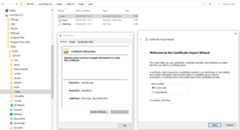
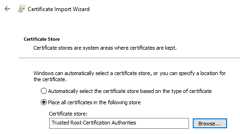
macOS/Windows: Check access to the cluster's endpoint by opening the browser in
https://127.0.0.1:${MINIKUBE_EXPOSED_PORT}/version

Upon completing this course, you might askWhy does the Host need HTTPS access to minikube?. I've answered this question in theDicussions section.
"Picture this - You want to access the Kubernetes APIs, from the Host with HTTPS, how would you do that? SeeAccess Clusters Using the Kubernetes API. All the examples use
HTTP, while with our setup we can useHTTPS, hooray for us 🎉"
IMPORTANT: In the latest version of minikube, v1.25.1 as of today, 26-Jan-2022, the rootCA is generated forlonger than 397 days; To overcome that, use version1.21.0.
macOS/Windows: LENS is so smart! Click on the Catalog icon (top left corner) and the
minikubeKubernetes cluster will appear. LENS recognizes the kubernetes cluster context, according to the$HOME/.kube/configfile.SelectAll namespaces
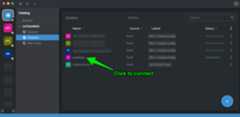
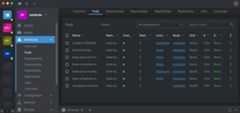
The main reasons why we deploy aKubernetes Ingress Controller
- Load balancing traffic to services
- A single endpoint that is exposed to the Host (macOS/Windows) and routes traffic to relevant services (apps)
- Integrated HTTPS TLS termination, when appropriately configured 😉
An ingress controller is handy for exposing multiple services on the same set of ports (e.g., 80, 443). That is also a good practice for production environments where you hide your services in a private network and allow traffic only from a known external endpoint, such as a load balancer.
In this project, I chose to implement a Kubernetes Ingress Controller withNGINX's Ingress Controller. A great alternative isTraefik, though NGINX is probably the most popular.
- macOS/WSL2: Add the relevant Helm's repository and deploy the ingress controller
helm repo add ingress-nginx https://kubernetes.github.io/ingress-nginx&& \helm repo update&& \helm upgrade --install nginx ingress-nginx/ingress-nginx --set controller.kind=DaemonSet# `upgrade --install` makes it idempotent
Helm is Kubernetes's package manager, which is similar to Python's package managerpip and Node's package managernpm. Though in Helm, "packages" are calledCharts.
Helm uses a packaging format calledcharts. A chart is a collection of files that describe a related set of Kubernetes resources. A single chart might be used to deploy something simple, like a memcached pod, or something complex, like a full web app stack with HTTP servers, databases, caches, and so on.Source
A chart usually contains a default set of values, and those values are defined in thevalues.yaml of the Helm chart.
For the sake of simplicity, when installing the NGINX's Helm Chart, I used the argument--set controller.kind=DaemonSet to override the default valuecontroller.kind=Deployment. Choosing theKubernetes DaemonSet kind means that NGINX'sKubernetes Pods are deployed to allKubernetes Nodes. I chose this setup for enabling High-Availability when adding more nodes to the cluster. High-Availability is probably irrelevant in a local development environment, but it undoubtedly helped me cover some core Kubernetes components. NGINX's default deployment kind is aKubernetes Deployment with a single replica. To see the default values check NGINX's Helm chartvalues.yaml file.
Another option for overriding the default values is to use a user-definedvalues.yaml file, a modified version of the originalvalues.yaml file.
- macOS/WSL2: Copy thevalues.yaml file from the Chart's repository to your local machine
curl -L -o values.yaml"https://raw.githubusercontent.com/kubernetes/ingress-nginx/master/charts/ingress-nginx/values.yaml" - macOS/WSL2: Edit
values.yamlwith your favorite text editor (Vim? 😃) and changekind: Deploymenttokind: DaemonSet# Edit the file with your favotire text editor vimvim values.yaml - Install the helm chart and add the argument
-f values.yaml# There's no need to execute this command as we already did it in the previous section with `--set`helm upgrade --install nginx ingress-nginx/ingress-nginx -f values.yaml
To access the NGINX Ingress Controller from the Host machine (macOS/Windows), we need to map its domain name to127.0.0.1, which will listen to ports 80 and 443.
- Edit the
hostsfile- macOS: Edit
/etc/hostswith your favotire editor
sudo vim /etc/hosts
- Windows: Edit
C:\Windows\System32\drivers\etc\hostswith Notepad orNotepad++ as Administrator
- macOS: Edit
- Add the following line
127.0.0.1 baby.kubemaster.me green.kubemaster.me dark.kubemaster.me darker.kubemaster.me auth.kubemaster.me oidc.kubemaster.me
The downside is that you have to add any subdomain the application uses since wildcard domains such as*.mydomain.com are not allowed in thehosts file. The silver lining is you won't add all the subdomains that the application uses in production since the main goal is to test/develop only the necessary endpoints.
| DNS Record | App | HTTPS | Requires Authentication |
|---|---|---|---|
| baby | docker-cats | ⬜️ | ⬜️ |
| green | ✅ | ⬜️ | |
| dark | ✅ | ✅ OAuth2 via auth | |
| darker | ✅ | ✅ OAuth2 + OIDC via oidc | |
| auth | oauth2-proxy | ✅ | ⬜️ |
| oidc | ✅ | ⬜️ |
Deploy the1-baby.yaml app, a simple web application that serves static content and exposed to the Host (macOS/Windows) with aKubernetes Ingress.
macOS/WSL2: Clone this repo
git clone https://github.com/unfor19/kubernetes-localdev.gitcd kubernetes-localdevIMPORTANT: From now on, the working directory
$PWDshould be the cloned repositorymacOS/WSL2: Deploy the application
kubectl apply -f 1-baby.yaml
macOS/WSL2: Open anew terminal window and serve NGINX Ingress Controller on localhost (127.0.0.1), ports 80 and 443. That will provide the
nginx-ingress-nginx-controllerKubernetes Service anExternal IP of the Windows host127.0.0.1.Keep it running in the backgroundminikube tunnel# ❗ The service nginx-ingress-nginx-controller requires privileged ports to be exposed: [80 443]# 🔑 sudo permission will be asked for it.# 🏃 Starting tunnel for service nginx-ingress-nginx-controller
macOS/Windows: Check that minikube exposes NGINX Ingress Controller service on127.0.0.1
macOS/Windows: Open your browser in a new Incognito/Private window and navigate tohttp://baby.kubemaster.me/ (port 80). You should see a cute baby cat
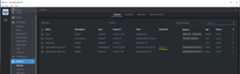
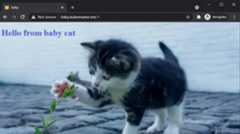
IMPORTANT: The rest of this tutorial assumes thatminikube tunnel runs in the background in a separated terminal.
Create a localCertificate Authority certificate and key withmkcert and install it toTrusted Root Certificate Authorities on Windows, and toSystem Keychain on macOS. We'll use that certificate authority to create aTLS certificate for local development.
We're going to usecert-manager for issuing HTTPS/TLS certificates. Before we can do that, we need to create a Certificate Authority Certificate (rootCA.pem) and a Certificate Authority Key (rootCA-key.pem). Check out thethe difference between the two.
You can quickly generate a CA certificate and key withmkcert, which will also install both of them.There's no need to search for.crt files and install them.
Expand/Collapse
macOS: Install mkcert root certificate
mkcert-install# The local CA is now installed in the system trust store! ⚡️mkcert-CAROOT# Print CA Location# /Users/$HOST_USERNAME/Library/Application Support/mkcert
macOS: Verify Installed Certificate
- Hit CMD+SPACE > Run
Keychain Access - The result should be as below
- Hit CMD+SPACE > Run
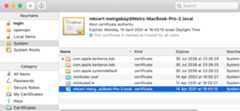
Expand/Collapse
Windows: Install mkcert root certificate - Open Windows PowerShellas Administrator (elevated)
mkcert-install# Click Yes when prompted# The local CA is now installed in the system trust store! ⚡️mkcert-CAROOT# C:\Users\$HOST_USER\AppData\Local\mkcert
Windows: Verify Installed Certificates
- Hit WINKEY+R > Run
certmgr.msc - Certificate - Current User > Trusted Root Certificate Authorities > Certificates > Issuted to and by is
mkcert $MACHINE_NAME ... - The end result should be as below
TIP: Can't see it? Close and re-open
certmgr.mscas it doesn't auto-refresh upon adding certificates.- Hit WINKEY+R > Run

Expand/Collapse
We'll create aKubernetes Namespace and name itcert-manager. That is where all cert-manager's resources (Kubernetes Objects) will be deployed (next section). The last step is to create aKubernetes Secret type TLS which cert-manager will use to issue certificates.
- macOS: Create thecert-manager namespace and create aKubernetes Secret type TLS
CAROOT_DIR="$(mkcert -CAROOT)"&& \kubectl create namespace cert-manager&& \kubectl -n cert-manager create secret tls kubemaster-me-ca-tls-secret --key="${CAROOT_DIR}/rootCA-key.pem" --cert="${CAROOT_DIR}/rootCA.pem"
Expand/Collapse
So far, the certificates are recognized by the Windows machine. Now it's time to create asymlink (shortcut) from WSL2 to the Windows Host. That will make the certificates available in WSL2.
Following that, we'll create aKubernetes Namespace and name itcert-manager. That is where all cert-manager's resources (Kubernetes Objects) will be deployed (next section). The last step is to create aKubernetes Secret type TLS which cert-manager will use to issue certificates.
NOTE: I preferred to use a symlink to sync between Windows and WSL2, without the need tocp every time something changes. I haven't done it for.kube/config since I got some weird errors, so I usedcp as an alternative.
WSL2: Mount the certificates that were created with
mkcertfrom the Windows host to WSL# Set variableHOST_USERNAME="unfor19"# <-- CHANGE THIS!
# Create symlink `ln -s`CAROOT_DIR="/mnt/caroot"&& \sudo ln -s"/mnt/c/Users/${HOST_USERNAME}/AppData/Local/mkcert""$CAROOT_DIR"
# Validate symlinkls -l"$CAROOT_DIR"&& ls"$CAROOT_DIR"# Valid Output# lrwxrwxrwx 1 root root 41 Apr 10 13:12 /mnt/caroot -> /mnt/c/Users/unfor19/AppData/Local/mkcert# rootCA-key.pem rootCA.pem
WSL2: Create thecert-manager namespace and create aKubernetes Secret type TLS
kubectl create namespace cert-manager&& \kubectl -n cert-manager create secret tls kubemaster-me-ca-tls-secret --key="${CAROOT_DIR}/rootCA-key.pem" --cert="${CAROOT_DIR}/rootCA.pem"
We're usingcert-manager to issue TLS certificates per Ingress automatically. Adding the annotationcert-manager.io/cluster-issuer to the Ingress triggers the following process:
- cert-manager spotted an ingress with the
cert-manager.io/cluster-issuerannotation - cert-manager checks if the
cluster-issuerexists and aborts if it doesn't - cert-manager checks if the ingress includes
spec.tls[].secretName- Secretexists - aborts since it's a one-to-one relationship between a Kubernetes Ingress and a Kubernetes Secret when using the
cluster-issuerannotation - Secretdoesn't exists - creates a secret in the Ingress's namespace. The secret's data is generated according to
spec.tls[].hosts[]and the provided ClusterIssuer.
- Secretexists - aborts since it's a one-to-one relationship between a Kubernetes Ingress and a Kubernetes Secret when using the
You can also create aCertificate (Kubernetes TLS Secret) and set itsspec.dnsNames[] to*.kubemaster.me, that will enable multiple ingresses to use the samesecretName. The downside of manually managing Certificates is that you have to create a Certificate per Kubernetes Namespace.
That is where thecluster-issuer annotation shines since it's "namespace independent". The Kubernetes Secret is created in the Ingress's namespaceautomatically.
Here's the snippet of2-green.yaml's Kubernetes Ingress
apiVersion:networking.k8s.io/v1beta1# NGINX Ingress Controller supports this versionkind:Ingressmetadata:name:greenannotations:cert-manager.io/cluster-issuer:tls-ca-issuer# Will be created in the next sectionspec:tls: -hosts: -green.kubemaster.mesecretName:green-tls-secret# Unique per ingress
We're going to create cert-manager'scustom resource definitions (CRDs), and then deploy cert-manager with Helm. Following that, we'll create the previously mentionedClusterIssuer.
Eventually, the NGINX Ingress controller will use the generated Kubernetes TLS Secret toterminate TLS connections (HTTPS --> HTTP).
macOS/WSL2: Add cert-manager to the Helm's repo, create cert-manager's CRDs and deploy cert-manager.
helm repo add jetstack https://charts.jetstack.io&& \helm repo update&& \kubectl apply -f https://github.com/jetstack/cert-manager/releases/download/v1.6.2/cert-manager.crds.yaml&& \helm upgrade --install --wait cert-manager jetstack/cert-manager --namespace cert-manager --version v1.6.2
IMPORTANT: The ClusterIssuer will fail to create if cert-manager is not ready; see theTroubleshooting section if you experience any issues
macOS/WSL2: Create thecert-manager/clusterissuer.yaml and deploy the2-green.yaml application.
# This issuer uses the TLS secret `kubemaster-me-ca-tls-secret` to create certificates for the ingresseskubectl apply -f cert-manager/clusterissuer.yaml&& \# Deploy sample appkubectl apply -f 2-green.yaml
macOS/Windows: Check connectivity to the deployed
greenapp, open browser, and navigate tohttps://green.kubemaster.me (port 443). You should see a cat in a green scenery

We'll useoauth2-proxy to proxy requests toGoogle's OAuth 2.0 authentication service. Authenticated users are redirected to the initial URL that was requested (https://$host$escaped_request_uri).

Image Source:https://github.com/oauth2-proxy/oauth2-proxy
- macOS/Windows:Google Developer Console >Create a New Project
- Project Name:
kubemaster - Organization: Leave empty
- Project Name:
- macOS/Windows:OAuth consent screen > SelectExternal > ClickCREATE
- App name:
kubemaster - User support email:
your email address - Authorised domains > Add domain >
kubemaster.me - Developer contact information:
your email addressClickSAVE AND CONTINUE
- App name:
- macOS/Windows:Scopes > ClickSAVE AND CONTINTUE - there's no need for a scope, we don't plan on using Google APIs (authorization), we just need the authentication mechanism (OAuth2/OIDC)
- (Optional)macOS/Windows:Test users > ClickSAVE AND CONTINTUE - it's irrelevant since either way we're allowing any Google user to login to the app since it's a local app
- macOS/Windows:Summary > ClickBACK TO DASHBOARD
- NOTE: There's no need toPUBLISH APP, keep it in sandbox mode
- macOS/Windows:Credentials > ClickCREATE CREDENTIALS > SelectOAuth Client ID > Select Application typeWeb application
- Name:
kubemaster - Authorised JavaScript originsADD URI >
https://auth.kubemaster.me - Authorised JavaScript originsADD URI >
https://oidc.kubemaster.me(will use it later on) - Authorised redirect URIsADD URI >
https://auth.kubemaster.me/oauth2/callback - Authorised redirect URIsADD URI >
https://oidc.kubemaster.me/oauth2/callback(will use it later on)ClickCREATE - SaveYour Client ID andYour Client Secret in a safe place, we'll use them in the following section
- Name:
macOS/WSL2:
# Values from Google's Developer Console - the space at the beginning of the command is on purpose to keep it out from Bash's history OAUTH2_PROXY_CLIENT_ID="google_oauth2_project_client_id" OAUTH2_PROXY_CLIENT_SECRET="google_oauth2_project_client_secret"
# Create the Kubernetes Secretkubectl -n default create secret generic google-credentials \ --from-literal=google_client_id="${OAUTH2_PROXY_CLIENT_ID}" \ --from-literal=google_client_secret="${OAUTH2_PROXY_CLIENT_SECRET}"
macOS/WSL2: Deploy3-oauth2-proxy.yaml and the sample3-dark.yaml application
# Create a Kubernetes Secret for oauth2-proxy `cookie-secret`kubectl -n default create secret generic oauth2-proxy-cookie-secret --from-literal=oauth2_proxy_cookie_secret="$(docker run --rm python:3.9.1-alpine python -c'import os,base64; print(base64.urlsafe_b64encode(os.urandom(16)).decode())')"# Deploy oauth2-proxykubectl apply -f 3-oauth2-proxy.yaml# Deploy sample app `dark`, served via HTTPS and protected with Google authenticationkubectl apply -f 3-dark.yaml
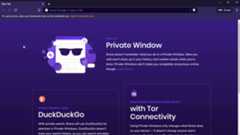
macOS/Windows: Open a browser in a new Incognito/Private window and navigate tohttps://dark.kubemaster.me and login with your Google user. You should see a cat in a dark scenery.
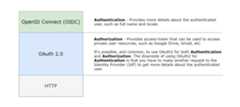
OAuth2 was used for authentication in the previous step, though its primary purpose is forauthorization. Forauthentication, it is best to useOpen ID Connect (OIDC) whenever it's possible. The main benefit is that OIDC also provides the endpoint/userinfo, so the application can easily read aJSON Web Token (JWT) and get the user details such as full name and locale (preferred language).
As demonstrated in the below image, OIDCdoes not replace OAuth2. OIDC is a layer on top of OAuth2, which provides a better way to handle authentication.
Inspired by:https://developer.okta.com/blog/2018/11/26/spring-boot-2-dot-1-oidc-oauth2-reactive-apis
The deployment steps are same as before, though I do recommend viewing the files4-oauth2-proxy-oidc.yaml and4-darker.yaml, while comparing them to3-oauth2-proxy.yaml and3-dark.yaml.
The main difference is in theargs of oauth2-proxy's Deployment, where the provider is not using the default OAuth2 protocol for authentication; instead, it's using the OIDC protocol.
macOS/WSL2: Deploy4-oauth2-proxy-oidc.yaml and the sample4-darker.yaml application
# Deploy oauth2-proxykubectl apply -f 4-oauth2-proxy-oidc.yaml# Deploy sample app `darker`, served via HTTPS and protected with Google authentication (OIDC)kubectl apply -f 4-darker.yaml
macOS/Windows: Open a browser in a new Incognito/Private window and navigate tohttps://darker.kubemaster.me and login with your Google user. You should see the same dark cat, but the message now contains your full name.
NOTE: If you have an existing browser window, even if it's incognito, then you might have already authenticated. You can verify it by checking if the cookie
_oauth2_proxyexists. To get the entire flow, close all incognito windows and then open a new browser window in incognitohttps://darker.kubemaster.meNOTE: If you've already authenticated when you navigated tohttps://dark.kubemaster.me (OAuth2), then you won't be prompted to be logged in when you navigate tohttps://darker.kubemaster.me (OIDC). Authentication occurs once, and then
oauth-proxy2verifies the authenticated user with the secret cookie_oauth2_proxyfor all subsequent requests. The cookie's domain is.kubemaster.me(includes any subdomain). That goes the other way around; if you've already authenticated onhttps://darker.kubemaster.me, you can also accesshttps://dark.kubemaster.me.NOTE: Authenticating with OIDC (darker) provides more details about the authenticated user; therefore, it's possible to inject the user's name into the application. If you logged in with OAuth2 (dark), then your name won't be displayed in the message "Hello YOUR_GOOGLE_NAME". Google specifies the available user attributes in theID token's payload. Click the Expand/Collapse buttons to view the available attributes for OIDC and OAuth2.
OIDC - ID token's payload - Expand/Collapse
{/* The Issuer Identifier for the Issuer of the response. Always https://accounts.google.com or accounts.google.com for Google ID tokens. */"iss":"https://accounts.google.com",/* The client_id of the authorized presenter. This claim is only needed when the party requesting the ID token is not the same as the audience of the ID token. This may be the case at Google for hybrid apps where a web application and Android app have a different OAuth 2.0 client_id but share the same Google APIs project. */"azp":"GOOGLE_CLIENT_ID",/* The audience that this ID token is intended for. It must be one of the OAuth 2.0 client IDs of your application. */"aud":"GOOGLE_CLIENT_ID",/* An identifier for the user, unique among all Google accounts and never reused. A Google account can have multiple email addresses at different points in time, but the sub value is never changed. Use sub within your application as the unique-identifier key for the user. Maximum length of 255 case-sensitive ASCII characters. */"sub":"USER_ID",/* The user's email address. This value may not be unique to this user and is not suitable for use as a primary key. Provided only if your scope included the email scope value. */"email":"user@gmail.com",/* True if the user's e-mail address has been verified; otherwise false. */"email_verified":true,/* Access token hash. Provides validation that the access token is tied to the identity token. If the ID token is issued with an access_token value in the server flow, this claim is always included. This claim can be used as an alternate mechanism to protect against cross-site request forgery attacks. If you follow: https://developers.google.com/identity/protocols/oauth2/openid-connect#createxsrftoken and https://developers.google.com/identity/protocols/oauth2/openid-connect#confirmxsrftoken it is not necessary to verify the access token. */"at_hash":"someNiceOverHere",/* The user's full name, in a displayable form. Might be provided when: The request scope included the string "profile" The ID token is returned from a token refresh When name claims are present, you can use them to update your app's user records. Note that this claim is never guaranteed to be present. */"name":"Meir Gabay",/* The URL of the user's profile picture. Might be provided when: The request scope included the string "profile" The ID token is returned from a token refresh When picture claims are present, you can use them to update your app's user records. Note that this claim is never guaranteed to be present. */"picture":"https://lh3.googleusercontent.com/a-/AOh14Gg2SJeDqusILfvvSG0boxvXX65QYrx5U3KK38xj-A=s96-c",/* The user's given name(s) or first name(s). Might be provided when a name claim is present. */"given_name":"Meir",/* The user's surname(s) or last name(s). Might be provided when a name claim is present. */"family_name":"Gabay",/* The user's locale, represented by a BCP 47 language tag. Might be provided when a name claim is present. */"locale":"en-GB",/* The time the ID token was issued. Represented in Unix time (integer seconds). */"iat":1618059677,/* Expiration time on or after which the ID token must not be accepted. Represented in Unix time (integer seconds). */"exp":1618063277}
OAuth2 - ID token's payload - Expand/Collapse
{/* The Issuer Identifier for the Issuer of the response. Always https://accounts.google.com or accounts.google.com for Google ID tokens. */"iss":"https://accounts.google.com",/* The client_id of the authorized presenter. This claim is only needed when the party requesting the ID token is not the same as the audience of the ID token. This may be the case at Google for hybrid apps where a web application and Android app have a different OAuth 2.0 client_id but share the same Google APIs project. */"azp":"GOOGLE_CLIENT_ID",/* The audience that this ID token is intended for. It must be one of the OAuth 2.0 client IDs of your application. */"aud":"GOOGLE_CLIENT_ID",/* An identifier for the user, unique among all Google accounts and never reused. A Google account can have multiple email addresses at different points in time, but the sub value is never changed. Use sub within your application as the unique-identifier key for the user. Maximum length of 255 case-sensitive ASCII characters. */"sub":"USER_ID",/* The user's email address. This value may not be unique to this user and is not suitable for use as a primary key. Provided only if your scope included the email scope value. */"email":"user@gmail.com",/* True if the user's e-mail address has been verified; otherwise false. */"email_verified":true,/* Access token hash. Provides validation that the access token is tied to the identity token. If the ID token is issued with an access_token value in the server flow, this claim is always included. This claim can be used as an alternate mechanism to protect against cross-site request forgery attacks. If you follow: https://developers.google.com/identity/protocols/oauth2/openid-connect#createxsrftoken and https://developers.google.com/identity/protocols/oauth2/openid-connect#confirmxsrftoken it is not necessary to verify the access token. */"at_hash":"someNiceOverHere",/* The time the ID token was issued. Represented in Unix time (integer seconds). */"iat":1618059677,/* Expiration time on or after which the ID token must not be accepted. Represented in Unix time (integer seconds). */"exp":1618063277}
- I find it best to have a dedicated subdomain for Authentication services, as it allows using cookies with
*.kubemaster.meand acts as an isolated service from the entire application - TheAuthorised JavaScript origins andAuthorised redirect URIs in Google's Developer Console are used by oauth2-proxy. There's not a single time where Google tries to query your domains; this is why it's possible to make it work locally.
- Here's great 1 hour session about OAuth2 and OIDC -OAuth 2.0 and OpenID Connect (in plain English). I watched every bit of it, and it helped me to understand the whole flow.
- Using bare OAuth2 (without OIDC) means that if the app needs more details about the authenticated user, such as
name, then the app will have to make another request from the backend to get this information. With OAuth2 + OIDC, you benefit from having extra details about the user in a single request. - It's possible to access private resources by logging intohttps://auth.kubemaster.me andhttps://oidc.kubemaster.me since they both use the same Google's Credentials and COOKIE_SECRET (I think?)
We're running twoDocker Daemons, the first one runs on the Host machine (macOS/Windows), and the second one runs in minikube'sDocker Container. I find it very hard to understand this architecture, so I've created a diagram to visualize it.

Let's run some commands to see if it makes sense.
macOS/WSL2: Print the list of the running containers on theHost machine
docker ps
# Valid output - minikube's container name is `minikube`CONTAINER ID IMAGE COMMAND CREATED STATUS PORTS NAMES9cab890fc446 gcr.io/k8s-minikube/kicbase:v0.0.18"/usr/local/bin/entr…" 5 days ago Up 2 hours 127.0.0.1:63682->22/tcp, 127.0.0. 1:63683->2376/tcp, 127.0.0.1:63680->5000/tcp, 127.0.0.1:63681->8443/tcp, 127.0.0.1:63684->32443/tcp minikube
macOS/WSL2: Usedocker exec to get into minikube's container
dockerexec -it minikube bashNOTE: For testing/debugging purposes, I prefer using
docker execoverminikube ssh becausedocker execallows logging asroot, whileminikube sshas the non-root userdocker.macOS/WSL2: Print the list of the running containers onminikube
docker ps
# Valid output# root@minikube:/# docker psCONTAINER ID IMAGE COMMAND CREATED STATUS PORTS NAMESd11f495c71a5 85069258b98a"/storage-provisioner" 2 hours ago Up 2 hours 8s_storage-provisioner_storage-provisioner_kube-system_eb1bac83-2db5-41e8-9bdd-805e3969930b_3 ...5fbaf3683d33 k8s.gcr.io/pause:3.2"/pause" 2 hours ago Up 2 hours k8s_POD_etcd-minikube_kube-system_c31fe6a5afdd142cf3450ac972274b36_1
Remember the sectionCreate a Kubernetes Cluster? We used the argument--driver=docker, which instructs minikube to use itsdocker driver. From the Kubernetes perspective, it's equivalent for choosing theDocker runtime as theContainer runtime. Eventually, this means thatKubernetes Workloads will run as Docker Containers.
As you can see from the last step, minikube's Docker Daemon runs containers that belong to theKubernetes Cluster. The Kubernetes object representing a group of containers, or a single container, is called aKubernetes Pod. If you're already familiar withDocker Compose, then writing aPod's YAML configuration is quite similar to writing adocker-compose.yaml file.
If you think about it, the Docker CLI sends API requests to theDocker Engine API, which is part of the Docker Daemon. Let's do a quick test to see if we cancurl the Host's (macOS/Windows) Docker Daemon and minikube's Docker Daemon.
macOS/WSL2: curl theinfo endpoint of theHost's Docker Daemon
# Socket Request `--unix-socket`curl --unix-socket /var/run/docker.sock http://127.0.0.1/infomacOS/WSL2: curl the
infoendpoint ofminikube's Docker Daemon# HTTPS Requestcurl --cacert~/.minikube/certs/ca.pem \--key~/.minikube/certs/key.pem --cert~/.minikube/certs/cert.pem \https://127.0.0.1:$(minikube docker-env| grep DOCKER_HOST| cut -d":" -f3| cut -d'"' -f1)/info
I haven't added the expected output since it's too long and can vary significantly between different Hosts. Search the attributeName in the output; for example, onWSL2, it'sdocker-desktop (Host) andminikube.
Initially, I've tried using a private local Docker repository, which was a nightmare (see myStackOverflow question). A more straightforward solution - using minikube's Docker Daemon, instead of the Host's (macOS/Windows) Docker Daemon for building Docker images.
macOS/WSL2: Set
dockercommand to use minikube's Docker Daemoneval`minikube docker-env`# from now on, the `docker` command refers to minikube's Docker Daemon# To undo the above command and use macOS/Windows's Docker Daemoneval`minikube docker-env --unset`
macOS/WSL2: Build the docker-cats application locally using minikube's Docker Daemon
git clone https://github.com/unfor19/docker-cats.gitcd docker-catseval`minikube docker-env`# Using minikube's Docker Daemondocker build -t unfor19/docker-cats:latest.
We'll use the built-in kubectl commandrollout restart deployment/deployment-name. And of course, we'll probably create some Makefile or a bash script that runs bothbuild anddeploy.
- macOS/WSL2:
kubectl rollout restart deployment/baby deployment/green deployment/dark deployment/darker
IMPORTANT: Quit LENS before proceeding
- macOS/WSL2: Delete minikube's Kubernetes Cluster and CA certificates
minikube delete --purge --all
- macOS/Windows: Uninstallmkcert's TLS certifictes, run PowerShell in elevated mode
mkcert -uninstall# The local CA is now uninstalled from the system trust store(s)! - Delete all relevant TLS certificates
- macOS: Hit CMD+SPACE and run
Keychain Access, delete allminikubeCA andminikube-user - Windows: Hit WINKEY+R and run
certmgr.msc- Certificates - Current User > Trusted Root Certification Authorities > Certificates
- Delete all minikube's certificates -minikubeCA andminikube-user
- macOS: Hit CMD+SPACE and run
Ingress: Make sure you expose the cluster to the Host with
minikube tunnelbefore trying to access the application with the browser- ERR_CONNECTION_REFUSED
- ERR_CONNECTION_REFUSED
Ingress: Path-based ingresses issues, For example
app.kubemaster.me/babywould not work properly because the app serves static files in the root dir. The request to the HTML pageindex.htmlis successful, but subsequent requests toapp.kubemaster.me/baby/images/baby.pngwill fail since NGINX's upstream can't serve static content. It's best to use Path-based ingresses for serving APIs, for example,app.kubemaster.me/api/v1/get/something. Use bare (/) Host-based ingresses for serving static pages, just like I did in this project.Ingress: version deprecation warning - ignore this warning; this is the latest version supported by the NGINX Ingress Controller
Warning: networking.k8s.io/v1beta1 Ingress is deprecatedin v1.19+, unavailablein v1.22+; use networking.k8s.io/v1 Ingress
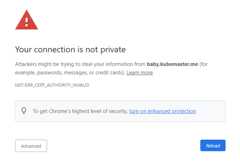
HTTPS: Certificate is invalid in the browser - Open your browser a new Incognito/Private window
ERR_CONNECTION_REFUSED
ERR_CERT_AUTHORITY_INVALID
cert-manager: Errors applying cert-manager resources
- Delete the secret
kubemaster-me-ca-tls-secret, re-create it and then re-applycert-manager/clusterissuer.yamlError from server (NotFound): error when deleting "cert-manager/clusterissuer.yaml": clusterissuers.cert-manager.io "tls-ca-issuer" not found - Wait for cert-manager to be healthy, check all logs of the pods
cert-manager,cert-manager-cainjector, andcert-manager-webhookError from server (InternalError): error when creating "cert-manager/clusterissuer.yaml": Internal error occurred: failed calling webhook "webhook.cert-manager.io": Post "https://cert-manager-webhook.cert-manager.svc:443/mutate?timeout=10s": dial tcp 10.102.252.218:443: connect: connection refused
- Delete the secret
Authentication: After after a successful login you get redirected to
/#404 - Make sure the ingress annotation isoauth2/start?rd=https://$host$escaped_request_uri, for examplenginx.ingress.kubernetes.io/auth-signin:https://auth.kubemaster.me/oauth2/start?rd=https://$host$escaped_request_uri
NOTE: Even though you got to a 404 page, it's still possible to access private resources (dark and darker) check your Application cookies
LENS: Can't connect to cluster due to missing keys - Make sure you copied
client.crt,client.keyandca.crtfrom WSL2 to the Windows hostC:\Users\$HOST_USERNAME\.kube\certserror: unable to read client-key C:\Users\unfor19\.kube\certs\client.key for minikube due to open C:\Users\unfor19\.kube\certs\client.key: The system cannot find the file specified.

- How to Set Up an Nginx Ingress with Cert-Manager on DigitalOcean Kubernetes
- cert-manager docs
- minikube docker driver
- GitLab - Developing for Kubernetes with Minikube
- Docker Tips And Best Practices
- Troubleshooting the right way
- Boosting terminal productivity tips
- Parsing Command Line Arguments In Bash
- baby.jpg - sourcehttps://www.maxpixel.net/Animals-Stone-Kitten-Cats-Cat-Flower-Pet-Flowers-2536662
- green.jpg - sourcehttp://challengethestorm.org/cat-taught-love/ -img
- dark.jpg - sourcehttps://www.findcatnames.com/great-black-cat-names/ -img


- HackerBoy Emoticon -http://123emoji.com/wp-content/uploads/2016/08/5609229801667168449.png
- Helm -https://helm.sh/img/helm.svg
- NGINX -https://www.nginx.com/wp-content/uploads/2018/08/NGINX-logo-rgb-large.png
- Cert Manager -https://d33wubrfki0l68.cloudfront.net/f424659d40ec64748389d27b333510b3bd46f509/ed868/img/png/cert-manager-icon.png
- Kubernetes -https://kubernetes.io/images/kubernetes-horizontal-color.png
- OAuth2 Proxy -https://oauth2-proxy.github.io/oauth2-proxy/
- minikube -https://minikube.sigs.k8s.io/docs/


Created and maintained byMeir Gabay
This project is licensed under the MIT License - see theLICENSE file for details
About
Create a local Kubernetes development environment on macOS or Windows and WSL2, including HTTPS/TLS and OAuth2/OIDC authentication.
Topics
Resources
License
Uh oh!
There was an error while loading.Please reload this page.