Uh oh!
There was an error while loading.Please reload this page.
- Notifications
You must be signed in to change notification settings - Fork0
A plugin for Obsidian to draw circuits on a canvas.
License
code-forge-temple/circuit-sketcher-obsidian-plugin
Folders and files
| Name | Name | Last commit message | Last commit date | |
|---|---|---|---|---|
Repository files navigation
A plugin for Obsidian to draw circuits on a canvas. It is based on thecode-forge-temple/circuit-sketcher-core.
⭐️Love this project? Please considerstarring the repository on GitHub andsupporting development to help me continue building amazing features!

- Draw and edit circuit diagrams directly within Obsidian.
- Save and load circuit designs.
- Customizable library for circuit elements.
- Responsive design with automatic resizing.
- Embed circuit diagrams in notes: Reference
.circuit-sketcherfiles in your notes (e.g., by dragging and dropping the file into a note). In read mode, an image of the circuit will be displayed automatically.
- OpenObsidian and go to
Settings⇒Community Plugins⇒Browse. - Search for
Circuit Sketcher. - Select the
Circuit Sketcherplugin and pressInstall, then pressEnable.
or
- OpenCommunity Plugins Page in browser.
- Select
Install, then pressEnable.
- Use the ribbon icon, command palette, or right-click on a target folder in the file explorer and selectCreate new Circuit Sketcher file to create a new circuit sketcher file.
- Start drawing your circuit on the canvas:
- On the canvas, right-click to show the canvas menu, and select
Create Node. - Right-click on the node to show the node menu, select
Change Image, and choose an image relevant to your circuit node. - Right-click on the node to show the node menu, select
Add Port..., and choose the port location and type. - You can rename the circuit node label or port label by double-clicking on the label. The port or port label can also be deleted (right-click on the port to show the port menu and proceed from there).
- You can relocate ports, either to a different node side or rearrange the ports on the same side, by dragging and dropping the port to the desired location within the dotted blue area.
- After you are satisfied with your changes to the circuit node, and if you wish to save the circuit node to reuse it in the current or a different
.circuit-sketcherfile, you can right-click on the circuit node and pressSave Node to Library(this will update the root Obsidian vaultcircuit-sketcher.libfile). - You can reuse the node by right-clicking on the canvas and selecting
Library...then selecting the desired node. - Connections between circuit nodes can be made by dragging and dropping one port to the destination port (if it is a compatible port). You can delete a connection by selecting it and then pressing the Delete key.
- You can drag the entire circuit by holding the mouse scroll button and moving the mouse.
- On the canvas, right-click to show the canvas menu, and select
A short video tutorial on how to use the plugin:
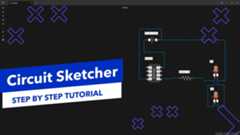
To help you get started with Circuit Sketcher, we provide a curated library of circuit components atcircuit-sketcher-lib.
Import the entire library:
- Download the complete component library:library.json
- Import it directly into Circuit Sketcher to get access to all available components (right click on canvas to show the menu, then
Library...->Import Library)
Import individual components:
- Browse individual components:assets/nodes
- Download specific
.jsonfiles for the components you need - Import them one by one into your Circuit Sketcher workspace (right click on canvas to show the menu, then
Import Node)
This project is licensed under the GNU General Public License v3.0. See theLICENSE file for more details.
✦Agentic Signal – Visual AI agent workflow automation platform with local LLM integration - build intelligent workflows using drag-and-drop interface, no cloud dependencies required.
✦ScribePal - An Open Source intelligent browser extension that leverages AI to empower your web experience by providing contextual insights, efficient content summarization, and seamless interaction while you browse.
✦Local LLM NPC An interactive educational game built for the Google Gemma 3n Impact Challenge.
About
A plugin for Obsidian to draw circuits on a canvas.
Topics
Resources
License
Uh oh!
There was an error while loading.Please reload this page.
Stars
Watchers
Forks
Sponsor this project
Uh oh!
There was an error while loading.Please reload this page.
Packages0
Uh oh!
There was an error while loading.Please reload this page.