- Notifications
You must be signed in to change notification settings - Fork38
📊 Vue-3 component for ApexCharts
License
apexcharts/vue3-apexcharts
Folders and files
| Name | Name | Last commit message | Last commit date | |
|---|---|---|---|---|
Repository files navigation



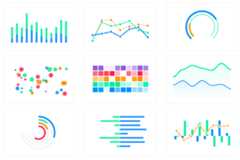
Vue 3 component forApexCharts to build interactive visualizations in vue.
npm install --save apexchartsnpm install --save vue3-apexcharts
If you're looking for Vue 2.x.x compatibile component, check-outvue-apexcharts
importVueApexChartsfrom"vue3-apexcharts";constapp=createApp(App);app.use(VueApexCharts);// The app.use(VueApexCharts) will make <apexchart> component available everywhere.
OR
// you can import in a particular component and register the component like belowimportVueApexChartsfrom"vue3-apexcharts";exportdefault{components:{apexchart:VueApexCharts,},};
To provide a$apexcharts reference inside Vue instance
importApexChartsfrom"apexcharts";app.config.globalProperties.$apexcharts=ApexCharts;// Add this when into a TypeScript codebasedeclare module"@vue/runtime-core"{interfaceComponentCustomProperties{$apexcharts:typeofApexCharts;}}
To create a basic bar chart with minimal configuration, write as follows:
<template> <div> <apexchartwidth="500"type="bar":options="chartOptions":series="series" ></apexchart> </div></template>
exportdefault{data:function(){return{chartOptions:{chart:{id:"vuechart-example",},xaxis:{categories:[1991,1992,1993,1994,1995,1996,1997,1998],},},series:[{name:"series-1",data:[30,40,35,50,49,60,70,91],},],};},};
This will render the following chart

Simple! Just change theseries or anyoption and it will automatically re-render the chart.
Click on the below example to see this in action
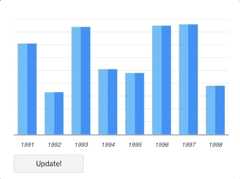
<template> <divclass="app"> <apexchartwidth="550"type="bar":options="chartOptions":series="series" ></apexchart> <div> <button@click="updateChart">Update!</button> </div> </div></template>
exportdefault{data:function(){return{chartOptions:{chart:{id:"vuechart-example",},xaxis:{categories:[1991,1992,1993,1994,1995,1996,1997,1998],},},series:[{name:"series-1",data:[30,40,45,50,49,60,70,81],},],};},methods:{updateChart(){constmax=90;constmin=20;constnewData=this.series[0].data.map(()=>{returnMath.floor(Math.random()*(max-min+1))+min;});constcolors=["#008FFB","#00E396","#FEB019","#FF4560","#775DD0"];// Make sure to update the whole options config and not just a single property to allow the Vue watch catch the change.this.chartOptions={colors:[colors[Math.floor(Math.random()*colors.length)]],};// In the same way, update the series optionthis.series=[{data:newData,},];},},};
Important: While updating the options, make sure to update the outermost property even when you need to update the nested property.
✅ Do this
this.chartOptions={ ...this.chartOptions, ...{xaxis:{labels:{style:{colors:["red"],},},},},};
❌ Not this
this.chartOptions.xaxis={labels:{style:{colors:['red']}}}}
| Prop | Type | Description |
|---|---|---|
| series* | Array | The series is an array which accepts an object in the following format. To know more about the format of dataSeries, checkoutSeries docs on the website. |
| type* | String | line,area,bar,pie,donut,scatter,bubble,heatmap,radialBar,candlestick |
| width | Number/String | Possible values for width can be100% or400px or400 |
| height | Number/String | Possible values for height can be100% or300px or300 |
| options | Object | The configuration object, see options onAPI (Reference) |
You don't actually need to call updateSeries() or updateOptions() manually. Changing the props will automatically update the chart. You only need to call these methods to update the chart forcefully.
| Method | Description |
|---|---|
| updateSeries | Allows you to update the series array overriding the existing one |
| updateOptions | Allows you to update the configuration object |
| toggleSeries | Allows you to toggle the visibility of series programatically. Useful when you have custom legend. |
| appendData | Allows you to append new data to the series array. |
| addXaxisAnnotation | Draw x-axis annotations after chart is rendered. |
| addYaxisAnnotation | Draw y-axis annotations after chart is rendered. |
| addPointAnnotation | Draw point (xy) annotations after chart is rendered. |
Sometimes, you may want to call methods of the core ApexCharts library from some other place, and you can do so onwindow.ApexCharts global variable directly. You need to target the chart bychart.id while calling this method
Example
window.ApexCharts.exec("vuechart-example","updateSeries",[{data:[40,55,65,11,23,44,54,33],},]);
In the above method,vuechart-example is the ID of chart,updateSeries is the name of the method you want to call and the third parameter is the new Series you want to update.
More info on the.exec() method can be foundhere
All other methods of ApexCharts can be called the same way.
Basic Examples are included to show how to get started using ApexCharts with Vue 3 easily.
To run the examples,
cd demoyarn installyarn startyarn install
yarn build
About
📊 Vue-3 component for ApexCharts
Resources
License
Uh oh!
There was an error while loading.Please reload this page.
Stars
Watchers
Forks
Releases
Packages0
Contributors14
Uh oh!
There was an error while loading.Please reload this page.