Uh oh!
There was an error while loading.Please reload this page.
- Notifications
You must be signed in to change notification settings - Fork122
JNI based binding for Dear ImGui
License
SpaiR/imgui-java
Folders and files
| Name | Name | Last commit message | Last commit date | |
|---|---|---|---|---|
Repository files navigation


- JNI based
Native communication layer made with generated JNI code. No dependencies, no problems. - Small and Efficient
Binding has a small memory footprint and uses direct native calls to work. - Fully Featured
All public API was carefully implemented with Java usage in mind. - Multi-Viewports / Docking Branch
Binding has a full support ofMulti-Viewports andDocking. - FreeType Font Renderer
FreeType font renderer provides a much better fonts quality.See how to use. - Extensions
Binding includes several usefulextensions for Dear ImGui.See full list.
To understand how to use ImGui Java - read officialdocumentation andwiki.Binding adopts C++ API for Java, but almost everything can be used in the same manner.
ImGui Java has a ready to use implementation for GLFW and OpenGL API usingLWJGL3 library. Seeimgui-lwjgl3 module.
Implementation is optional to use. Advantage of Dear ImGui is total portability, so feel free to copy-paste classes or write your own implementations.
Additionally, there is animgui-app module, which providesa high abstraction layer.
It hides all low-level code under one class to extend. With it, you can build your GUI application instantly.

You can support the project to motivate its further development.
Make sure you have installed JDK 8 or higher.
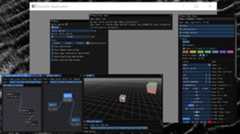
You can try binding by yourself in three simple steps:
git clone git@github.com:SpaiR/imgui-java.gitcd imgui-java./gradlew :example:runSeeexample module to try other widgets in action.
ImGui in LWJGL YouTube video byGamesWithGabe.
You can use this video as a basic step-by-step tutorial. It shows how to integrate binding with the usage of jar files.
Gradle and Maven dependencies could be used for this purpose as well.
Take a note, that integration itself is a very flexible process. It could be done in one way or another. If you just need a framework for your GUI - useApplication module.Otherwise, if you need more control, the best way is not just to repeat steps, but to understand what each step does.
The macOS version of the binding is compiled as a universal binary. This means you can use it on both x86_64 and aarch64 platforms without any additional actions.
If you don't care about OpenGL and other low-level stuff, then you can use application layer fromimgui-app module.It is aone jar solution which includes: GLFW, OpenGL and Dear ImGui itself.So you only needone dependency line orone jar in classpath to make everything to work.You don't need to add separate dependencies to LWJGL or native libraries, since they are already included.
Application module is the best choice if everything you care is the GUI itself.
At the same time, Application gives options to override any life-cycle method it has.That means that if you are seeking for a bit more low-level control - you can gain it as well.
A very simple application may look like this:
import imgui.ImGui;import imgui.app.Application;import imgui.app.Configuration;public class Main extends Application { @Override protected void configure(Configuration config) { config.setTitle("Dear ImGui is Awesome!"); } @Override public void process() { ImGui.text("Hello, World!"); } public static void main(String[] args) { launch(new Main()); }}Readimgui.app.Applicationjavadoc to understand how it works under the hood.
Gradle
repositories { mavenCentral()}dependencies { implementation "io.github.spair:imgui-java-app:${version}"}Maven
<dependencies> <dependency> <groupId>io.github.spair</groupId> <artifactId>imgui-java-app</artifactId> <version>${version}</version> </dependency></dependencies>Raw Jar
- Go to therelease page;
- Download
java-libraries.zip; - Get
imgui-app-${version}-all.jar; - Add the jar to your classpath.
Jar withall classifier already containsbinding andlwjgl3 modules.
If you're using jar without theall classifier, add appropriate jars as well.
Both jars, with or withoutall classifier, have all required native libraries already.
If using Java 9 modules, you will need to require theimgui.app module.
Using binding withoutimgui-app module requires to "attach" it to the application manually.You can refer toimgui-app module to see how things are done there.
For simplicity, example of dependencies for Gradle / Maven only shows how to add natives for Windows. Feel free to add other platforms.
| Native Binaries | System |
|---|---|
| imgui-java-natives-windows | Windows |
| imgui-java-natives-linux | Linux |
| imgui-java-natives-macos | macOS |
Take a note, that you also need to add dependencies toLWJGL library. Examples below shows how to do it as well.
Gradle
repositories { mavenCentral()}ext { lwjglVersion = '3.3.3' imguiVersion = "${version}"}dependencies { implementation platform("org.lwjgl:lwjgl-bom:$lwjglVersion") ['', '-opengl', '-glfw'].each { implementation "org.lwjgl:lwjgl$it:$lwjglVersion" implementation "org.lwjgl:lwjgl$it::natives-windows" } implementation "io.github.spair:imgui-java-binding:$imguiVersion" implementation "io.github.spair:imgui-java-lwjgl3:$imguiVersion" implementation "io.github.spair:imgui-java-natives-windows:$imguiVersion"}Maven
<properties> <lwjgl.version>3.3.1</lwjgl.version> <imgui.java.version>${version}</imgui.java.version></properties><dependencyManagement> <dependencies> <dependency> <groupId>org.lwjgl</groupId> <artifactId>lwjgl-bom</artifactId> <version>${lwjgl.version}</version> <scope>import</scope> <type>pom</type> </dependency> </dependencies></dependencyManagement><dependencies> <dependency> <groupId>org.lwjgl</groupId> <artifactId>lwjgl</artifactId> </dependency> <dependency> <groupId>org.lwjgl</groupId> <artifactId>lwjgl-glfw</artifactId> </dependency> <dependency> <groupId>org.lwjgl</groupId> <artifactId>lwjgl-opengl</artifactId> </dependency> <dependency> <groupId>org.lwjgl</groupId> <artifactId>lwjgl</artifactId> <classifier>natives-windows</classifier> </dependency> <dependency> <groupId>org.lwjgl</groupId> <artifactId>lwjgl-glfw</artifactId> <classifier>natives-windows</classifier> </dependency> <dependency> <groupId>org.lwjgl</groupId> <artifactId>lwjgl-opengl</artifactId> <classifier>natives-windows</classifier> </dependency> <dependency> <groupId>io.github.spair</groupId> <artifactId>imgui-java-binding</artifactId> <version>${imgui.java.version}</version> </dependency> <dependency> <groupId>io.github.spair</groupId> <artifactId>imgui-java-lwjgl3</artifactId> <version>${imgui.java.version}</version> </dependency> <dependency> <groupId>io.github.spair</groupId> <artifactId>imgui-java-natives-windows</artifactId> <version>${imgui.java.version}</version> </dependency></dependencies>Raw Jars
- Go to therelease page;
- Download
java-libraries.zipandnative-libraries.zip; - Get
imgui-binding-${version}.jarandimgui-lwjgl3-${version}.jarfromjava-libraries, and binary libraries for required OS fromnative-librariesarchive; - Add jars to your classpath;
- Provide a VM option with location of files from the
native-librariesarchive.
VM option example:
- -Dimgui.library.path=${path}
- -Djava.library.path=${path}
Bothimgui.library.path andjava.library.path are equal with the difference, thatjava.library.path is standard JVM option to provide native libraries.
If using Java 9 modules, ImGui Java has Automatic Module Names:
| Package | Module |
|---|---|
| imgui-java-app | imgui.app |
| imgui-java-binding | imgui.binding |
| imgui-java-lwjgl3 | imgui.lwjgl3 |
| imgui-java-natives-windows | imgui.natives.windows |
| imgui-java-natives-linux | imgui.natives.linux |
| imgui-java-natives-macos | imgui.natives.macos |
All extensions are already included in the binding and can be used as it is.See examples in theexample module for more information about how to use them.
- ImNodes |Example
A small, dependency-free node editor for Dear ImGui. (A good choice for simple start.) - imgui-node-editor |Example
Node Editor using ImGui. (A bit more complex than ImNodes, but has more features.) - ImGuizmo |Example
Immediate mode 3D gizmo for scene editing and other controls based on Dear ImGui. - implot |Example
Advanced 2D Plotting for Dear ImGui. - ImGuiColorTextEdit |Example
Syntax highlighting text editor for ImGui. - ImGuiFileDialog |Example
A file selection dialog built for ImGui. - ImGui Club MemoryEditor |Example
Memory editor and viewer for ImGui.
By default, Dear ImGui uses stb-truetype to render fonts. However, there is an option to use the FreeType font renderer.To learn about the differences, visit theimgui_freetype page.
This binding also supports the FreeType option.FreeType is statically pre-compiled into the library, meaning it isincluded by default.To enable it useImFontAtlas#setFreeTypeRenderer(true) method. This should be done before fonts atlas generation.
imgui-java/example/src/main/java/Main.java
Lines 46 to 47 ine822240
| // This enables FreeType font renderer, which is disabled by default. | |
| io.getFonts().setFreeTypeRenderer(true); |
ImGuiFreeTypeBuilderFlags in your font configuration.If you prefer not to use the FreeType font renderer, you will need to build your own binaries and use them instead.
Binding was made with Java usage in mind. Some places of the original library were adapted for that.
For example, in places where in C++ you need to pass a reference value, in Java you pass primitive wrappers:ImInt,ImFloat etc.
One important thing is how natives structs work. All of them have a public field with a pointer to the natively allocated memory.
By changing the pointer it's possible to use the same Java instance to work with different native structs.
Most of the time you can ignore this fact and just work with objects in a common way.
Readjavadoc and source comments to get more info about how to do specific stuff.
Ensure you've downloaded git submodules. That could be achieved:
- When cloning the repository:
git clone --recurse-submodules https://github.com/SpaiR/imgui-java.git - When the repository cloned:
git submodule initandgit submodule update
- Make sure you have installed andavailable in PATH:
- JDK 8 or higher
- Ant
- Mingw-w64 (recommended way: useMSYS2 and installmingw-w64-x86_64-toolchain group)
- Build with:
./gradlew imgui-binding:generateLibs -Denvs=windows -Dlocal - Run with:
./gradlew example:run -PlibPath="../imgui-binding/build/libsNative/windows64" - Always use
-Dlocalflag.
- Install dependencies:
openjdk8,mingw-w64-gcc,ant. (Package names could vary from system to system.) - Build with:
./gradlew imgui-binding:generateLibs -Denvs=linux -Dlocal - Run with:
./gradlew example:run -PlibPath=../imgui-binding/build/libsNative/linux64
- Check dependencies from "Linux" section and make sure you have them installed.
- Build with:
./gradlew imgui-binding:generateLibs -Denvs=macos -Dlocal - Run with:
./gradlew example:run -PlibPath=../imgui-binding/build/libsNative/macosx64
- Check dependencies from "Linux" section and make sure you have them installed.
- Build with:
./gradlew imgui-binding:generateLibs -Denvs=macosarm64 -Dlocal - Run with:
./gradlew example:run -PlibPath=../imgui-binding/build/libsNative/macosxarm64
Inenvs parameter next values could be usedwindows,linux ormacos ormacosarm64.
-Dlocal is optional and means that natives will be built under the./imgui-binding/build/ folder. Otherwise/tmp/imgui folder will be used.
To build a version of the libraries with FreeType, you need to run thebuildSrc/scripts/vendor_freetype.sh script first.This script configures the FreeType library to be statically compiled into your project.
See the LICENSE file for license rights and limitations (MIT).
About
JNI based binding for Dear ImGui
Topics
Resources
License
Code of conduct
Contributing
Uh oh!
There was an error while loading.Please reload this page.
Stars
Watchers
Forks


Uh oh!
There was an error while loading.Please reload this page.