- Notifications
You must be signed in to change notification settings - Fork24
ChartConfiguration
The {safetyGraphics} shiny app can be used to display a wide variety of charts. This vignette provides details about the charting process including step-by-step instructions for adding new charts and technical specifications, but first we need to talk about a 2nd package ...
While this is technically a vignette for {safetyGraphics}, the {safetyCharts} package is just as important here. The roles of the packages can be summarized in just a few words:
The {safetyGraphics} platform displays charts from {safetyCharts}.
This relationship is central to the technical framework for the safetyGraphics app. By itself, thesafetyGraphicsplatform really doesn't do much! In fact, none of the content on the Charts tab is actually found in thesafetyGraphics package; it's all imported from elsewhere! As you've probably guessed, the default charts live in thesafetyCharts package.safetyCharts has over a dozen charts that are configured to work with {safetyGraphics}, but can also easily be used independently.
While {safetyGraphics} and {safetyCharts} are designed to work seamlessly together, users can also add charts from other packages. In fact, several charts in {safetyCharts} are just wrappers that load charts from other packages for use in {safetyGraphics}. The rest of this vignette provides a series of step-by-step examples detailing how this process works for different types of charts.
To add a chart to safetyGraphics, two components are required:
- A Configuration Object
- A Chart Function
The configuration file captures metadata about the chart for use in the app and is typically saved as a YAML file. Several example configuration files are provided in the examples below, and YAML Configuration files for {safetyCharts} are savedhere.
The chart function typically takes a list ofsettings and a list ofdata as inputs and returns a chart object ready to be displayed in the app. Details of charting functions vary somewhat for different chart types, as explained in the examples below.
A full technical specification of this chart configuration framework is provided in Appendix 1.
Once you've created the configuration and chart functions, the chart can be added to the app via thecharts parameter insafetyGraphicsApp(). Consider this simple "Hello World" example:
# Chart FunctionhelloWorld <- function(data, settings){ plot(-1:1, -1:1) text(runif(20, -1,1),runif(20, -1,1),"Hello World")}# Chart Configurationhelloworld_chart<-list( env="safetyGraphics", name="HelloWorld", label="Hello World!", type="plot", domain="aes", workflow=list( main="helloWorld" ))safetyGraphicsApp(charts=list(helloworld_chart))It's also easy to add a custom chart to the default charts provided in {safetyCharts} using themakeChartConfig() function:
charts <- makeChartConfig(packages="safetyCharts") # or just makeChartConfig() since safetyCharts is included by defaultcharts$helloworld<-helloworld_chartsafetyGraphicsApp(charts=charts)Here's our Hello World the chart running in the app:

Now let's consider a more complex example that makes use of thedata andsettings provided insafetyGraphics. In this section, we use {ggplot2} to create a spaghetti plot for tracking outliers in lab data. First, consider the following code which creates a stand-alone plot for a single data set:
# Use sample clinical trial data sets from the {safetyData} packagelibrary(safetyData) library(ggplot2)library(dplyr)# Define data mapping using a format similar to a reactive safetyGraphics mapping settings <- list( id_col="USUBJID", value_col="LBSTRESN", measure_col="LBTEST", studyday_col="LBDY")# Define a plotting function that takes data and settings as inputs spaghettiPlot <- function( data, settings ){ # define plot aes - note use of standard evaluation! plot_aes <- aes( x=.data[[settings$studyday_col]], y=.data[[settings$value_col]], group=.data[[settings$id_col]] ) #create the plot p<-ggplot(data = data, plot_aes) + geom_path(alpha=0.15) + facet_wrap( settings$measure_col, scales="free_y" ) return(p)}spaghettiPlot( safetyData::sdtm_lb %>% filter(LBTEST %in% c("Albumin","Bilirubin","Calcium","Chloride")), settings)Running the code above should create a plot with 4 panels:
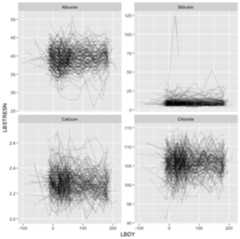
With minor modifications, this chart can be added to the {safetyGraphics} shiny app, which allows us to create the chart with any mappings/data combination loaded in the app. ThespaghettiPlot() function above is already written to work with safetyGraphics, so we just need to create the chart configuration object. This time we'll capture the configuration in aYAML file.
env: safetyGraphicslabel: Spaghetti Plotname: spaghettiPlottype: plotdomain: - labsworkflow: main: spaghettiPlotlinks: safetyCharts: https://github.com/SafetyGraphics/safetychartsWith the charting function loaded in to our session and the configuration file saved in our working directory asspaghetti.yaml, we can add the chart to the app as follows:
library(yaml)charts <- makeChartConfig()charts$spaghetti<-prepareChart(read_yaml('spaghetti.yaml'))safetyGraphicsApp(charts=charts)Under the charts tab, you'll see:

If you look closely at thespaghettiPlot() code above, you'll noticed some details that make the chart work in the app:
- The chart function is written as a function taking
dataandsettingsas inputs. This is the expected parameterization for most charts in {safetyGraphics}. - The references to
settingsuse parameters that are defined on the mapping tab. Behind the scenes, these are defined in thesafetyGraphics::meta. - The
spaghettiPlotfunction is referenced in themainitem the YAMLworkflow. This tells the app which function to use to draw the chart. - We're using the
.data[[]]pronoun in the chart function to access columns in the data based on the current settings. See these references for a lot more detail about functional programming in the tidyverse:- Using ggplot2 in packages
- Programming with dplyr
- Functional programming chapters in Advanced RThese details allow users to dynamically define data attributes for any labs data set, allowing the chart to be reused across many different types of data.
This example is inspired bysafetyCharts::safety_outlier_explorer - thecharting function andyaml configuration file on are GitHub.
{safetyGraphics} also supports defining charts as Shiny Modules. Once you'refamiliarwithmodules, they are relatively straightforward to use with safetyGraphics.
Let's take a look at a simple module that extends the functionality of the static chart from the example above. Once again, this example is based uponsafetyCharts, and you can see thecode andconfig on GitHub.
The config object for a module differs from a static chart is that the workflow section of the YAML file must specifyui andserver functions instead of amain charting function. This example defines a simple UI function that allows users to select which lab measurements should be included in the spaghetti plot from example 1:
safetyOutlierExplorer_ui <- function(id) { ns <- NS(id) sidebar<-sidebarPanel( selectizeInput( ns("measures"), "Select Measures", multiple=TRUE, choices=c("") ) ) main<-mainPanel(plotOutput(ns("outlierExplorer"))) ui<-fluidPage( sidebarLayout( sidebar, main, position = c("right"), fluid=TRUE ) ) return(ui)}Next we define a server function that populates the control for selecting measurements and then draws the plot usingsafetyCharts::safety_outlier_explorer() charting function - which is based on thespaghetti() function! Note that the server function takes a single reactiveparams object containing the data (params$data) and settings (param$settings) as input.
safetyOutlierExplorer_server <- function(input, output, session, params) { ns <- session$ns # Populate control with measures and select all by default observe({ measure_col <- params()$settings$measure_col measures <- unique(params()$data[[measure_col]]) updateSelectizeInput( session, "measures", choices = measures, selected = measures ) }) # customize selected measures based on input settingsR <- reactive({ settings <- params()$settings settings$measure_values <- input$measures return(settings) }) #draw the chart output$outlierExplorer <- renderPlot({safety_outlier_explorer(params()$data, settingsR())})}Finally, the YAML configuration file looks like this - just the workflow and label changes from Example 1:
env: safetyGraphicslabel: Outlier Explorer - Modulename: outlierExplorerModtype: modulepackage: safetyChartsdomain: - labsworkflow: ui: safetyOutlierExplorer_ui server: safetyOutlierExplorer_serverlinks: safetyCharts: https://github.com/SafetyGraphics/safetychartsInitializing the app as usual by adding it to the chart list:charts$outlierMod<-prepareChart(read_yaml('outlierMod.yaml'))
Unselecting a few measures gives the following display:
You can also add custom htmlwidgets to safetyGraphics. In fact, many of thedefault charts imported from safetyCharts are javascript libraries that are imported as htmlwidgets. Like shiny modules, htmlwidgets are relatively simple to use once you arefamiliar with the basics.
The biggest differences between widgets and other charts in safetyGraphics are:
- The widget must be contained in a package, which must be specified in the YAML file.
- The widget expects a
widgetitem giving the name of the widget in the YAML workflow. - By default, the data and settings for a widget are passed in a list (
list(data=data, settings=settings)) to thexparameter inhtmlwidget::createWidget.
Items 1 and 2 above are simple enough, but #3 is likely to create problems unless the widget is designed specifically for usage with safetyGraphics. That is, if the widget isn't expectingx$settings to be a list that it uses to configure the chart, it probably isn't going to work as expected.
Fortunately, there's a workaround built in to safetyGraphics in the form ofinit workflow functions. Init functions run before the chart is drawn, and can be used to create custom parameterizations. The init function should takedata andsettings as inputs and returnparams which should be a list which is then provided to the chart (see the appendix for more details). Theinit function for the the interactiveAE Explorer is a good example. It starts bymerging demographics and adverse event data and then proceeds tocreate a customized settings object to matchthe configuration requirements of the javascript chart renderer. This init function is then saved underworkflow$init in the chart config object.
The rest of thechart configuration YAML is similar to the examples above, and the chart is once again by passing the chart config object tosafetyGraphicsApp()
All of our examples so far have been focused on creating charts in our 3 default data domains (labs, adverse events and demographics), but there is no requirement that limits charts to these three data types. The data domains in the app are determined by ameta data frame that defines the columns and fields used in safetyGraphics charts, and customizingmeta allows us to create charts for any desired data domains.
Generally speaking there are 3 steps to add a chart in a new domain:
- Create Metadata for a new data domain.
- Define a chart using the new domain - like the examples above
- Load data for the new domain
Consider the following example, that modifies a chart from thelabs domain for use on ECG data:
adeg <- readr::read_csv("https://physionet.org/files/ecgcipa/1.0.0/adeg.csv?download")ecg_meta <-tibble::tribble( ~text_key, ~domain, ~label, ~description, ~standard_adam, ~standard_sdtm, "id_col", "custom_ecg", "ID column", "Unique subject identifier variable name.", "USUBJID", "USUBJID", "value_col", "custom_ecg", "Value column", "QT result variable name.", "AVAL", "EGSTRESN", "measure_col", "custom_ecg", "Measure column", "QT measure variable name", "PARAM", "EGTEST","studyday_col", "custom_ecg", "Study Day column", "Visit day variable name", "ADY", "EGDY", "visit_col", "custom_ecg", "Visit column", "Visit variable name", "ATPT", "EGTPT", "visitn_col", "custom_ecg", "Visit number column", "Visit number variable name", "ATPTN", NA, "period_col", "custom_ecg", "Period column", "Period variable name", "APERIOD", NA, "unit_col", "custom_ecg", "Unit column", "Unit of measure variable name", "AVALU", "EGSTRESU") %>% mutate( col_key = text_key, type="column")qtOutliers<-prepare_chart(read_yaml('https://raw.githubusercontent.com/SafetyGraphics/safetyCharts/dev/inst/config/safetyOutlierExplorer.yaml') )qtOutliers$label <- "QT Outlier explorer"qtOutliers$domain <- "custom_ecg"qtOutliers$meta <- ecg_metasafetyGraphicsApp( domainData=list(custom_ecg=adeg), charts=list(qtOutliers))As of safetyGraphics v2.1, metadata can be saved directly to the chart object usingchart$meta as shown in the example above.
Alternatively, metadata can be saved as a data object in thechart$package namespace. Chart-specific metadata should be saved asmeta_{chart$name} while domain-level metadata should be namedmeta_{chart$domain}. It's fine to use a combination of these approaches as appropriate for your chart. See?safetyGraphics::makeMeta for more detail.

The diagram above summarizes the various components of the safetyGraphics charting framework:
- The
safetyGraphicsApp()function allows users to specify which charts to include in the shiny app via thechartsparameter, which expects alistof charts. - Each item in
chartsis itself defined as alistthat provides configuration details for a single chart. These configuration lists have several required parameters, which are described in the technical specification below. - Configuration lists are typically saved as YAML files, but can be also be loaded directly as list objects as shown in the Hello World example above.
- Needed functions are bound to the chart object via the prepareChart() function. See the documentation for
chart$functionsbelow for full details.
Each item in thecharts list should be a list() with the following parameters:
env: Environment for the chart. Must be set to "safetyGraphics" or the chart is dropped. Type:character.Requiredname: Name of the chart. Type:character.Requiredtype:: Type of chart. Valid options are: "plot","htmlwidget","html","table" and "module". Type:character.Requiredlabel: A short description of the chart. chart$name is used if not provided. Type:character.Optionaldomain: The data domain(s) used in the chart. Type:character.Requiredpackage: The package where the {htmlwidget} is saved. Type:character.Required whenchart$typeis "htmlwidget"meta: Table of chart-specific metadata. Metadata can also be saved as{package}::meta_{chart}or{package::meta_{domain}. See?safetyGraphics::makeMetafor more detail.order: Order in which to display the chart. If order is a negative number, the chart is dropped. Defaults to 999999. Type:Integer.Optionallinks: Named list of link names/urls to be shown in the chart header. Type:list of character.Optionalpath: Full path of the YAML file. Auto-generated bymakeChartConfig()Type:characteroptionalworkflow: Names of functions used to create the chart. Should be loaded in global environment or included inchart$packagebefore callingprepareChart(). Supported parameters are listed below. Type:list of character.Requiredworkflow$main: name of the function to draw the chart. The function should takedataandsettingsparameters unless the input parameters are customized by aninitfunction.Required, unlesschart$typeis "htmlwidget" or "module")workflow$init: name of initialization function that runs before chart is drawn via themainfunction. Should takedataandsettingsas input and return a list of parameters accepted by themain` function.Optionalworkflow$widget: name or widget saved inchart$packageto be passed tohtmlwidgets::createWidgetRequired whenchart$typeis "htmlwidget"workflow$uiandworkflow$server: names of functions to render shiny ui and server. Automatically generated inprepareChart()unlesschart$typeis "module".Required whenchart$typeis 'module'
functions: a list of functions used to create the chart. Typically generated at runtime byprepareChart()using information inchart$workflow,chart$typeandchart$package. Not recommended to generate manually. Type:list of functions.Required
This appendix describe the technical process used to render a chart when safetyGraphicsApp() is called with the default parameters.
safetyGraphicsApp()is called withchartsandchartSettingsPathas NULL (the default).app_startupis called, which then immediately callsmakeChartConfig().makeChartConfig()looks for charts in the safetyCharts package (the default) since no path was specified. The function looks for the package in all current.libPaths()and then looks in theinst/configfolder once the package is found.makeChartConfigloads YAML configuration files in the specified directories and saves them to a list.nameandpathparameters are added.makeChartConfigcallsprepareChartfor each chart configuration.prepareChartsets default values fororder,nameandexport, and then binds relevant functions to achart$functionslist based on the chart'stype,workflowandpackage.- That list of charts is then returned to
app_startup()which runs a few actions on each chart:- If
chart$functionsis missing,prepareChartis called (not relevant in the default workflow, but useful for adding custom charts) - If
chart$orderis negative, the chart is dropped with a message. - If
chart$envis not "safetyGraphics", the chart is dropped with a message. - If
chart$domainshas elements not found in thedataDomainspassed to `app_startup(), the chart is dropped with a message. chartsare re-ordered based onchart$order
- If
app_startuppasses the updated list of charts tomakeMetaassuming nometaobject was provided.makeMetacombines metadata from all charts in to a single data.frame. Charts can save metadata aschart.meta,{package}::meta_{chart}or{package}::meta_{domain}.app_startupreturns the list of charts and associated metadata tosafetyGraphicsAppwhich then then passes them along tosafetyGraphicsServeras thechartsparameter.safetyGraphicsServerthen creates modules for each chart. First,UIsare created viachartsNav()which then calls:makeChartSummaryto create the chart header with links and metadata and ...ChartsTabUIwhich then callschart$functions$uito create the proper UI element based onchart$type.
- Next,
safetyGraphicsServerdraws the charts usingchartsTab()which:- Creates a reactive
paramsobject containing mappings and data usingmakeChartParams()which:- Subsets
domainDatabased onchart$domain - Calls
charts$functions$initif provided - Does custom formatting for
chart$typeof "htmlwidget"
- Subsets
- Chart is drawn using
chart$functions$serverandchart$functions$main - Button to download R script is added to header. Script is created by
makeChartExport() - Button to download html report is added to header unless type="module". Report template is at "inst/reports/safetyGraphicsReport.Rmd"
- Creates a reactive
- Finally,
safetyGraphicsServerpasses the charts tosettingsTab, which uses them to help populate thechartsandcodesubtabs.