Uh oh!
There was an error while loading.Please reload this page.
- Notifications
You must be signed in to change notification settings - Fork6k
Installation Guide
There are four ways to use SDWebImage in your project:
- using CocoaPods
- using Carthage
- using Swift Package Manager
- manual install (xcframework, build-only or embed Xcode Project)
CocoaPods is a dependency manager for Objective-C, which automates and simplifies the process of using 3rd-party libraries in your projects. See theGet Started section for more details.
platform :ios, '8.0'pod 'SDWebImage', '~> 5.0'Swift project previously have to useuse_frameworks! to make all Pods into dynamic framework to let CocoaPods works.
However, start withCocoaPods 1.5.0+ (withXcode 9+), which supports to build both Objective-C && Swift code into static framework. You can use modular headers to use SDWebImage as static framework, without the need ofuse_frameworks!:
platform :ios, '8.0'# Uncomment the next line when you want all Pods as static framework# use_modular_headers!pod 'SDWebImage', :modular_headers => trueSee more onCocoaPods 1.5.0 — Swift Static Libraries
If not, you still need to adduse_frameworks! to use SDWebImage as dynamic framework:
platform :ios, '8.0'use_frameworks!pod 'SDWebImage'There are 2 subspecs available now:Core andMapKit (this means you can install only some of the SDWebImage modules. By default, you get justCore, so if you needMapKit, you need to specify it).
Podfile example:
pod 'SDWebImage/MapKit'Carthage is a lightweight dependency manager for Swift and Objective-C. It leverages CocoaTouch modules and is less invasive than CocoaPods.
To install with carthage, follow the instruction onCarthage
github "SDWebImage/SDWebImage"Swift Package Manager (SwiftPM) is a tool for managing the distribution of Swift code as well as C-family dependency. From Xcode 11, SwiftPM got natively integrated with Xcode.
SDWebImage support SwiftPM from version 5.1.0. To use SwiftPM, you should use Xcode 11 to open your project. ClickFile ->Swift Packages ->Add Package Dependency, enterSDWebImage repo's URL. Or you can login Xcode with your GitHub account and just typeSDWebImage to search.
After select the package, you can choose the dependency type (tagged version, branch or commit). Then Xcode will setup all the stuff for you.
If you're a framework author and use SDWebImage as a dependency, update yourPackage.swift file:
letpackage=Package( // 5.1.0 ..< 6.0.0 dependencies:[.package(url:"https://github.com/SDWebImage/SDWebImage.git", from:"5.1.0")], // ...)
SDWebImage supports to build SDWebImage asxcframework on Xcode 11 from version 5.1.0. This is the simplest way to build SDWebImage.
To build xcframework, you can clone the repo and openSDWebImage.xcodeproj, choose theSDWebImage XCFramework target. Then just clickBuild (Command + R). You'll start to build all individual platform's framework and produce axcframework product on yourbuild directory. After all the builds success, Finder will pop-up and select this file.
On Xcode 10, this step only build frameworks and placing them inbuild directory, without producing axcframework product.
You can also use the shell script to build xcframework, run the following below:
- Check your command line Xcode version
sudo xcode-select -s /path/to/Xcode.appor
export DEVELOPER_DIR=/path/to/Xcode.app/Contents/Developer- Run the script to build frameworks
./Scripts/build-frameworks.sh- Run the script to merge XCFramework
./Scripts/create-xcframework.shIf you need any advanced XCFramework customization, edit the script and xcconfig by yourself :)
For most user, to use SDWebImage, just need to build SDWebImage source code into a framework or static library.
For framework, you can choose to use Dynamic Framework (Link during runtime) or Static Framework (Link to the main executable file like Static Library).
It's strongly recommended to use Framework instead of Static Library. Framework can bundle resource and header files together, and have module map for clang module. Which make it easy to use.
And more importantly, Swift can only import the Objective-C code by using modular framework, or using the Bridging Header. (Bridging header contains its own disadvantage but this is beyond the topic).
git clone https://github.com/SDWebImage/SDWebImage.gitThen open theSDWebImage.xcodeproj.
SDWebImagefor dynamic framework. You can also change theMach-O TypetoStatic Libraryto build static framework inBuild Settings.SDWebImage Staticfor static library.SDWebImageMapKitfor MapKit sub component only.
My Macfor macOS platform.Generic iOS Devicefor iOS platform.Generic tvOS Devicefor tvOS platform.Generic watchOS Devicefor watchOS platform.- Simulator Device for Simulator platform.
If you want to build framework for Real Device, don't try to clickBuild (Command + R). Because by default it will use theDEBUG configuration, which is not suitable for production. It's mostly used for Simulator.
Instead, you can useArchive. But before we click the button, you need some prepare in theBuild Settings.
Change theSkip Install toNO. Or the archived product will not contains any framework.
You can do this by modify the xcconfig fileModule-Shared.xcconfig. Or you can change it using Xcode GUI.
SKIP_INSTALL = NONow, you can click theArchive button (Product -> Archive). After the build success. Xcode will pop-up the Organizer window.
ClickDistribute Content. Then ensure theBuilt Products is selected. ClickNext and select a build folder your want to export. ClickExport.
You can find aSDWebImage.framework, orlibSDWebImage.a and the Headers Files inside the build folder.

If you need to build Universal Framework (for Simulator and Real Device). You need some command line to combine the framework.
For example, if you already built two frameworks,iOS/SDWebImage.framework for iOS Real Device,Simulator/SDWebImage.framework for Simulator.
mkdir Universal/cp -R iOS/SDWebImage.framework Universal/SDWebImage.frameworklipo -create Simulator/SDWebImage.framework/SDWebImage iOS/SDWebImage.framework/SDWebImage -output Universal/SDWebImage.framework/SDWebImageFor Static Library, just do the same thing.
mkdir Universal/lipo -create Simulator/libSDWebImage.a iOS/libSDWebImage.a -output Universal/libSDWebImage.aUnder your Project folder. You can create aVendor folder to place the Framework or Static Library.
For Framework (Dynamic or Static), the Headers are inside the framework. Just copy theSDWebImage.framework into theVendor folder.
If your project is App project and using Dynamic Framework. You need to clickEmbedded Binaries. SelectAdd Other... and select theSDWebImage.framework. Xcode automatically add it into theLinked Frameworks and Libraries as well.
If not (Framework project or using Static Framework). ClickclickLinked Frameworks and Libraries. SelectAdd Other... and select theSDWebImage.framework.
Then all things done if you use Framework.

For Static Library, you need copy both thelibSDWebImage.a as well as the Headers into theVendor folder.

Open your application Xcode Project, clickLinked Frameworks and Libraries. SelectAdd Other... and select thelibSDWebImage.a.
After link, you need to specify the Header Search Path for headers. Check Build Settings'sHeader Search Path, add the Header Search Path, where there must be aSDWebImage parent directory ofSDWebImage.h this umbrella header file.
The example above can using the following path.
$(SRCROOT)/VendorThen all things done if you use Static Library.
Technical Note TN2435 - Embedding Frameworks In An App
You can also embed SDWebImage as a Sub Xcode Project using in your Xcode Project/Workspace. This can be used for some specify environment which does not support external dependency manager.
To embed the Sub Xcode Project, you can simply add SDWebImage entire project using Git Submodule.
cd Vendor/git submodule add https://github.com/SDWebImage/SDWebImage.gitNote: If your project don't using Git Submodule, just copy the entire repo of SDWebImage to that Vendor folder, and you can add to your own Version Control tools.
However, using Git Submodule can make it easy to upgrade framework version and reduce Git repo size.
Just drag theSDWebImage.xcodeproj you cloned, into your Xcode Workspace/Project 's Project Navigator.
For Xcode Workspace, you can put it the same level of your App Project.
For Xcode Project, you can put it inside your App Project.
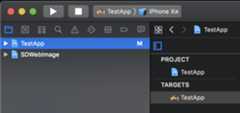
To use SDWebImage, you should link theSDWebImage target.
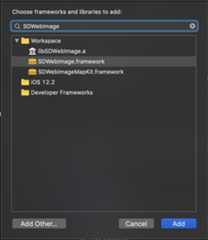
Go to your App/Framework target'sGeneral page. Then clickLinked Frameworks and Libraries, and add theSDWebImage.framework orlibSDWebImage.a (Depends on your use case).
Then all things done.