
Learn about page loading performance data (web apps)
TheFirebaseJavaScript SDK forPerformance Monitoring is abeta release.
This product might be changed in backward-incompatible ways and is not subject to any SLA or deprecation policy.
Performance Monitoring usestraces to collect data about monitored processes in your app.A trace is a report that contains data captured between two points in timein your app.
For web apps,Performance Monitoringautomatically collects a trace for each pageof your app called apage load trace. Each page load trace collects thefollowing default metrics:
largest contentful paint - A metric that measuresthe time between when the user navigates to a page and when thelargestvisual change happens
interaction to next paint - A metric that measuresthe longest time between when the user interacts with the page to when thenext paint occurs
cumulative layout shift - A metric that measures and scores unexpected layout shifts in a page
first paint — A metric that measures the time between whenthe user navigates to a page and whenany visual change happens
first contentful paint — A metric that measuresthe time between when a user navigates to a page and when meaningful contentdisplays, like an image or text
domInteractive — A metric that measures the time betweenwhen the user navigates to a page and when the page is considered interactivefor the user
domContentLoadedEventEnd — A metric that measures thetime between when the user navigates to a page and when the initial HTMLdocument is completely loaded and parsed
loadEventEnd — A metric that measures the time between whenthe user navigates to the page and when the current document'sload eventcompletes
first input delay — A metric that measures the time betweenwhen the user interacts with a page and when the browser is able to respond tothat input
You can view data from these traces in thePage load subtab of thetraces table, which is at the bottom of thePerformance dashboard (learn moreaboutusing the console later on this page).
These out-of-the-box traces get you started with monitoring your app, but to learn about the performance of specific tasks or flows in your app, try outinstrumenting your own custom traces of code in your app.Definition of a page load trace
This trace measures several metrics about how the pages in your app load,specifically how long it takes to reach common loading points, like an aresponsive app.
Page load traces help you track your app'score web vitals, like firstcontentful paint.
Metrics collected for page load traces
These traces are out-of-the-box traces, so you cannot add additional custommetrics or custom attributes to them.
Largest contentful paint
This metric measures the time between when the user navigates to a page and whenthelargest image, text, or video content displays.
This metric is useful to understand how quickly the main content of the web pagebecomes visible to the user.
Starts when the user navigates to a page.
Stops when thelargest visual change happens, including images, text, orvideo elements. Refer to thecore webvitals for moredetails.
The "Largest contentful paint element" is a custom attribute that identifiesthe element corresponding to the largest contentful paint. This is captured inaddition to the largest contentful paint timing.
Interaction to next paint
Note: Interaction to next paint is not captured if the user does not interact with the page.This metric measures the time between when a user interacts with a page to whenthe next paint occurs.
This metric is useful since it measures how responsive a page is to user input.
Starts when the user interacts with the page (mouse click, tapping on adevice, or keyboard input).
Stops when next paint occurs. Refer to thecore webvitals for moredetails.
The "Longest interaction to next paint" is a custom attribute that identifiesthe element that was interacted with by the user when the interaction to nextpaint event occurred. This is captured in addition to the interaction to nextpaint timing.
Cumulative layout shift
This metric measures the largest burst of layout shifts scores for everyunexpected layout shift that occurs within the entire lifecycle of the page.
This metric is useful since unexpected layout shifts can disrupt the userexperience. The metric reports a score based on theLayout InstabilityAPI. Refer to thecore web vitals for more details on how the score is calculated.
The "Largest layout shift target" is a custom attribute that identifies theelement that shifted when the largest contentful shift occurred. This iscaptured in addition to the cumulative layout shift score.
First paint
This metric measures the time between when the user navigates to a page and whenany visual change happens.
This metric is useful since the first paint signals to your users that the pageisstarting to load.
Starts when the user navigates to a page.
Stops whenany visual change happens, including a background color change ora header loading.
First contentful paint
This metric measures the time between when a user navigates to a page and whenmeaningful content displays, like an image or text.
This metric is useful for insights into how soon your users see any of yourapp's actual content rather than just a new background color or header.
Starts when the user navigates to a page.
Stops immediately after the browser renders the first content from the DOM,including any text, image (including background images), non-white canvas, orSVG.
domInteractive
This metric measures the time between when the user navigates to a page and whenthe page is considered interactive for the user.
This metric is useful for insights into how soon your users can actuallyinteract with elements in your app, like buttons and hyperlinks, rather thanjust seeing them on the screen. Note that this doesn't mean that the browserwill respond to the interaction (for this metric, refer tofirst input delay trace).
Starts when the user navigates to a page.
Stops immediately before the user agent sets the current HTML document'sreadiness to "interactive".
domContentLoadedEventEnd
This metric measures the time between when the user navigates to a page and whenthe initial HTML document is completely loaded and parsed.
Starts when the user navigates to a page.
Stops immediately after the initial HTML document is completely loaded andparsed (
DOMContentLoaded), but this does not mean that stylesheets, images,and subframes are finished loading.
loadEventEnd
This metric measures the time between when the user navigates to the page andwhen the current document'sload event completes.
This metric is useful for insights into how long it takes to load all yourcontent, including stylesheets and images.
Starts when the user navigates to a page.
Stops immediately after the current HTML document's load event completes.
First input delay
This metric measures the time between when the user interacts with a page andwhen the browser is able to respond to that input.
This metric is useful since the browser responding to a user interaction givesyour users their first impressions about the responsiveness of your app.
Starts when the userfirst interacts with an element on the page, likeclicking a button or hyperlink.
Stops immediately after the browser is able to respond to the input, meaningthat the browser isn't busy loading or parsing your content.
Note that to measure the first input delay metric, you need to add the polyfilllibrary for this metric. For installation instructions, refer to the library'sdocumentation.
Note:Performance Monitoring only records the first input delay metric when a user clickson the web page within the first 5 seconds after page load.Track, view, and filter performance data
To view real-time performance data, make sure that your app uses a PerformanceMonitoring SDK version that's compatible with real-time data processing.Learn more about real-time performance data.
Track key metrics in your dashboard
To learn how your key metrics are trending, add them to your metrics board at the top of thePerformance dashboard. You can quickly identify regressions by seeing week-over-week changes or verify that recent changes in your code are improving performance.
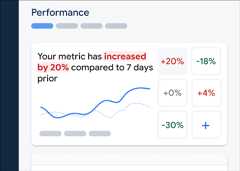
To add a metric to your metrics board, follow these steps:
- Go to thePerformance dashboardin theFirebase console.
- Click an empty metric card, then select an existing metric to add to your board.
- Click on a populated metric card for more options, for example to replace or remove a metric.
The metrics board shows collected metric data over time, both in graphical form and as a numerical percentage change.
Learn more aboutusing the dashboard.
View traces and their data
To view your traces, go to thePerformance dashboard in theFirebase console, scroll down to the traces table, then click the appropriate subtab. The table displays some top metrics for each trace, and you can even sort the list by the percentage change for a specific metric.
Performance Monitoring provides a troubleshooting page in theFirebase console that highlights metricchanges, making it easy to quickly address and minimize the impact of performance issues on yourapps and users. You can use the troubleshooting page when you learn about potentialperformance issues, for example, in the following scenarios:
- You select relevant metrics on the dashboard and you notice a big delta.
- In the traces table you sort to display the largest deltas at the top, and you see a significant percentage change.
- You receive an email alert notifying you of a performance issue.
You can access the troubleshooting page in the following ways:
- On the metric dashboard, click theView metric details button.
- On any metric card, select
=> View details . The troubleshooting page displays information about the metric you selected. - In the traces table, click a trace name or any metric value in the row associated with that trace.
- In an email alert, clickInvestigate now.
When you click a trace name in the traces table, you can then drill down into metrics of interest. Click the

- Filter byPage URL to view data for a specific page of your site
- Filter byEffective connection type to learn how a 3g connection impacts your app
- Filter byCountry to make sure your database location isn't affecting a specific region
Learn more aboutviewing data for your traces.
Next Steps
Learn more aboutusing attributes to examine performance data.
Learn more about how totrack performance issues in theFirebase console.
Set up alerts for page loads that are degradingthe performance of your app. For example, you can configure an email alert foryour team if thefirst input delay for a specific page exceeds athreshold that you set.
Except as otherwise noted, the content of this page is licensed under theCreative Commons Attribution 4.0 License, and code samples are licensed under theApache 2.0 License. For details, see theGoogle Developers Site Policies. Java is a registered trademark of Oracle and/or its affiliates.
Last updated 2026-02-04 UTC.