
Add custom monitoring for specific app code
Performance Monitoring collectstraces to help you monitor the performance of your app. Atrace is a report of performance data captured between two points in time inyour app.
You can create your own traces to monitor performance data associated withspecific code in your app. With acustom code trace, you can measure howlong it takes your app to complete a specific task or a set of tasks, forexample loading a set of images or querying your database.
The default metric for a custom code trace is its "duration" (the time betweenthe starting and stopping points of the trace), but you can addcustom metrics, as well.
In your code, you define the beginning and the end of a custom code trace usingthe APIs provided by thePerformance Monitoring SDK.Custom code traces can be started anytime after they've been created, and theyare thread safe.
Since the default metric collected for these traces is "duration", they aresometimes called "Duration traces".
You can view data from these traces in theCustom traces subtab of the tracestable, which is at the bottom of thePerformance dashboard (learn more aboutusing the console later on this page).
Note: Starting and stopping traces too rapidly can be resource intensive, soyou should avoid creating custom code traces at high frequencies (for example,once per frame in games).Default attributes, custom attributes, and custom metrics
For custom code traces,Performance Monitoring automatically logsdefault attributes(common metadata like app version, country, device, etc.)so that you can filter the data for the trace in theFirebase console. Youcan also add and monitorcustom attributes(such as, game level or user properties).You can further configure a custom code trace to recordcustom metrics for performance-related events thatoccur within the trace's scope. For example, you can create a custom metric forthe number of cache hits and misses or the number of times that the UI becomesunresponsive for a noticeable period of time.
Custom attributes and custom metrics display in theFirebase consolealongside the default attributes and default metric for the trace.
Anattribute is a string value that helps you filter and segment data in the console. Ametric is a numeric value that can be charted and measured over time.Add custom code traces
Use thePerformance Monitoring Trace API(Swift|Obj-C)to add custom code traces to monitor specific application code.
Note the following:
- An app can have multiple custom code traces.
- More than one custom code trace can run at the same time.
- Names for custom code traces must meet the following requirements:no leading or trailing whitespace, no leading underscore (
_) character,and max length is 100 characters. - Custom code traces support addingcustom metrics andcustom attributes.
To start and stop a custom code trace, wrap the code that you want to trace withlines of code similar to the following:
Swift
// Add thePerformance Monitoring module to your headerimportFirebasePerformancelettrace=Performance.startTrace(name:"CUSTOM_TRACE_NAME")// code that you want to tracetrace.stop()
Objective-C
// Add thePerformance Monitoring module to your header@importFirebasePerformance;FIRTrace*trace=[FIRPerformancestartTraceWithName:@"CUSTOM_TRACE_NAME"];// code that you want to trace[tracestop];
Add custom metrics to custom code traces
Use thePerformance Monitoring Trace API(Swift|Obj-C)to add custom metrics to custom code traces.
Note the following:
- Names for custom metrics must meet the following requirements:no leading or trailing whitespace, no leading underscore (
_) character,and max length is 100 characters. - Each custom code trace can record up to 32 metrics (including the defaultDuration metric).
To add a custom metric, add a line of code similar to the following each timethat the event occurs. For example, this custom metric countsperformance- related events that occur in your app, such as cache hits orretries.
Swift
lettrace=Performance.startTrace(name:"CUSTOM_TRACE_NAME")trace.incrementMetric("EVENT_NAME",by:1)// code that you want to trace (and log custom metrics)trace.stop()
Objective-C
FIRTrace*trace=[FIRPerformancestartTraceWithName:@"CUSTOM_TRACE_NAME"];[traceincrementMetric:@"EVENT_NAME"byInt:1];// code that you want to trace (and log custom metrics)[tracestop];
Create custom attributes for custom code traces
Use thePerformance Monitoring Trace API(Swift|Obj-C)to add custom attributes to custom code traces.
To use custom attributes, add code to your app that defines the attribute andassociates it with a specific custom code trace. You can set the customattribute anytime between when the trace starts and when the trace stops.
Note the following:
Names for custom attributes must meet the following requirements:
- No leading or trailing whitespace, no leading underscore (
_) character - No spaces
- Max length is 32 characters
- Allowed characters for the name are
A-Z,a-z, and_.
- No leading or trailing whitespace, no leading underscore (
Each custom code trace can record up to 5 custom attributes.
Please ensure that custom attributes do not contain any information thatpersonally identifies an individual to Google.
Swift
lettrace=Performance.startTrace(name:"CUSTOM_TRACE_NAME")trace.setValue("A",forAttribute:"experiment")// Update scenario.trace.setValue("B",forAttribute:"experiment")// Reading scenario.letexperimentValue:String?=trace.valueForAttribute("experiment")// Delete scenario.trace.removeAttribute("experiment")// Read attributes.letattributes:[String,String]=trace.attributes;
Objective-C
FIRTrace*trace=[FIRPerformancestartTraceWithName:@"CUSTOM_TRACE_NAME"];[tracesetValue:@"A"forAttribute:@"experiment"];// Update scenario.[tracesetValue:@"B"forAttribute:@"experiment"];// Reading scenario.NSString*experimentValue=[tracevalueForAttribute:@"experiment"];// Delete scenario.[traceremoveAttribute:@"experiment"];// Read attributes.NSDictionary<NSString*,NSString*>*attributes=[traceattributes];
Track, view, and filter performance data
Track specific metrics in your dashboard
To learn how your key metrics are trending, add them to your metrics board at the top of thePerformance dashboard. You can quickly identify regressions by seeing week-over-week changes or verify that recent changes in your code are improving performance.
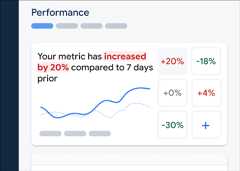
To add a metric to your metrics board, follow these steps:
- Go to thePerformance dashboardin theFirebase console.
- Click an empty metric card, then select an existing metric to add to your board.
- Click on a populated metric card for more options, for example to replace or remove a metric.
The metrics board shows collected metric data over time, both in graphical form and as a numerical percentage change.
Learn more aboutusing the dashboard.
View traces and their data
To view your traces, go to thePerformance dashboard in theFirebase console, scroll down to the traces table, then click the appropriate subtab. The table displays some top metrics for each trace, and you can even sort the list by the percentage change for a specific metric.
Performance Monitoring provides a troubleshooting page in theFirebase console that highlights metricchanges, making it easy to quickly address and minimize the impact of performance issues on yourapps and users. You can use the troubleshooting page when you learn about potentialperformance issues, for example, in the following scenarios:
- You select relevant metrics on the dashboard and you notice a big delta.
- In the traces table you sort to display the largest deltas at the top, and you see a significant percentage change.
- You receive an email alert notifying you of a performance issue.
You can access the troubleshooting page in the following ways:
- On the metric dashboard, click theView metric details button.
- On any metric card, select
=> View details . The troubleshooting page displays information about the metric you selected. - In the traces table, click a trace name or any metric value in the row associated with that trace.
- In an email alert, clickInvestigate now.
When you click a trace name in the traces table, you can then drill down into metrics of interest. Click the

- Filter byApp version to view data about a past release or your latest release
- Filter byDevice to learn how older devices handle your app
- Filter byCountry to make sure your database location isn't affecting a specific region
Learn more aboutviewing data for your traces.
Next Steps
Learn more aboutusing attributes to examine performance data.
Learn more about how totrack performance issues in theFirebase console.
Set up alerts for code changes that are degradingthe performance of your app. For example, you can configure an email alert foryour team if theduration of a specific custom code trace exceeds athreshold that you set.
- View detailed reports ofuser sessions in which you can see a specific trace in a timeline context of other traces collected during the same session.
Except as otherwise noted, the content of this page is licensed under theCreative Commons Attribution 4.0 License, and code samples are licensed under theApache 2.0 License. For details, see theGoogle Developers Site Policies. Java is a registered trademark of Oracle and/or its affiliates.
Last updated 2025-12-03 UTC.