
Monitoring performance data in the console
To view real-time performance data, make sure that your app uses a PerformanceMonitoring SDK version that's compatible with real-time data processing.Learn more about real-time performance data.
Track key metrics in your dashboard
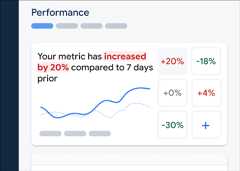
To learn how your key metrics are trending, add them to your metrics board at the top of thePerformance dashboard. You can quickly identify regressions by seeing week-over-week changes or verify that recent changes in your code are improving performance.
Here are some example trends that you could track:
- An increase inapp start time since you added a new blocking API call to app start
- A drop inresponse payload size for a network request since you implemented resizing full-size images to thumbnails
- A decrease in networksuccess rate for a third-party API call during an ecosystem outage
Each member of a Firebase project can configure their own metrics board. You can track metrics that are important to you, while other project members can track completely different sets of key metrics on their own boards.
To add a metric to your metrics board, follow these steps:
- Go to thePerformance dashboardin theFirebase console.
- Click an empty metric card, then select an existing metric to add to your board.
- Click on a populated metric card for more options, for example to replace or remove a metric.
The metrics board shows collected metric data over time, both in graphical form and as a numerical percentage change.
- Each metric card displays the percentage change in the metric's value over the selected time range, as well as the metric's most recently collected value. The statement at the top of the metrics board is an interpretation of the percentage change.
- By default, the metrics board displays the metric's 90th percentile value, which aligns withAndroid Vitals. If you'd like to view how different segments of your users experience your app, select a different percentile from the dropdown at the top of the dashboard page.
- If you have different versions of your app, you can view how the metric's value for one version is trending in comparison to another version and/or in comparison toall your versions. Select the versions from the dropdowns below the chart.
What do the red, green, and grey colors mean?
Most metrics have a desired trending direction, so the metrics board uses color to display an interpretion of whether the metric's data is trending in a good or bad direction.
For example, say you're trackingapp start time for your app (a value that should be small). If this value is increasing, then the metrics board displays the metric's percentage change in red, calling attention to a possible issue. However, if the value is decreasing or unchanged, then the metrics board displays the percentage in green or grey, respectively.
If a metric doesn't have an obvious desired trending direction, like theresponse payload size for a network request, then the metrics board always displays the metric's percentage change in grey, regardless of how the data is trending.
What do the solid and dashed lines mean?
dark blue solid line — the metric's value over time forall versions of your app
This line can be considered the baseline for your app.light green solid line — the metric's value over time for a specific version of your app
By default, the metrics board displays data for thelatest version. To display a different version in the chart, use the first dropdown below the chart.grey solid line — the metric's value over time foranother specific version of your app
By default, the metrics board does not display data for a second version. To display a second version in the chart, use the second dropdown below the chart.light blue dashed line — the metric's value forall versions at a specific time in the past
For example, if you select to show a chart of the last 7 days, and you hover over August 30, then the light blue dashed line tells you the metric's value forall versions on August 23.
View traces and their data
You can view all traces for your app in the traces table, which is at the bottomof thePerformance dashboard.The table groups each type of trace within an appropriate subtab. For example,all network request traces are listed under theNetwork requests subtab.
The traces table displays the values for some top metrics for each trace, alongwith the percentage change for each metric's value. These values are calculatedbased on the selections of percentile and time range set at the top of theDashboard tab. Here are some examples:
- If you select a percentile of90% and a time range ofLast 7 days,then the metric's value will be the90th percentile of collected datafrom the most recentday, and the percentage change will be the changesince 7 days prior.
- If you then change the time range toLast 24 hours, then the metric'svalue will be themedian of collected data from the most recenthour, andthe percentage change will be the change since 24 hours prior.
You can sort the list of traces in each subtab by the metric's value or by thepercentage change for a specific metric. This can help you quickly identifypotential problems in your app.
To viewall the metrics and data for a specific trace, click the trace name inthe traces table. The following sections of this page provide more details.
View more data for a specific trace
Performance Monitoring provides a troubleshooting page in theFirebase console that highlights metricchanges, making it easy to quickly address and minimize the impact of performance issues on yourapps and users. You can use the troubleshooting page when you learn about potentialperformance issues, for example, in the following scenarios:
- You select relevant metrics on the dashboard and you notice a big delta.
- In the traces table you sort to display the largest deltas at the top, and you see a significant percentage change.
- You receive an email alert notifying you of a performance issue.
You can access the troubleshooting page in the following ways:
- On the metric dashboard, click theView metric details button.
- On any metric card, select
=> View details . The troubleshooting page displays information about the metric you selected. - In the traces table, click a trace name or any metric value in the row associated with that trace.
- In an email alert, clickInvestigate now.
When you click a trace name in the traces table, you can then drill down into metrics of interest. Click the

- Filter byApp version to view data about a past release or your latest release
- Filter byDevice to learn how older devices handle your app
- Filter byCountry to make sure your database location isn't affecting a specific region
View all collected metrics for a trace
Once you click into a trace, you can drill down into metrics of interest:
- Network request traces — The available metric tabs areresponse time,response payload size,request payload size, andsuccess rate.
- App start, app-in-foreground, app-in-background, and custom code traces — TheDuration metric tab is always available (the default metric for these types of traces). For custom code traces, if you added any custom metrics to the trace, those metric tabs are also shown.
- Screen rendering traces — The available metric tabs areSlow rendering andFrozen frames.
You can find a performance summary for the selected metric right below the metric tabs. This includes a one-sentence overview of the metric's trend over time, and a chart to visualize the distribution of the data across the entire selected date range.

For example, if the selected metric isnetwork success rate, the chart shows a breakdown of all error codes and their percentages among all error responses (including the error codesexcluded on theFirebase console).
View in-depth information about the data
You can filter and segment the data by attribute, or you can click to view the data in the context of an app-usage session.
For example, to understand why your recent network response time is slow, and whether a country is affecting performance, follow these steps:
- SelectCountry from the attributes dropdown.
- In the table, sort by the latest value to see the countries that have the biggest impact on your network response times.
- Select the countries with the largest latest values to plot them on the graph. Then hover your cursor over the timeline in the graph to learn when network response times slowed in those countries.
- To further investigate root causes of network response time issues in specific countries, add filters for those countries and continue investigating across other attributes (like radio types and devices).
View more details about user sessions
Performance Monitoring also provides reports of user sessions, which are periods of time when your app is in the foreground. These reports are associated with a specific trace, and they present the trace in a timeline context of other traces thatPerformance Monitoring collected during that same session.
For example, you can see your custom code traces lined up in the order they started (along with their individual durations), and you can also see any network request traces that were happening at that same time.
The console displays a random sampling of these user sessions. They're available for Apple and Android apps and for all types of tracesexcept screen rendering traces.
Here's some of the other data that you can view about a user session:

- Information about the trace: Detailed information about the trace for that session, including start time, end time, attributes (like device and country), and any applicable metrics for that type of trace (for example, duration for a custom code trace or response time for a network request trace).
- CPU: How much user time and system time your app consumed during the session
- Memory: How muchheap memory your app used during the session
How to view sessions data
- Go to thePerformance dashboard in theFirebase console, scroll down to the traces table, then click the appropriate subtab for the trace of interest.
- Click the trace name in the table to view all its available metrics.
- To view sessions data for the specified trace, clickView all sessions.
- To view sessions associated with an attribute value of the selected metric, hover your cursor over the desired row and click theSessions text that appears in the rightmost column of that row.

Filter sessions by percentile
Sessions are distributed into percentiles for each metric. Sessions in lower percentile ranges have a lower value for the metric than sessions in higher percentile ranges.
To filter the available sessions by percentile, use the percentiles dropdown above the sessions details, or drag the chart handles.

Except as otherwise noted, the content of this page is licensed under theCreative Commons Attribution 4.0 License, and code samples are licensed under theApache 2.0 License. For details, see theGoogle Developers Site Policies. Java is a registered trademark of Oracle and/or its affiliates.
Last updated 2026-02-04 UTC.