
Monitor Database Usage
As part of managing your Firebase projects, you'll want to review the resourceusage of yourRealtime Database (for example, how many users are connected, how much storageyour database uses) and how that usage is affecting your bill.
To review yourRealtime Database billed usage, check theUsage and Billing dashboard.For more information about billing, seeUnderstandRealtime Database billing.
For resource usage, both theUsage tab in theFirebase console and themetrics available throughCloud Monitoringcan help you monitorRealtime Database usage.
Receive Firebase alerts
You can choose to receive email alerts when yourRealtime Database usage isapproaching one of the limits for your pricing plan. By default, Firebase sendsemail alerts when you've reached or exceeded a plan limit, but you can opt-in tothese earlier notifications to adjust your plan or usage and avoid any servicedisruptions.
These Firebase alerts and their settings are project-wide. This means that, bydefault, every project member with therequired permissions to receive alerts will get an email when aRealtime Database alert is triggered. Emails are sent toindividual email addresses (not to groupings of accounts like Google groups orGoogle Workspace accounts).
Turn on/off alerts for your own account
For your own account, you can turn on/offRealtime Database alerts withoutaffecting other project members. Note that you still need the requiredpermissions to receive alerts.
To turnRealtime Database alerts on or off, follow these steps:
- In theFirebase console, in the top right-corner, go to
Firebasealerts . - Then, go to
Settings and set your account preference forRealtime Databasealerts.
Monitor usage in theFirebase console
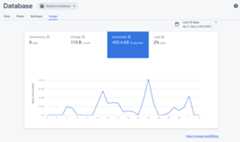
To see your currentRealtime Database connections and data usage, check theUsagetab in theFirebase console. You can check usage over the current billingperiod, the last 30 days, or the last 24 hours.
Firebase shows usage statistics for the following metrics:
- Connections: The number of simultaneous, currently open, realtimeconnections to your database. This includes the following realtimeconnections: WebSocket, long polling, and HTML server-sent events. It doesnot include RESTful requests.
- Storage: How much data is stored in your database. This doesn't includeFirebase hosting or data stored through other Firebase products.
- Downloads: All bytes downloaded from your database, including protocoland encryption overhead.
- Load: This graph shows how much of your database is in use, processingrequests, over a given 1-minute interval. You might see performance issuesas your database approaches 100%.
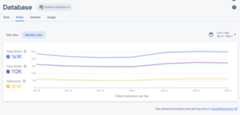
Additionally, theFirebase console provides aFirebase Security Rules evaluation dashboard,a useful, at-a-glance view of rules invocations. You can also monitorFirebase Security Rulesusage throughCloud Monitoring.This provides the same rule evaluation metrics,along with the ability to build custom dashboards, analyze trends, and configurealerts (for example, when denied requests spike).See theCloud Monitoring metrics reference for the completelist of available metrics.
For more information seeMonitor Security Rules inCloud Monitoring.
Monitor usage withCloud Monitoring
Usage metrics
To useCloud Monitoring to monitor your billed usage, track the followingmetrics. Note all metric type names are prefixed withfirebasedatabase.googleapis.com/.
| Metric Name | Description |
|---|---|
| Sent Payload Byte Count |
|
| Sent Payload and Protocol Bytes Count |
|
| Sent Bytes Count | network/sent_bytes_count. This metric reflects an estimate of the total size of data sent out from your database through reads. It includes the payload data that is actually sent to clients, in addition to the protocol and encryption overhead that results in connection costs. This most accurately reflects the total outgoing bandwidth on yourRealtime Database bill. In rare cases, thesent_bytes_count might be lower than thesent_payload_bytes_count. This typically happens if the size of the data requested doesn't match the size of the data that was actually sent from the database. For example, if a client requests a data payload, but the connection times out before all the data was sent, the resultingsent_bytes_count is lower than thesent_payload_bytes_count because not all of the data requested was ultimately sent. |
| Total Bytes |
|
Combine metrics in charts on your dashboard for helpful insights and overviews.For example, try the following combinations:
- Outgoing data: Use the
network/sent_bytes_count,network/sent_payload_and_protocol_bytes_count, andnetwork/sent_payload_bytes_countmetrics to spot potential issues withprotocol or encryption overhead contributing to unexpected costs on your bill.If you see a large discrepancy between the size of the data payloads requestedand the other metrics reflecting connection overhead, you might want totroubleshoot issues that might be leading to timeouts or frequent connections.If you're not usingTLS session tickets,you might try implementing them to reduce SSL connection overhead forresumed connections. - Operations: Use the
io/database_loadmetric to see how much of yourtotal database load is used by each operation type. Make sure to groupio/database_loadby type to troubleshoot different operation types. - Storage: Use the
storage/limitandstorage/total_bytesto monitoryour storage utilization in relation to theRealtime Database storage limits.If you're on the Blaze pricing plan, you aren't subject tostorage limits, so you might prefer to monitor the total size of data storedin your database alone throughstorage/total_bytes.
See thefull list ofRealtime Database metrics available throughCloud Monitoring.
Create a Cloud Monitoring workspace
To monitorRealtime Database with Cloud Monitoring, you must setup a workspace for your project. A workspace organizesmonitoring information from one or more projects. After setting up a workspace,you can create custom dashboards and alerting policies.
Open the Cloud Monitoring Page
If your project is already part of a workspace, the Cloud Monitoring Pageopens. Otherwise, select a workspace for your project.
Select theNew Workspace option or select an existing workspace.
ClickAdd. After your workspace builds, the Cloud Monitoring Page opens.
Create a dashboard and add a chart
Display theRealtime Database metrics collected fromCloud Monitoring in your own charts and dashboards.
Before you proceed, make sure your project is part of aCloud Monitoring workspace.
In the Cloud Monitoring Page, open your workspace and go to theDashboards page.
ClickCreate Dashboard and enter a dashboard name.
In the upper-right hand corner, clickAdd Chart.
In theAdd Chart window, enter a chart title. Click theMetric tab.
In theFind resource type and metric field, enterFirebase Realtime Database. From the auto-populated dropdown, select one of theRealtime Database metrics..
To add more metrics to the same chart, clickAdd Metric and repeat the previous step.
Optionally, tailor your chart as needed. For example, in theFilter field, click+ Add a filter. Scroll down, then select a value or range for the metric of interest you wish to filter the chart on.
ClickSave.
For more on Cloud Monitoring charts,seeWorking with charts.
Create an alerting policy
You can create an alerting policy based on theRealtime Database metrics.Follow the steps below can create an alerting policy that emails you whenever aspecificRealtime Database metric meets a certain threshold.
Before you proceed, make sure your project is part of aCloud Monitoring workspace.
In the Cloud Monitoring Page, open your workspace, and go totheAlerting page.
ClickCreate Policy.
Enter a name for your alerting policy.
Add an alerting condition based on one of theRealtime Database metrics.ClickAdd Condition.
Select aTarget. In theFind resource type and metric field, enterRealtime Database. From the auto-populated dropdown, select one of theRealtime Database metrics.
UnderPolicy triggers, use the dropdown fields to define your alertingcondition.
Add a notification channel to your alerting policy. UnderNotifications,ClickAdd Notification Channel. SelectEmail from the dropdown menu.
Enter your email in theEmail address field. ClickAdd.
Optionally, fill out the documentation field to include additional informationin your email notification.
ClickSave.
If yourRealtime Database usage exceeds the configured threshold, youwill receive an email alert.
For more on alerting policies, seeIntroduction to alerting.
What's next
Except as otherwise noted, the content of this page is licensed under theCreative Commons Attribution 4.0 License, and code samples are licensed under theApache 2.0 License. For details, see theGoogle Developers Site Policies. Java is a registered trademark of Oracle and/or its affiliates.
Last updated 2026-02-18 UTC.