
Add a user authentication flow to a Flutter app using FirebaseUI
1. Before you begin
In this codelab, you'll learn how to add Firebase Authentication to your Flutter app using the FlutterFire UI package. With this package, you'll add both email and password auth and Google Sign In auth to a Flutter app. You'll also learn how to set up a Firebase project, and use the FlutterFire CLI to initialize Firebase in your Flutter app.
Prerequisites
This codelab assumes that you have some Flutter experience. If not, you might want to first learn the basics. The following links are helpful:
- Take aTour of the Flutter Widget Framework
- Try theWrite Your First Flutter App, part 1 codelab
You should also have some Firebase experience, but it's okay if you've never added Firebase to a Flutter project. If you're unfamiliar with the Firebase console, or you're completely new to Firebase altogether, see the following links first:
What you'll create
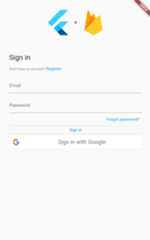
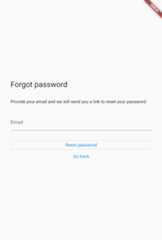
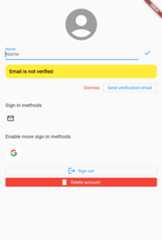
This codelab guides you through building the authentication flow for a Flutter app, using Firebase for Authentication. The application will have a login screen, a ‘Register' screen, a password recovery screen, and a user profile screen.

What you'll learn
This codelab covers:
- Adding Firebase to a Flutter app
- Firebase Console setup
- Using Firebase CLI to add Firebase to your application
- Using FlutterFire CLI to generate Firebase config in Dart
- Adding Firebase Authentication to your Flutter app
- Firebase Authentication setup in the console
- Adding Email and Password sign in with the
firebase_ui_authpackage - Adding user registration with the
firebase_ui_authpackage - Adding a ‘Forgot password?' page
- Adding Google Sign-in with
firebase_ui_auth - Configuring your app to work with multiple sign-in providers.
- Adding a user profile screen to your application with the
firebase_ui_authpackage
This codelab is specifically concerned with adding a robust Authentication system using thefirebase_ui_auth package. As you'll see, this entire app, with all of the above features, can be implemented with around 100 lines of code.
What you'll need
- Working knowledge ofFlutter, and the SDK installed
- A text editor (JetBrains IDE's, Android Studio, and VS Code are supported by Flutter)
- Google Chrome browser, or your other preferred development target for Flutter. (Some terminal commands in this codelab will assume you're running your app on Chrome)
2. Create and set up a Firebase project
The first task you'll need to complete is creating a Firebase project in Firebase web console.
Create a Firebase project
- Sign into theFirebase console using your Google Account.
- Click the button to create a new project, and then enter a project name (for example,
FlutterFire-UI-Codelab).This project name is used as a display name in Firebase interfaces, and Firebase auto-creates a unique project ID based on this project name. Note that you can optionally click theEdit icon now to set your preferred project ID, but you cannot change this ID after project creation.
Remember your project ID because you'll need it later to identify your Firebase project in the Firebase CLI. If you forget your ID, you can always find it later in theProject Settings.
- ClickContinue.
- If prompted, review and accept theFirebase terms, and then clickContinue.
- (Optional) Enable AI assistance in the Firebase console (called "Gemini in Firebase").
- For this codelab, you donot need Google Analytics, sotoggle off the Google Analytics option.
- ClickCreate project, wait for your project to provision, and then clickContinue.
To learn more about Firebase projects, seeUnderstand Firebase projects.
Enable email sign-in for Firebase Authentication
The app that you're building usesFirebase Authentication to allow your users to sign in to your app. It also allows new users to register from the Flutter application.
Firebase Authentication needs to be enabled using the Firebase Console, and needs special configuration once enabled.
To allow users to sign in to the web app, you'll first use theEmail/Password sign-in method. Later, you'll add theGoogle Sign-In method.
- In the Firebase console, expand theBuild menu in the left panel.
- ClickAuthentication, and then click theGet Started button, then theSign-in method tab (or godirectly to theSign-in method tab).
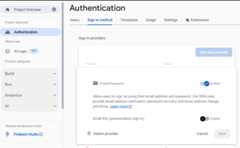
- ClickEmail/Password in theSign-in providers list, set theEnable switch to the on position, and then clickSave.
3. Set up Flutter app
You'll need to download the starter code, and install the Firebase CLI before we begin.
Get the starter code
Clone theGitHub repository from the command line:
git clone https://github.com/flutter/codelabs.git flutter-codelabs
Alternatively, if you haveGitHub's CLI tool installed:
gh repo clone flutter/codelabs flutter-codelabs
The sample code should be cloned into theflutter-codelabs directory on your machine, which contains the code for a collection of codelabs. The code for this codelab is in the sub-directoryflutter-codelabs/firebase-auth-flutterfire-ui.
The directoryflutter-codelabs/firebase-auth-flutterfire-ui contains two Flutter projects. One is calledcomplete and the other is calledstart. Thestart directory contains an incomplete project, and it's where you'll spend the most time.
cd flutter-codelabs/firebase-auth-flutterfire-ui/start
If you want to skip forward, or see what something should look like when complete, look in the directory namedcomplete to cross-reference.
If you want to follow along with the codelab, and add code yourself, you should start with the Flutter app atflutter-codelabs/firebase-auth-flutterfire-ui/start, and add code to that project throughout the codelab. Open or import that directory into your preferred IDE.
Install Firebase CLI
The Firebase CLI provides tools for managing your Firebase projects. The CLI is required for the FlutterFire CLI, which you'll install in a bit.
There are a variety of ways to install the CLI. Review all the available options for your operating system atfirebase.google.com/docs/cli.
After installing the CLI, you must authenticate with Firebase.
- Log into Firebase using your Google Account by running the following command:
firebase login
- This command connects your local machine to Firebase and grants you access to your Firebase projects.
Note: The
firebase logincommand opens a web page that connects to localhost on your machine. If you're using a remote machine and don't have access to localhost, run the command with the flag--no-localhost. - Test that the CLI is properly installed and has access to your account by listing your Firebase projects. Run the following command:
firebase projects:list
- The displayed list should be the same as the Firebase projects listed in theFirebase console. You should see at least
flutterfire-ui-codelab.
Install the FlutterFire CLI
The FlutterFire CLI is a tool that helps ease the installation process of Firebase across all supported platforms in your Flutter app. It's built on top of the Firebase CLI.
First, install the CLI:
dart pub global activate flutterfire_cli
Make sure the CLI was installed. Run the following command and verify that the CLI outputs the help menu.
flutterfire --help
Add your Firebase project to your Flutter app
Configure FlutterFire
You can use FlutterFire to generate the needed Dart code to use Firebase in your Flutter app.
flutterfire configure
When this command is run, you'll be prompted to select which Firebase project you want to use, and which platforms you want to set up.
The following screenshots show the prompts you'll need to answer.
- Select the project you want to use. In this case, use
flutterfire-ui-codelab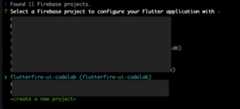
- Select which platforms you want to use. In this codelab, there are steps to configure Firebase Authentication for Flutter for web, iOS, and Android, but you can set up your Firebase project to use all options.

- This screenshot shows the output at the end of the process. If you're familiar with Firebase, you'll notice that you didn't have to create platform applications (for example, an Android application) in the console, and the FlutterFire CLI did it for you.
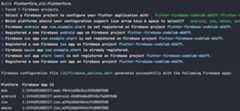
When this is complete, look at the Flutter app in your text editor. FlutterFire CLI has modified a file calledfirebase_options.dart. This file contains a class calledFirebaseOptions, which has static variables that hold the Firebase configuration needed for each platform. If you selected all platforms when you ranflutterfire configure, you'll see static values namedweb,android,ios, andmacos.
lib/firebase_options.dart
import'package:firebase_core/firebase_core.dart'showFirebaseOptions;import'package:flutter/foundation.dart'showdefaultTargetPlatform,kIsWeb,TargetPlatform;classDefaultFirebaseOptions{staticFirebaseOptionsgetcurrentPlatform{if(kIsWeb){returnweb;}switch(defaultTargetPlatform){caseTargetPlatform.android:returnandroid;caseTargetPlatform.iOS:returnios;caseTargetPlatform.macOS:returnmacos;default:throwUnsupportedError('DefaultFirebaseOptions are not supported for this platform.',);}}staticconstFirebaseOptionsweb=FirebaseOptions(apiKey:'AIzaSyCqFjCV_9CZmYeIvcK9FVy4drmKUlSaIWY',appId:'1:963656261848:web:7219f7fca5fc70afb237ad',messagingSenderId:'963656261848',projectId:'flutterfire-ui-codelab',authDomain:'flutterfire-ui-codelab.firebaseapp.com',storageBucket:'flutterfire-ui-codelab.firebasestorage.app',measurementId:'G-DGF0CP099H',);staticconstFirebaseOptionsandroid=FirebaseOptions(apiKey:'AIzaSyDconZaCQpkxIJ5KQBF-3tEU0rxYsLkIe8',appId:'1:963656261848:android:c939ccc86ab2dcdbb237ad',messagingSenderId:'963656261848',projectId:'flutterfire-ui-codelab',storageBucket:'flutterfire-ui-codelab.firebasestorage.app',);staticconstFirebaseOptionsios=FirebaseOptions(apiKey:'AIzaSyBqLWsqFjYAdGyihKTahMRDQMo0N6NVjAs',appId:'1:963656261848:ios:d9e01cfe8b675dfcb237ad',messagingSenderId:'963656261848',projectId:'flutterfire-ui-codelab',storageBucket:'flutterfire-ui-codelab.firebasestorage.app',iosClientId:'963656261848-v7r3vq1v6haupv0l1mdrmsf56ktnua60.apps.googleusercontent.com',iosBundleId:'com.example.complete',);staticconstFirebaseOptionsmacos=FirebaseOptions(apiKey:'AIzaSyBqLWsqFjYAdGyihKTahMRDQMo0N6NVjAs',appId:'1:963656261848:ios:d9e01cfe8b675dfcb237ad',messagingSenderId:'963656261848',projectId:'flutterfire-ui-codelab',storageBucket:'flutterfire-ui-codelab.firebasestorage.app',iosClientId:'963656261848-v7r3vq1v6haupv0l1mdrmsf56ktnua60.apps.googleusercontent.com',iosBundleId:'com.example.complete',);}Note: Your file should contain different values for the API keys. It is perfectly safe to expose these keys to the public.Read Frank van Puffelen explain the reasons for this in a Post on StackOverflow.
Firebase uses the word application to refer to specific build for a specific platform in a Firebase project. For example, the Firebase project called FlutterFire-ui-codelab has multiple applications: one for Android, one for iOS, one for macOS, and one for Web.
The methodDefaultFirebaseOptions.currentPlatform uses theTargetPlatform enum exposed by Flutter to detect the platform that your app is running on, and then returns the Firebase configuration values needed for the correct Firebase application.
Add Firebase packages to Flutter app
The final setup step is to add the relevant Firebase packages to your Flutter project. Thefirebase_options.dart file should have errors, because it relies on Firebase packages that haven't been added yet. In the terminal, make sure you're in the root of the Flutter project atflutter-codelabs/firebase-emulator-suite/start. Then, install the three required packages using the following command:
flutter pub add firebase_core firebase_auth firebase_ui_auth
These are the only packages you need at this point.
Initialize Firebase
In order to use the packages added, and theDefaultFirebaseOptions.currentPlatform, update the code in themain function in themain.dart file.
lib/main.dart
import'package:firebase_core/firebase_core.dart';//Addthisimportimport'package:flutter/material.dart';import'app.dart';import'firebase_options.dart';//Andthisimport//TODO(codelabuser):GetAPIkeyconstclientId='YOUR_CLIENT_ID';voidmain()async{//Addfromhere...WidgetsFlutterBinding.ensureInitialized();awaitFirebase.initializeApp(options:DefaultFirebaseOptions.currentPlatform);//Tohere.runApp(constMyApp(clientId:clientId));}This code does two things.
WidgetsFlutterBinding.ensureInitialized()tells Flutter not to start running the application widget code until the Flutter framework is completely booted. Firebase uses native platform channels, which require the framework to be running.Firebase.initializeAppsets up a connection between your Flutter app and your Firebase project. TheDefaultFirebaseOptions.currentPlatformis imported from our generatedfirebase_options.dartfile. This static value detects which platform you're running on, and passes in the corresponding Firebase keys.
4. Add initial Firebase UI Auth page
Firebase UI for Auth provides widgets that represent entire screens in your application. These screens handle different authentication flows throughout your application, such as Sign In, Registration, Forgot Password, User Profile, and more. To get started, add a landing page to your app that acts as an authentication guard to the main application.
Material or Cupertino App
FlutterFire UI requires that your application is wrapped in either aMaterialApp orCupertinoApp. Depending on your choice, the UI will automatically reflect the differences of Material or Cupertino widgets. For this codelab, useMaterialApp, which is already added to the app inapp.dart.
lib/app.dart
import'package:flutter/material.dart';import'auth_gate.dart';classMyAppextendsStatelessWidget{constMyApp({super.key,requiredthis.clientId});finalStringclientId;@overrideWidgetbuild(BuildContextcontext){returnMaterialApp(theme:ThemeData(colorScheme:ColorScheme.fromSeed(seedColor:Colors.deepPurple),),home:AuthGate(clientId:clientId),);}}Check authentication state
Before you can display a sign-in screen, you need to determine whether the user is authenticated. The most common way to check for this is to listen toFirebaseAuth'sauthStateChanges using theFirebase Auth plugin.
In the code sample above, theMaterialApp is building anAuthGate widget in itsbuild method. (This is a custom widget, not provided by FlutterFire UI.)
That widget needs to be updated to include theauthStateChanges stream.
TheauthStateChanges API returns aStream with either the current user (if they are signed in), or null if they are not. To subscribe to this state in our application, you can use Flutter'sStreamBuilder widget and pass the stream to it.
StreamBuilder is a widget that builds itself based on the latest snapshot of data from aStream that you pass it. It automatically rebuilds when theStream emits a new snapshot.
Update the code inauth_gate.dart.
lib/auth_gate.dart
import'package:firebase_auth/firebase_auth.dart'hideEmailAuthProvider;//Addthisimportimport'package:firebase_ui_auth/firebase_ui_auth.dart';//Andthisimportimport'package:flutter/material.dart';import'home.dart';classAuthGateextendsStatelessWidget{constAuthGate({super.key,requiredthis.clientId});finalStringclientId;@overrideWidgetbuild(BuildContextcontext){returnStreamBuilder<User?>(//Modifyfromhere...stream:FirebaseAuth.instance.authStateChanges(),builder:(context,snapshot){if(!snapshot.hasData){returnSignInScreen(providers:[]);}returnconstHomeScreen();},);//Tohere.}}StreamBuilder.streamis being passedFirebaseAuth.instance.authStateChanged, the aforementioned stream, which will return a FirebaseUserobject if the user has authenticated, otherwise it will returnnull.- Next, the code is using
snapshot.hasDatato check if the value from the stream contains theUserobject. - If there isn't, it'll return a
SignInScreenwidget. For now, this screen won't do anything, it will be updated in the next step. - Otherwise, it returns a
HomeScreen, which is the main part of the application that only authenticated users can access.
TheSignInScreen is a widget that comes from the FlutterFire UI package. This will be the focus of the next step of this codelab. When you run the app at this point, you should see a blank sign-in screen.
5. Sign-In screen
TheSignInScreen widget, provided by FlutterFire UI, adds the following functionality:
- Allows users to sign in
- If users forgot their password, they can tap "Forgot password?" and be taken to a form to reset their password
- If a user isn't yet registered, they can tap "Register", and be taken to another form that allows them to sign up.
Again, this requires only a couple lines of code. Recall the code in theAuthGate widget:
lib/auth_gate.dart
import'package:firebase_auth/firebase_auth.dart'hideEmailAuthProvider;import'package:firebase_ui_auth/firebase_ui_auth.dart';import'package:flutter/material.dart';import'home.dart';classAuthGateextendsStatelessWidget{constAuthGate({super.key,requiredthis.clientId});finalStringclientId;@overrideWidgetbuild(BuildContextcontext){returnStreamBuilder<User?>(stream:FirebaseAuth.instance.authStateChanges(),builder:(context,snapshot){if(!snapshot.hasData){returnSignInScreen(providers:[EmailAuthProvider()]);//Modifythisline}returnconstHomeScreen();},);}}TheSignInScreen widget, and itsproviders argument, is the only code required to get all the aforementioned functionality. You should now see a sign-in screen that has ‘email' and ‘password' text inputs, as well as a ‘Sign In' button.
While functional, it lacks styling. The widget exposes parameters to customize the sign-in screen's look. For example, you might want to add your company's logo.
Customize the sign-in Screen
Header Builder
Using theSignInScreen.headerBuilder argument, you can add whatever widgets you want above the sign-in form. This widget is only displayed on narrow screens, such as mobile devices. On wide screens, you can useSignInScreen.sideBuilder, which is discussed later in this codelab.
Update thelib/auth_gate.dart file with this code:
lib/auth_gate.dart
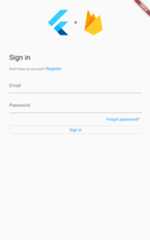
import'package:firebase_auth/firebase_auth.dart'hideEmailAuthProvider;import'package:firebase_ui_auth/firebase_ui_auth.dart';import'package:flutter/material.dart';import'home.dart';classAuthGateextendsStatelessWidget{constAuthGate({super.key,requiredthis.clientId});finalStringclientId;@overrideWidgetbuild(BuildContextcontext){returnStreamBuilder<User?>(stream:FirebaseAuth.instance.authStateChanges(),builder:(context,snapshot){if(!snapshot.hasData){returnSignInScreen(//Modifyfromhere...providers:[EmailAuthProvider()],headerBuilder:(context,constraints,shrinkOffset){returnPadding(padding:constEdgeInsets.all(20),child:AspectRatio(aspectRatio:1,child:Image.asset('assets/flutterfire_300x.png'),),);},);//Tohere.}returnconstHomeScreen();},);}}The headerBuilder argument requires a function of the type HeaderBuilder, which is defined in the FlutterFire UI package.
typedefHeaderBuilder=WidgetFunction(BuildContextcontext,BoxConstraintsconstraints,doubleshrinkOffset,);Because it's a callback, it exposes values you could use, such as theBuildContext andBoxConstraints, and requires you return a widget. Whichever widget you return is displayed at the top of the screen. In this example, the new code adds an image to the top of the screen. Your application should now look like this.
Subtitle Builder
The sign-in screen exposes three additional parameters that allow you to customize the screen:subtitleBuilder,footerBuilder, andsideBuilder.
ThesubtitleBuilder is slightly different in that the callback arguments include an action, which is of typeAuthAction.AuthAction is an enum that you can use to detect if the screen the user is on is the "sign in" screen or the "register" screen.
Update the code inlib/auth_gate.dart to use thesubtitleBuilder.
lib/auth_gate.dart
import'package:firebase_auth/firebase_auth.dart'hideEmailAuthProvider;import'package:firebase_ui_auth/firebase_ui_auth.dart';import'package:flutter/material.dart';import'home.dart';classAuthGateextendsStatelessWidget{constAuthGate({super.key,requiredthis.clientId});finalStringclientId;@overrideWidgetbuild(BuildContextcontext){returnStreamBuilder<User?>(stream:FirebaseAuth.instance.authStateChanges(),builder:(context,snapshot){if(!snapshot.hasData){returnSignInScreen(providers:[EmailAuthProvider()],headerBuilder:(context,constraints,shrinkOffset){returnPadding(padding:constEdgeInsets.all(20),child:AspectRatio(aspectRatio:1,child:Image.asset('assets/flutterfire_300x.png'),),);},subtitleBuilder:(context,action){//Addfromhere...returnPadding(padding:constEdgeInsets.symmetric(vertical:8.0),child:action==AuthAction.signIn?constText('Welcome to FlutterFire, please sign in!'):constText('Welcome to Flutterfire, please sign up!'),);},//Tohere.);}returnconstHomeScreen();},);}}Footer Builder
The footerBuilder argument is the same as the subtitleBuilder. It doesn't exposeBoxConstraints orshrinkOffset, as it's intended for text rather than images. You can, of course, add any widget you want.
Add a footer to your sign-in screen with this code.
lib/auth_gate.dart
import'package:firebase_auth/firebase_auth.dart'hideEmailAuthProvider;import'package:firebase_ui_auth/firebase_ui_auth.dart';import'package:flutter/material.dart';import'home.dart';classAuthGateextendsStatelessWidget{constAuthGate({super.key,requiredthis.clientId});finalStringclientId;@overrideWidgetbuild(BuildContextcontext){returnStreamBuilder<User?>(stream:FirebaseAuth.instance.authStateChanges(),builder:(context,snapshot){if(!snapshot.hasData){returnSignInScreen(providers:[EmailAuthProvider()],headerBuilder:(context,constraints,shrinkOffset){returnPadding(padding:constEdgeInsets.all(20),child:AspectRatio(aspectRatio:1,child:Image.asset('assets/flutterfire_300x.png'),),);},subtitleBuilder:(context,action){returnPadding(padding:constEdgeInsets.symmetric(vertical:8.0),child:action==AuthAction.signIn?constText('Welcome to FlutterFire, please sign in!'):constText('Welcome to Flutterfire, please sign up!'),);},footerBuilder:(context,action){//Addfromhere...returnconstPadding(padding:EdgeInsets.only(top:16),child:Text('By signing in, you agree to our terms and conditions.',style:TextStyle(color:Colors.grey),),);},//Tohere.);}returnconstHomeScreen();},);}}Side Builder
The SignInScreen.sidebuilder argument accepts a callback, and this time the arguments to that callback areBuildContext anddouble shrinkOffset. The widget thatsideBuilder returns will be displayed to the left of the sign in form, and only on wide screens. Effectively that means the widget will only be displayed on desktop and web apps.
Internally, FlutterFire UI uses a breakpoint to determine if the header content should be shown (on tall screens, like mobile) or the side content should be shown (on wide screens, desktop or web). Specifically, if a screen is more than 800 pixels wide, the side builder content is shown, and the header content is not. If the screen is less than 800 pixels wide, the opposite is true.
Update the code inlib/auth_gate.dart to addsideBuilder widgets.
lib/auth_gate.dart
import'package:firebase_auth/firebase_auth.dart'hideEmailAuthProvider;import'package:firebase_ui_auth/firebase_ui_auth.dart';import'package:flutter/material.dart';import'home.dart';classAuthGateextendsStatelessWidget{constAuthGate({super.key,requiredthis.clientId});finalStringclientId;@overrideWidgetbuild(BuildContextcontext){returnStreamBuilder<User?>(stream:FirebaseAuth.instance.authStateChanges(),builder:(context,snapshot){if(!snapshot.hasData){returnSignInScreen(providers:[EmailAuthProvider()],headerBuilder:(context,constraints,shrinkOffset){returnPadding(padding:constEdgeInsets.all(20),child:AspectRatio(aspectRatio:1,child:Image.asset('assets/flutterfire_300x.png'),),);},subtitleBuilder:(context,action){returnPadding(padding:constEdgeInsets.symmetric(vertical:8.0),child:action==AuthAction.signIn?constText('Welcome to FlutterFire, please sign in!'):constText('Welcome to Flutterfire, please sign up!'),);},footerBuilder:(context,action){returnconstPadding(padding:EdgeInsets.only(top:16),child:Text('By signing in, you agree to our terms and conditions.',style:TextStyle(color:Colors.grey),),);},sideBuilder:(context,shrinkOffset){//Addfromhere...returnPadding(padding:constEdgeInsets.all(20),child:AspectRatio(aspectRatio:1,child:Image.asset('assets/flutterfire_300x.png'),),);//Tohere.},);}returnconstHomeScreen();},);}}Your app should now look like this when you expand the width of the window (if you're using Flutter web or MacOS).

Create a user
At this point, all of the code for this screen is done. Before you can sign-in, though, you need to create a User. You can do this with the "Register" screen, or you can create a user in the Firebase console.
To use the console:
- Go to the"Users" table in the Firebase console. Select ‘flutterfire-ui-codelab', or another project if you used a different name. You'll see this table:
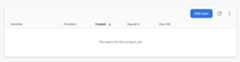
- Click the "Add user" button.
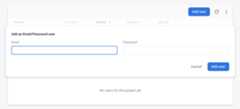
- Enter an email address and password for the new user. This can be a fake email and password, as I've entered in the image below. That will work, but the "Forgot password" functionality won't work if you use a fake email address.
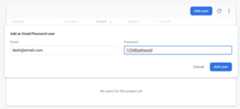
- Click "Add user"

Now, you can return to your Flutter application, and sign in a user using the sign-in page. Your app should look like this:

6. Profile Screen
FlutterFire UI also provides aProfileScreen widget, which again, gives you a lot of functionality in a few lines of code.
AddProfileScreen widget
Navigate to thehome.dart file in your text editor. Update it with this code:
lib/home.dart
import'package:firebase_ui_auth/firebase_ui_auth.dart';import'package:flutter/material.dart';classHomeScreenextendsStatelessWidget{constHomeScreen({super.key});@overrideWidgetbuild(BuildContextcontext){returnScaffold(appBar:AppBar(actions:[IconButton(icon:constIcon(Icons.person),onPressed:(){Navigator.push(context,MaterialPageRoute<ProfileScreen>(builder:(context)=>constProfileScreen(),),);},),],automaticallyImplyLeading:false,),body:Center(child:Column(children:[SizedBox(width:250,child:Image.asset('assets/dash.png')),Text('Welcome!',style:Theme.of(context).textTheme.displaySmall),constSignOutButton(),],),),);}}The new code of note is the callback passed to theIconButton.isPressed method. When thatIconButton is pressed, your application creates a new anonymous route and navigates to it. That route will display theProfileScreen widget, which is returned from theMaterialPageRoute.builder callback.
Reload your app, and push the icon in the top-right (in the app bar), and it will display a page like this:
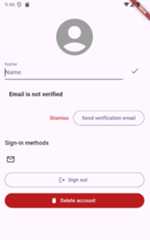
This is the standard UI provided by the FlutterFire UI page. All of the buttons and text fields are wired up to Firebase Auth, and work out of the box. For example, you can enter a name into the "Name" textfield, and FlutterFire UI will call theFirebaseAuth.instance.currentUser?.updateDisplayName method, which will save that name in Firebase.
Note: In this example, the "Send verification email" button will send an email to a fake email address -dash@email.com. To verify that it works, create a user with an email address you have email access for.
Sign Out
Right now, if you press the "Sign out" button, the app won't change. It will sign you out, but you won't be navigated back to the AuthGate widget. To implement this, use the ProfileScreen.actions parameter.
First, update the code in home.dart.
lib/home.dart
import'package:firebase_ui_auth/firebase_ui_auth.dart';import'package:flutter/material.dart';classHomeScreenextendsStatelessWidget{constHomeScreen({super.key});@overrideWidgetbuild(BuildContextcontext){returnScaffold(appBar:AppBar(actions:[IconButton(icon:constIcon(Icons.person),onPressed:(){Navigator.push(context,MaterialPageRoute<ProfileScreen>(builder:(context)=>ProfileScreen(actions:[SignedOutAction((context){Navigator.of(context).pop();}),],),),);},),],automaticallyImplyLeading:false,),body:Center(child:Column(children:[SizedBox(width:250,child:Image.asset('assets/dash.png')),Text('Welcome!',style:Theme.of(context).textTheme.displaySmall),constSignOutButton(),],),),);}}Now, when you create an instance ofProfileScreen, you also pass it a list of actions to theProfileScreen.actions argument. These actions are of the typeFlutterFireUiAction. There are many different classes that are subtypes ofFlutterFireUiAction, and in general you use them to tell your app to react to different auth state changes. The SignedOutAction calls a callback function that you give it when the Firebase auth state changes to the currentUser being null.
By adding a callback that callsNavigator.of(context).pop() whenSignedOutAction triggers, the app will navigate to the previous page. In this example app, there is only one permanent route, which shows the Sign In screen if there isn't a user signed in, and the home page if there is a user. Because this happens when the user signs out, the app will display the Sign In screen.
Customize the Profile Page
Similar to the Sign In screen, the profile page is customizable. First, our current page has no way of navigating back to the home page once a user is on the profile page. Fix this by giving the ProfileScreen widget an AppBar.
lib/home.dart
import'package:firebase_ui_auth/firebase_ui_auth.dart';import'package:flutter/material.dart';classHomeScreenextendsStatelessWidget{constHomeScreen({super.key});@overrideWidgetbuild(BuildContextcontext){returnScaffold(appBar:AppBar(actions:[IconButton(icon:constIcon(Icons.person),onPressed:(){Navigator.push(context,MaterialPageRoute<ProfileScreen>(builder:(context)=>ProfileScreen(appBar:AppBar(title:constText('User Profile')),actions:[SignedOutAction((context){Navigator.of(context).pop();}),],),),);},),],automaticallyImplyLeading:false,),body:Center(child:Column(children:[SizedBox(width:250,child:Image.asset('assets/dash.png')),Text('Welcome!',style:Theme.of(context).textTheme.displaySmall),constSignOutButton(),],),),);}}TheProfileScreen.appBar argument accepts anAppBar widget from the Flutter Material package, so it can be treated like any otherAppBar you've built and passed to aScaffold. In this example, the default functionality of automatically adding a "back" button is kept, and the screen now has a title.
Add Children to the Profile Screen
TheProfileScreen widget also has an optional argument named children. This argument accepts a list of widgets, and those widgets will be placed vertically inside of aColumn widget that's already used internally to build theProfileScreen. ThisColumn widget in theProfileScreen build method will place the children you pass it above the "Sign out" button.
Update the code inhome.dart to show the company logo here, similar to the Sign In screen.
lib/home.dart
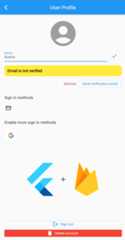
import'package:firebase_ui_auth/firebase_ui_auth.dart';import'package:flutter/material.dart';classHomeScreenextendsStatelessWidget{constHomeScreen({super.key});@overrideWidgetbuild(BuildContextcontext){returnScaffold(appBar:AppBar(actions:[IconButton(icon:constIcon(Icons.person),onPressed:(){Navigator.push(context,MaterialPageRoute<ProfileScreen>(builder:(context)=>ProfileScreen(appBar:AppBar(title:constText('User Profile')),actions:[SignedOutAction((context){Navigator.of(context).pop();}),],children:[constDivider(),Padding(padding:constEdgeInsets.all(2),child:AspectRatio(aspectRatio:1,child:Image.asset('assets/flutterfire_300x.png'),),),],),),);},),],automaticallyImplyLeading:false,),body:Center(child:Column(children:[SizedBox(width:250,child:Image.asset('assets/dash.png')),Text('Welcome!',style:Theme.of(context).textTheme.displaySmall),constSignOutButton(),],),),);}}Reload your app, and you'll see this on the screen:
7. Multiplatform Google Auth Sign In
FlutterFire UI also provides widgets and functionality for authenticating with 3rd party providers, such as Google, Twitter, Facebook, Apple, and GitHub.
To integrate with Google authentication, install the officialfirebase_ui_oauth_google plugin and its dependencies, which will handle the native authentication flow. In the terminal, navigate to the root of your Flutter project and enter the following command:
flutter pub add google_sign_in firebase_ui_oauth_google
Enable Google Sign-in Provider
Next, enable the Google provider in theFirebase Console:
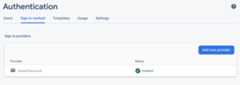
- Navigate to theAuthentication sign-in providers screen in the console.
- Click "Add new provider".
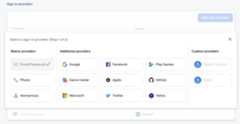
- Select "Google".
- Toggle the switch labeled "Enable", and press "Save".
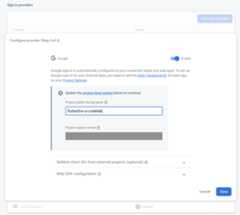
- If a modal appears with information about downloading configuration files, click "Done".
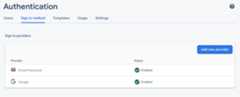
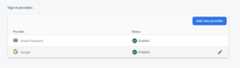
- Confirm that the Google sign-in provider has been added.
Add Google sign-in button
With Google sign-in enabled, add the widget needed to display a stylized Google sign-in button to the sign in screen. Navigate toauth_gate.dart file and update the code to the following:
lib/auth_gate.dart
import'package:firebase_auth/firebase_auth.dart'hideEmailAuthProvider;import'package:firebase_ui_auth/firebase_ui_auth.dart';import'package:firebase_ui_oauth_google/firebase_ui_oauth_google.dart';//Addthisimportimport'package:flutter/material.dart';import'home.dart';classAuthGateextendsStatelessWidget{constAuthGate({super.key,requiredthis.clientId});finalStringclientId;@overrideWidgetbuild(BuildContextcontext){returnStreamBuilder<User?>(stream:FirebaseAuth.instance.authStateChanges(),builder:(context,snapshot){if(!snapshot.hasData){returnSignInScreen(providers:[EmailAuthProvider(),GoogleProvider(clientId:clientId),//Addthisline],headerBuilder:(context,constraints,shrinkOffset){returnPadding(padding:constEdgeInsets.all(20),child:AspectRatio(aspectRatio:1,child:Image.asset('assets/flutterfire_300x.png'),),);},subtitleBuilder:(context,action){returnPadding(padding:constEdgeInsets.symmetric(vertical:8.0),child:action==AuthAction.signIn?constText('Welcome to FlutterFire, please sign in!'):constText('Welcome to Flutterfire, please sign up!'),);},footerBuilder:(context,action){returnconstPadding(padding:EdgeInsets.only(top:16),child:Text('By signing in, you agree to our terms and conditions.',style:TextStyle(color:Colors.grey),),);},sideBuilder:(context,shrinkOffset){returnPadding(padding:constEdgeInsets.all(20),child:AspectRatio(aspectRatio:1,child:Image.asset('assets/flutterfire_300x.png'),),);},);}returnconstHomeScreen();},);}}The only new code here is the addition ofGoogleProvider(clientId: "YOUR_WEBCLIENT_ID") to theSignInScreen widget configuration.
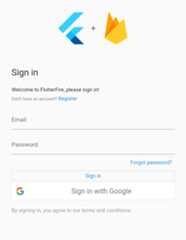
With that added, reload your app, and you will see a Google sign in button.
Configure sign-in button
The button doesn't work without additional configuration. If you're developing with Flutter Web, this is the only step you have to add for this to work. Other platforms require additional steps, which are discussed in a bit.
- Navigate to the Authentication providers page in theFirebase Console.
- Click the Google provider.
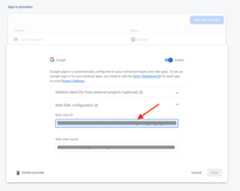
- Click the "Web SDK configuration" expansion-panel.
- Copy the value from "Web client ID".
- Return to your text editor, and update the instance of
GoogleProviderin the fileauth_gate.dartby passing this ID to theclientIdnamed parameter.
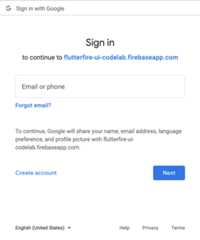
GoogleProvider( clientId: "YOUR_WEBCLIENT_ID")Once the web client ID is entered, reload your app. When you press the "Sign in with Google" button, a new window will appear, if you're using web, that walks you through the Google sign in flow. Initially, it looks like this:
Configure iOS
In order for this to work on iOS, there is an additional configuration process.
- Navigate to the Project Settings screen in theFirebase console. There will be a card that lists your Firebase apps that looks like this:
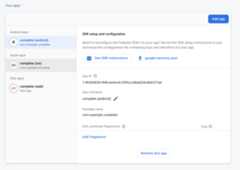
- Select iOS. Note that your application name will be different from the one shown in the screenshot. Where the screenshot says "complete" yours will say "start", if you used the
flutter-codelabs/firebase-auth-flutterfire-ui/startproject to follow along with this codelab. - Click the button that says
GoogleServices-Info.plistto download the configuration file needed.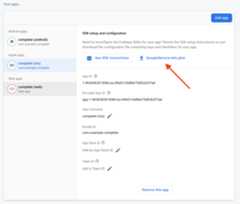
- Drag the downloaded file to the directory called
/ios/Runnerin your Flutter project. - Open Xcode by running the following terminal command from the root of your project:
open ios/Runner.xcworkspace - Right-click on the Runner directory and select Add Files to "Runner".
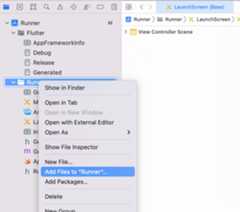
- Select
GoogleService-Info.plistfrom the file manager. - Back in your text editor (that isn't Xcode), add the
CFBundleURLTypesattributes below into theios/Runner/Info.plistfile. Make sure to replaceREVERSE_CLIENT_IDwith the one copied fromGoogleService-Info.plist.<!-- Put me in the [my_project]/ios/Runner/Info.plist file --><!-- Google Sign-in Section --><key>CFBundleURLTypes</key><array><dict><key>CFBundleTypeRole</key><string>Editor</string><key>CFBundleURLSchemes</key><array><!-- TODO Replace this value: --><!-- Copied from GoogleService-Info.plist key REVERSED_CLIENT_ID --><string>REVERSE_CLIENT_ID</string></array></dict></array><!-- End of the Google Sign-in Section --> - Run the command
flutterfire configureagain to update thefirebase_options.dartfile. If the CLI asks if you want to reuse the existingfirebase.jsonfile, select yes. - You need to replace the
GoogleProvider.clientIdthat you added in the web setup with the Client Id associated with your Firebase iOS client ID. First, you can find this ID in thefirebase_options.dartfile, as part of theiOSconstant. Copy the value passed toiOSClientId.staticconstFirebaseOptionsios=FirebaseOptions(apiKey:'YOUR API KEY',appId:'YOUR APP ID',messagingSenderId:'',projectId:'PROJECT_ID',storageBucket:'PROJECT_ID.firebasestorage.app',iosClientId:'IOS CLIENT ID',//FindyouriOSclientIdhere.iosBundleId:'com.example.BUNDLE',); - Paste that value into the
clientIdvariable in thelib/main.dartfile.
lib/main.dart
import'package:firebase_core/firebase_core.dart';import'package:flutter/material.dart';import'app.dart';import'firebase_options.dart';constclientId='YOUR_CLIENT_ID';//ReplacethisvaluewithyouriosClientId.voidmain()async{WidgetsFlutterBinding.ensureInitialized();awaitFirebase.initializeApp(options:DefaultFirebaseOptions.currentPlatform);runApp(constMyApp(clientId:clientId));}If your Flutter app is running in iOS already, you have to shut it down completely and then re-run the application. Otherwise, run the app in iOS.
Configure Android
To use Google Sign-in on Android, you first have to register your app's SHA-1 fingerprint in your Firebase project.
- Navigate to the
androiddirectory in your project and run the following command to generate the signing report for your app:
./gradlew signingReport
- After the command completes, you will see a list of variants and their signing information. Look for the SHA-1 key under the
debugvariant and copy it.

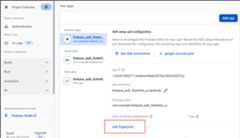
- Navigate to the Project Settings screen in theFirebase console and select your Android app. Click the
Add fingerprintbutton and register the SHA-1 key you copied.
8. Congratulations!
You have completed the Firebase Auth UI for Flutter codelab . You can find the completed code for this Codelab in thefirebase-auth-flutterfire-ui/complete directory on GitHub.
What we've covered
- Setting up a Flutter app to use Firebase
- Setting up a Firebase project in the Firebase console
- FlutterFire CLI
- Firebase CLI
- Using Firebase Authentication
- Using FlutterFire UI to handle Firebase auth in your Flutter app
Next Steps
- Learn more about using Firestore and Authentication in Flutter:Get to know Firebase for Flutter Codelab
- Explore other Firebase tools for building your Flutter application:
Learn more
- Firebase site:firebase.google.com
- Flutter site:flutter.dev
- FlutterFire Firebase Flutter widgets:firebase.flutter.dev
- Firebase YouTube channel
- Flutter YouTube channel
Sparky is here to celebrate with you!

Except as otherwise noted, the content of this page is licensed under theCreative Commons Attribution 4.0 License, and code samples are licensed under theApache 2.0 License. For details, see theGoogle Developers Site Policies. Java is a registered trademark of Oracle and/or its affiliates.